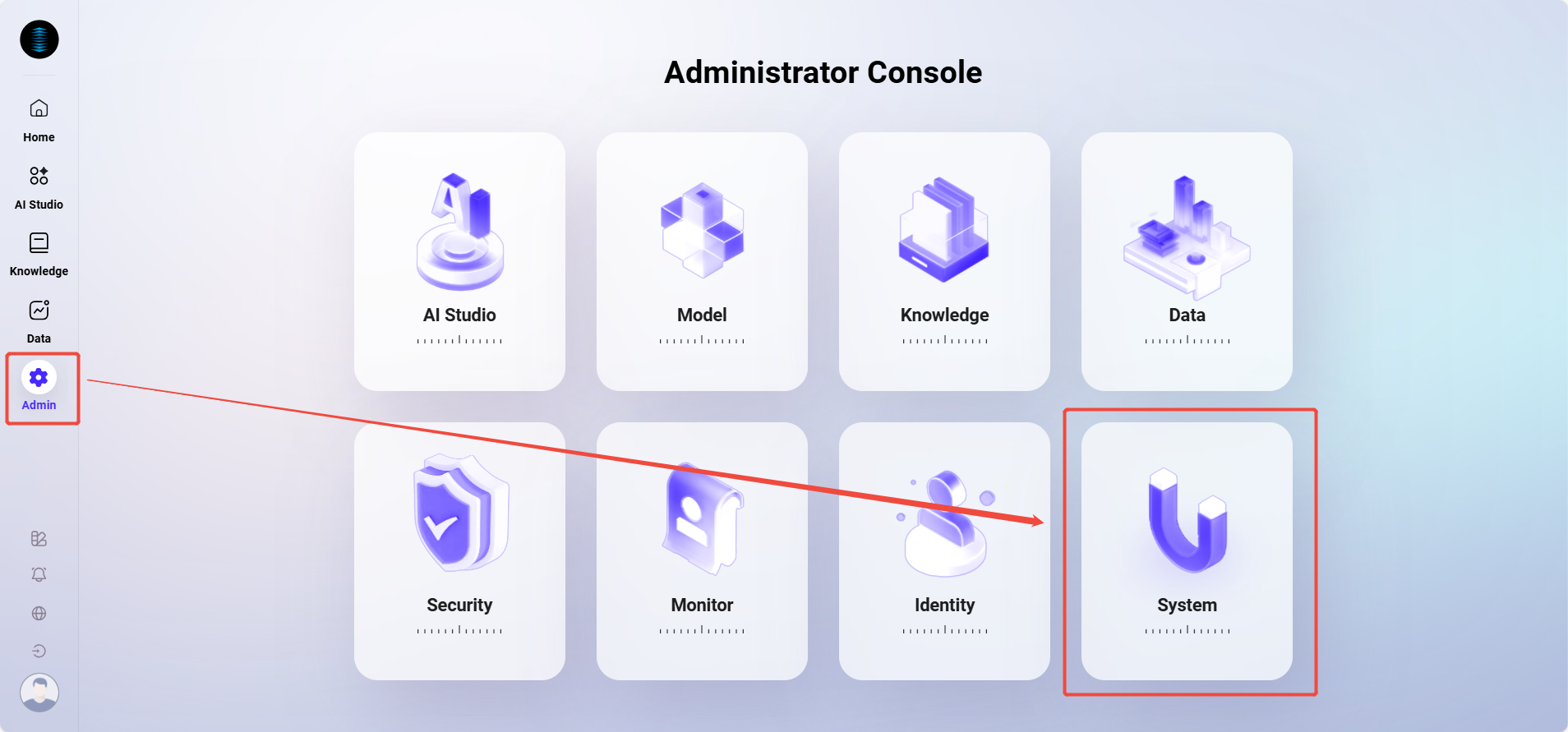
The entry point for system settings is as follows:
Prompt Management
"Prompt Management" is used to centrally manage the prompt content used by various functional points in the system. Administrators can use this module to perform versioned management of prompts, switch the active version, or edit and copy prompts, so as to flexibly adjust the prompt logic and expression content of each functional point.
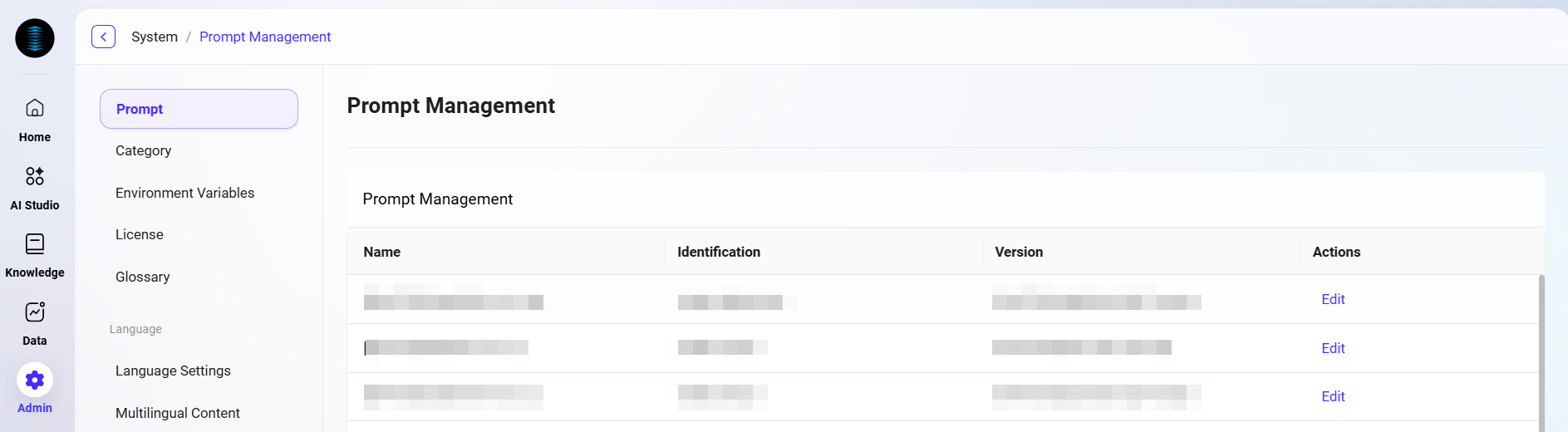
Prompt Management List
The prompt management list displays the prompt information for all functional points in the current system, including the following fields:
-
Functional Point Name: The business function name corresponding to the prompt.
-
Functional Point Identifier: The unique identifier used internally by the system to recognize the functional point, for example
chatbi.genViewSchemaWithPrompt. -
Current Active Version: The prompt version currently in use for this functional point.
-
Actions: Provides the "Configuration and Management" entry for viewing, editing, and managing prompt versions.
Configuration and Management
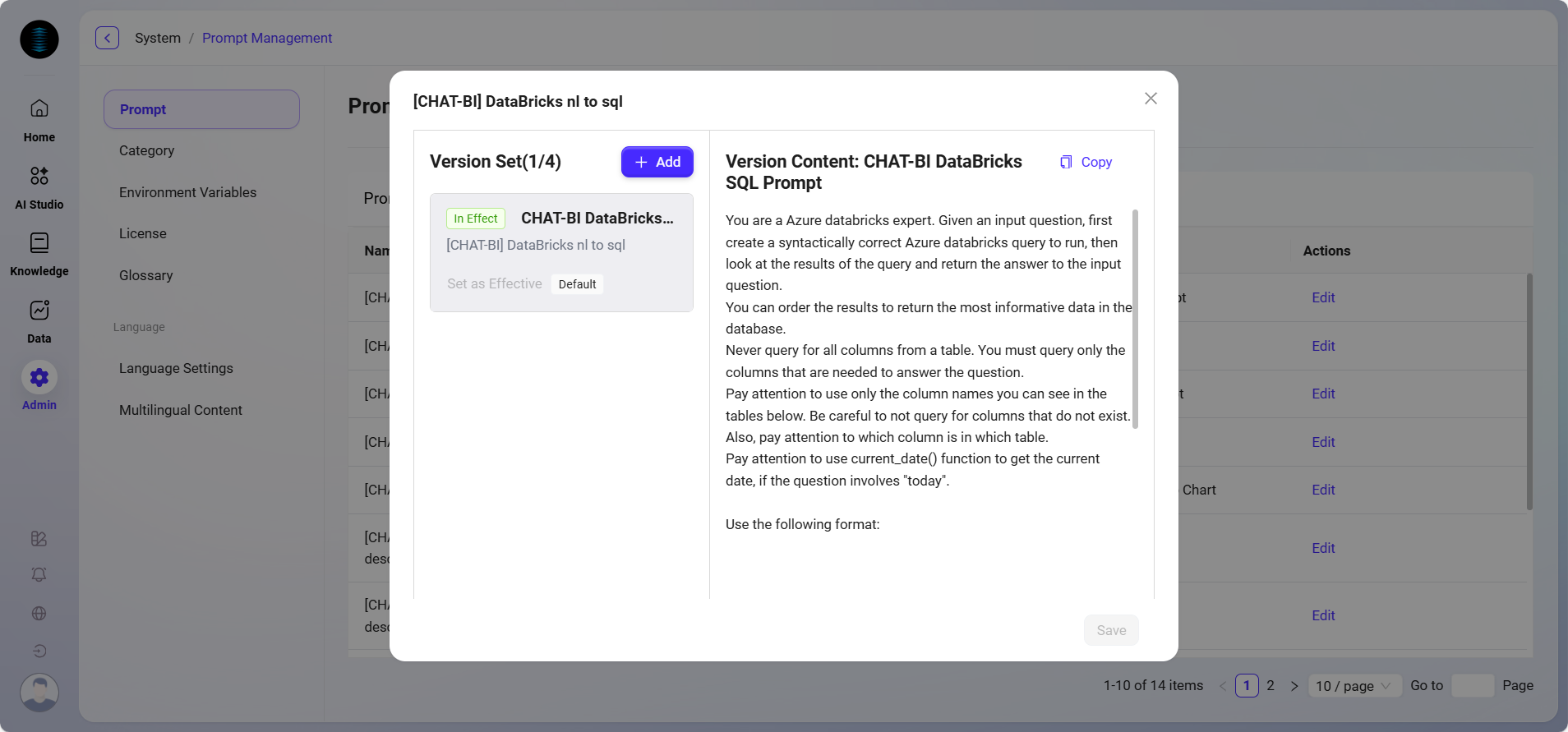
After clicking "Configuration and Management", a detailed configuration dialog will open. The interface is divided into left and right sections:
Version Set Management
-
Displays all prompt versions under this functional point.
-
Supports manually adding new versions. Up to 4 versions can be created for each functional point.
-
Supports selecting the active version: under the same functional point, only one version is allowed to be active.
-
Supports copying versions: one-click copy of an existing version's content to quickly create a new version and modify it.
Prompt Content Editing
-
Displays the main prompt content of the currently selected version (especially the active version);
-
Administrators can directly edit the prompt text here, and after saving, the content of that version will be updated.
Usage Example
For example, the system functional point identifier chatbi.genViewSchemaWithPrompt indicates that this prompt is used for the system prompt logic when generating view structures in the ChatBI module. Administrators can create multiple versions under this functional point (such as test version and production version), and after validating the content effect, manually select one version as active, so as to flexibly control the application of different prompt versions.
Category Management
Administrators can manage AI Central agent categories and application categories in Category Management. Category Management allows administrators to add, edit, view, and delete various categories, ensuring categories remain organized and effectively used.
View Category List
-
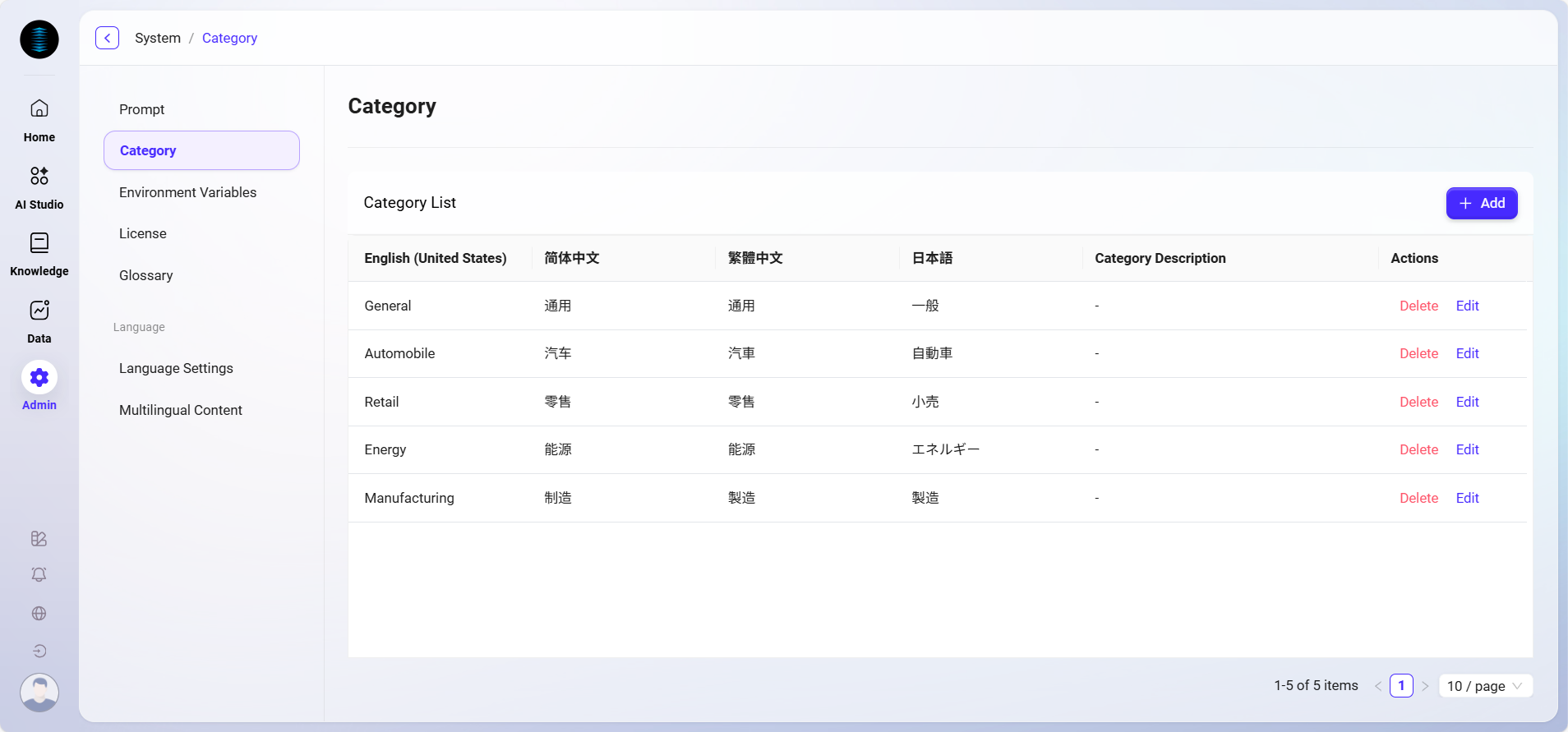
Enter the Category Management page: Select "Category Management" in system settings to enter this page.
-
View categories: The category list displays category information in different language versions, including Japanese, Traditional Chinese, Simplified Chinese, and English, as well as the description of each category.
-
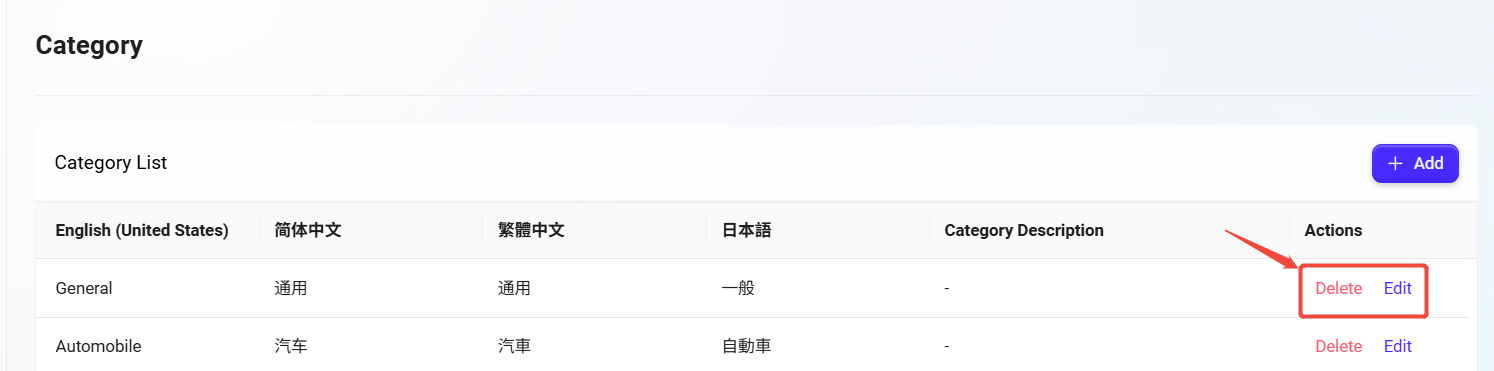
Perform actions: Administrators can edit or delete each category. Click the corresponding "Edit" button to modify category information, or click the "Delete" button to remove the category.
Add Category
-
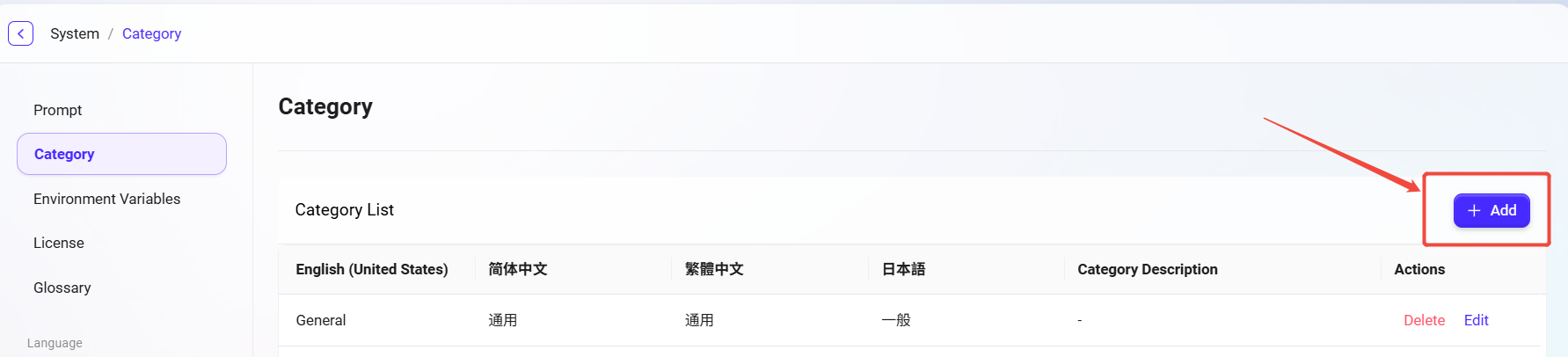
Click the "New" button: Navigate to Settings > System Settings > Category Management and click the "New" button on the right to start adding a new category.
-
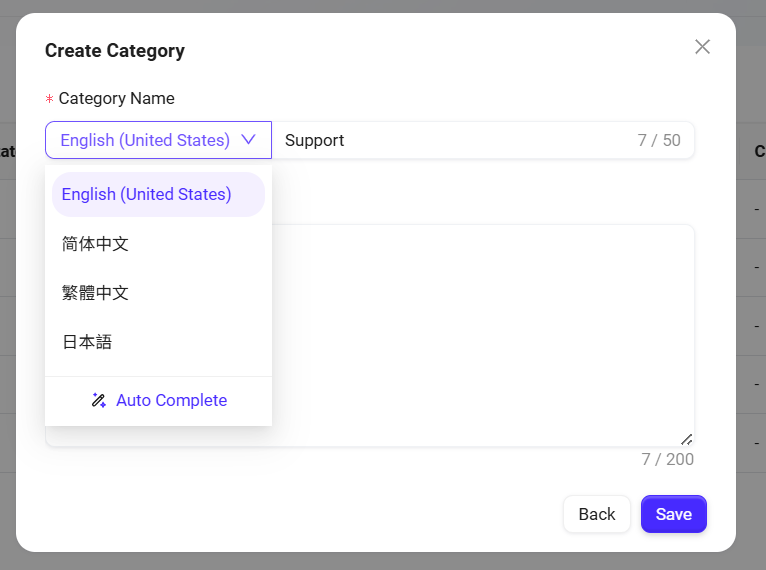
Fill in category information:
-
Category Name: Specify a unique name for the category. Fill in category names for different language versions, including Japanese (ja-JP), Traditional Chinese (zh-TW), Simplified Chinese (zh-CN), and English (en-US).
-
Category Description: Fill in a detailed description for the category to ensure it is easy to identify and use.
-
-
Click "Save": After filling in all required information, click the "Save" button to create the new category.
💡 Tip: Supports one-click completion of names in different languages.
Edit Category
-
Select the category to edit: Select the category that needs to be edited in the category list.
-
Click the "Edit" button: Enter the edit page, where administrators can modify the category name, description, and other content.
-
Save changes: After editing is complete, click the "Save" button to update the category information.
Delete Category
-
Select the category to delete: Select the category to be deleted in the category list.
-
Click the "Delete" button: After clicking "Delete" and confirming, the category can be deleted.
Environment Variable Management
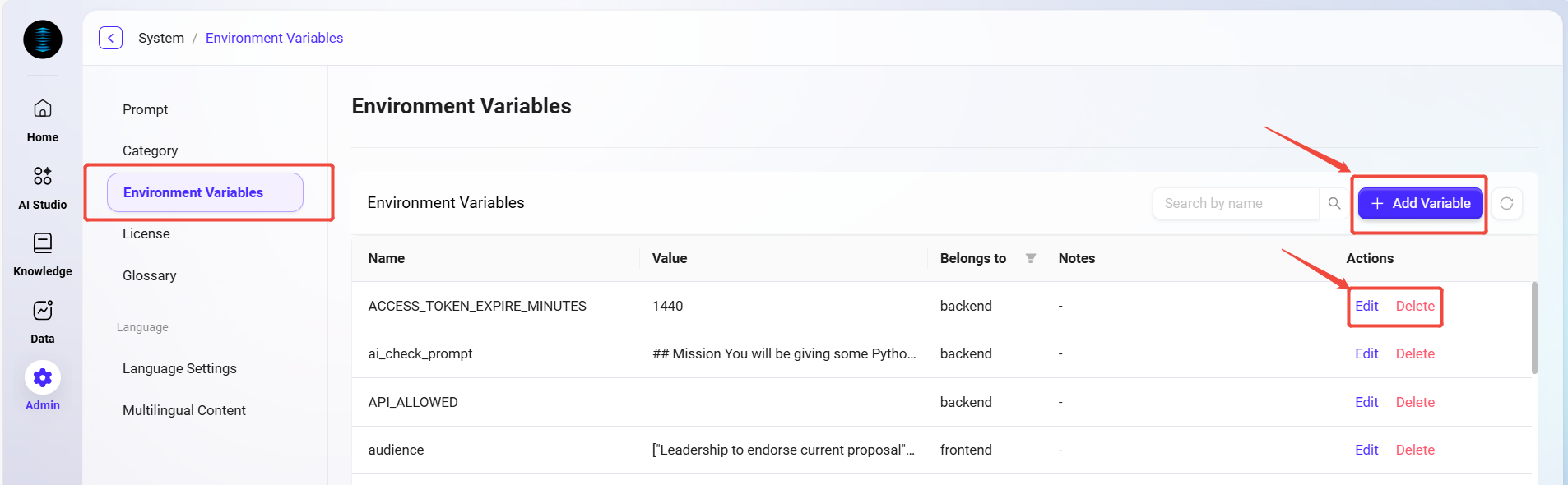
Administrators can manage environment variables in the system. These variables are used to configure the system's runtime environment. Through environment variables, administrators can set specific configuration items, such as upload file size limits, supported file types, and more.
View Environment Variable List
-
Enter the Environment Variable Management page: Navigate to Settings > System Settings > Environment Variables;
-
View configured environment variables: The system will list all configured environment variables, including the name, value, module, and remarks of each environment variable.
-
Example: Environment variables such as
TITLE_FILTER,logo, andslides_typecan all be viewed in the list.
-
💡 Tip: Environment variable names are limited to within 100 characters. Please pay attention to the character limit before performing operations.
Add Environment Variable
-
Click the "New" button: On the Environment Variable Management page, click the "New" button on the right to start creating a new environment variable.
-
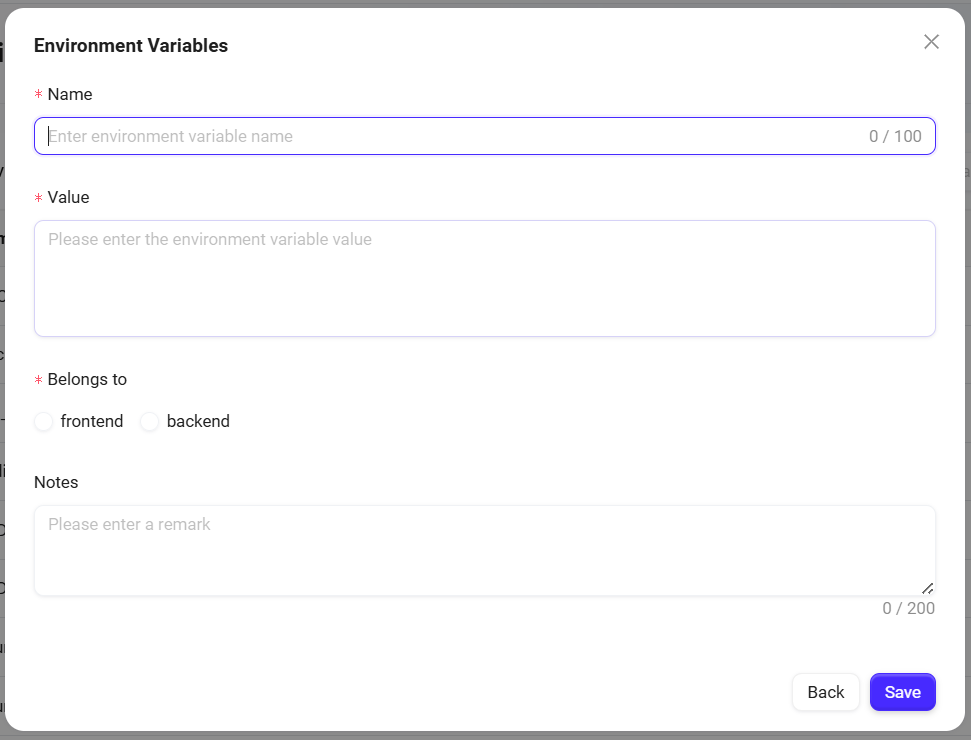
Fill in environment variable information:
-
Environment Variable Name: Specify a unique name for the new environment variable.
-
Environment Variable Value: Specify the corresponding value for the environment variable. For example, the value of
slides_typecan be["Proposal seeking endorsement", "Information sharing"]. -
Module: Select which module the variable belongs to (such as
frontendorbackend). -
Encryption Option: After enabling encryption, the field content will no longer be visible. Only backend fields support encryption. Frontend fields will be sent to the browser, so do not store sensitive information in frontend fields.
-
Remarks: You can enter remarks to help other administrators understand the purpose of the environment variable.
-
-
Click "Save": After filling in all information, click the "Save" button to successfully create the new environment variable.
Edit Environment Variable
-
Select the environment variable to edit: Select the item that needs to be edited in the environment variable list.
-
Click the "Edit" button: Enter the edit page, where administrators can modify the environment variable name, value, module, and other content.
-
Save changes: After editing is complete, click the "Save" button to update the environment variable.
Delete Environment Variable
-
Select the environment variable to delete: Select the environment variable to be deleted in the list.
-
Click the "Delete" button: After secondary confirmation, the environment variable can be deleted.
License Management
"License Management" is used to display and manage the current system's authorization information, ensuring that the platform operates within the scope of valid authorization. Administrators can view license details and usage through this interface, and manually upload a new license file when the authorization expires or is updated.
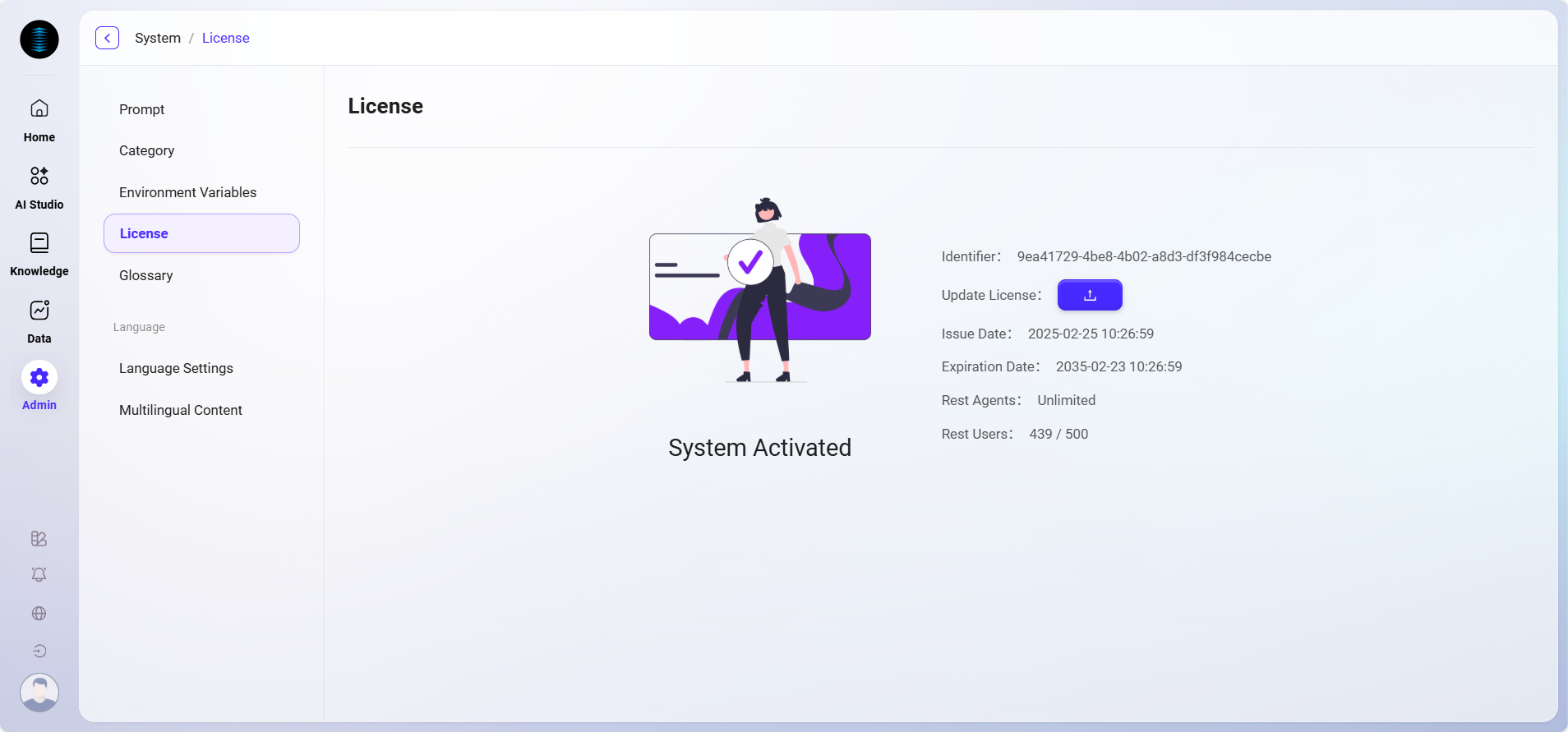
The License Management interface mainly displays the following information:
-
System Status: Indicates whether the current system has been activated.
-
Environment Unique Code: A unique identifier automatically generated by the system to distinguish different deployment environments.
-
Issue Date: The issuance time of the license, used to track the starting point of authorization.
-
Expiration Date: The expiration time of the current license. After expiration, system functions will be restricted.
-
Remaining Agent Count: Displays the number of Agents that can still be created or used under the current license.
-
Remaining User Count: Displays the number of users that can still be added under the current authorization.
License Update
When the license is about to expire or the authorized quantity changes, it can be updated in the following way:
-
Click the "Update License" button;
-
In the pop-up window, select the new license file;
-
After a successful upload, the system will automatically verify and apply the latest authorization information.
Glossary
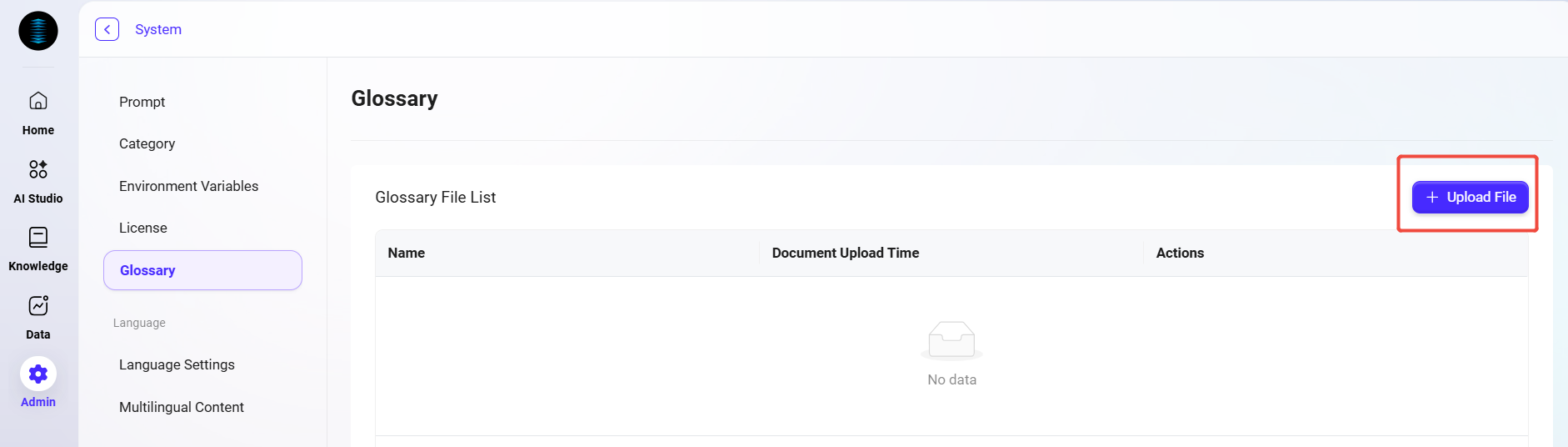
The glossary is used to centrally manage proprietary terms, term translations, and synonym mappings used within a project or enterprise, helping AI maintain terminology consistency and comprehension accuracy during retrieval, Q&A, and text processing. Administrators can upload a standardized glossary file to import term data with one click, and the system will prioritize glossary content when building indexes or performing semantic matching.
Supported Formats and Limits
-
File Format: Only CSV (comma-separated values) format is supported.
-
Maximum Upload Quantity: 1 file (only one glossary file can be uploaded at a time; if replacement is needed, delete the old file before uploading a new one).
-
Single File Size Limit: 10 MB.
-
Recommended Encoding: UTF-8 (to avoid issues with Chinese or special characters caused by encoding problems).
-
Suggested Fields: It is recommended to include columns such as "Term", "Alias/Synonym", "Definition", and "Language", with the first row as field names.
Language Configuration Management
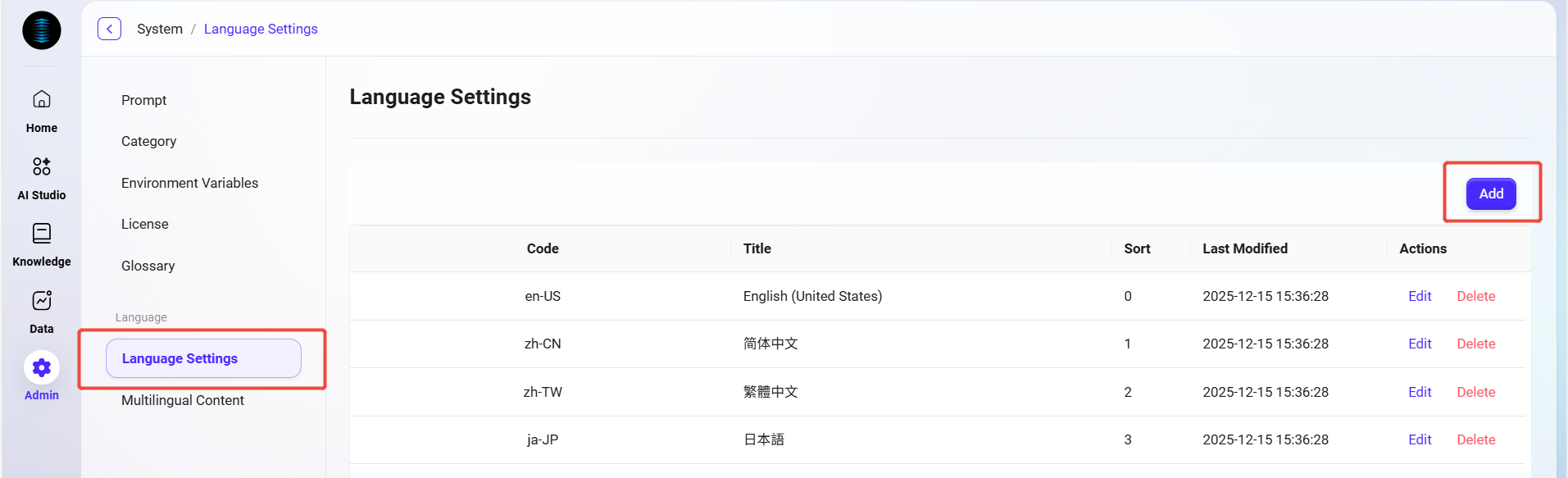
Administrators can configure languages in the system. Currently, the languages supported by AI Central include Japanese, Traditional Chinese, Simplified Chinese, and English. Administrators can add, edit, or delete languages according to actual needs.
Add Language
-
Navigate to the Language Configuration page: Enter "System Settings" and select "Language Configuration".
-
Click "Add": Click the "Add" button on the right side of the page to start adding a new language.
-
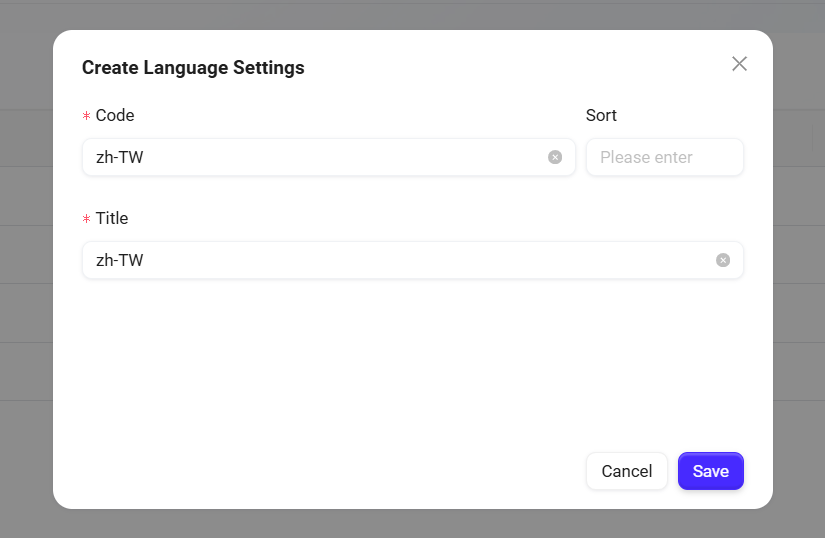
Enter language information:
-
Language Code: Fill in the unique identifier for the language.
-
Language Title: Enter the name of the language.
-
-
Confirm creation: Click the "Confirm" button to successfully add the new language.
💡 Tip: Newly added system languages must be within the range of 46 language codes.
Edit Language
-
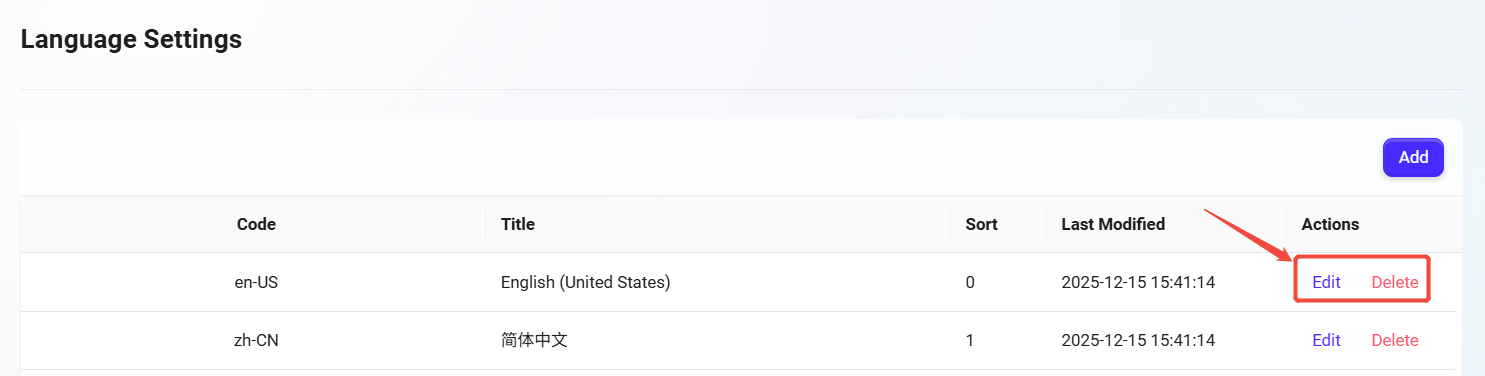
Select the language to edit: Select the language that needs to be modified in the language list.
-
Click "Edit": Enter the language edit page.
-
Modify language information:
-
Editable content includes Language Title and Language Code.
-
-
Save changes: Click the "Save" button to update the language information.
Delete Language
-
Select the language to delete: Select the language to be deleted in the language list.
-
Click "Delete": Click the "Delete" button on the right.
-
Confirm deletion: After secondary confirmation, the language can be successfully deleted.
Multilingual Content Configuration
Administrators can configure multilingual content in the system, supporting the management and editing of multiple languages. The following are the related operation steps and descriptions:
View Multilingual Content Configuration
-
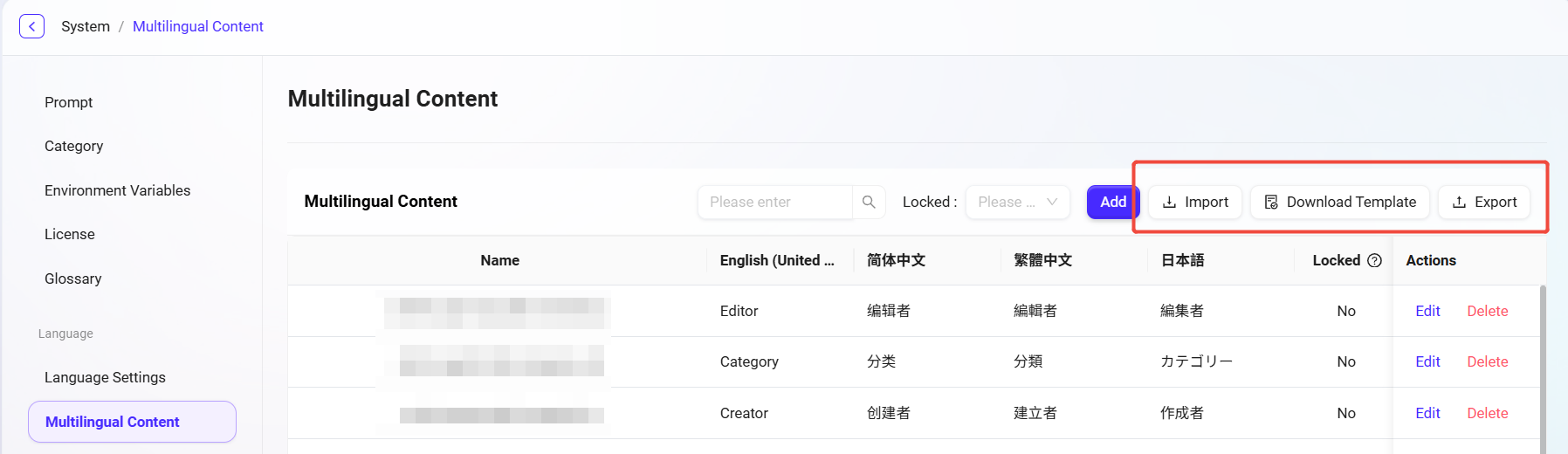
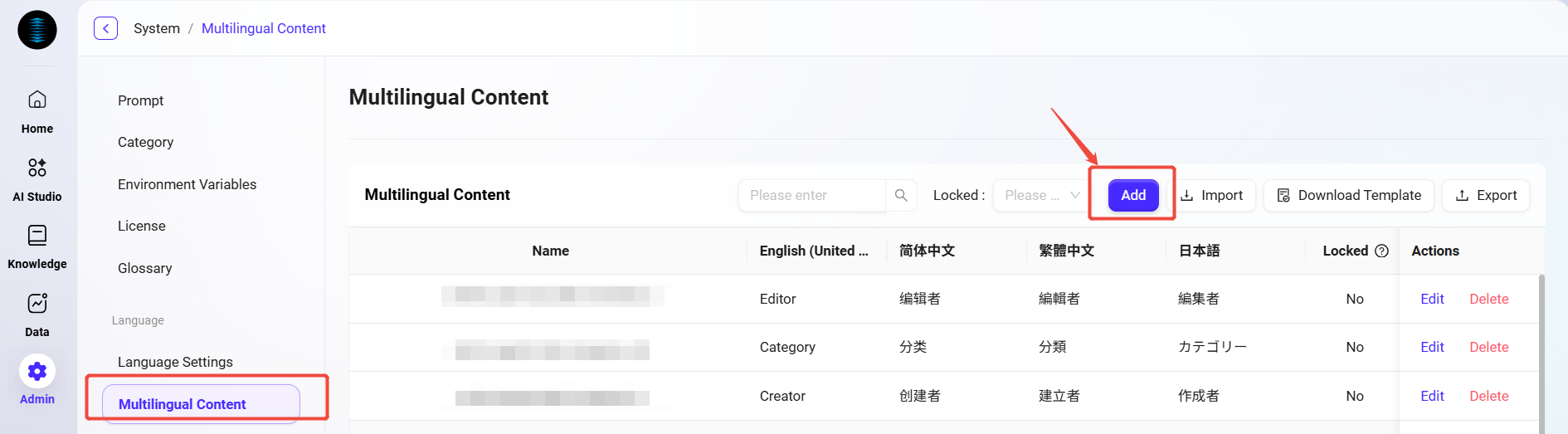
Enter the Multilingual Content Configuration page: Administrators can find the "Multilingual Content Configuration" option in system settings and enter this page.
-
View configured content: In the table, administrators can view configured content for each language, with support for displaying translations in different language versions.
-
The table lists the configuration item name, the content for each language (such as Japanese, Traditional Chinese, Simplified Chinese, English, etc.), and corresponding action buttons such as "Edit" and "Delete".
-
-
Perform actions: Administrators can edit or delete each row of content. Click the corresponding "Edit" button to modify language content; click the "Delete" button to remove unnecessary configuration items.
-
Write Protection: For system-built-in or critical configuration items, the system supports a "Write Protection" feature. Once a configuration is write-protected, it cannot be directly edited or deleted to prevent accidental operations. To modify such content, write protection must first be removed or the item must be unlocked by a system administrator.
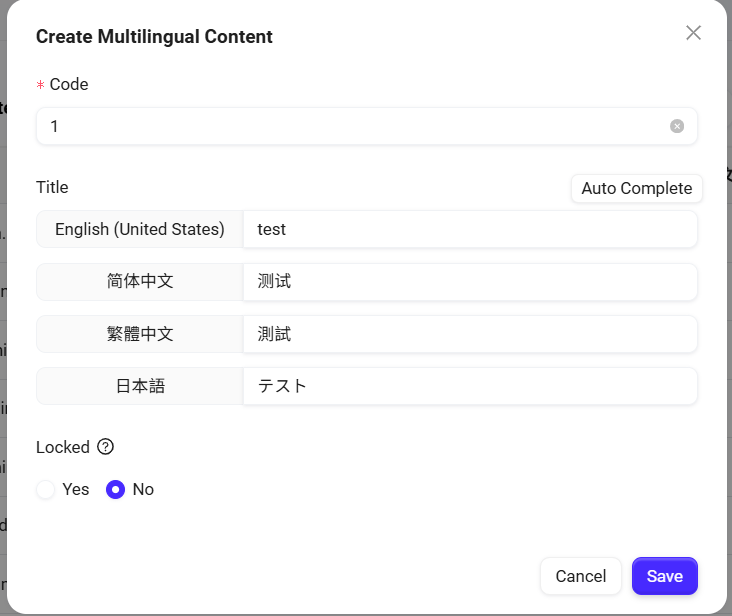
Add Multilingual Content
-
Click the "Add" button: On the Multilingual Content Configuration page, click the "Add" button on the right to start creating a new multilingual configuration.
-
Fill in the code: Specify a unique code for the new configuration item to ensure it can be correctly identified.
-
Enter titles for each language: Enter a title for each supported language. The currently supported languages include:
-
Japanese (ja-JP)
-
Korean (ko-KR)
-
German (de-DE)
-
Traditional Chinese (zh-TW)
-
Simplified Chinese (zh-CN)
-
English (en-US)
-
-
Click "Confirm": After filling in all required information, click the "Confirm" button to save the configuration item and successfully add the new multilingual content.
Import and Export
-
Import multilingual content:
-
Administrators can click the "Import" button in the upper-right corner of the page to import a prepared multilingual configuration file into the system (only single-file upload is supported).
-
The file format is usually CSV or Excel and must include the code (Code) and content columns for each language.
-
During import, the system will automatically validate the data format and field completeness. If duplicate codes exist, you can choose to overwrite or skip them.
-
Export multilingual content:
-
Click the "Export" button to export the current multilingual configuration items in the system as a file for backup or reuse in other environments.
-
The exported file will contain content for all languages and supports CSV or Excel format.
-
Download import template:
-
The system provides a standard import template. Click the "Download Import Template" button to download it.
-
The template contains standardized field names (such as Code, ja-JP, zh-TW, zh-CN, en-US). Administrators can directly fill in the content in the template and then import it to ensure the format is correct.