
After completing the configuration of data sources, data catalogs, and business domains in the data assets module, you can apply this data to Agents to enable data-driven intelligent Q&A or business automation capabilities.
This type of Agent is called a Data-Based Agent (Data Agent). It can directly access tables and views in business domains, thereby enabling more accurate and evidence-based responses or operations.
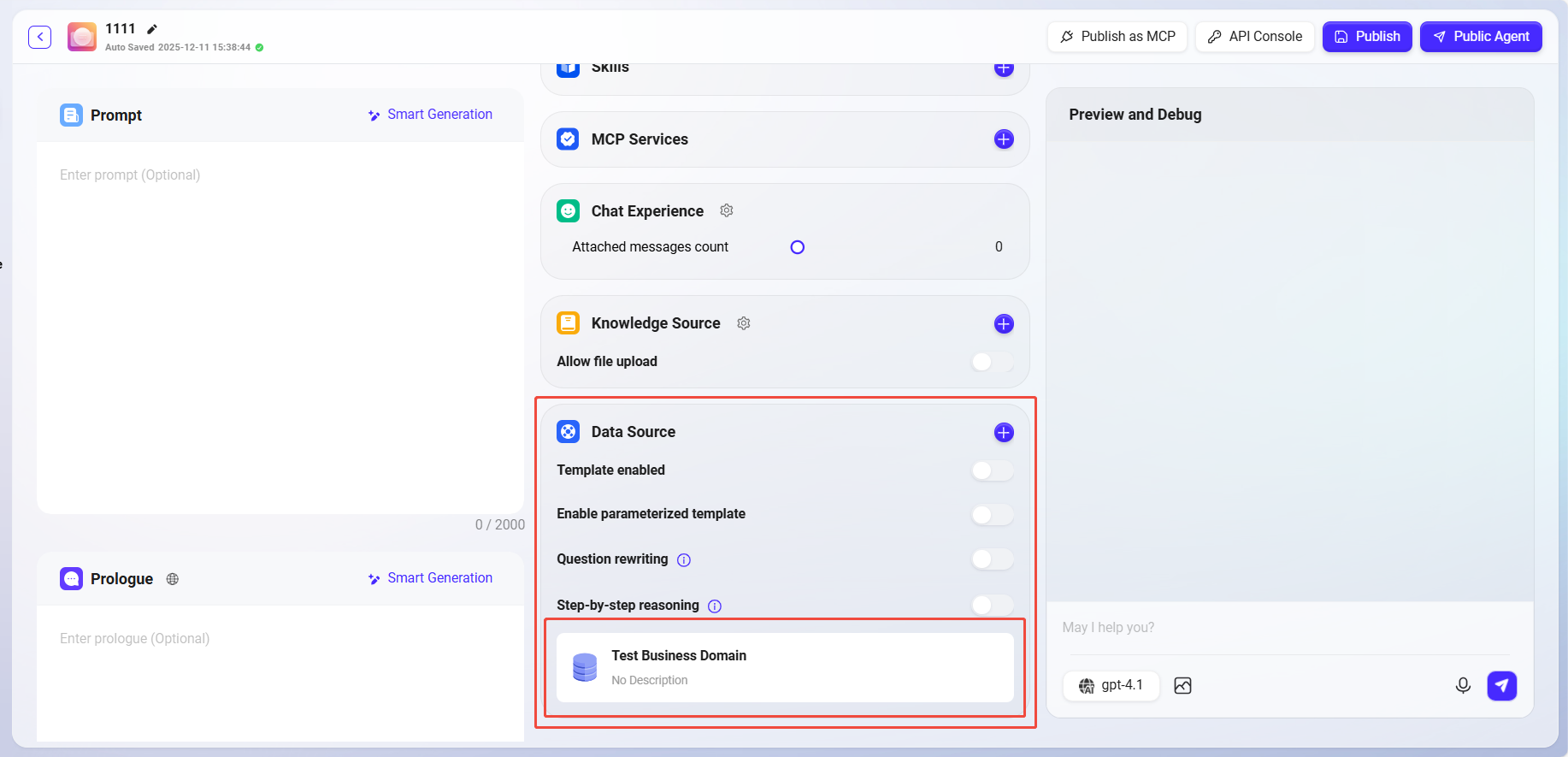
Configure Data Sources in a Basic Agent
-
Go to the Basic Agent Configuration page;
-
Locate the "Data Source" section and click the "+" button on the right;
-
Select the data source to add from the pop-up list (which actually corresponds to the previously configured business domain);
-
Click Confirm and save the Agent configuration;
-
Publish the Agent.
After completion, the Agent can call tables or views in the data source in real time during Q&A, enabling queries and responses based on actual business data.
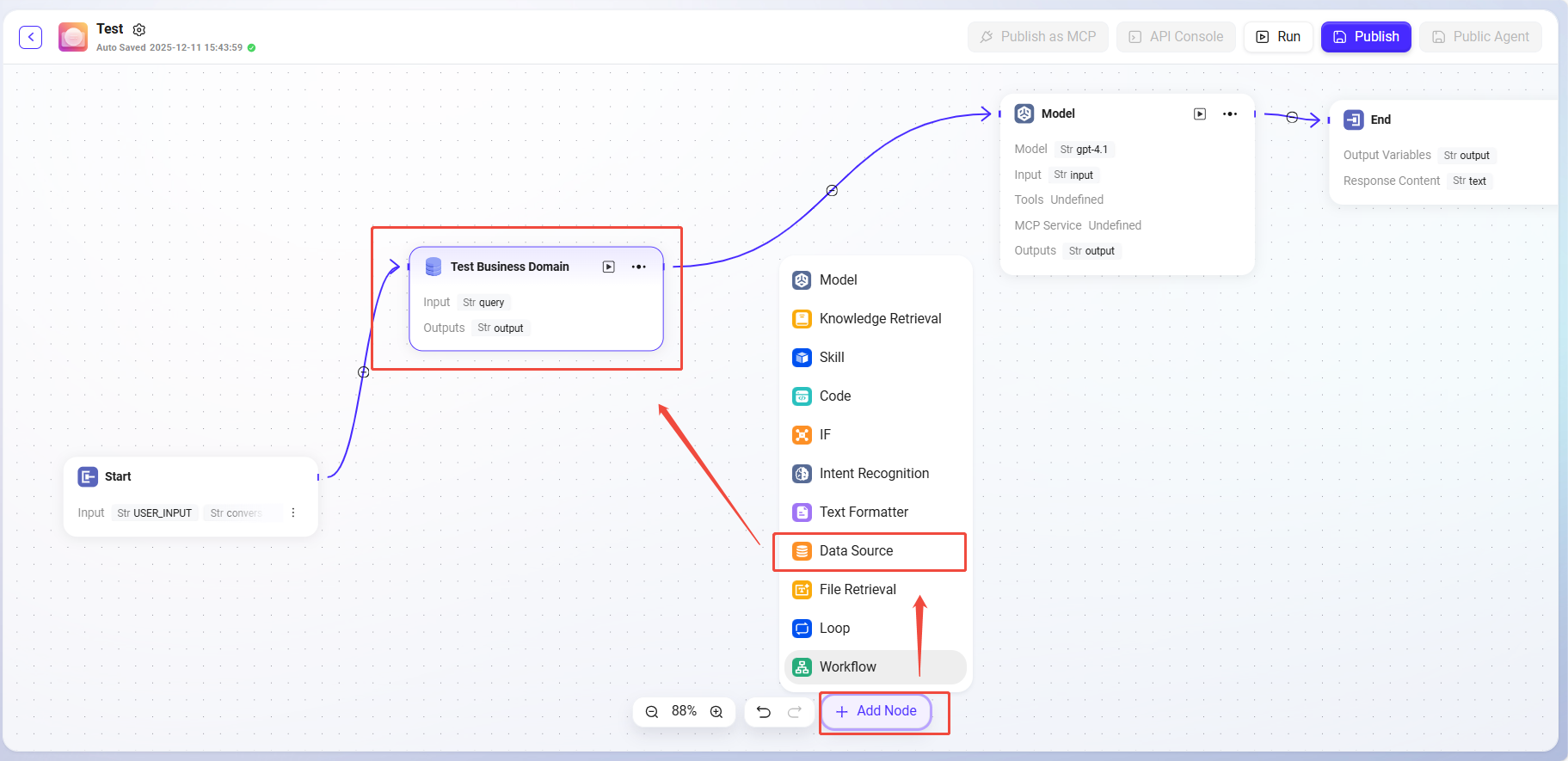
Configure a Data Source Node in an Advanced Orchestration Agent
-
Open the Advanced Orchestration Agent page;
-
Click "Add Node" and select Data Source Node as the node type;
-
Select the corresponding data source (that is, the business domain) from the list;
-
Place the node at an appropriate position in the workflow and connect it with other logical nodes (such as conditional judgment, API calls, knowledge Q&A, etc.);
-
Save and publish the workflow.
After publishing, the Agent will automatically call the configured data source node according to the orchestration logic during execution, thereby introducing real-time data into Q&A or business decision-making.
Notes and Best Practices
-
Keep business domains consistent with data synchronization
If the table structure or fields in a business domain are updated, you need to resynchronize them in data assets; otherwise, missing fields or query errors may occur when the Agent calls them. -
Data source permission control
Ensure that the data source bound to the Agent has access authorization to avoid insufficient query permissions or connection failures. -
Use data nodes appropriately
In advanced orchestration, data nodes should be placed reasonably according to business logic to avoid repeatedly calling the same data multiple times in a single session, thereby improving response speed and performance.
Q&A Effect of a Data-Based Agent
After the data source configuration is completed, you can enter the Agent conversation interface to test the effect of the ticket analysis agent. The following is an example interaction flow for this case:
-
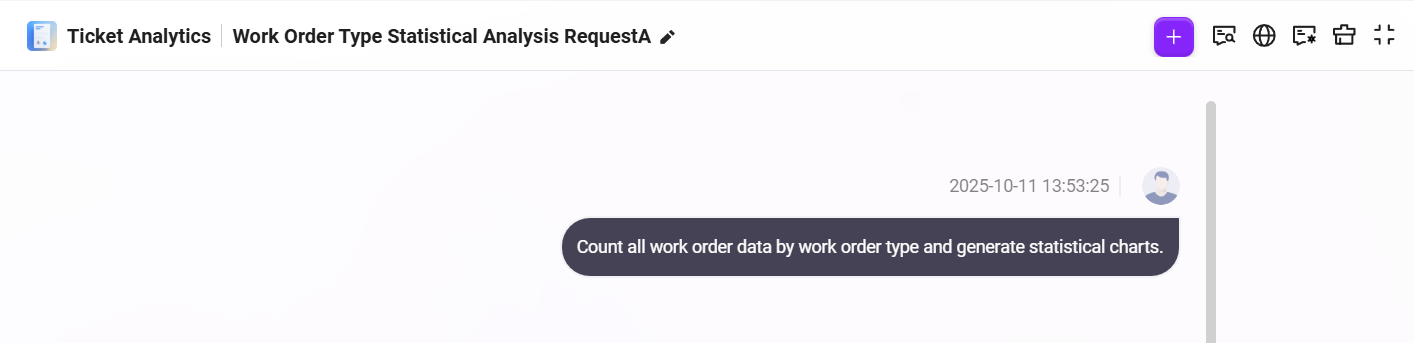
Enter a natural language request in the dialog box
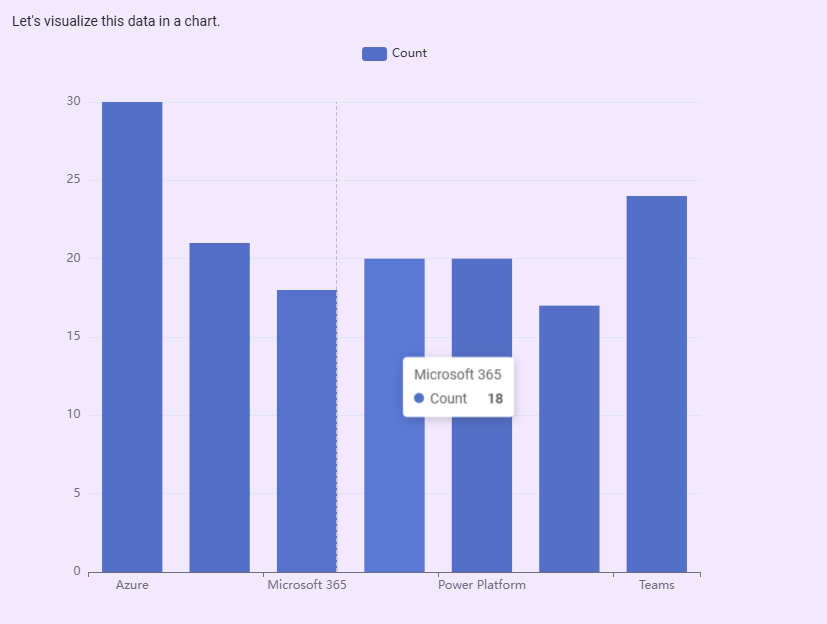
Please help me summarize all work order data by work order type and generate a statistical chart.
As shown below:
-
The Agent will first extract all ticket data from the data source, classify and summarize it based on the
categoryfield, and output the quantity statistics for each ticket type;
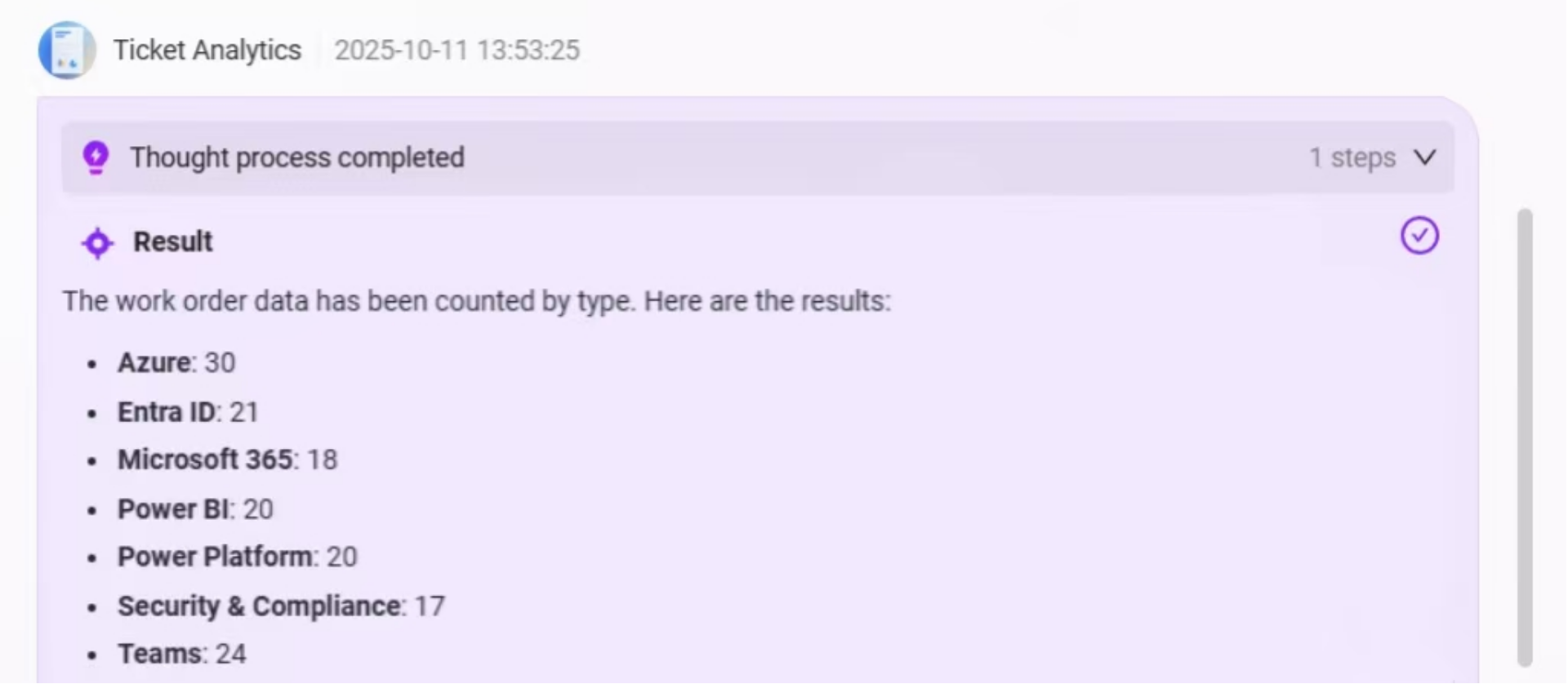
3.Then, the system will automatically generate a bar chart based on the statistical data to more intuitively display the comparison of ticket quantities across categories, helping users quickly identify high-frequency issue types;
-
Below the chart, the system will also provide an Intelligent BI Analysis Area, supporting the following functions:
-
Data Preview: View the raw data used to generate the chart;
-
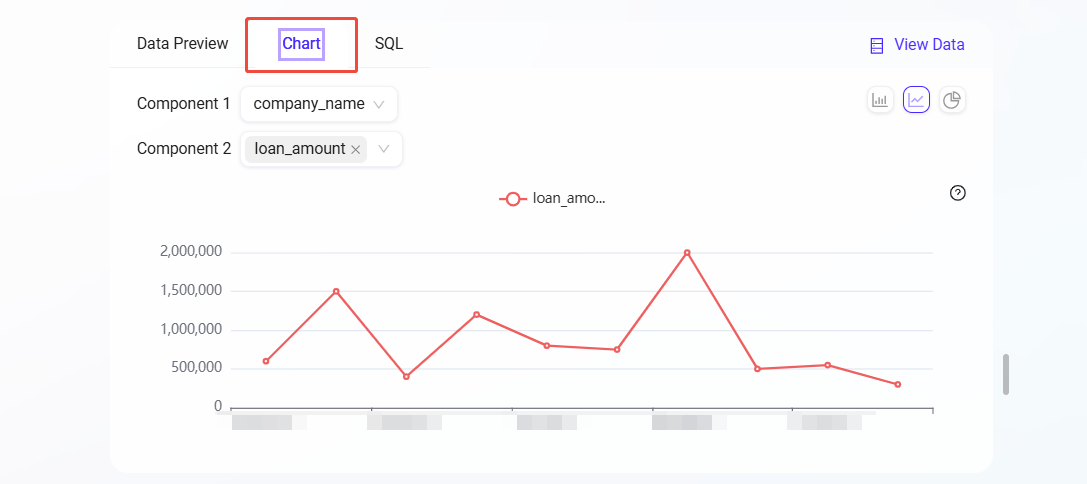
Chart Editing: Switch the bar chart to a line chart, pie chart, etc., and customize the X-axis and Y-axis fields;
-
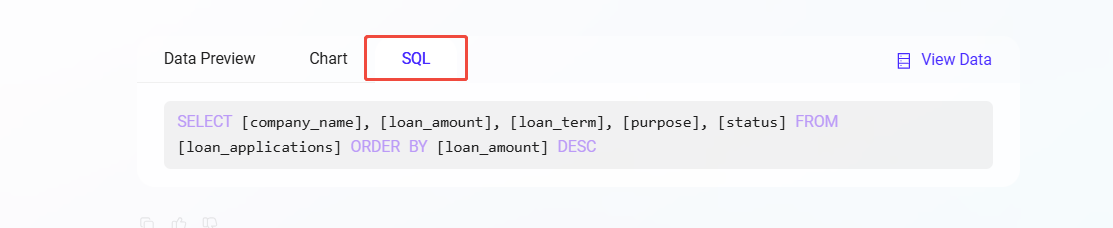
SQL Query View: View and copy the SQL query statement behind the current analysis for further analysis or reuse;
-
View Data: Click to jump to the original data table view;
-
Intelligent Insights: After clicking, the system will further provide automated insight results based on the current data, such as trend analysis and anomaly detection.
-
Data Preview:
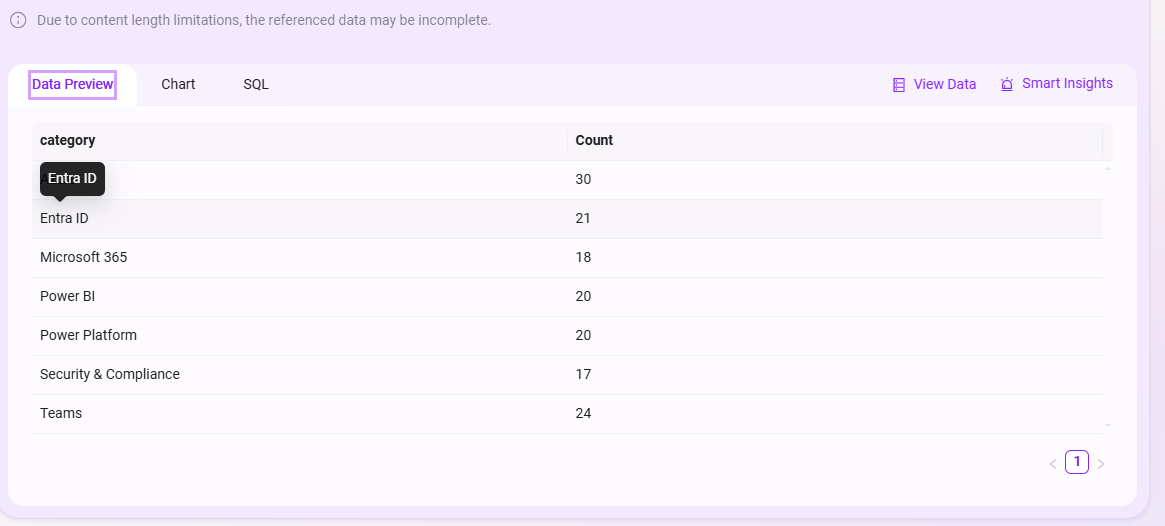
Chart Editing:
SQL View:
The overall Q&A effect is as follows:
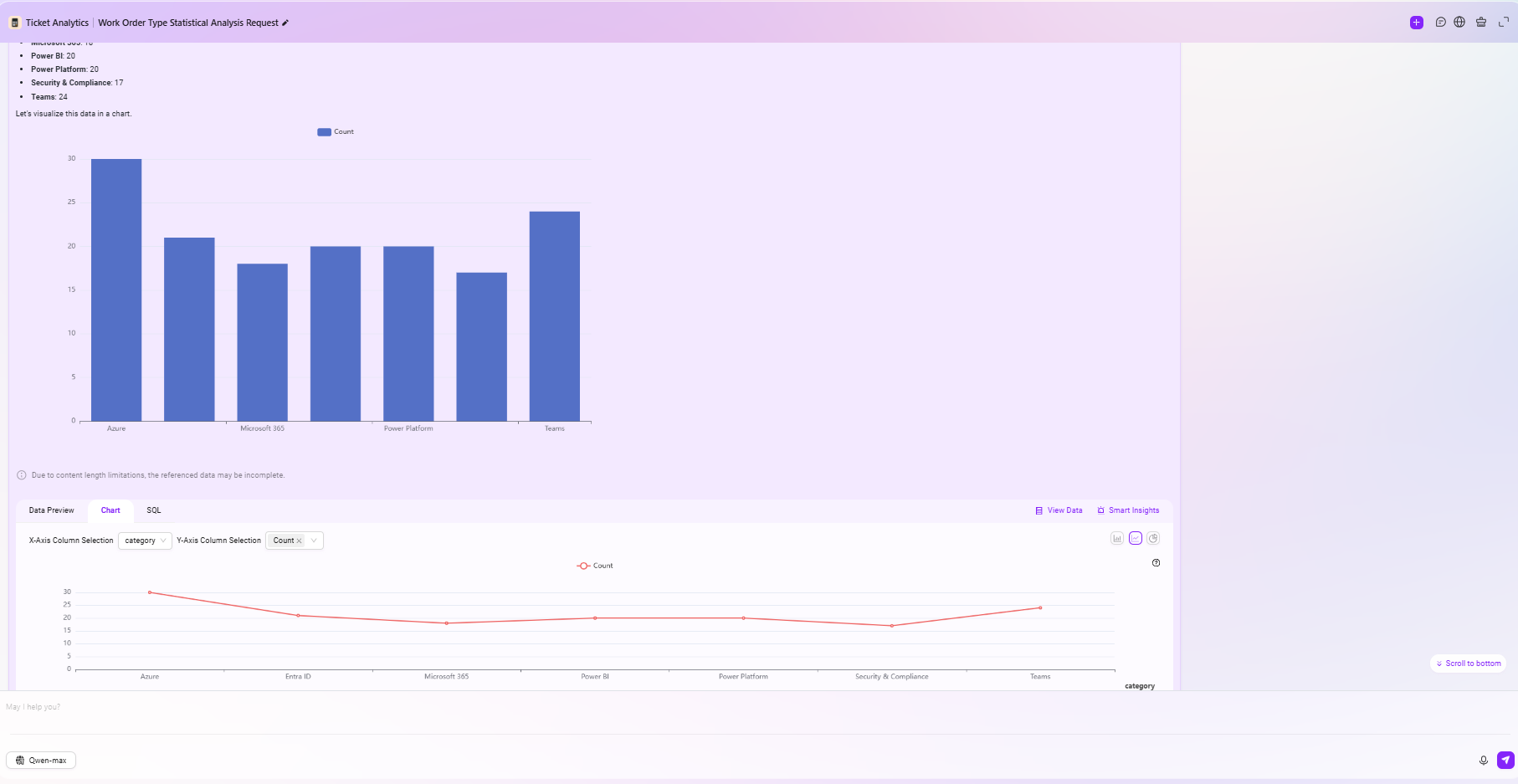
By configuring business domains into the Agent, AI Central achieves a complete linkage from data assets to agents, enabling Agents to go beyond relying solely on knowledge Q&A and instead perform intelligent queries, analysis, and decision-making based on real enterprise data.