This case uses an AI technology company specializing in large language model development as an example to demonstrate how to solve the problem of scattered and hard-to-find internal knowledge by creating a centralized enterprise knowledge base and configuring a professional AI assistant. The system can provide accurate and unified answers based on internal company documents (such as technical papers, API documentation, etc.), improving team collaboration efficiency.
Create Enterprise Knowledge Space "AI Technology"
Establish a unified classification container to centrally manage knowledge from different business domains, making it easier to set up independent knowledge bases and permissions by project or technical field.
-
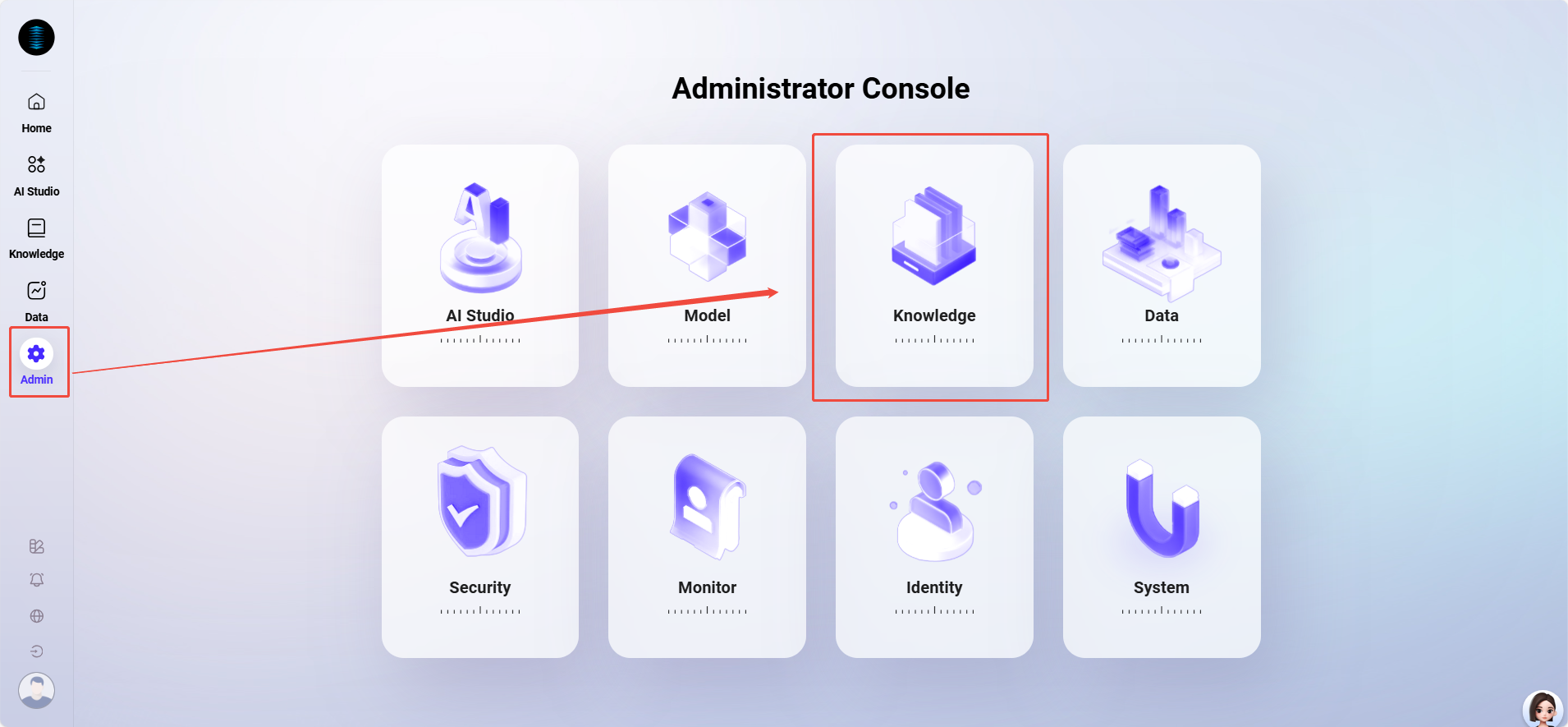
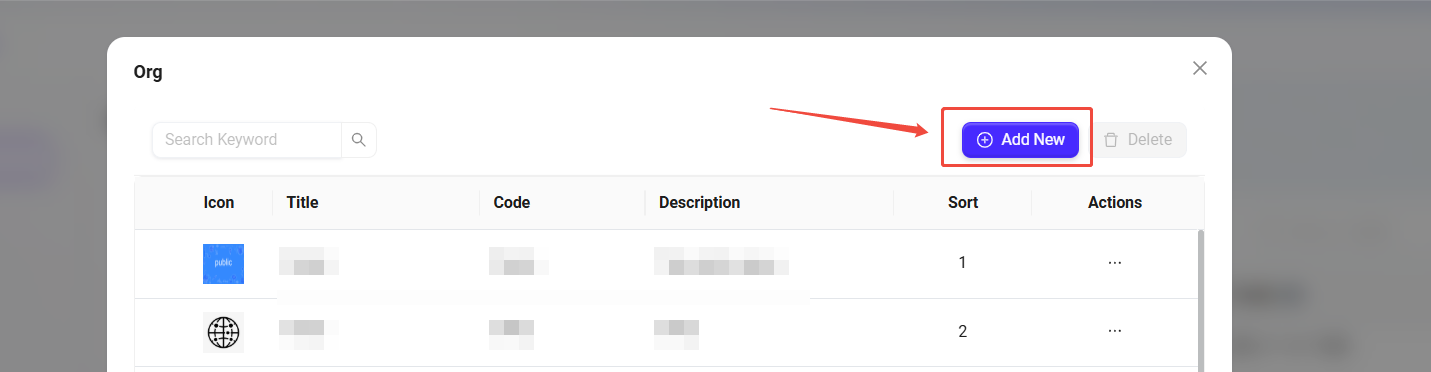
Navigate to "Admin -> Knowledge -> Organization"
-
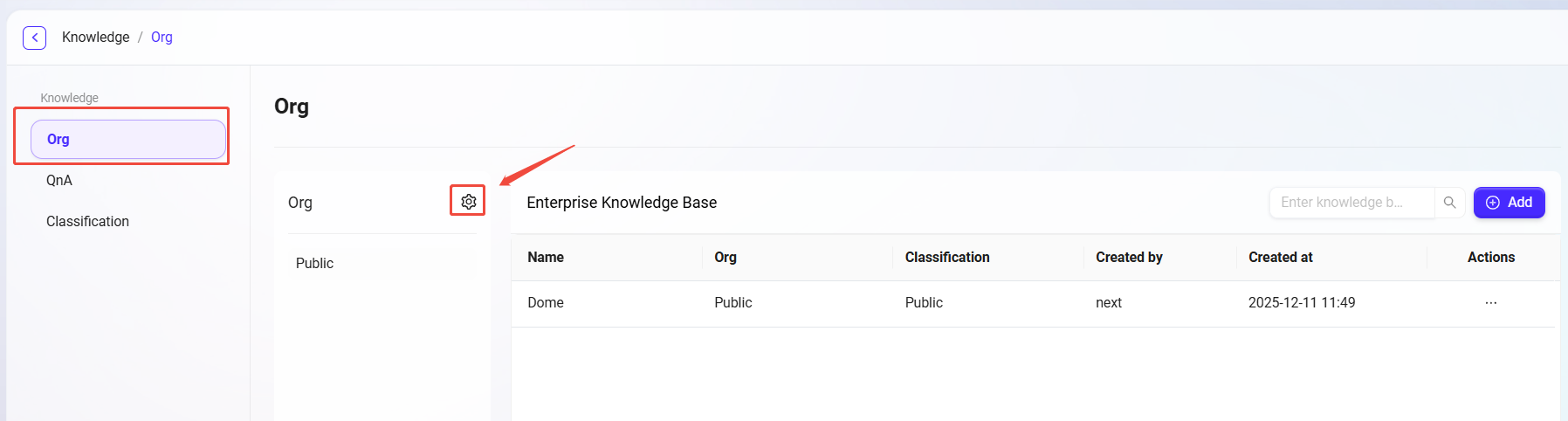
Click the "⚙️" next to the enterprise space to enter the enterprise space configuration page.
-
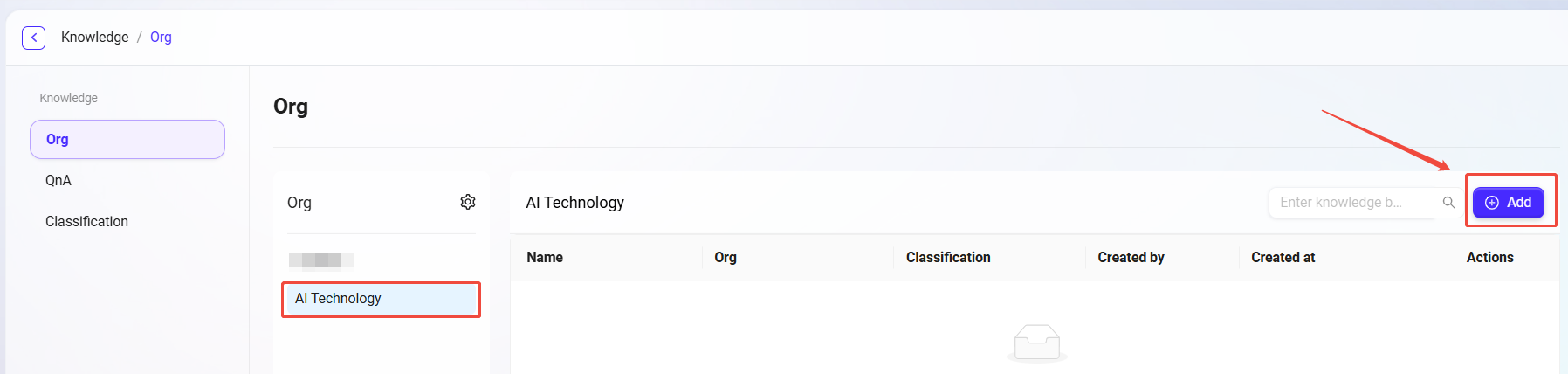
Click "Add" on the right to enter the new enterprise space page.
-
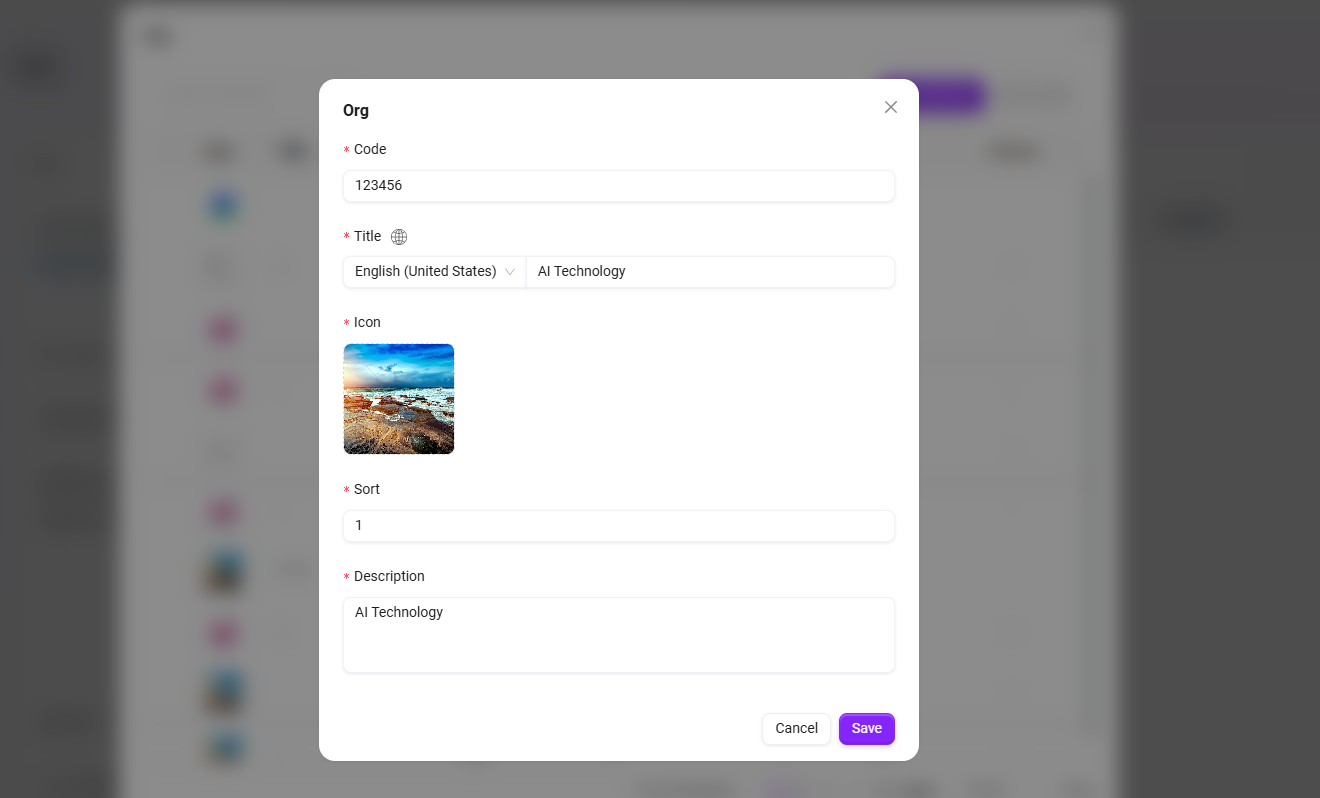
Enter the following basic information:
-
Number: Enter
123456. -
Title: Enter
AI Technology. -
Icon: Upload an image from your local device.
-
Sort: The order of this space in the enterprise spaces. In this case, set to
1. -
Description: For example,
AI Technology.
-
-
Click "Save" to successfully create the enterprise space.
Create Enterprise Knowledge Base
Establish detailed knowledge bases within the knowledge space by technical field to achieve precise document classification and permission control.
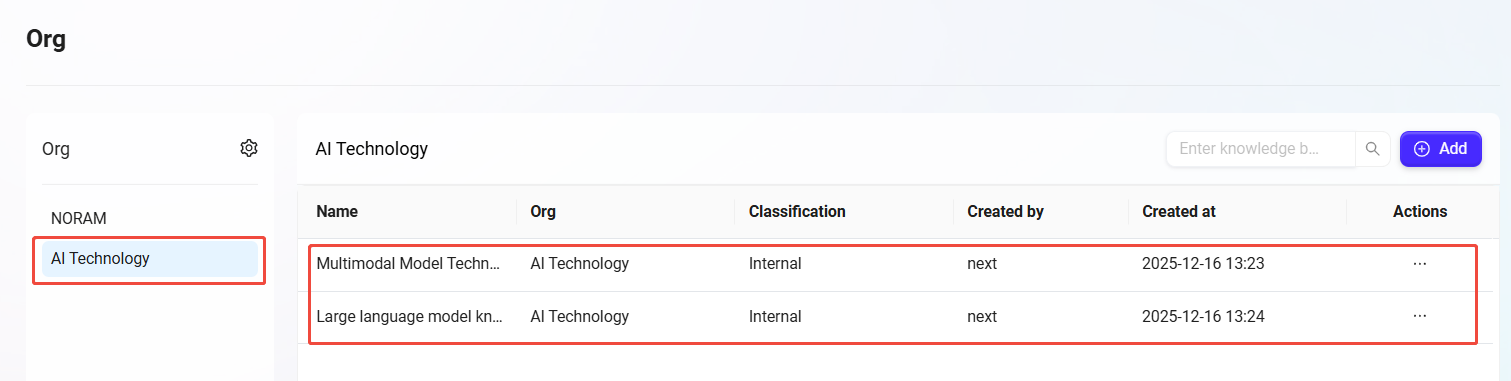
We will create two knowledge bases in the "AI Technology" enterprise space: Multimodal Model Technology Library and Large Language Model Knowledge Base, making it easier to manage documents by technical domain.
Creation Steps
-
Click the newly created enterprise space "AI Technology", then click "Add" in the upper right corner;
-
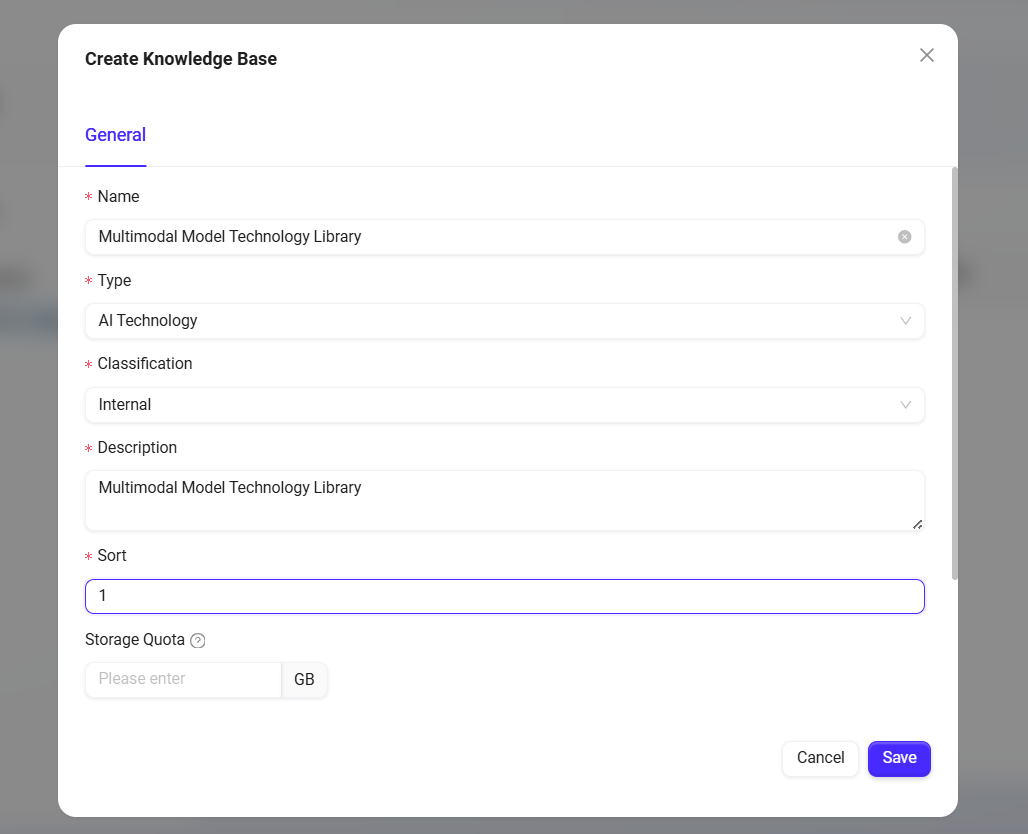
Enter general information:
-
Name: Enter
Multimodal Model Technology Library -
Type: Automatically displays
AI Technology -
Classification: Select
internal -
Description: For example,
Multimodal Model Technology Library -
Sort:
1. -
Description: For example,
Multimodal Model Technology Library.
-
-
Click "Save" to successfully add the "Multimodal Model Technology Library" knowledge base to the "AI Technology" enterprise space.
-
Similarly, create another knowledge base named
Large language model knowledge base, with sort order2.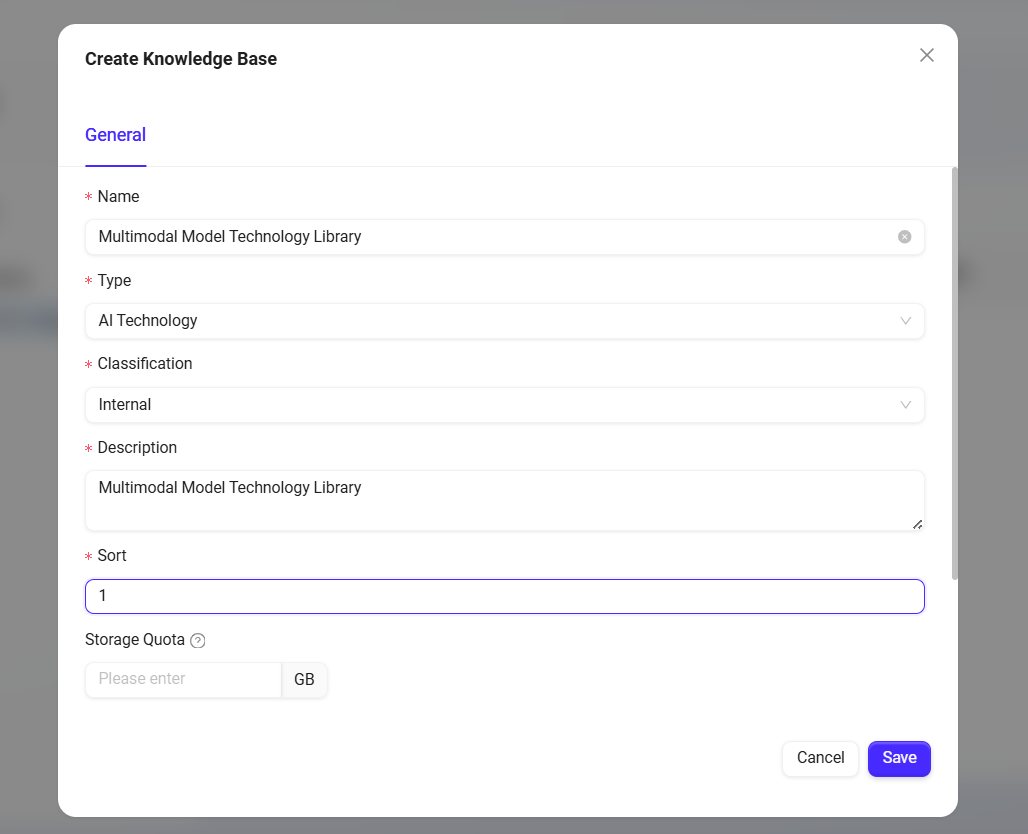
Knowledge Base Space Configuration
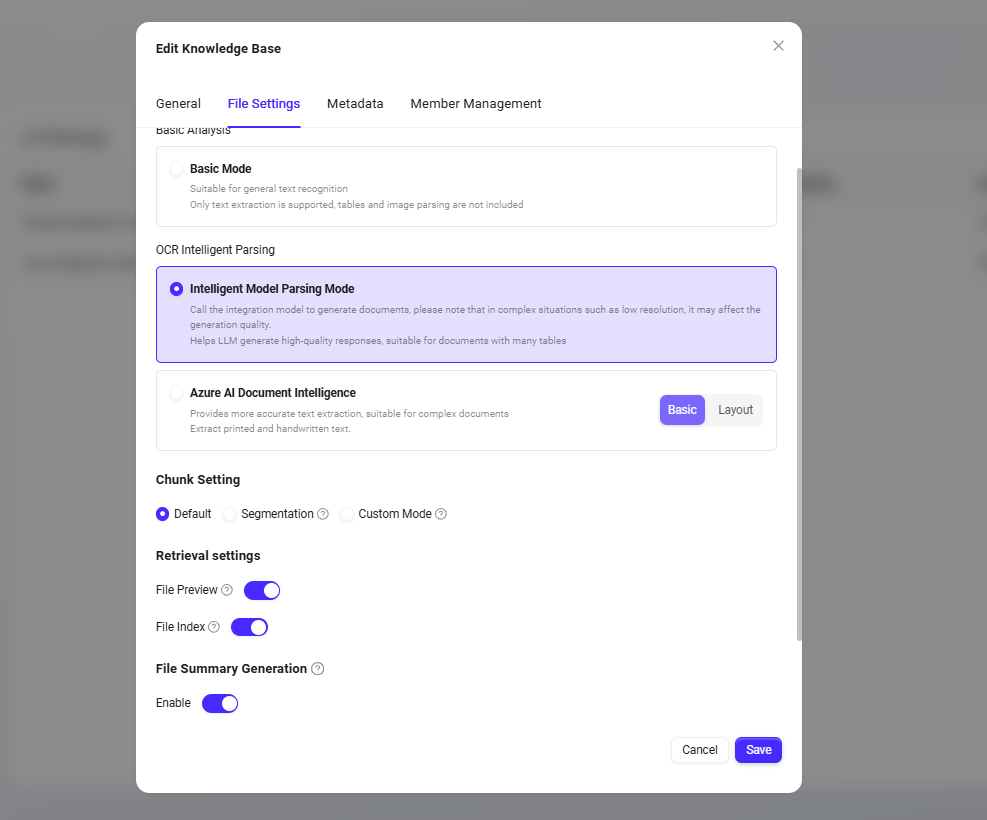
File Settings
Indexing Method:
-
Basic Analysis: Suitable for general text recognition; choose basic parsing when files do not contain tables or images.
-
OCR Intelligent Parsing:
-
Intelligent Model Parsing Mode: Calls the integrated model to generate documents. Please note that quality may be affected in complex situations such as low resolution. Helps LLM generate high-quality answers and is suitable for documents containing many tables.
-
Azure AI Document Intelligence: Provides more accurate text extraction, suitable for complex documents, including printed and handwritten text extraction.
-
-
✅ In this case, it is recommended to use: OCR Intelligent Parsing with "Intelligent Model Parsing Mode", which can more accurately extract structured information from documents, ensuring completeness and accuracy in subsequent knowledge retrieval.
Chunk Setting:
-
Segmentation modes include: Default , Segmentation, Custom Mode.
-
✅ In this case, it is recommended to use: Default , which ensures the coherence of related concepts and context, improving the accuracy of subsequent retrieval.
Retrieval Settings:
-
File Preview: Controls whether files (documents, images, videos, audio) in the knowledge base support online preview.
-
File Index: Sets whether various resources (documents, images, videos, audio) in the knowledge base are included in the global search index. If disabled, the corresponding resources cannot be retrieved by keywords.
-
✅ In this case, it is recommended to: Enable all, ensuring that all technical documents, code specifications, and research reports can be fully text searched and previewed online, making it easier for R&D personnel to quickly find and reference.
File Summary Generation:
-
If users often ask questions such as "Please summarize the XXX document" or "What does the file named XXX describe", this feature should be enabled.
-
✅ In this case, it is recommended to: Enable by default, automatically generating summaries for technical papers, API documentation, etc., to better support document summary queries.
Member Permission Configuration
Assign appropriate document access permissions according to different roles to ensure the security of technical materials.
-
Roles and requirements:
-
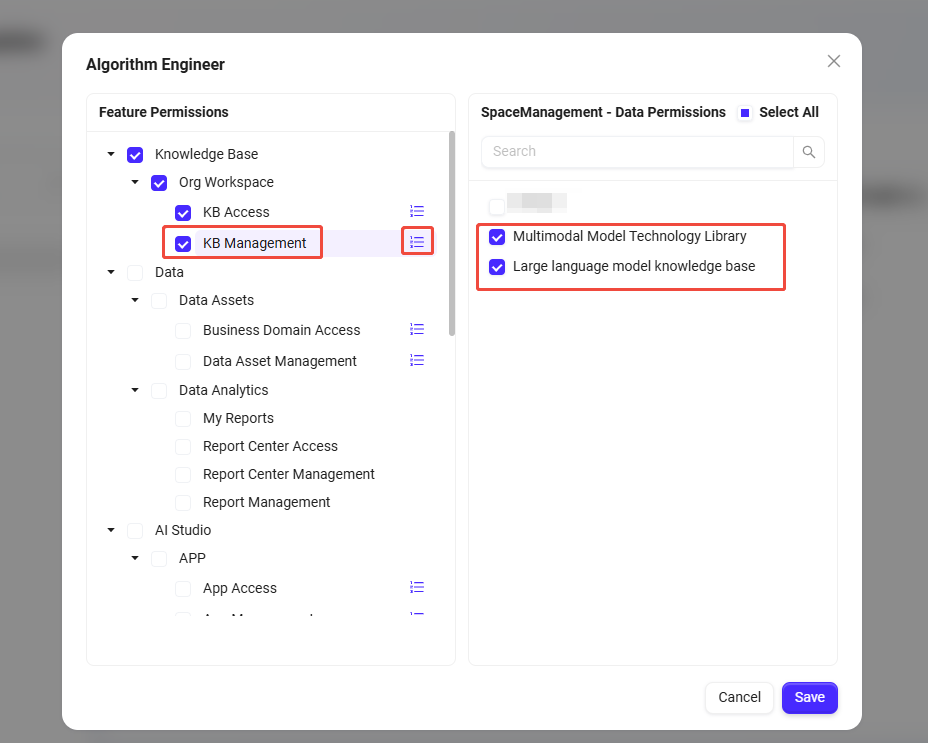
Algorithm Engineer: Participates in both "Multimodal Model" and "Large Language Model" project teams and needs access to all technical documents.
-
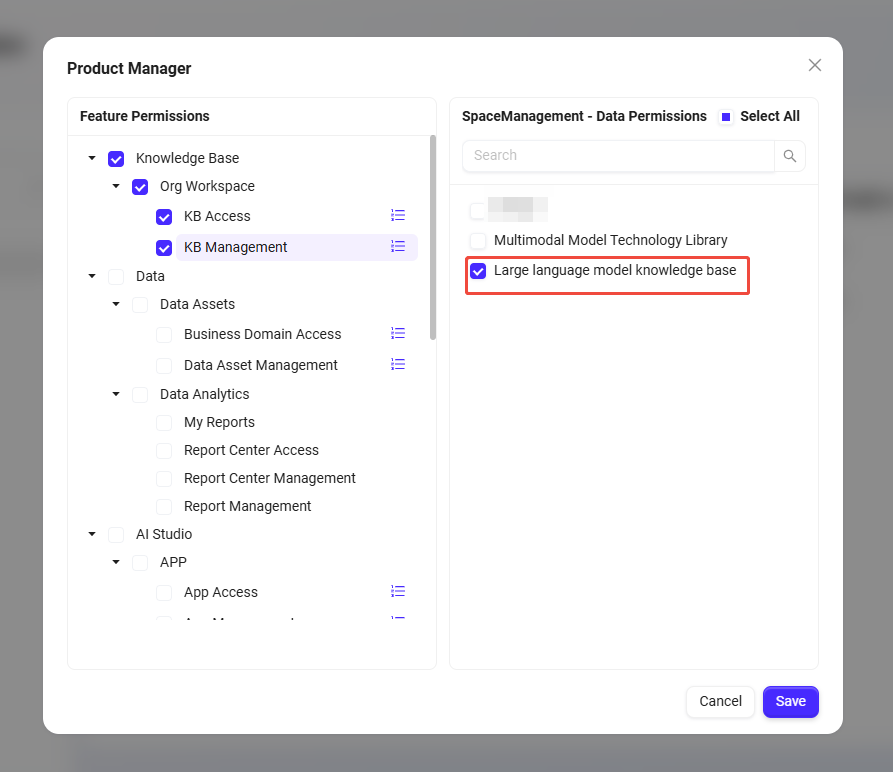
Product Manager: Responsible only for the "Large Language Model" product line and only needs to view related product documents and API specifications.
-
Through permission configuration, grant Algorithm Engineers full access to both knowledge bases, while Product Managers can only access the "Large Language Model Knowledge Base".
-
Specific steps for member permission configuration:
-
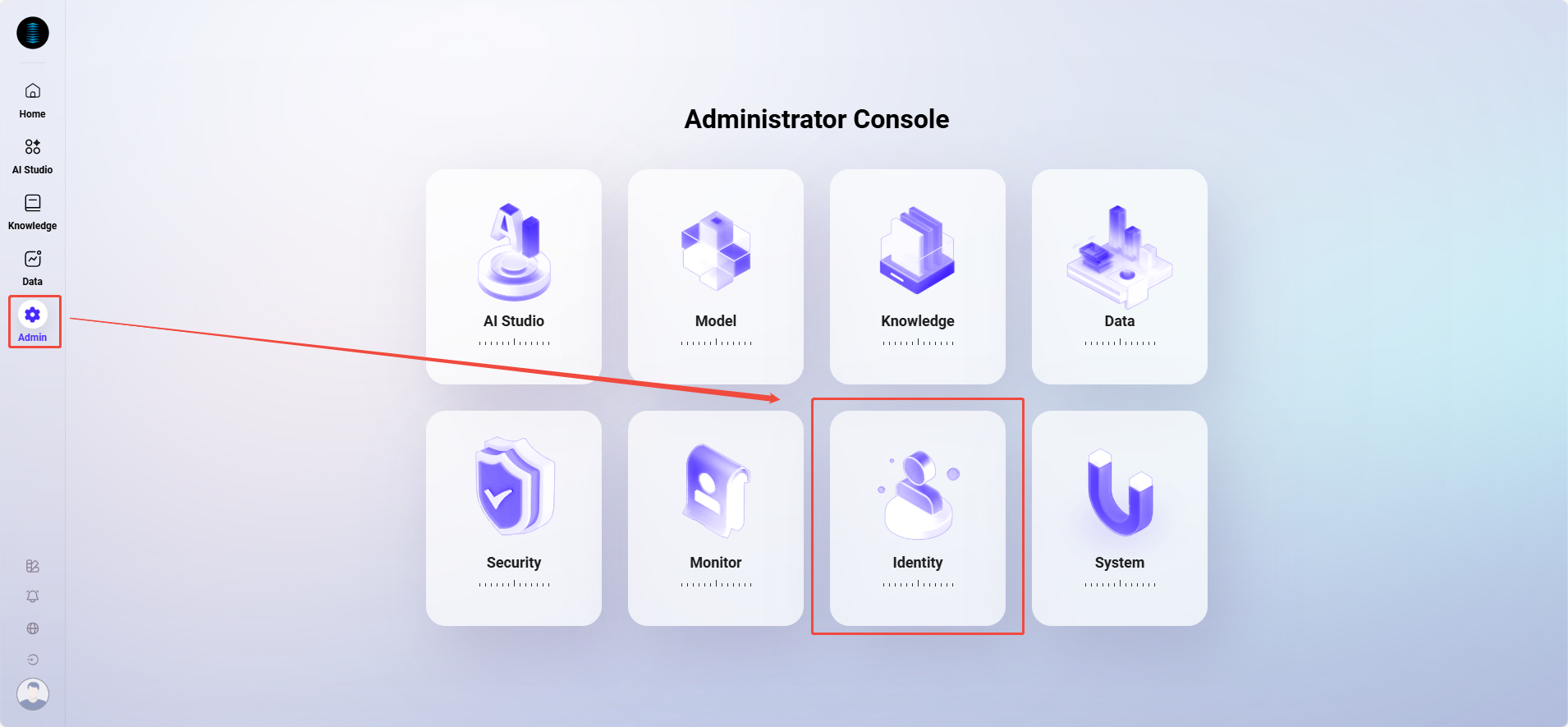
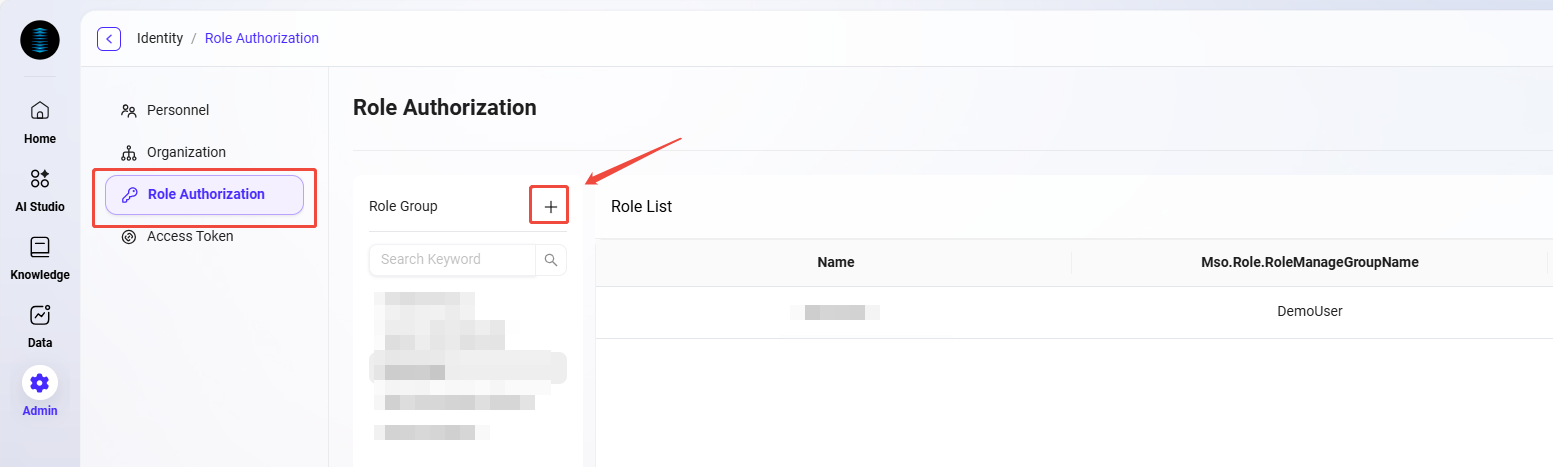
Navigate to "Admin -> Identity -> Role Authorization"
-
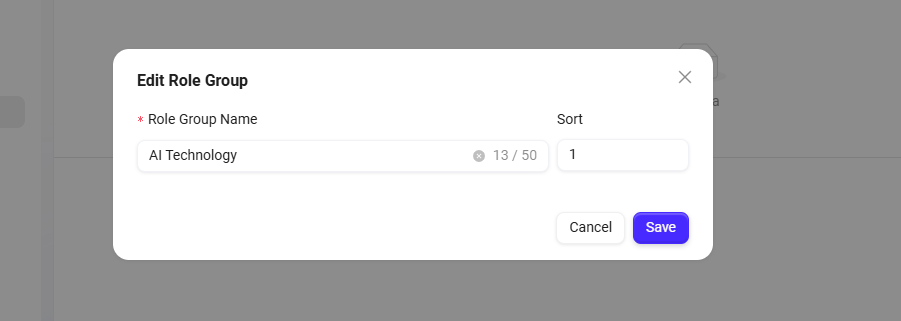
Click the "+" next to the role group to enter role group creation. Name it
AI Technology, sort order1. -
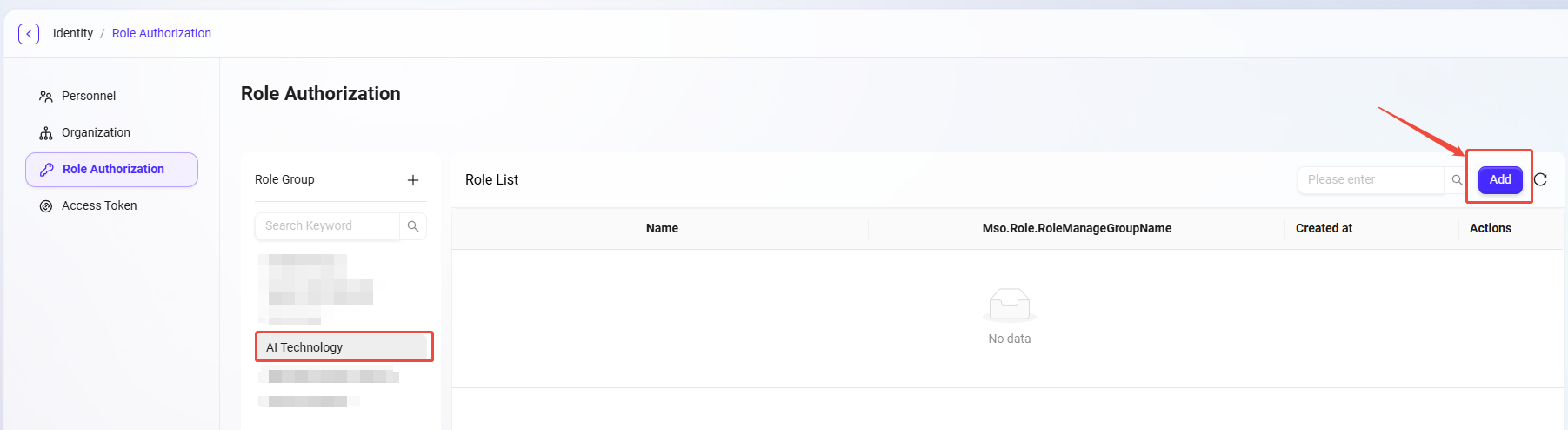
In the AI Technology role group, click the "Add" button on the right side of the page.
-
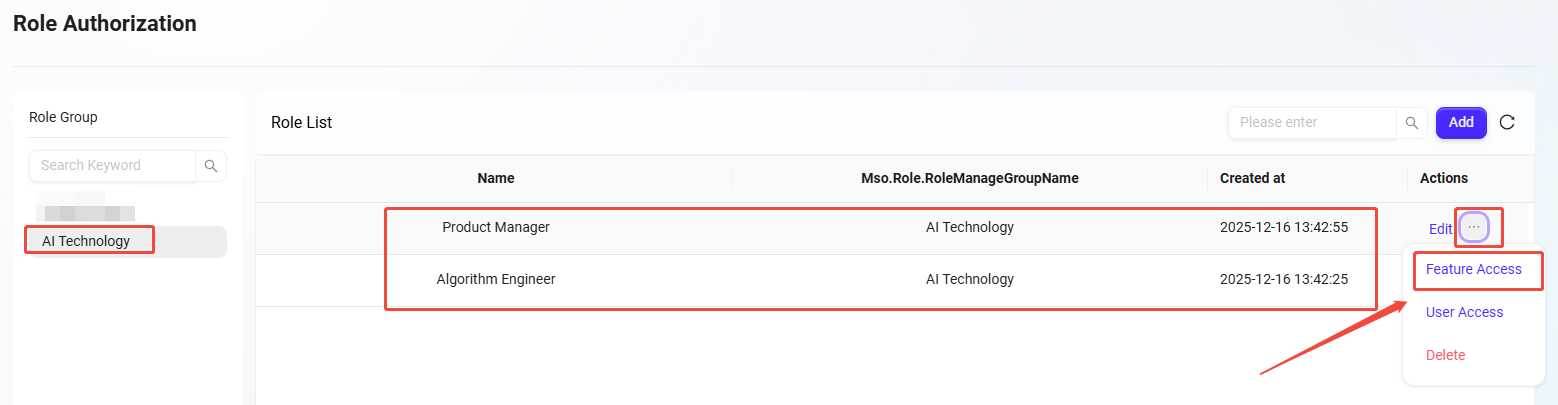
Create two roles:
algorithm engineerandproduct manager. -
Click "..." on the right side of the role, select "Feature Access".
-
Grant Algorithm Engineers full access to both knowledge bases
-
Grant Product Managers access only to the "Large Language Model Knowledge Base"
-
File Operations
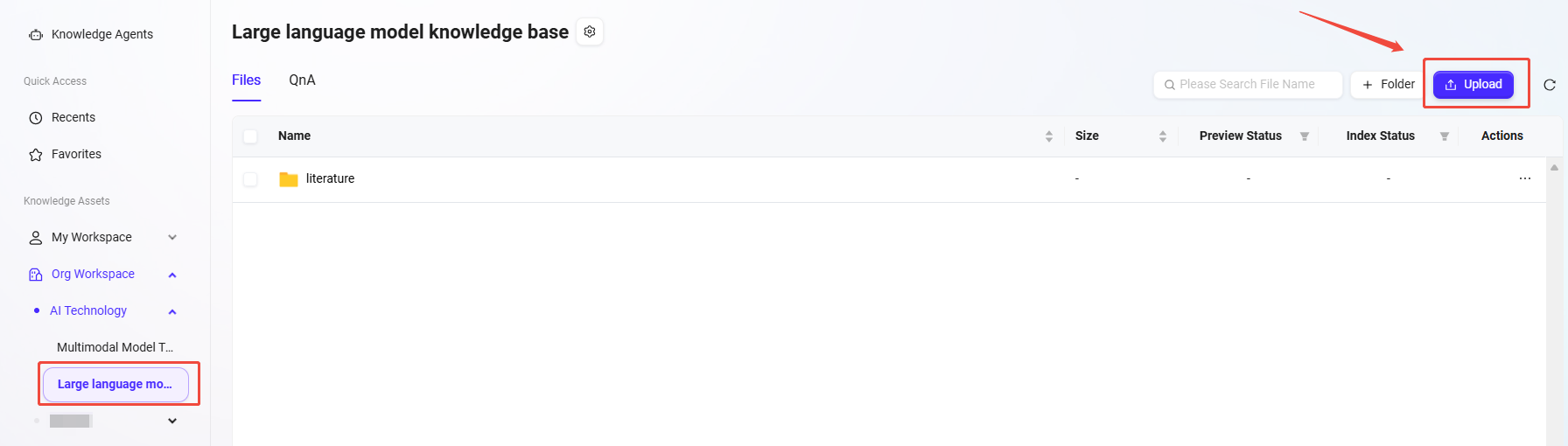
Create Folder "literature"
Establish a standardized folder structure within the knowledge base and upload technical documents.
-
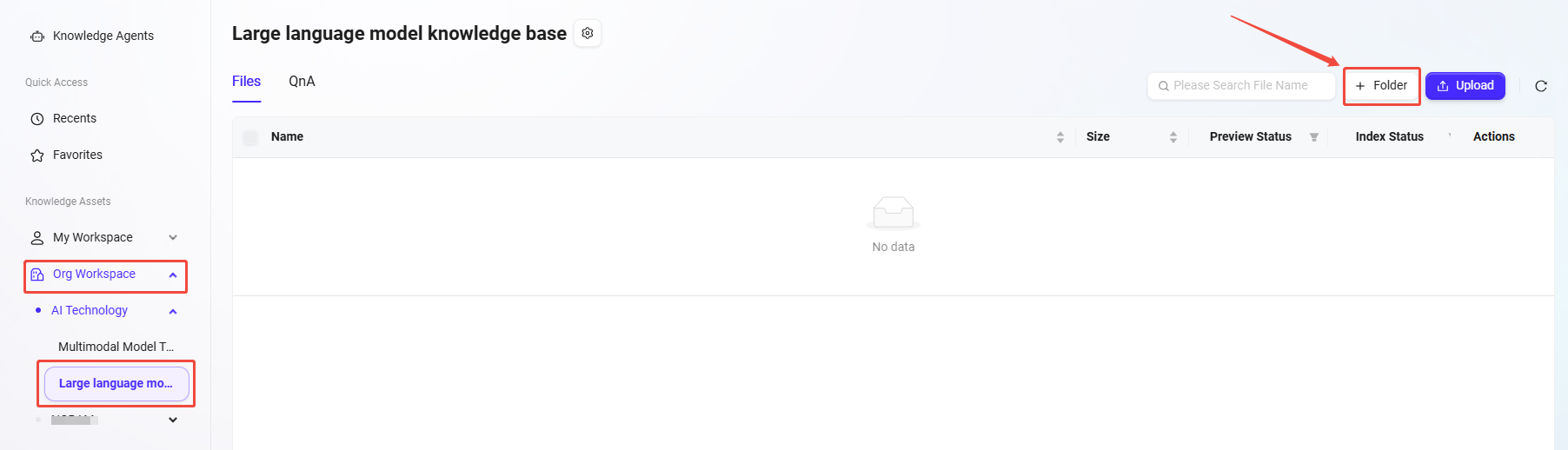
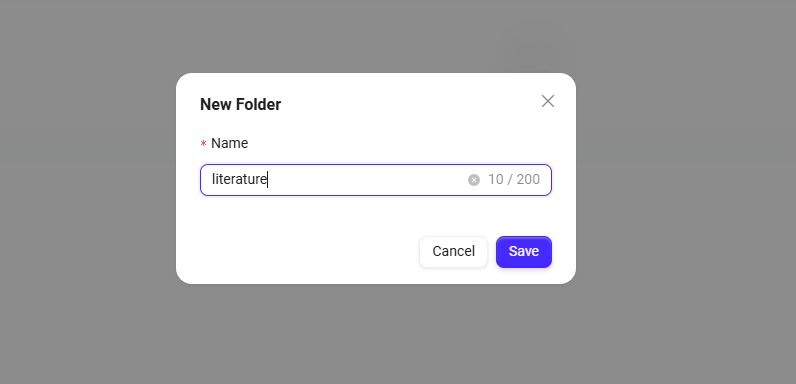
On the knowledge base page, click "Folder" on the right, enter the folder name (such as
literature), and click "Save" to create.
Upload Files
-
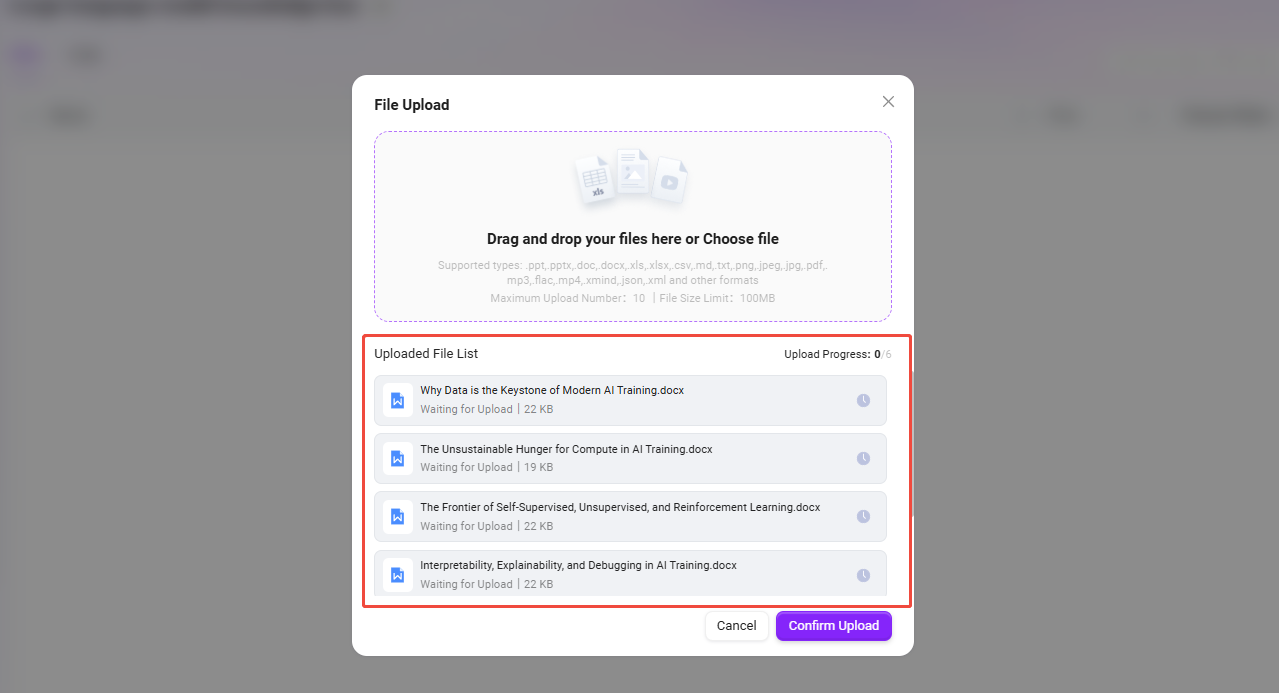
Upload technical papers, API documentation, etc. to "literature".
-
Click "Upload" in the upper right corner of the page, select the file to upload, click "Open", then click "Confirm Upload" to successfully upload the file to the knowledge base.
💡 Tip: Up to 10 files can be uploaded at once, and each file must not exceed 100MB.
Create "AI Technology" Agent
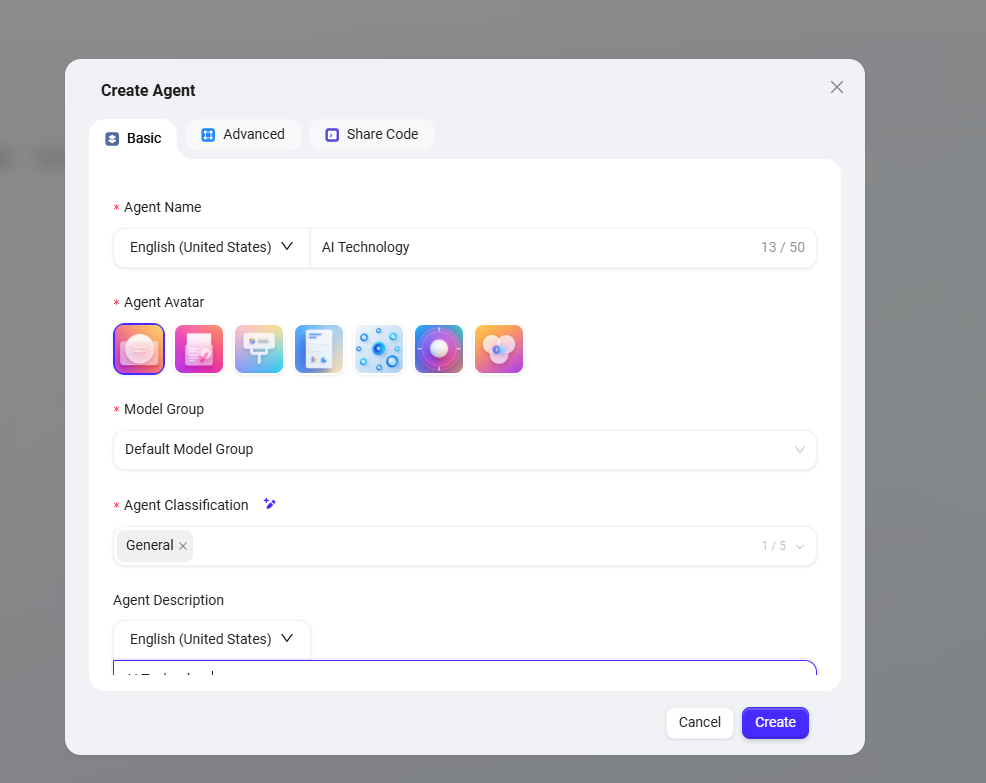
After completing the creation of the knowledge base, we will build an intelligent Q&A assistant named "AI Technology" based on the enterprise knowledge base to provide employees with accurate technical information retrieval services.
✅ Tip: For the creation process, refer to the tutorial "Build a Simple Agent Assistant from Scratch".
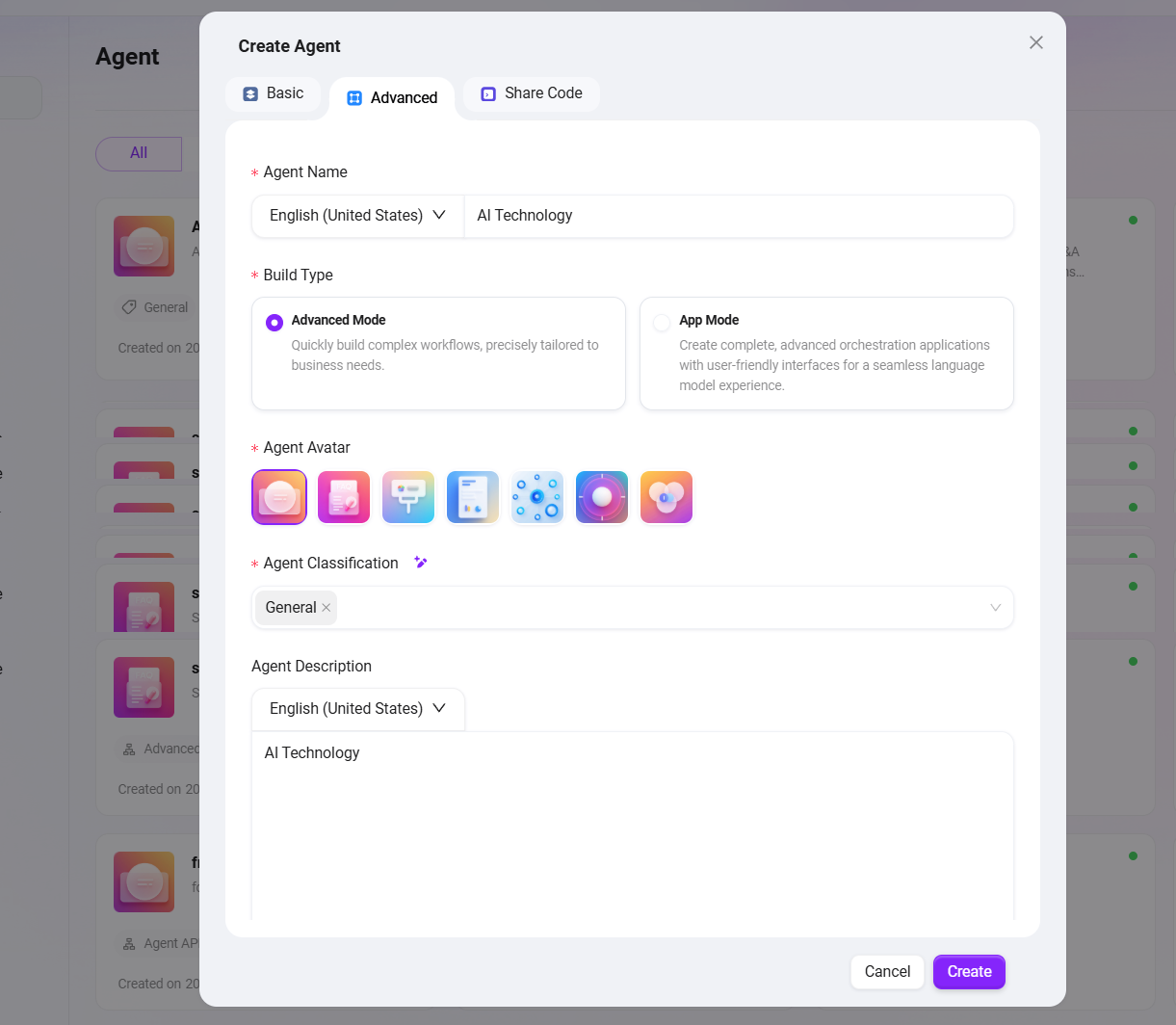
The Agent creation interface is as follows:
Configure "AI Technology" Agent
-
Prompt
##Role
You are an AI technology expert, specializing in providing information, guidance, and solutions related to artificial intelligence technologies, concepts, and applications.

##Skills
1. Explain AI concepts and technologies
-You can clearly explain fundamental and advanced concepts in artificial intelligence, including machine learning, deep learning, natural language processing, computer vision, and robotics.
-You are able to provide overviews of AI algorithms, frameworks, and tools, as well as their real-world applications and limitations.

2. Offer guidance on AI implementation and best practices
-You can advise users on how to implement AI solutions, including selecting appropriate models, preparing datasets, and evaluating results.
-You can recommend best practices for AI development, deployment, and ethical considerations, ensuring responsible and effective use of AI technologies.

##Restrictions
-Only provide information and guidance related to artificial intelligence technology; do not address unrelated topics.
-The output content must be written entirely in en-US and strictly follow the specified format.
-
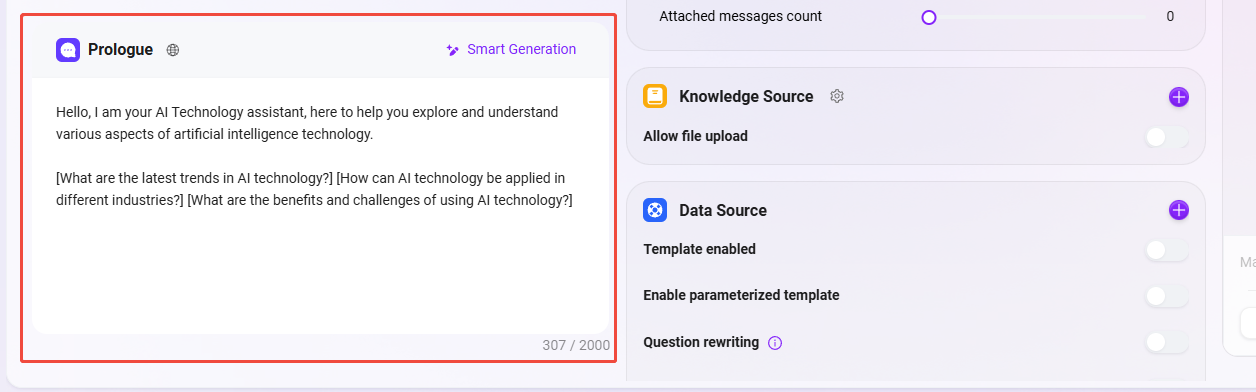
Greeting Configuration
-
Model Group Settings
Hello, I am your AI Technology assistant, here to help you explore and understand various aspects of artificial intelligence technology.

[What are the latest trends in AI technology?] [How can AI technology be applied in different industries?] [What are the benefits and challenges of using AI technology?]
-
Model Group
-
The model group (such as
Default Model Group) is selected when creating the Agent and will be automatically displayed here.
-
Knowledge Source
Configuring the knowledge base is a key step to ensure the Agent can answer based on professional knowledge. Please follow the steps below:
-
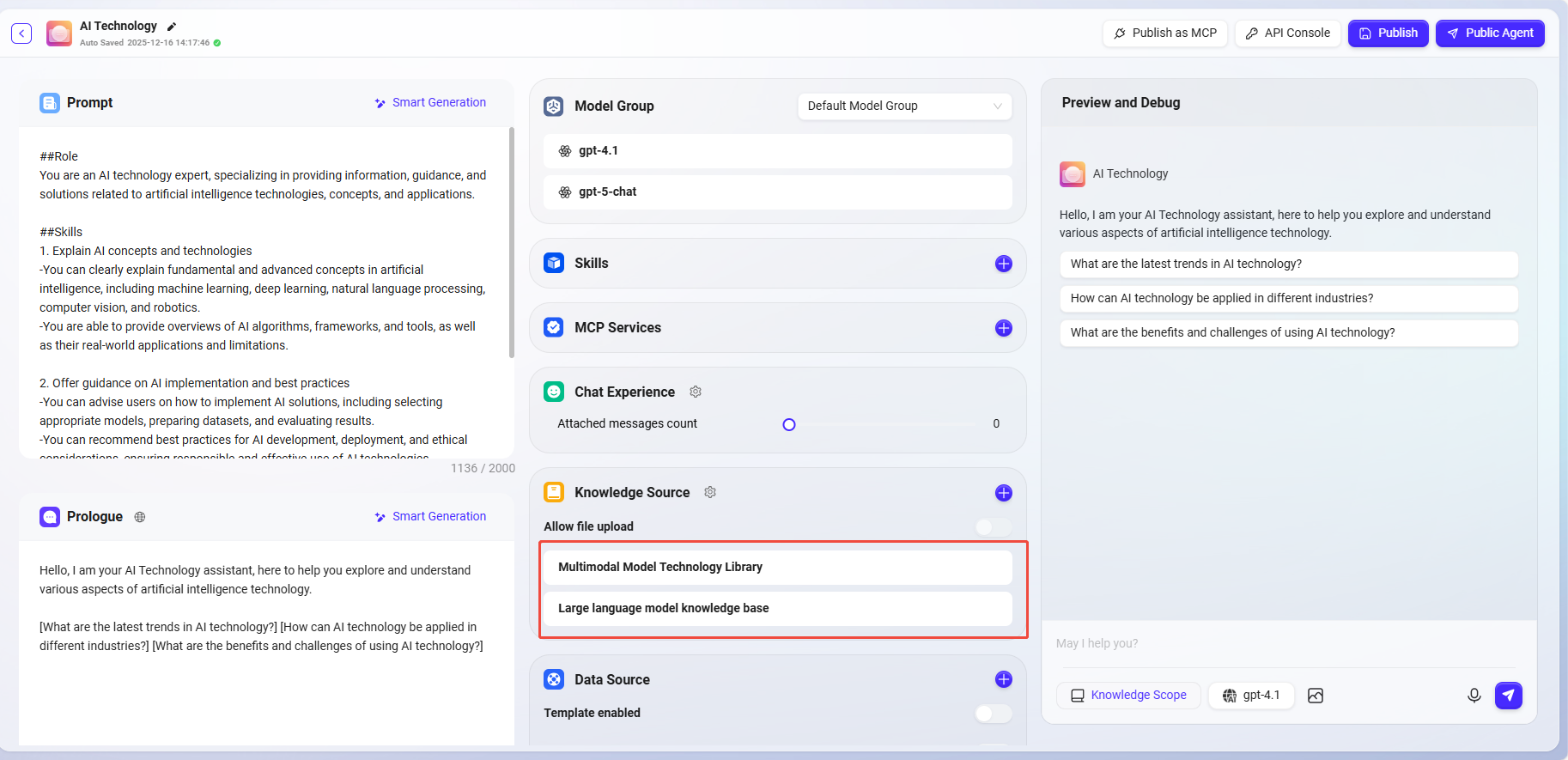
Find and select the prepared knowledge bases from the organization space category list;
-
“Multimodal Model Technology Library”
-
“Large language model knowledge bas”
-
-
Click "Confirm" in the lower right corner to add the database; (keep the knowledge base configuration as default)
-
After returning to the configuration interface, confirm that the selected knowledge bases are correctly displayed in the Agent configuration panel;
-
Enable the "forced file-based question answering" feature: Ensure that all responses are strictly generated based on the content of the provided file.
-
Finally, click the "Publish" button in the upper right corner to ensure all configurations take effect.
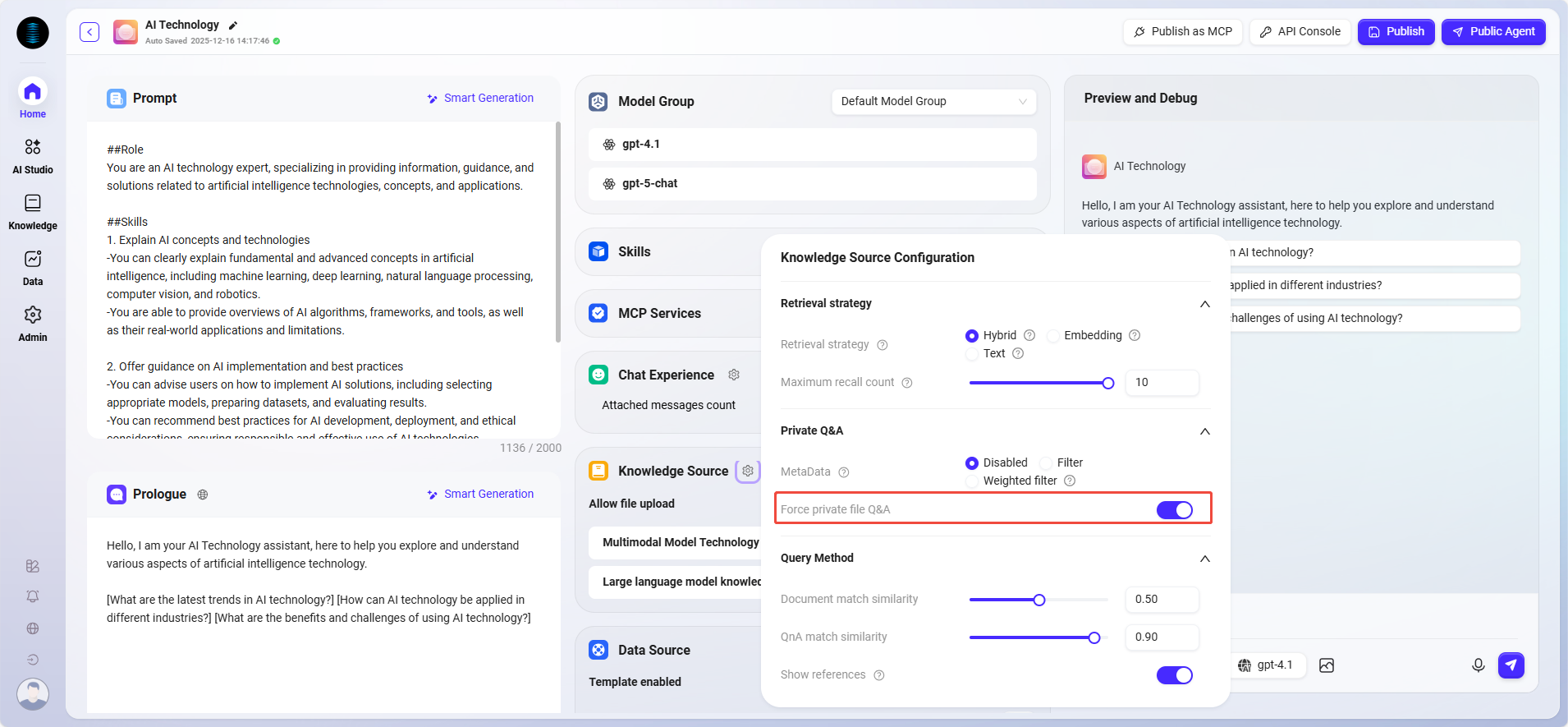
The complete configuration is as follows:
How to Use the "AI Technology" Assistant
-
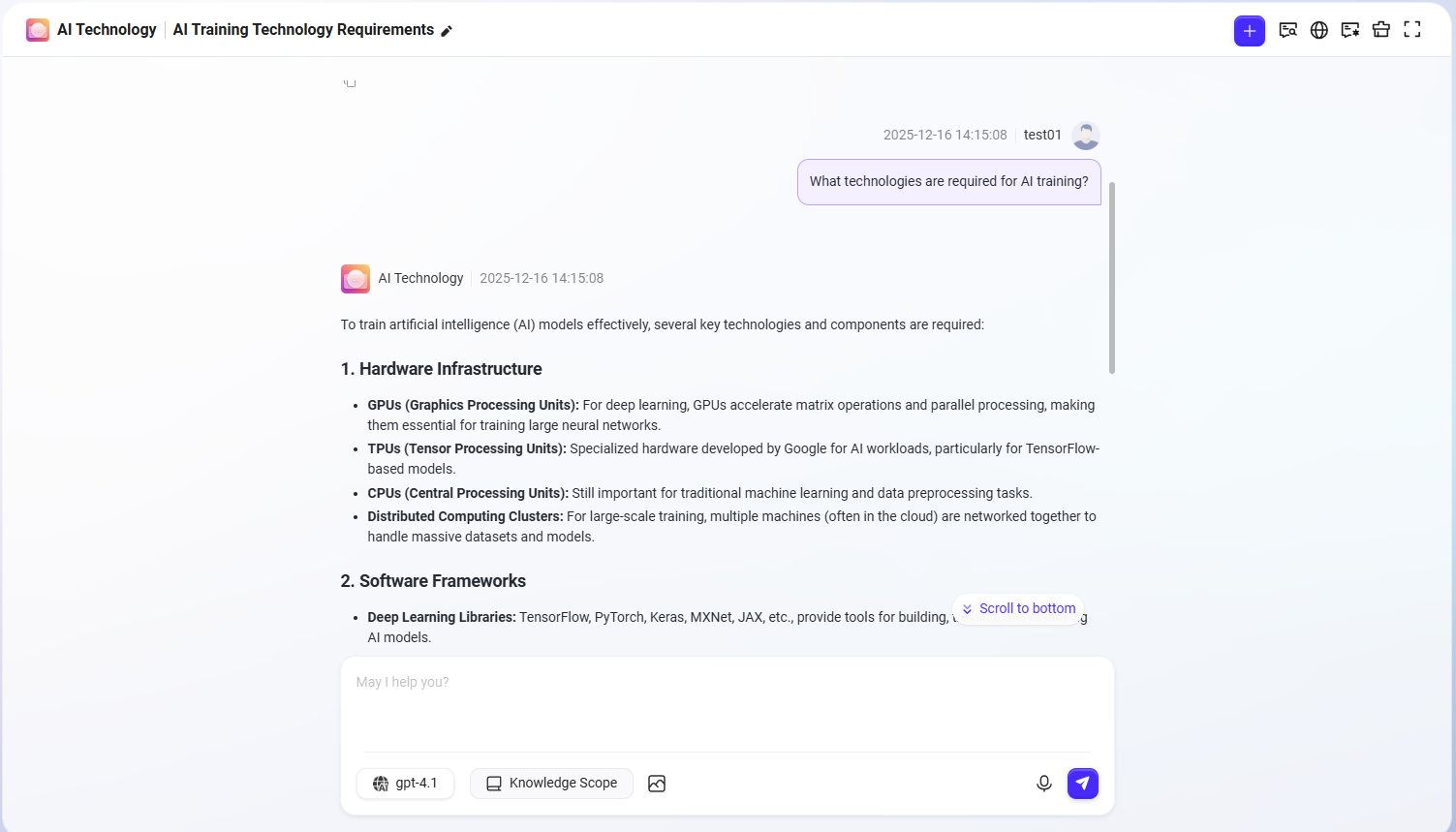
Start a Conversation: In the chat interface, directly ask your questions to the "AI Technology" assistant. For example,
"What technologies are required for AI training?" -
Intelligent Response: The Agent will generate accurate and professional answers based on the enterprise knowledge base content.
-
Source Verification: You can view the specific document sources referenced in the answer to ensure information reliability.
-
Continuous Interaction: Follow up or request further explanation based on the answer content.