In the digital era, intelligent analysis of sales data is becoming a crucial tool for enterprise decision-making. This tutorial uses the coffee category sales data of a consumer goods company as an example to quickly guide you through building a natural language-driven intelligent sales analysis report, achieving a fully automated process from data to insights.
You only need to enter a natural language query, such as "Analyze the coffee sales trends of each store last quarter," and the system will automatically recognize the business intent, optimize and generate SQL queries, extract the required information from the data source, and automatically generate chart reports. Whether it's sales comparisons of different flavors, regional sales heatmaps, or promotional effect analysis, all can be completed with one click.
The generated reports support custom styles, flexible chart type switching, and can enable AI insight features to help you automatically identify key factors behind sales fluctuations, and promptly discover growth opportunities or potential issues.
This tutorial is suitable for data analysis beginners, business managers, and enterprise users who want to quickly validate sales strategies. It is an ideal starting point for building practical and intelligent sales analysis reports.
Before building the report, you first need to prepare the coffee sales data. In this tutorial, we use the daily coffee category sales data of a consumer goods company, stored in a SQL Server database, mainly including two tables:
-
coffee_sales -
coffee_sales_0613
Importing sales data into the database is a prerequisite for the system to recognize and analyze the data. Besides SQL Server, you can also choose to store the data in other compatible platforms, such as: MySQL, Azure Databricks
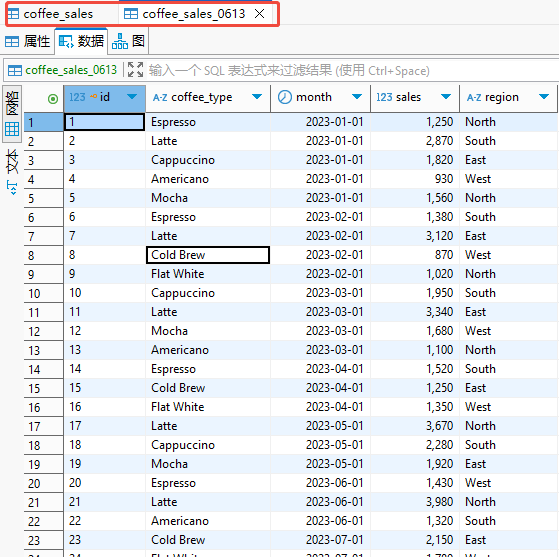
After importing the data, you need to obtain the database connection information, including:
-
Host (database address)
-
Port (port number)
-
Username
-
Password
-
Database name
This information will be used when adding the data source later.
Adding Coffee Sales Data as a Data Source
Next, we need to add the coffee sales data tables in the database as a data source recognizable by the system. The steps are as follows:
-
Enter the Data module in the system.
-
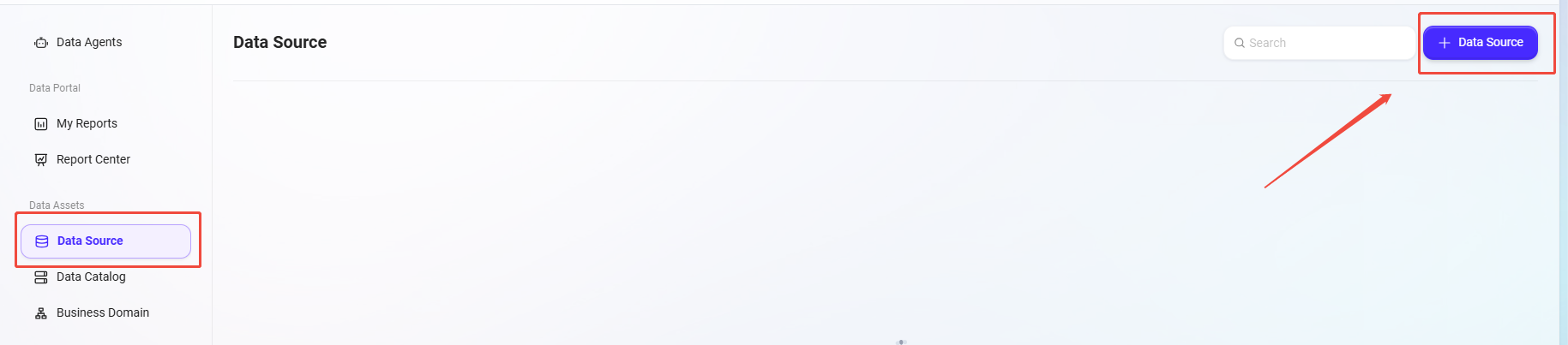
Click "Data Sources" in the left menu bar.
-
On the data sources page, click the "Add Data Source" button in the upper right corner.
-
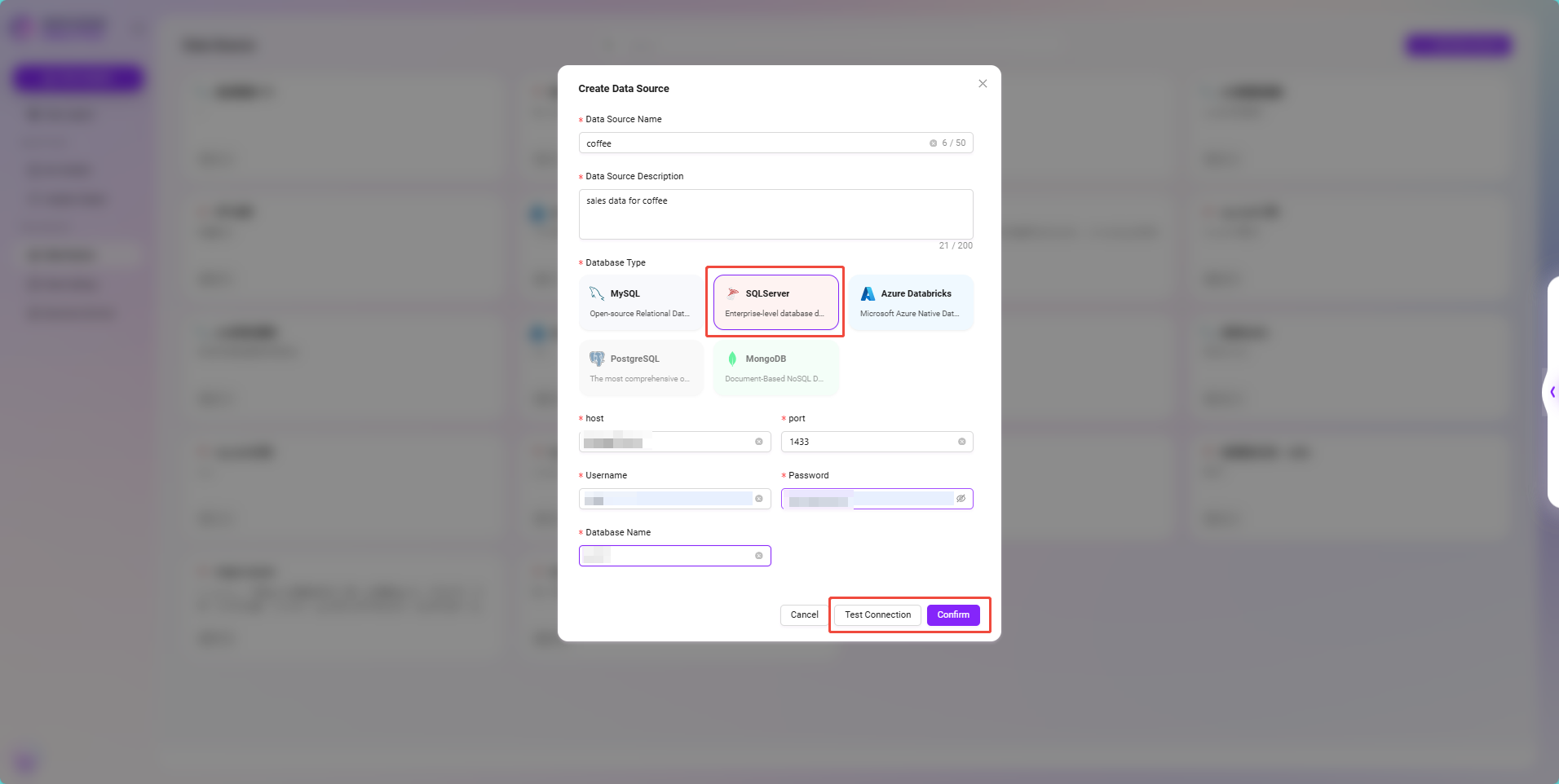
On the "Create Data Source" page, fill in the following information:
-
Data Source Name:
coffee -
Data Source Description:
sales data for coffee -
Database Type: Select
SQL Server -
Host: Enter the database address
-
Port: Enter the port number
-
Username / Password: Enter the required authentication information
-
Database Name: Enter the name of the database storing the sales data
-
-
Click "Test Connection" below to verify if the information is correct.
-
After passing the test, click "Confirm" to complete adding the data source.
At this point, the system has successfully established a connection with the database.
Selecting Coffee Sales Data Tables
After creating the data source, you also need to specify the actual data tables to use:
-
Return to the data source list and click the newly created
coffeedata source. -
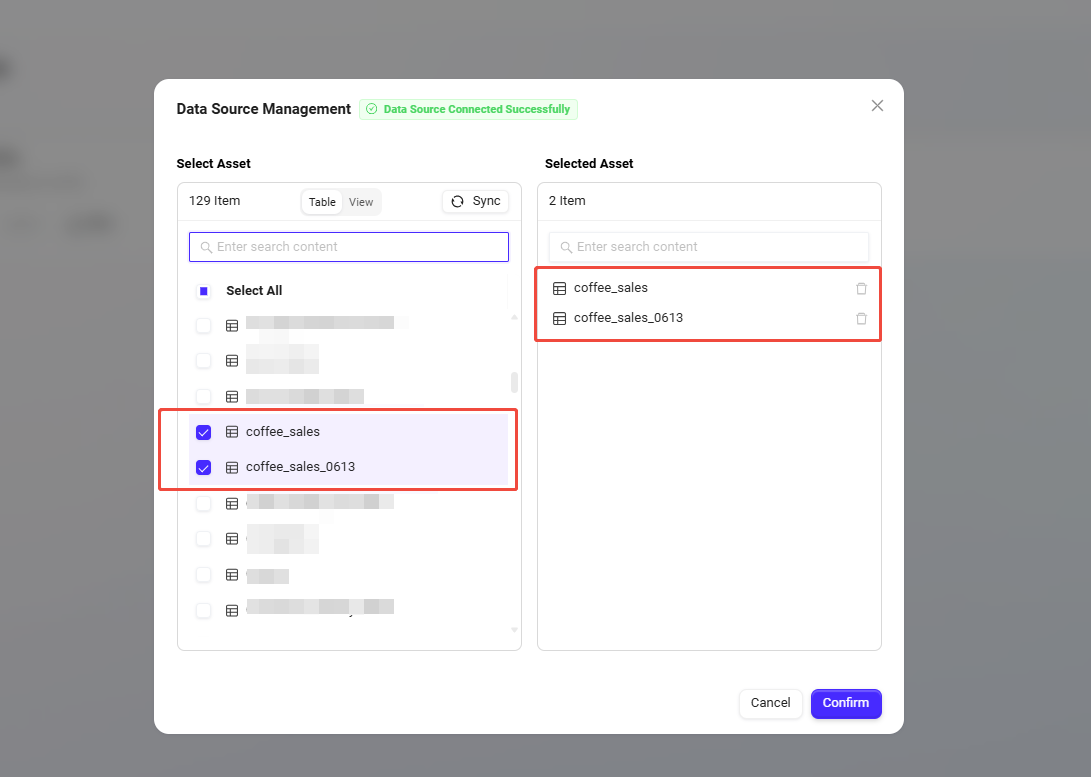
On the data source details page, select the following two tables as analysis targets:
-
coffee_sales -
coffee_sales_0613
-
-
Select and confirm to add them. This step ensures the system has correctly read and loaded the coffee sales data.
At this point, the coffee sales data has been officially connected to the system as a data source, ready to enter the next step of intelligent analysis construction.
Sync Coffee Sales Data to Data Catalog
Although we have successfully added the coffee sales data tables as data sources, the system still cannot view the field structures of these tables or any business semantic descriptions of the fields. Therefore, the next step is to synchronize the table structure in the data catalog and supplement field information to improve the readability and accuracy of subsequent data analysis.
Synchronization Steps
-
Enter the system's Data module.
-
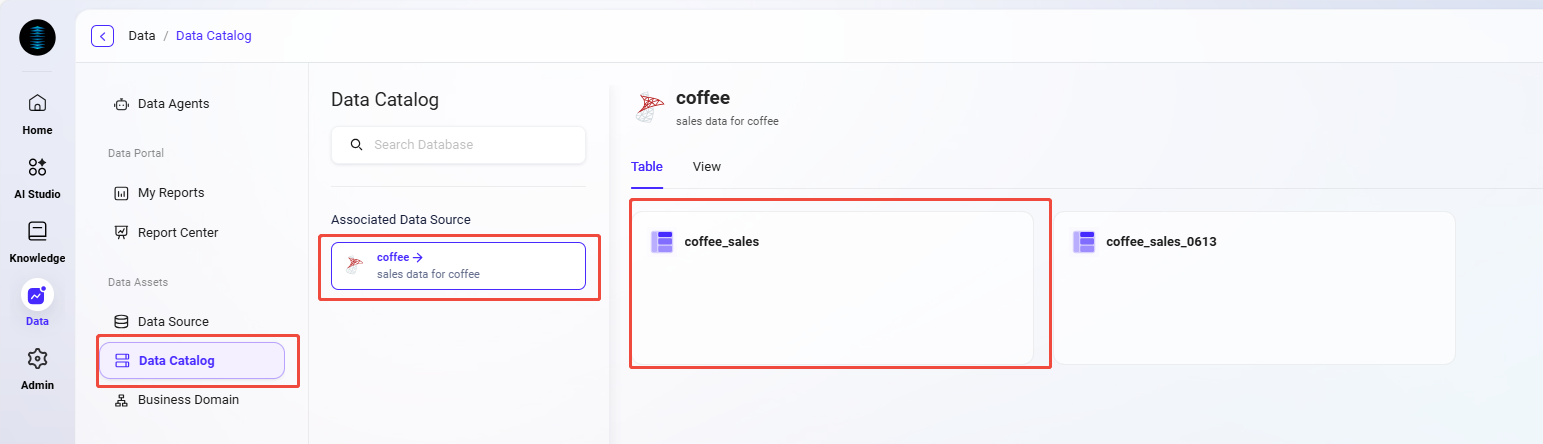
Click "Data Catalog" in the left menu bar.
-
Under "Associated Data Source" on the page, find the data source
coffeeyou just added. -
The system will display the two data tables under this data source on the right:
-
coffee_sales -
coffee_sales_0613
-
-
Click to enter the first table
coffee_sales.
-
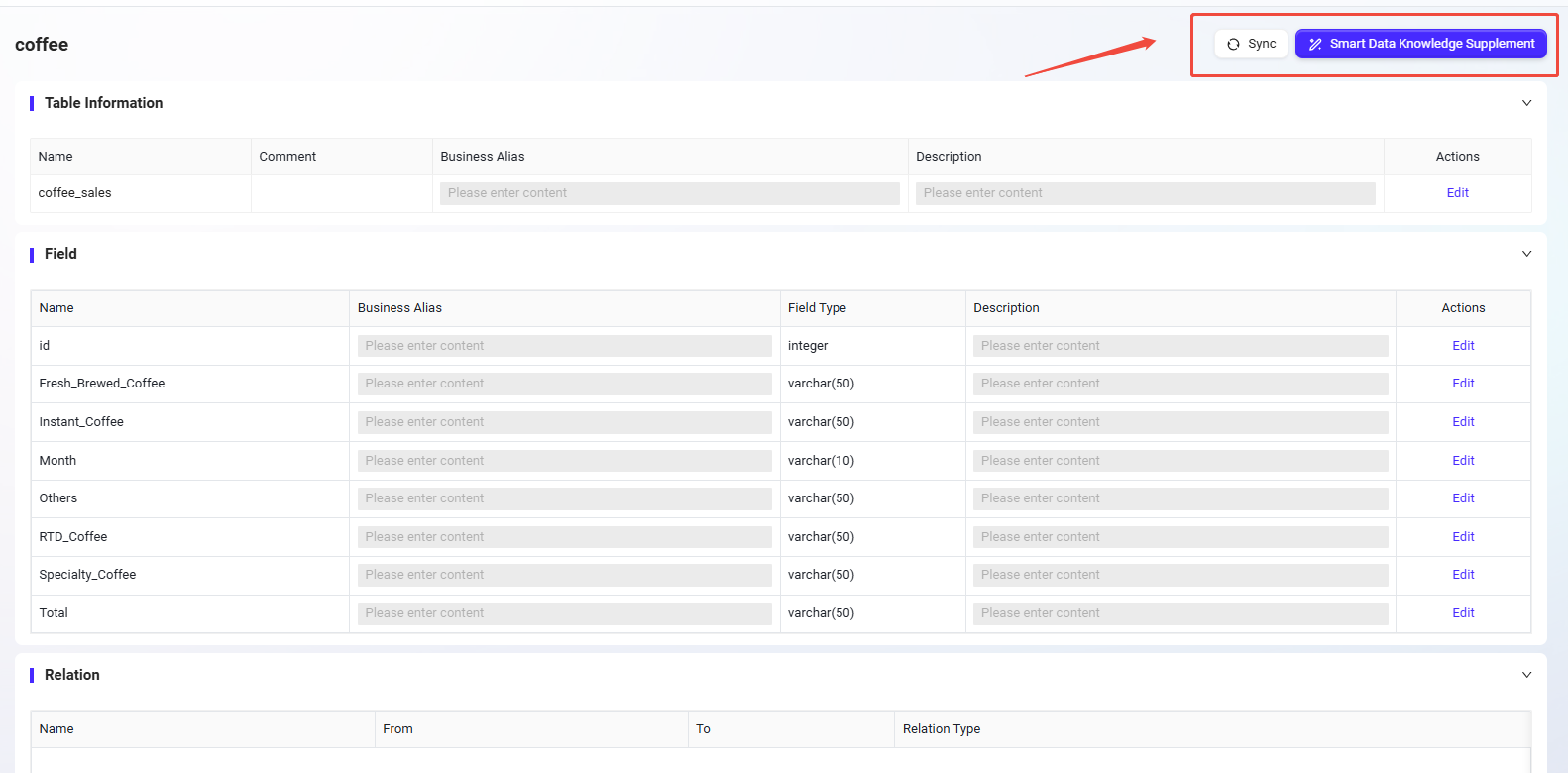
On the table details page, click the "Sync" button in the upper right corner:
-
The system will automatically pull and display the table's field structure from the database, including field names and types.
-
-
After synchronization, click "Smart Data Knowledge Supplement" in the upper right corner:
-
The system will intelligently supplement business aliases, field descriptions, etc., based on field names.
-
If the generated results do not match the actual business, you can manually modify the field descriptions to ensure accuracy.
-
-
Repeat the same operation to synchronize and supplement field descriptions for the second table
coffee_sales_0613.
Through structure synchronization and field supplementation in the data catalog, the system can correctly recognize the meaning of fields, thus providing more accurate support for subsequent report generation and insights.
Creating a Business Domain for Coffee Sales Data
To better organize and manage sales data, and to improve reusability and maintainability when building intelligent analysis reports later, we need to create an independent business domain for the coffee sales data.
Steps to Create a Business Domain:
-
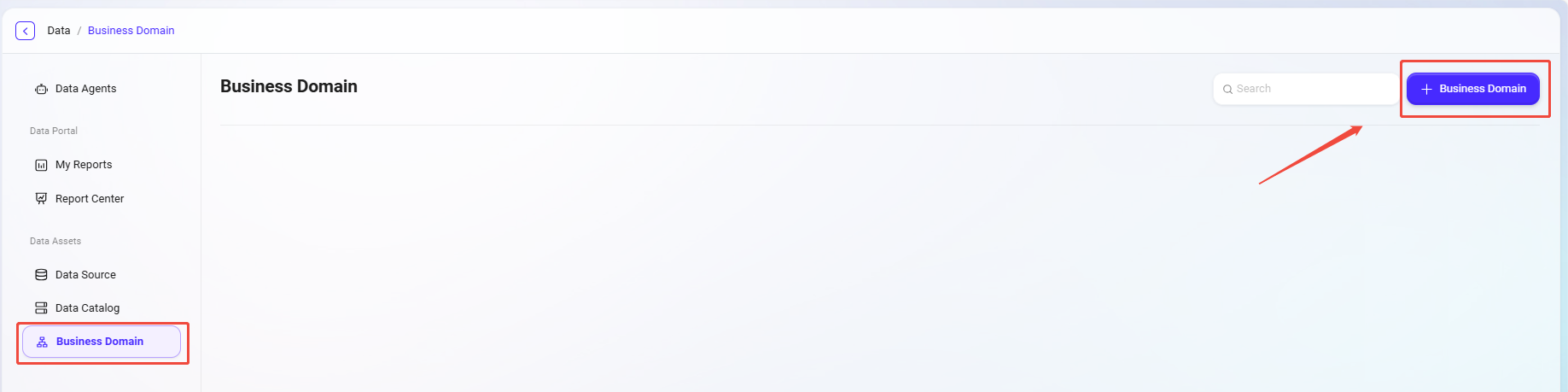
In the system's Data module, click "Business Domain" in the left menu bar.
-
Click the "+ Business Domain" button in the upper right corner to enter the business domain creation page.
-
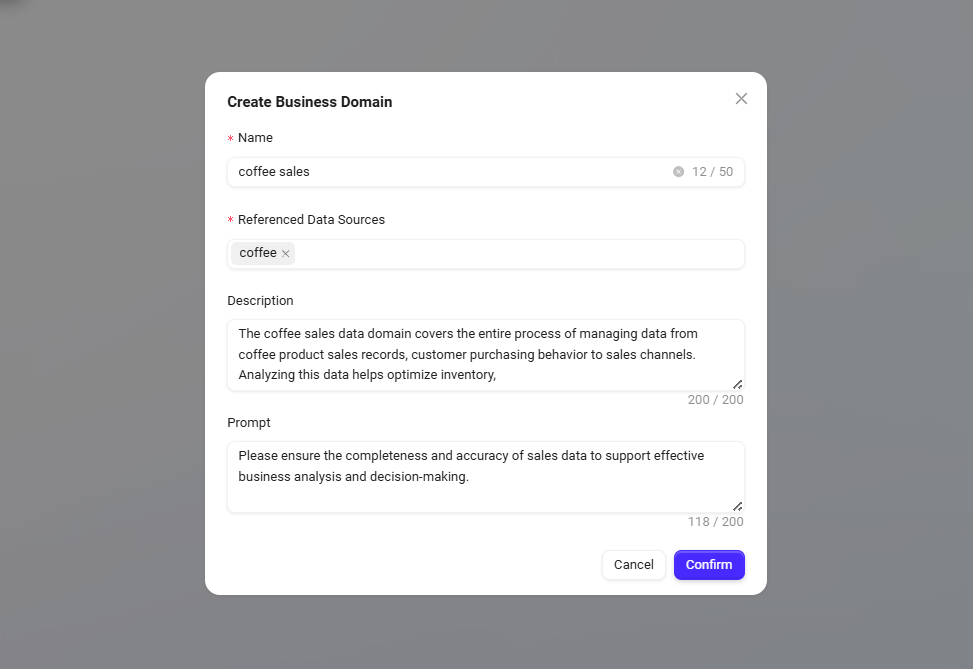
Fill in the following information:
-
Name:
coffee sales -
Referenced Data Sources: Select the newly created data source
coffeefrom the dropdown -
Description:
The coffee sales data domain covers the entire process of managing data from coffee product sales records, customer purchasing behavior to sales channels. Analyzing this data helps optimize inventory, improve sales strategies, and enhance customer satisfaction. -
Prompt:
Please ensure the completeness and accuracy of sales data to support effective business analysis and decision-making.
-
-
After filling in the information, click "Confirm" to complete the creation of the business domain.
Configuring Business Domain Table Relationships
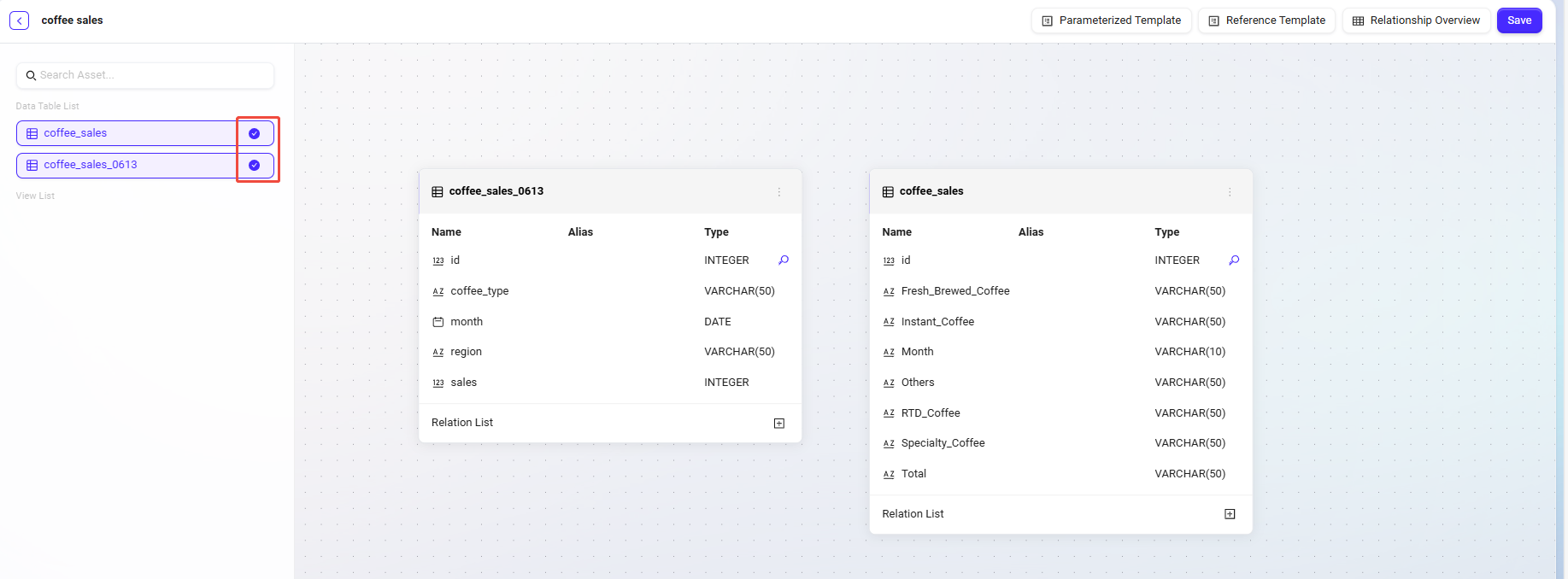
After the business domain is created, the system will automatically enter the business domain configuration page. At this point, you need to add the actual coffee sales data tables to the business domain panel and configure their logical relationships.
Add Data Tables to the Business Domain Panel:
-
In the business domain configuration interface, select and check the two tables:
-
coffee_sales -
coffee_sales_0613
-
-
After checking, the two tables will appear in the business domain panel.
Create Relationships Between Tables:
-
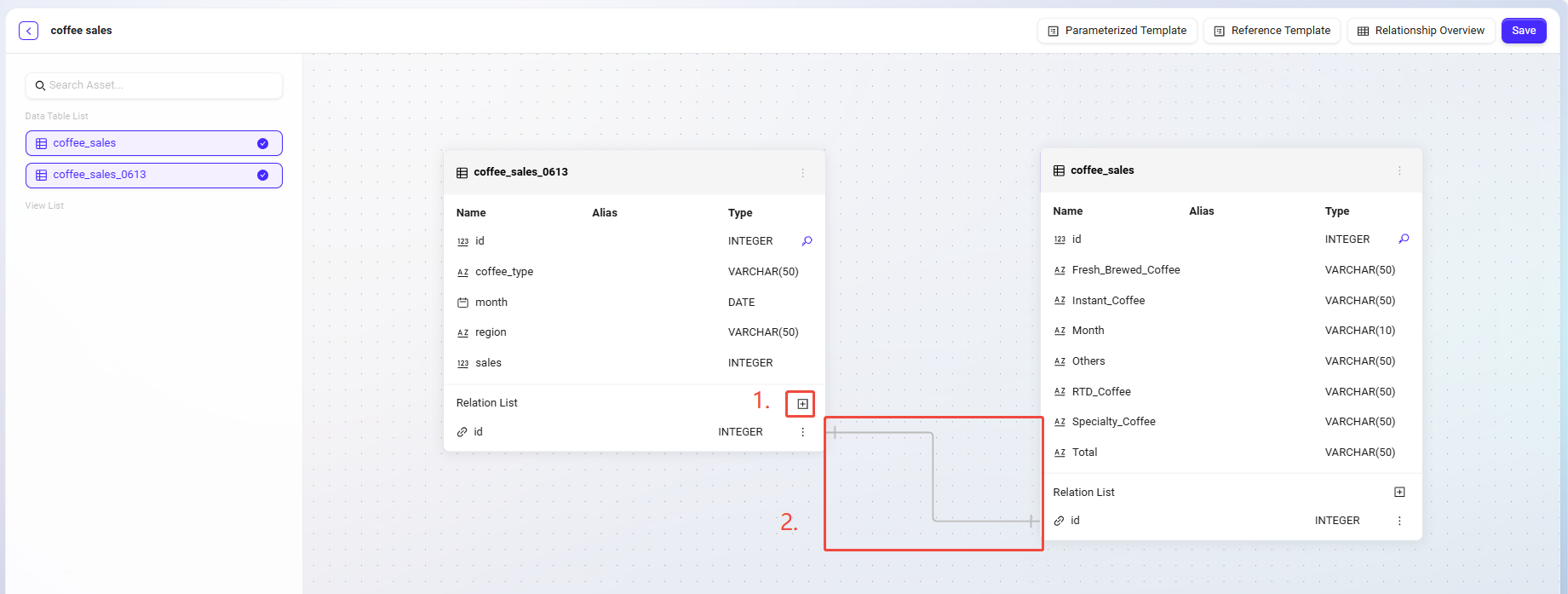
In the panel, find the
coffee_sales_0613table and locate the "Relationship List" below the table. -
Click the "+" button to create a new relationship.
-
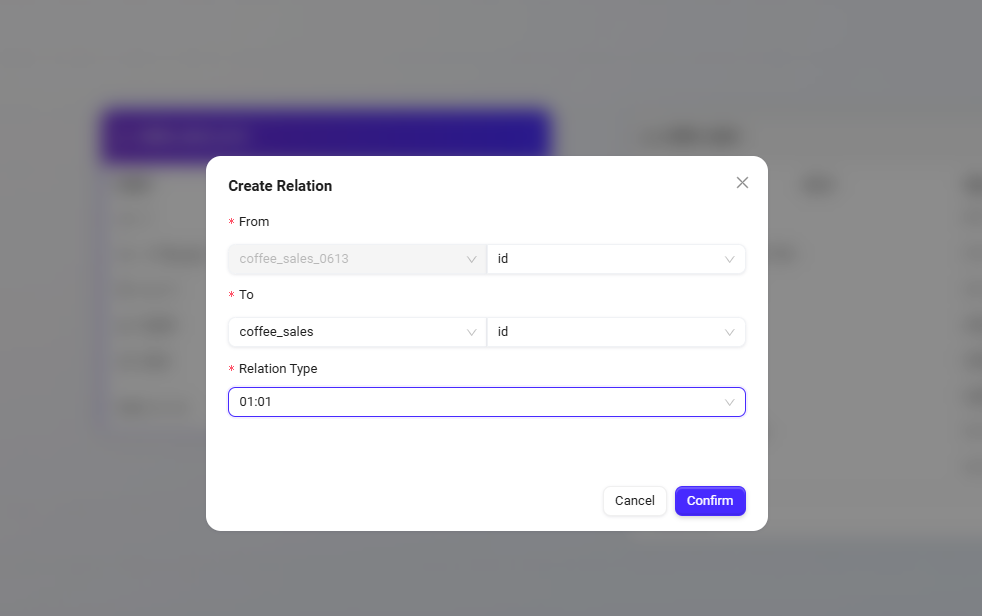
In the pop-up relationship settings dialog, fill in the following:
-
From Table Field:
coffee_sales_0613.id -
To Table Field:
coffee_sales.id -
Relation Type: Select "01:01"
-
-
Click "Confirm" to complete the relationship creation.
-
After creation, a one-to-one relationship line connecting the two tables will be displayed in the panel.
Save Business Domain Relationship Configuration:
Click the "Save" button in the upper right corner, and the system will store the current table structure and relationship settings.
At this point, the business domain configuration is complete, laying a solid foundation for building intelligent reports later. The system will be able to more accurately parse data fields and understand data semantics, thus supporting natural language analysis and chart generation.
Creating Intelligent Sales Analysis Reports
After completing data integration, data catalog configuration, and business domain construction, we are fully prepared to build intelligent BI reports. Next, we will officially start creating sales analysis reports.
Enter the Intelligent BI Analysis Module
-
Enter the Data module in the system.
-
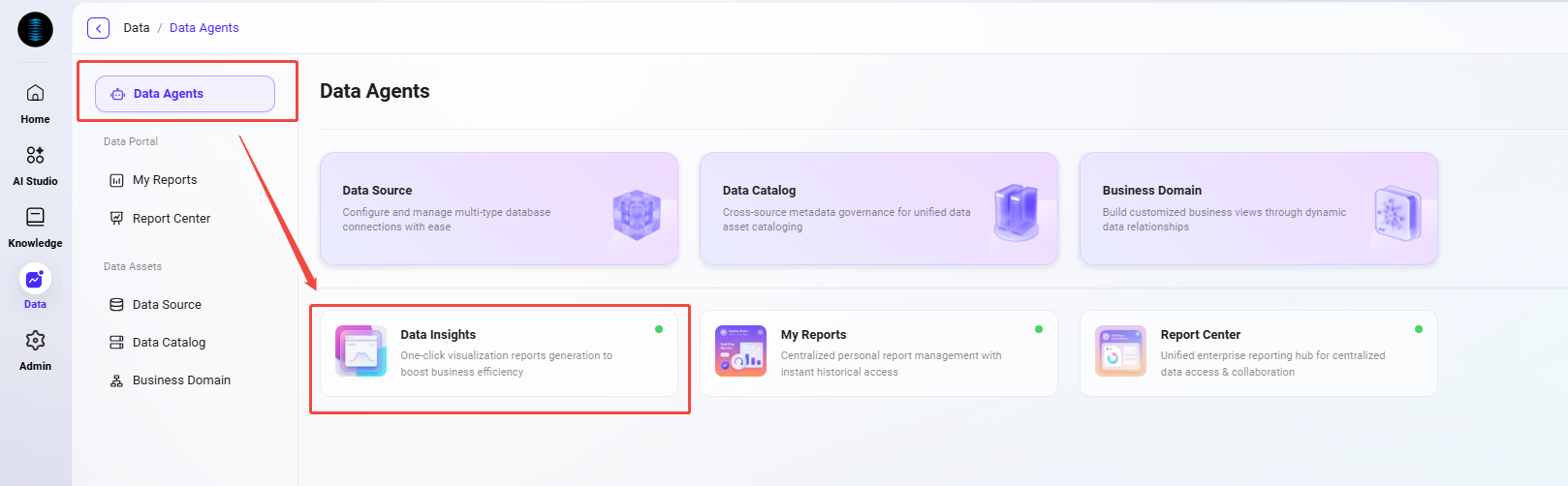
Click "Data Agents" in the left menu bar.
-
In Data Agents, click "Data Insights"
-
The system will jump to the intelligent BI report creation interface.
Select Business Domain
-
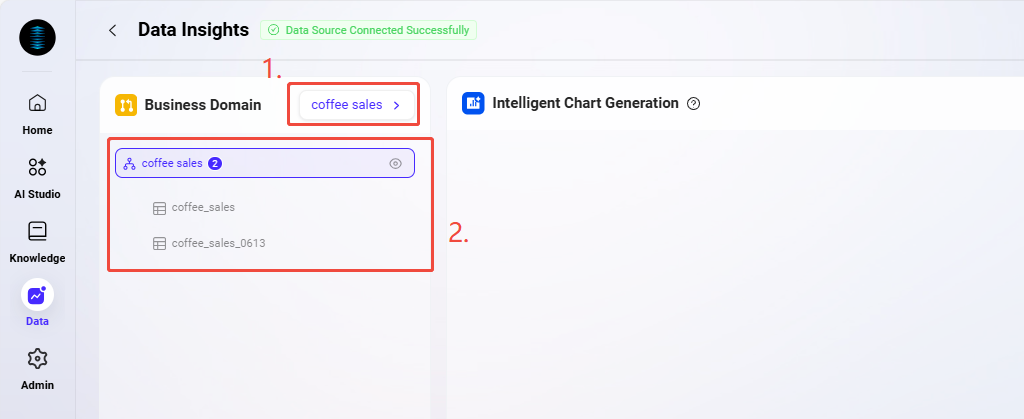
Click "Select Business Domain" on the left side of the page.
-
In the pop-up business domain list, select the previously created business domain
coffee sales. -
After successful selection, the page will automatically load the two tables under this business domain:
-
coffee_sales -
coffee_sales_0613These tables will serve as the data foundation for subsequent analysis.
-
Generate Charts Using Natural Language Queries
Intelligent BI supports natural language analysis, greatly lowering the threshold for data analysis. Here is a practical example:
-
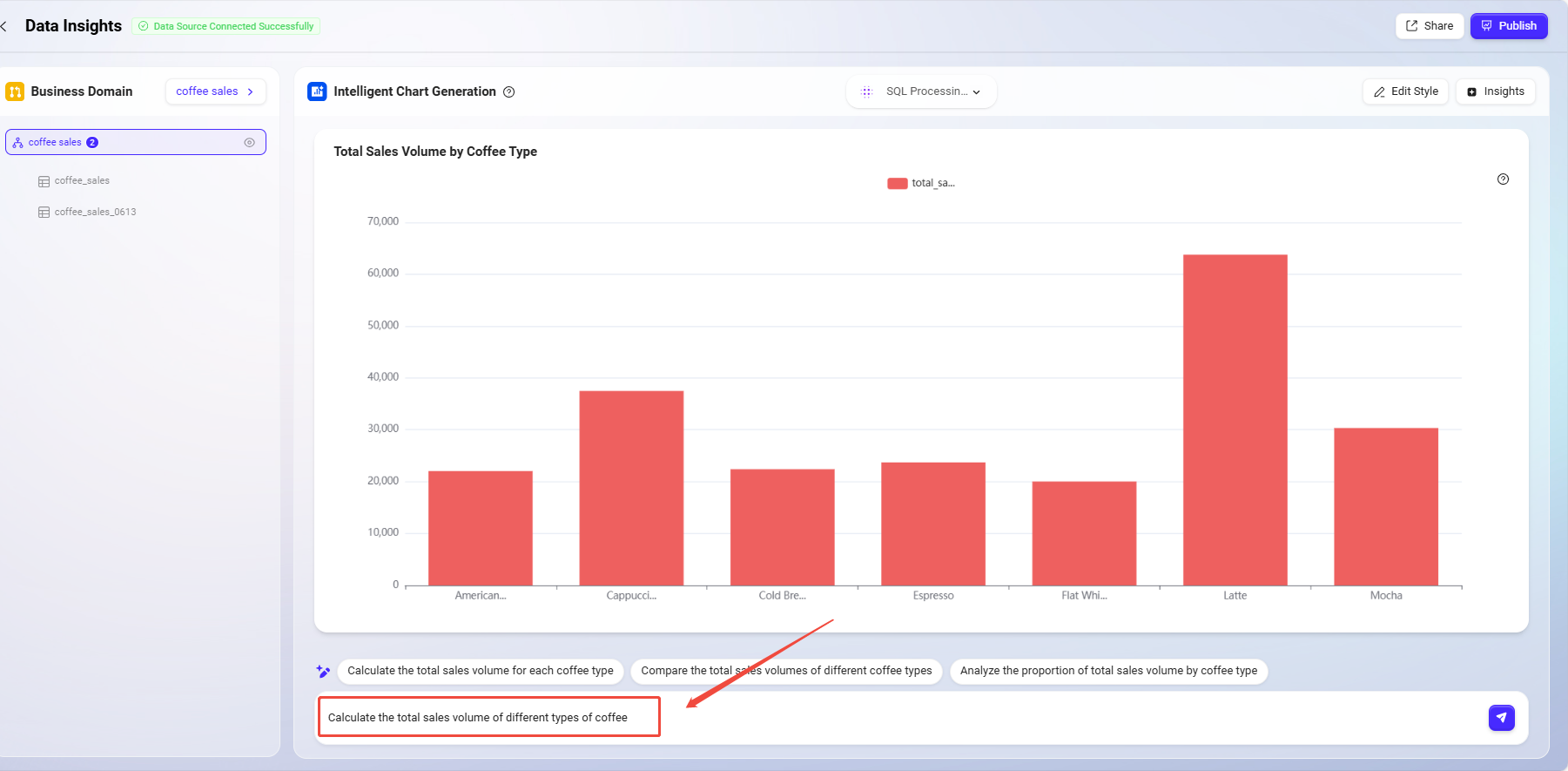
Enter in the natural language input box at the top of the page:
Calculate the total sales volume of different types of coffee -
After receiving the request, the system will automatically recognize the analysis intent and generate the corresponding SQL query.
-
After the query is executed, the system will automatically generate a visual chart.
By default, the system usually displays data as a line chart. However, in this case, we are more interested in comparing total sales, so a bar chart is more suitable.
Adjust Chart Styles
To improve the readability and visual effect of the report, we can optimize the chart style:
-
Click the "Edit Style" button in the upper right corner of the chart.
-
The style editing bar will pop up on the right side of the page, where you can customize the chart's display.
The following are the style settings used in this example:
-
Chart Title: Change to
Sales Total (Coffee Type) -
Chart Type: Select
Bar Chart -
X Axis Field:
coffee_type -
Y Axis Field:
total_sales -
Theme Style: You can choose according to business scenarios and personal preference. Here, it is recommended to choose a blue style to highlight a clear and professional visual impression.
The system supports real-time preview of chart styles, allowing you to view changes as you adjust, avoiding the inconvenience of repeated modifications.
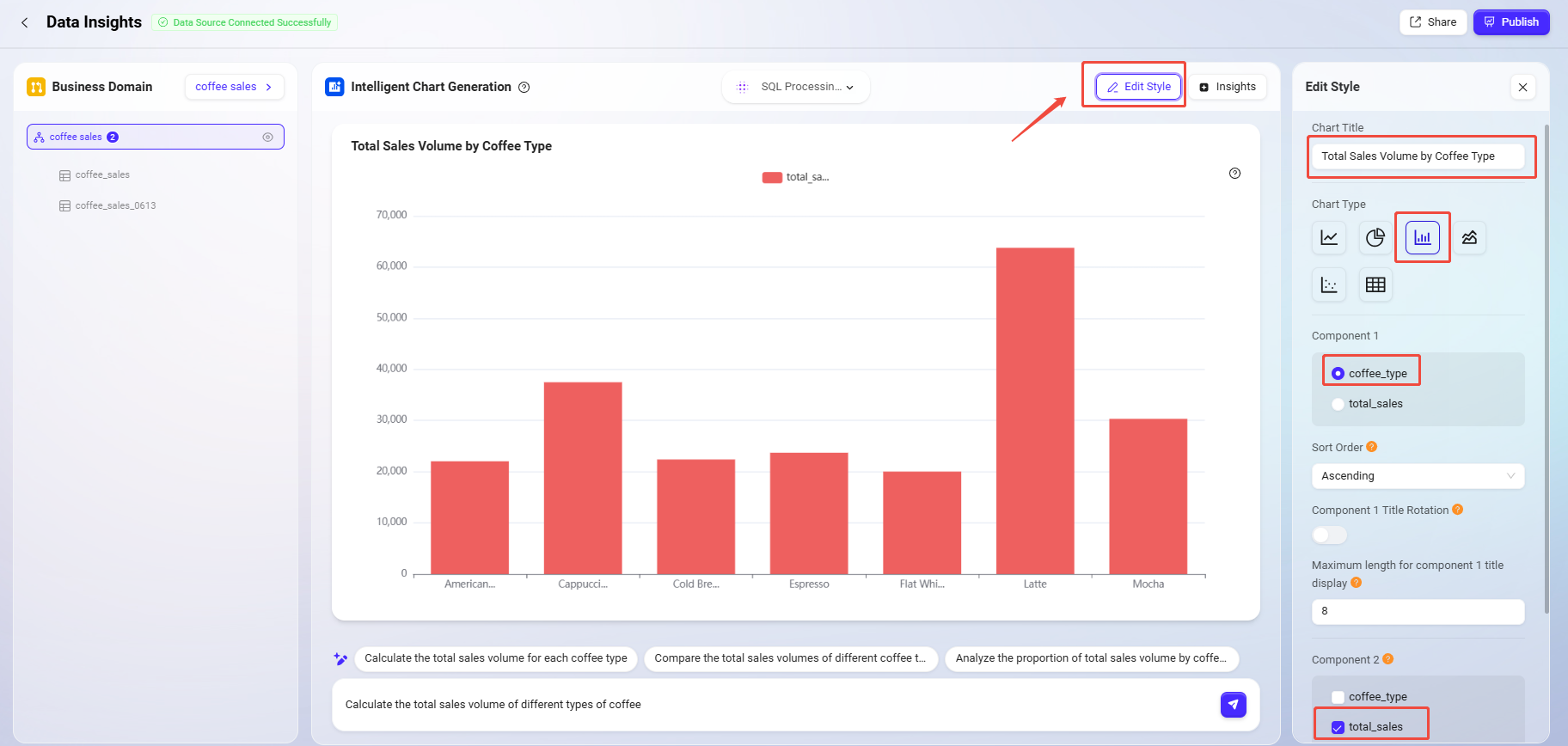
After completing the above settings, an intuitive, clear, and data-driven coffee sales analysis chart is built, providing a solid foundation for subsequent insights.
Enable Intelligent Data Insights
After building the sales report, we can further utilize the system's intelligent insight feature to mine potential trends and business opportunities from the data, assisting in deeper analysis and decision-making.
Quickly Generate Automatic Insights
-
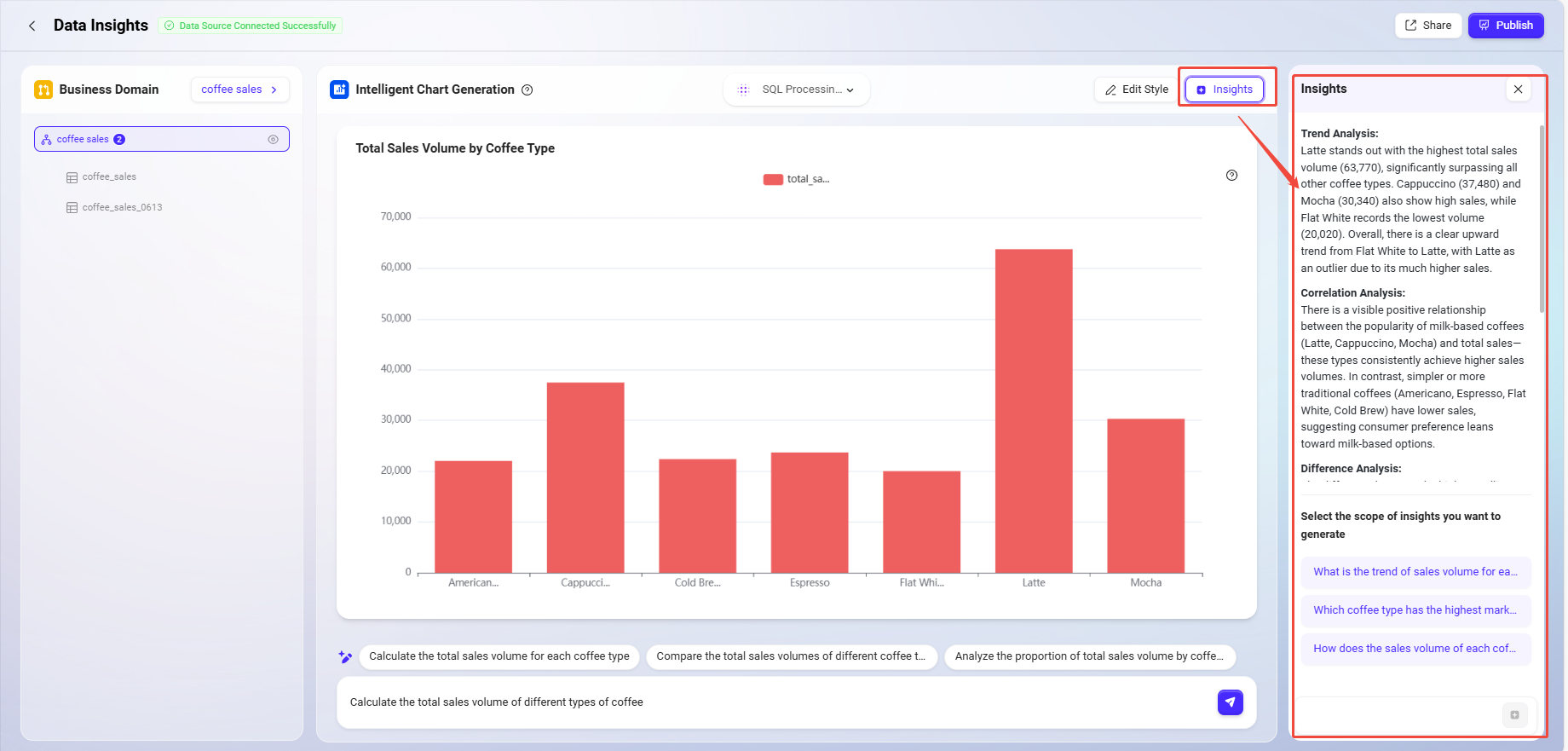
On the report page, click the "Insights" button in the upper right corner.
-
The system will automatically analyze based on the current chart's dimensions and metrics, and output a set of data insight results.
These automatically generated insights include but are not limited to:
-
Trend Analysis: Identifies sales trends, such as significant increases or decreases in sales of a certain coffee type during a specific period.
-
Correlation Analysis: Determines relationships between different fields, such as whether there is a correlation between a type of coffee and store location sales.
-
Difference Analysis: Identifies significant differences between categories, such as sales performance differences of different coffee types in various regions.
-
Data Summary: The system automatically extracts key conclusions based on the chart content, making it easy to quickly understand the business meaning behind the data.
Custom Natural Language Insights
In addition to automatic insights, you can also enter more specific analysis needs in natural language for in-depth insights.
-
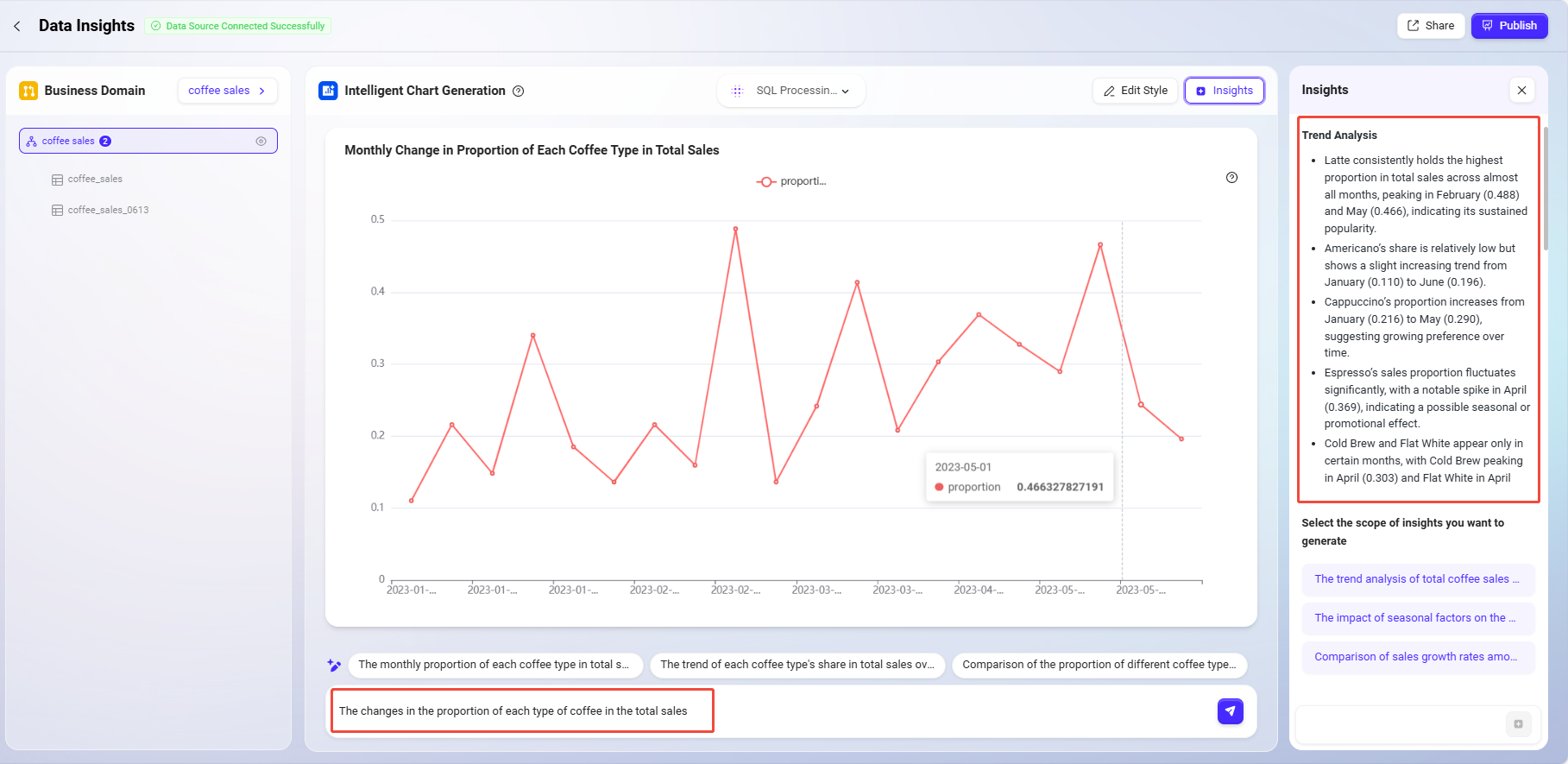
Enter in the input box below:
The changes in the proportion of each type of coffee in the total sales -
The system will generate new data queries and analysis logic based on this question and return insights on this topic.
This approach is especially suitable for business personnel to explore data through "question-based" methods and quickly obtain valuable information. By combining automatic and custom insights, the feature not only expands the usability of charts but also further enhances the intelligence and business value of data analysis.
At this point, a complete data integration → report creation → intelligent insights sales analysis process has been built, providing business teams with an intuitive, efficient, and intelligent data analysis tool.
Publish Intelligent BI Reports
After completing the report, you can publish it for later viewing or sharing.
The system supports two publishing locations:
-
My Reports: Visible only to yourself, suitable for personal viewing and saving.
-
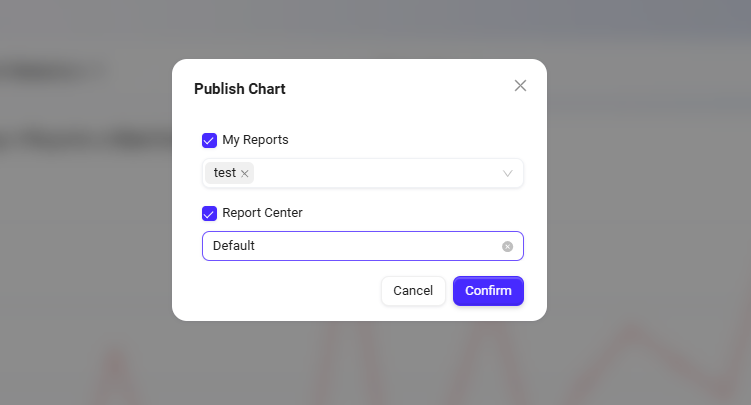
Report Center: Visible to team members, suitable for sharing and collaboration.