
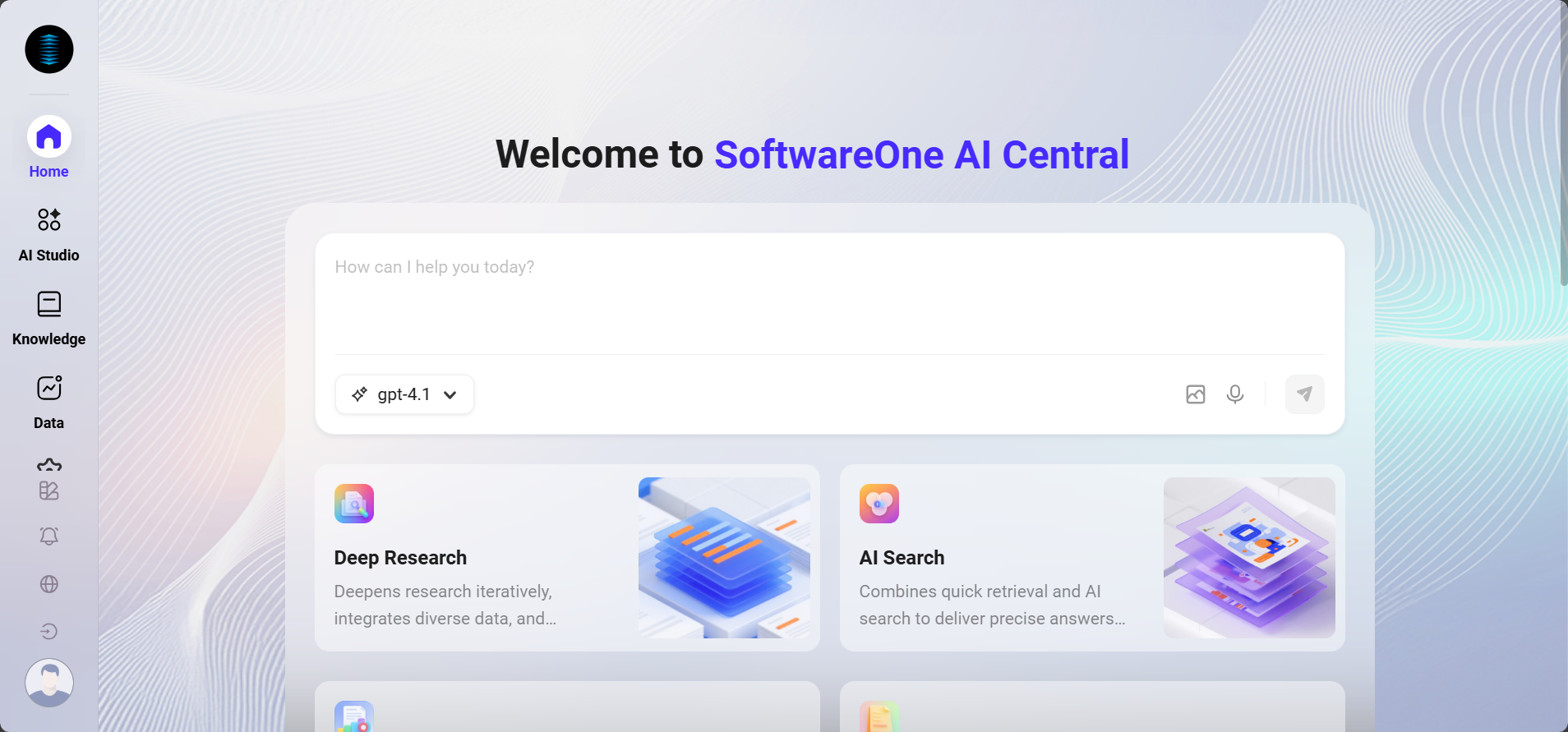
The Home page is the default page users see after entering the AI Central system, and it is also the unified entry point for all features.
This page integrates the intelligent conversation area, model selection, APP quick access entries, and the recommended agents area, helping users quickly start tasks or enter specific scenarios to improve operational efficiency.
The Home page interface is shown below:
Page Structure
The Home page mainly consists of the following parts:
Intelligent Conversation Area
The intelligent conversation area is the unified interaction entry for Super Agent, where users can ask questions, upload files, switch models, and perform other operations.
-
Input box: Users can directly enter questions, instructions, or text for natural language interaction.
-
Files and Knowledge Base: Click the “” icon in the lower-right corner of the input box to upload local files or select files already uploaded to the knowledge base, and ask questions based on document content.
-
Model selection: Supports selecting the model used for the current query through the dropdown list (for example: gpt-5.2), flexibly adapting to different interaction scenarios and needs.
-
History: Click the “” icon to view and search past Q&A records.
-
Send button: Click the paper airplane icon in the lower-right corner to submit the entered message or instruction and trigger a system response.
TIP
Notes related to file upload:
-
File size limit: A single file must not exceed 100MB.
-
File formats: .xml,.xmind,.pdf,.doc,.docx,.xls,.xlsx,.ppt,.pptx,.txt,.md,.csv,.json,.jpg,.jpeg,.png,.mp3,.flac,.mp4。
-
Maximum uploads: Up to 3 files can be uploaded at the same time in a single upload.
APP Quick Access Entries
Common AI feature module entries are provided below the input box, supporting one-click access to the corresponding feature pages. You can configure which APPs are displayed on the Home page in “Management -> Agent Management -> APP”. Below is a brief introduction to commonly used APPs:
💡 Tip: If you need more detailed APP configuration steps and usage instructions, please refer to the “APP” section.
1. Deep Research(V2.0)
Focused on in-depth topic analysis and professional report generation, helping users efficiently complete various research tasks.
-
Model support: Supports gpt-5.4, and other non-reasoning models added by users.
-
Research directions: Covers news, popular science knowledge, and academic fields.
-
Research configuration:
-
Maximum research iterations (per round): 1–30 times.
-
Automatically determine subtopics: Allows the system to intelligently expand research dimensions without manually enumerating all sub-questions.
-
Maximum number of subtopics per topic: 1–30.
-
-
Report style settings:
-
Style name: Within 50 characters, used to identify the report style.
-
Role setting: Within 2000 characters, simulates the characteristics of the report writer, for example: professional, rigorous, concise.
-
Style description: Within 2000 characters, defines the report structure, for example: overview, background, value, summary.
-
2. AI Reading
AI Reading is an intelligent single-document analysis tool, divided into two modes: Document Summary and Text Summary, meeting different input needs.
-
Document Summary:
-
File size: Must not exceed 100MB.
-
File formats: .xml,.xmind,.pdf,.doc,.docx,.xls,.xlsx,.ppt,.pptx,.txt,.md,.csv,.json,.jpg,.jpeg,.png,.mp3,.flac,.mp4。
-
Number of uploads: Only 1 file is supported per upload.
-
Upload method: Supports knowledge base selection or local upload.
-
-
Text Summary:
-
Input method: Supports manual text input or voice input.
-
Output result: The system automatically generates a concise and accurate summary based on the input content.
-
3. Data Analysis
Supports users in analyzing structured data from selected business domains using natural language. The system automatically generates SQL queries and visual charts.
-
Structured data analysis: Supports connecting to and processing standardized business data tables for in-depth mining.
-
Analysis scope: Covers all data assets within your business domain, including but not limited to business metrics, statistical reports, data dashboards, and other structured data.
-
Description: Query understanding, analysis, and SQL generation are mainly completed through AI technology. You can improve the accuracy and applicability of query results by optimizing how questions are expressed, or by adjusting metadata configurations in the data catalog and business domain modules.
4. AI Slides(V1.0)
AI Slides provides a complete workflow from “Idea Input > Knowledge Retrieval > Outline Generation > PPT Generation” to deliverable presentation documents, adapting to enterprise-level presentation needs.
-
Configuration:
-
Number of pages: You can choose Auto, 1-20 pages, 11-20 pages, or 30+ pages (Auto is the default option, and AI intelligently adapts the optimal number of pages based on the amount of topic content).
-
Add Knowledge Base: Optionally associate a knowledge base, supporting parameters such as retrieval strategy, maximum recall count, and document matching similarity.
-
Add MCP: You can choose to connect to external data sources.
-
-
After PPT generation
-
Editing capabilities: Supports conversational instruction-based editing and online visual editing.
-
Auto-save: Generated PPT projects are automatically saved to the platform and can be continued at any time from the “Recently Used” list on the left side of the AI Slides page.
-
Export to local: Supports exporting as a
.pptxfile for archiving or distribution.
-
5. AI Translation(V2.0)
AI Translation provides two translation modes, Document Translation and Text Translation, enabling fast multilingual content conversion for various cross-language communication scenarios and significantly improving translation efficiency and accuracy.
-
Document Translation:
-
Document formats: Supports PDF, DOCX formats.
-
Upload method: Supports uploading local documents.
-
File size: A single file must not exceed 100MB.
-
Processing method: 1-5 files (configurable through environment variables), with support for batch uploading up to 100 documents.
-
Advanced configuration: Supports writing custom prompts to further optimize translation results.
-
-
Text Translation:
-
Input method: Supports manual text input or voice input.
-
Translation styles: Multiple styles are available, such as “professional, conversational, friendlier, more technical, concise, expanded,” adapting to different scenarios.
-
-
General capabilities
-
Supported languages: English, Simplified Chinese, Traditional Chinese, Japanese, Korean, French, German, Spanish, Italian, Portuguese, Russian.
-
Translation models: Supports models such as OpenAI, Azure, AWS AI, Tongyi.
-
Glossary: An optional glossary is available to ensure the accuracy of professional terminology translation.
-
Recommended Agents
-
Recommended Agents: The system recommends agents based on usage frequency and role characteristics (such as File Copilot, Copilot, QA|Anakin ).
-
More button: Click “More” to view all available agents.
Usage Recommendations
-
It is recommended that users first select an appropriate model and mode after logging in for the first time to ensure task results meet expectations.
-
If the Home page loads abnormally or agents are not displayed, please confirm the network environment and License status.
Example Operation
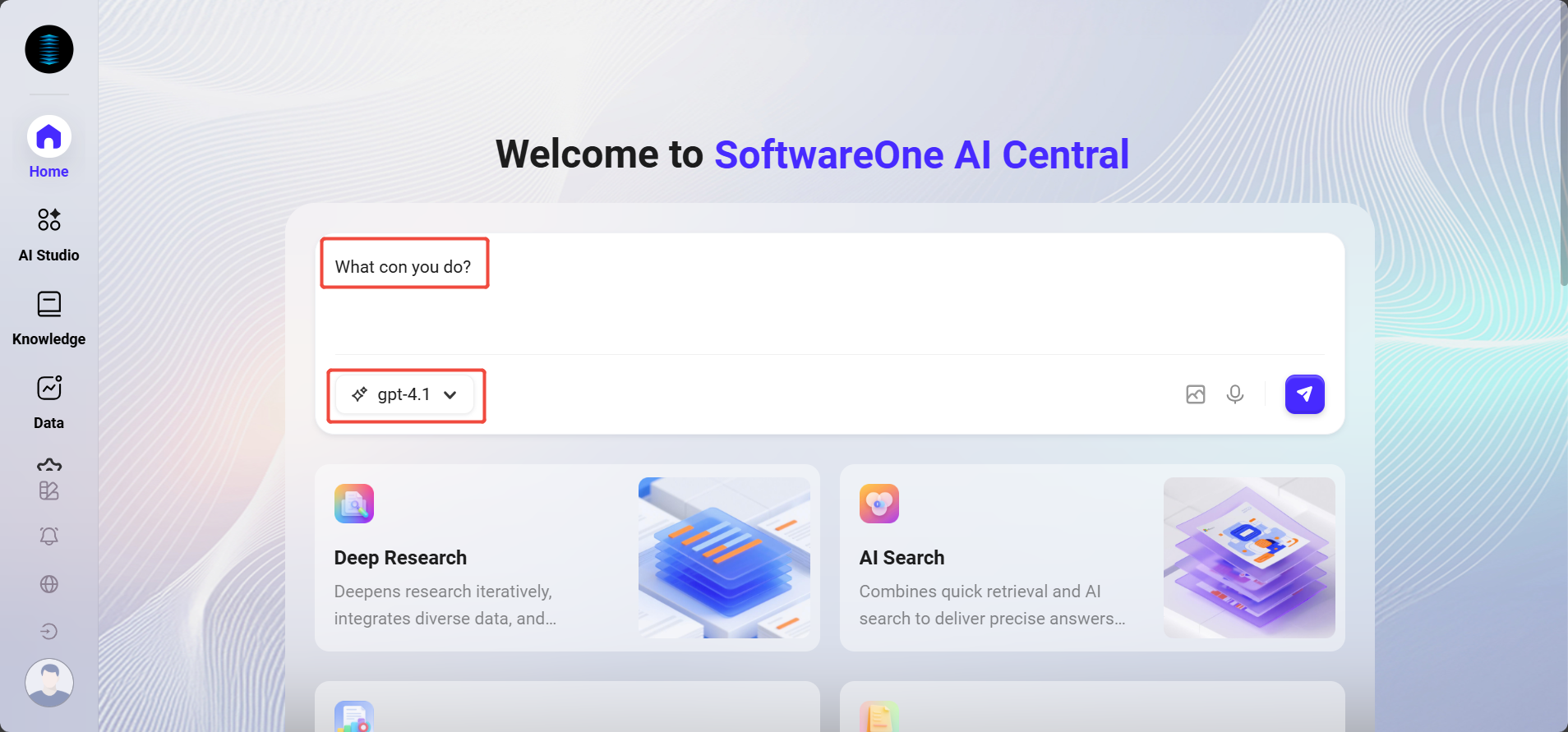
-
Enter an instruction in the input box, such as “What is the future development of AI like”.
-
Select a model (for example: gpt-5.2).
-
Click “Send” or press the “Enter” key.
-
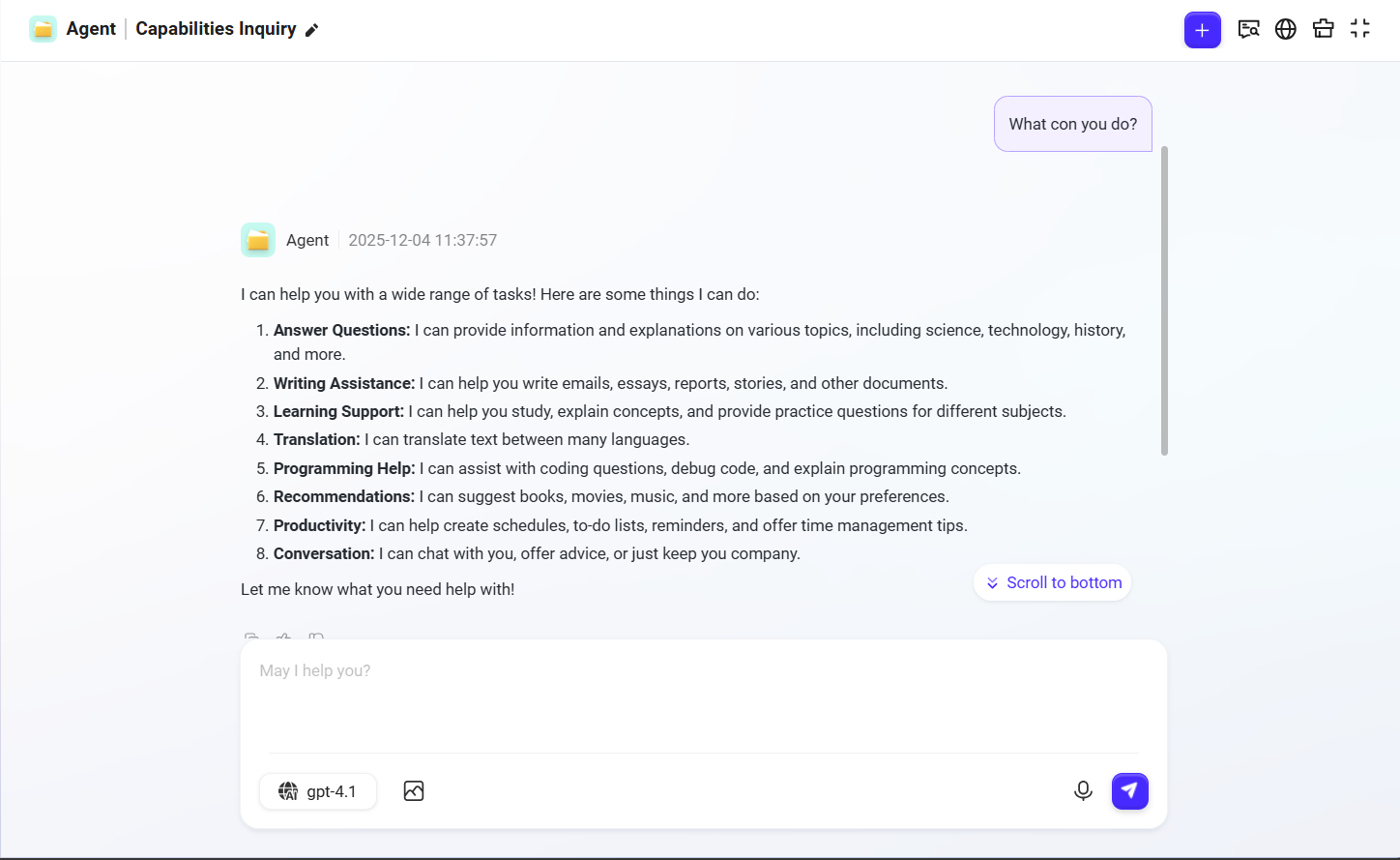
The system will automatically call the corresponding model and return the result.
Home Page Customization
To optimize the user experience for different user groups and lower the learning threshold, the system provides two interface styles: “Simple Mode” and “Traditional Mode”. Users can choose and switch according to their roles and operating habits.
Mode Overview
-
Simple Mode (Simple): The interface is extremely simplified, retaining only the core functional areas of the Home page and hiding the left navigation bar. This mode focuses on intelligent conversation and the most commonly used quick access entries, making it suitable for business users who prefer out-of-the-box usability without complex navigation.
-
Traditional Mode (Traditional): Provides the complete system interface, including the left navigation bar and all feature module entries, offering a full workspace for technical or advanced users who need to access and manage various functions.
Mode Setting Rules
-
Default mode for new users
-
System administrators can set the default value (
simpleortraditional) in the backend environment variablePUBLIC_DEFAULT_UI_MODE. -
When a user logs in for the first time and has never switched modes before, they will automatically enter the mode configured here.
-
User switching and memory
-
Users can manually switch between the two modes at any time.
-
Core principle: Once a user has manually switched modes, the system will remember this choice. Subsequent logins will directly enter the last mode used by the user and will no longer be affected by the environment variable.
How to Switch Modes?
Users can switch between the two modes at any time through the navigation bar button “” in the lower-left corner of the page.
Simple Mode:
Traditional Mode: