
The entry point for content security management is shown below:
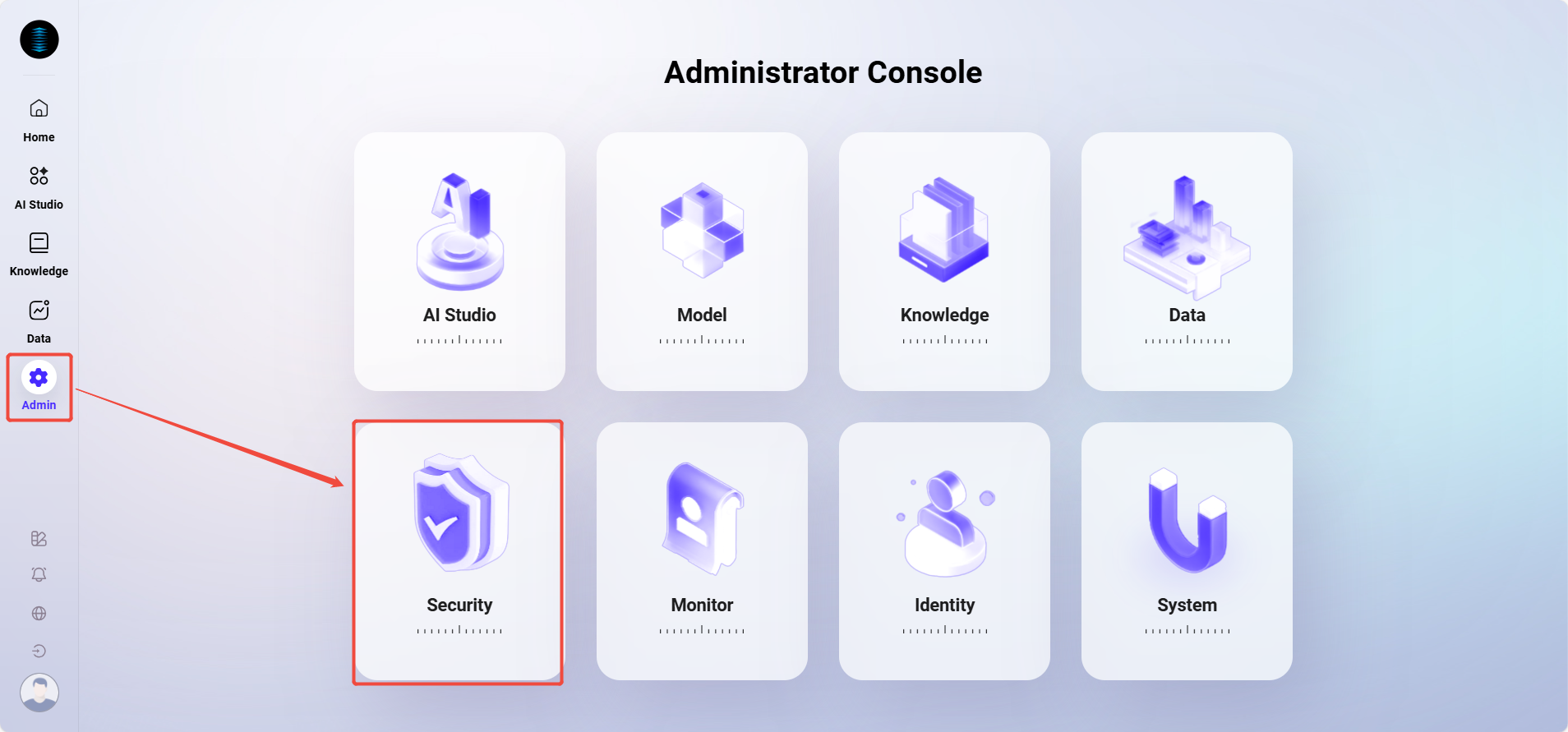
Sensitive Word Management
The Sensitive Word Management feature helps users effectively control platform content, ensuring content is compliant, healthy, and aligned with internal enterprise policies or community governance standards. By defining sensitive words, the system can intelligently identify and block them during content generation, display, or storage, preventing the spread of sensitive information.
Feature Highlights
-
Supports batch import and export, making it convenient to centrally manage a large number of sensitive words.
-
Flexible status control, allowing each sensitive word to be enabled or disabled individually.
-
Supports description information, making it easy to record the background and purpose of sensitive word settings.
-
Import template validation mechanism, preventing format errors or duplicate entries from being imported.
Add Sensitive Words
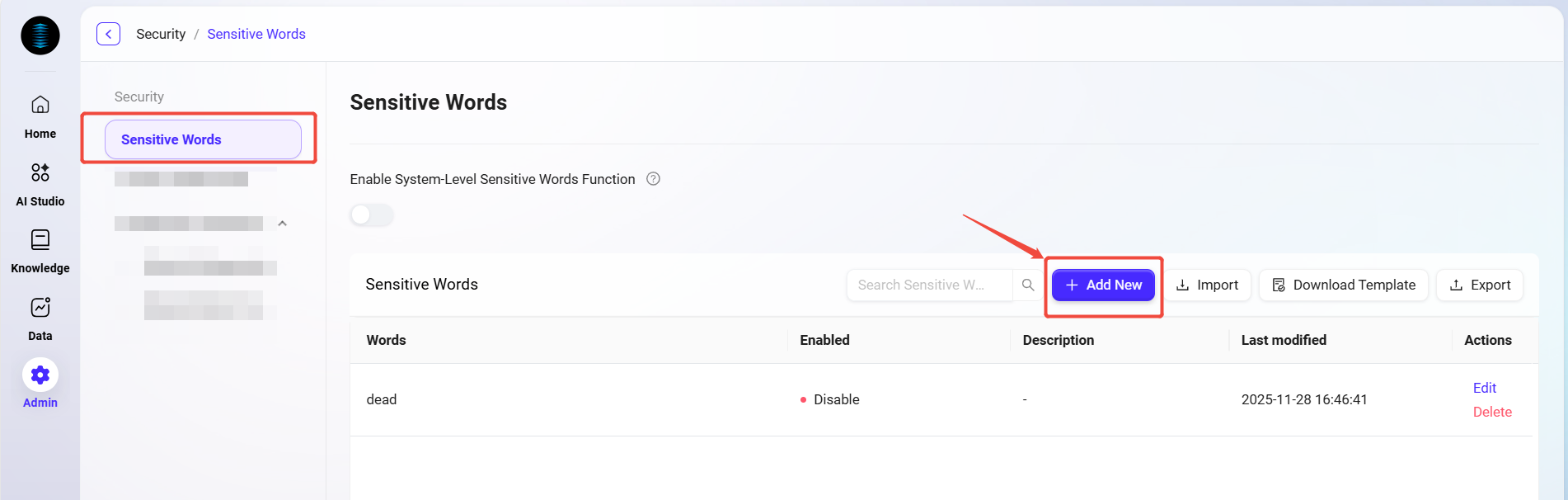
Users can manually add one or more sensitive words. The steps are as follows:
-
Go to:
Content Security Management -> Sensitive Words -> New. -
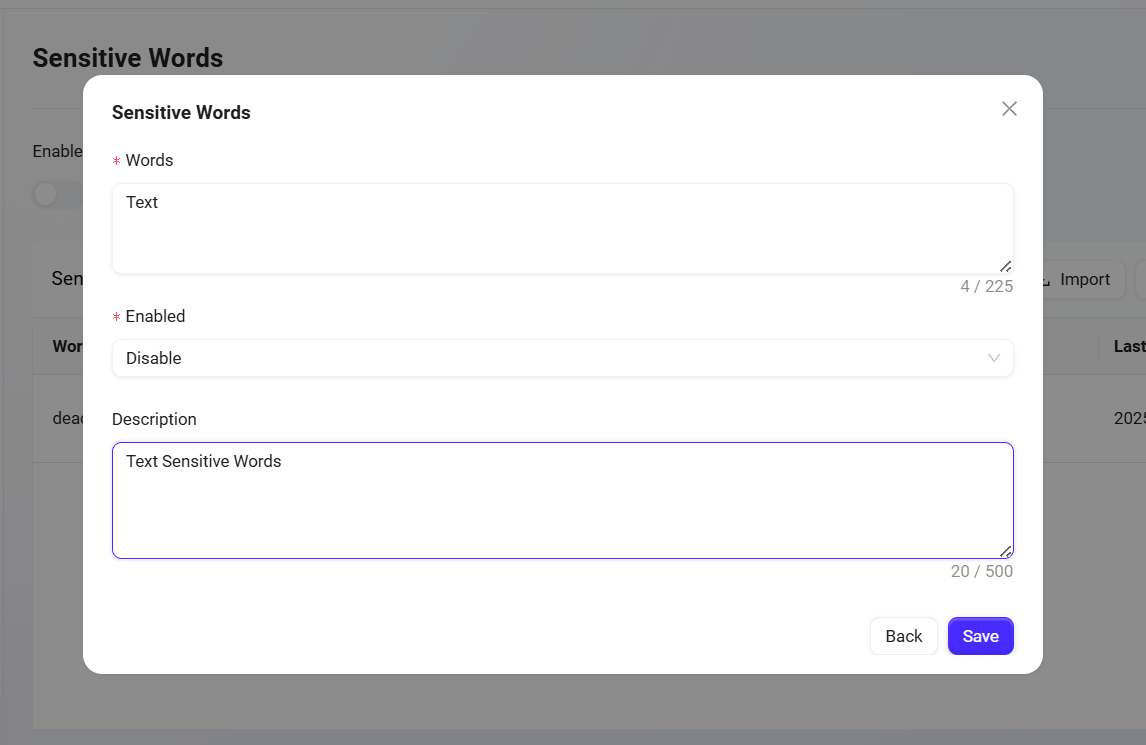
In the pop-up window, fill in the following information:
-
Sensitive Word: such as
Text(within 225 characters). -
Enable Status: select
EnableorDisable. -
Description (Optional): add background information for why the sensitive word was added (within 500 characters).
-
-
Click Save. The sensitive word will take effect immediately or be retained for later use (depending on the enable status).
Download Import Template
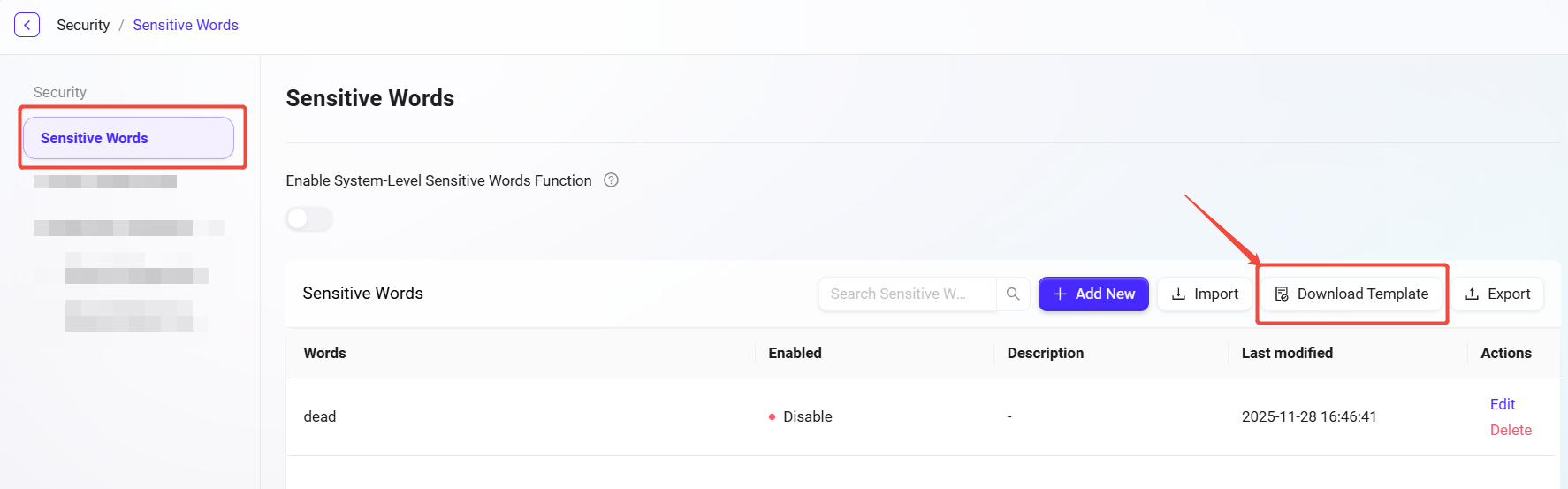
To facilitate batch management of sensitive words, the system provides a unified import template. The steps are as follows:
-
Go to:
Content Security Management -> Sensitive Words -> Download Template. -
The system will automatically download an Excel file, named by default:
Sensitive Words Import Template.xlsx. -
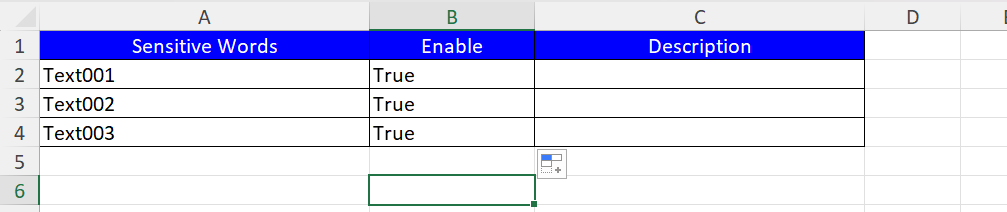
Open the template file and fill in the following fields:
-
Sensitive Word(required) -
Enable(Yes / No) -
Description(optional)
-
-
Save the file after completion for later import.

Import Sensitive Words
After preparing the sensitive word template, you can perform a batch import:
-
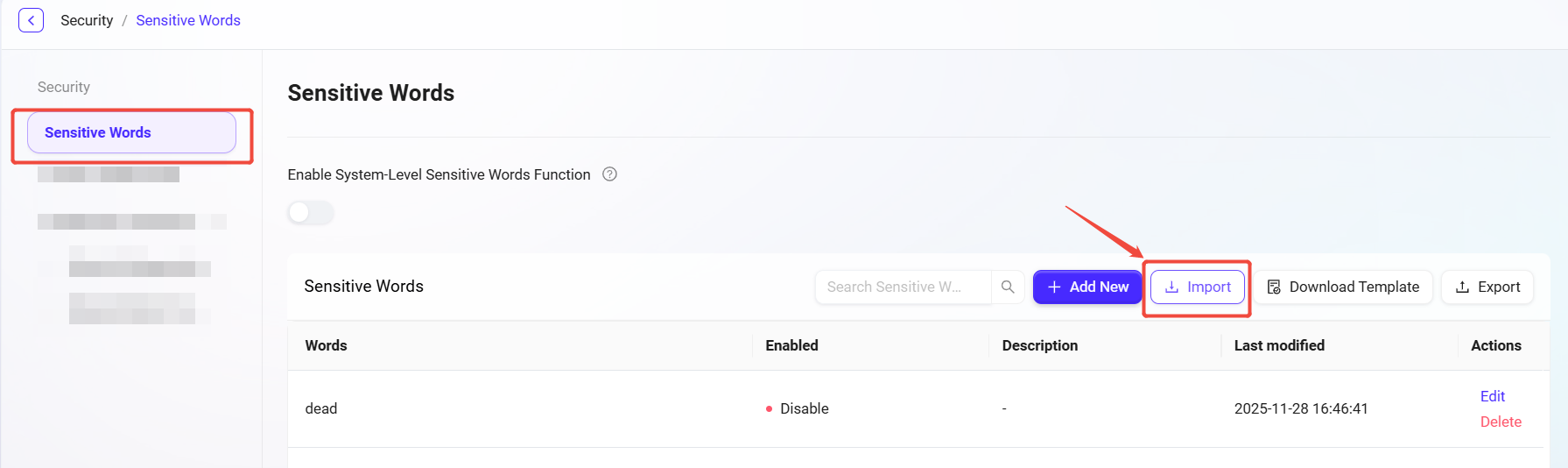
Go to:
Content Security Management -> Sensitive Words -> Import. -
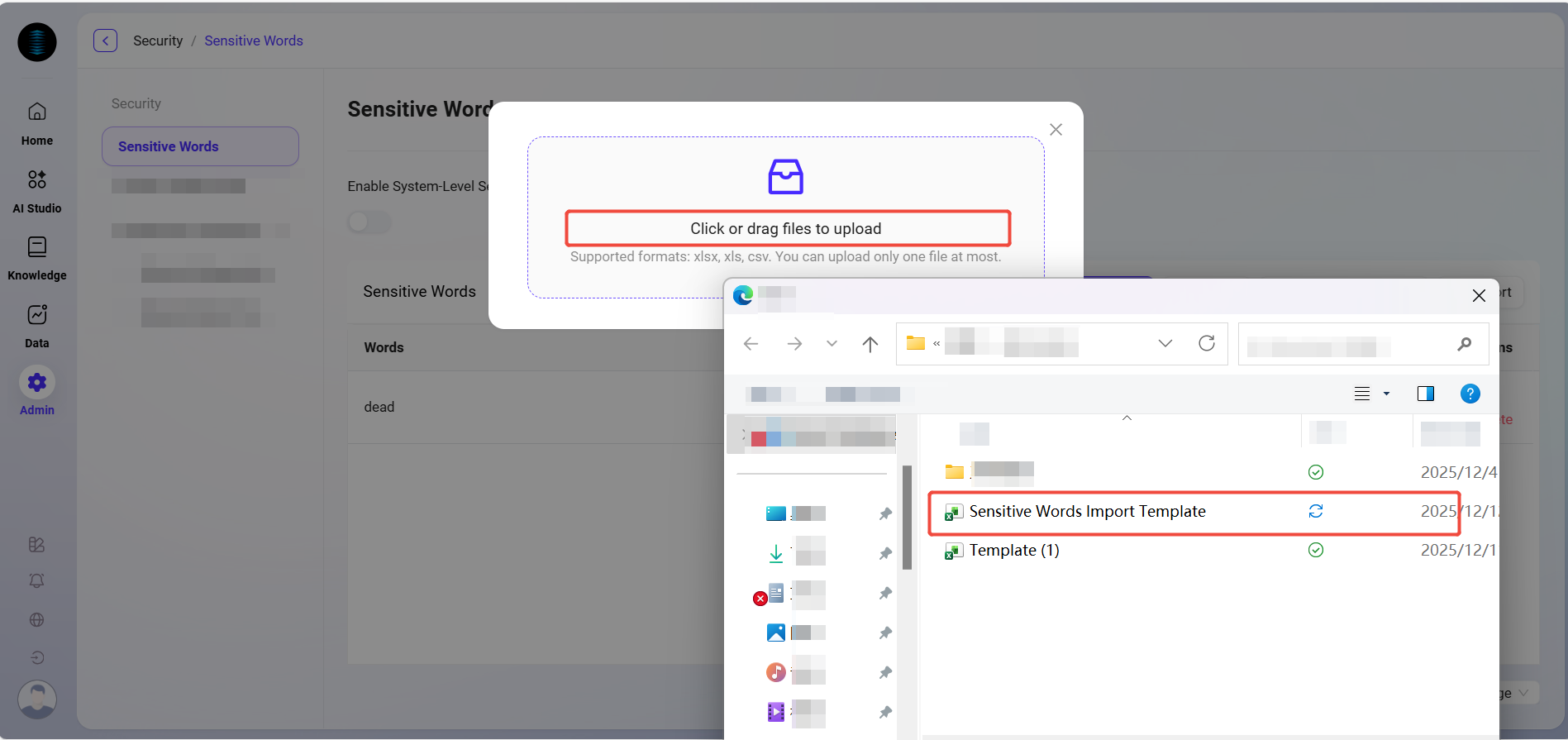
Click the upload area to upload, or drag and drop the template file to upload.
-
The system will automatically validate the content (field completeness, format, duplicates, etc.).
-
After a successful import, an “Upload successful” message will be displayed, and the newly added sensitive words will appear in the list.
⚠️ Supported file formats: xlsx, xls, csv. Only one file can be uploaded at a time. Please confirm the format is correct before importing.

Export Sensitive Words
Supports exporting all current sensitive words on the platform as an Excel file. The steps are as follows:
-
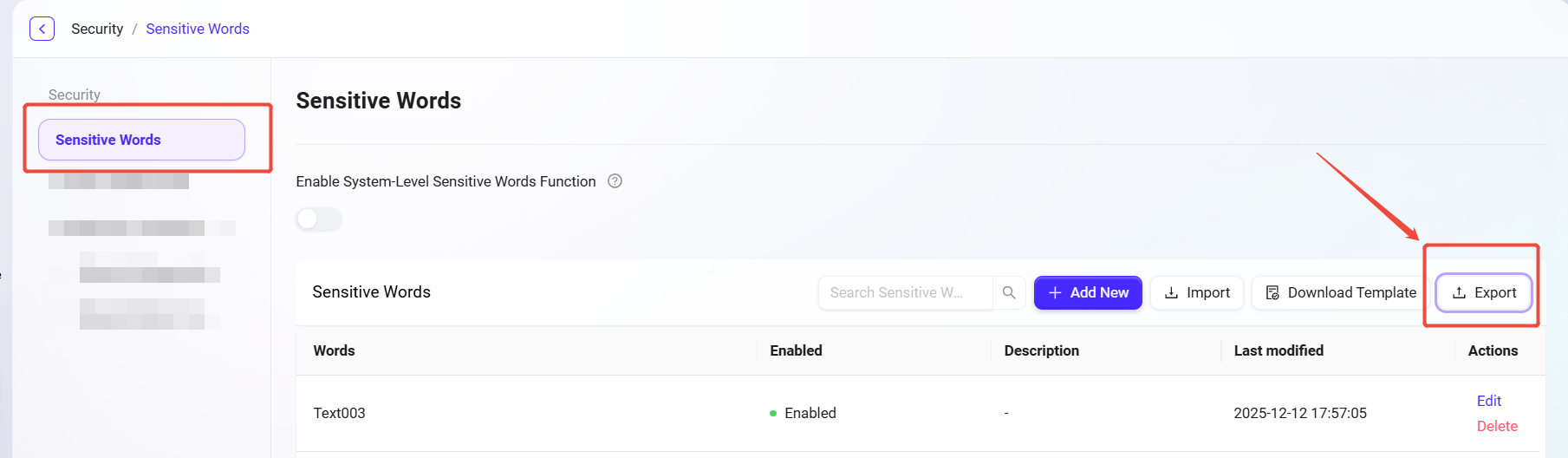
Go to:
Content Security Management -> Sensitive Words -> Export. -
After clicking Export, the system will automatically download an
.xlsxfile, named by default:Sensitive Words Report.xlsx. -
The report contains the sensitive words themselves, enable status, and description information, making it convenient for archiving and sharing.

Content Moderation Model
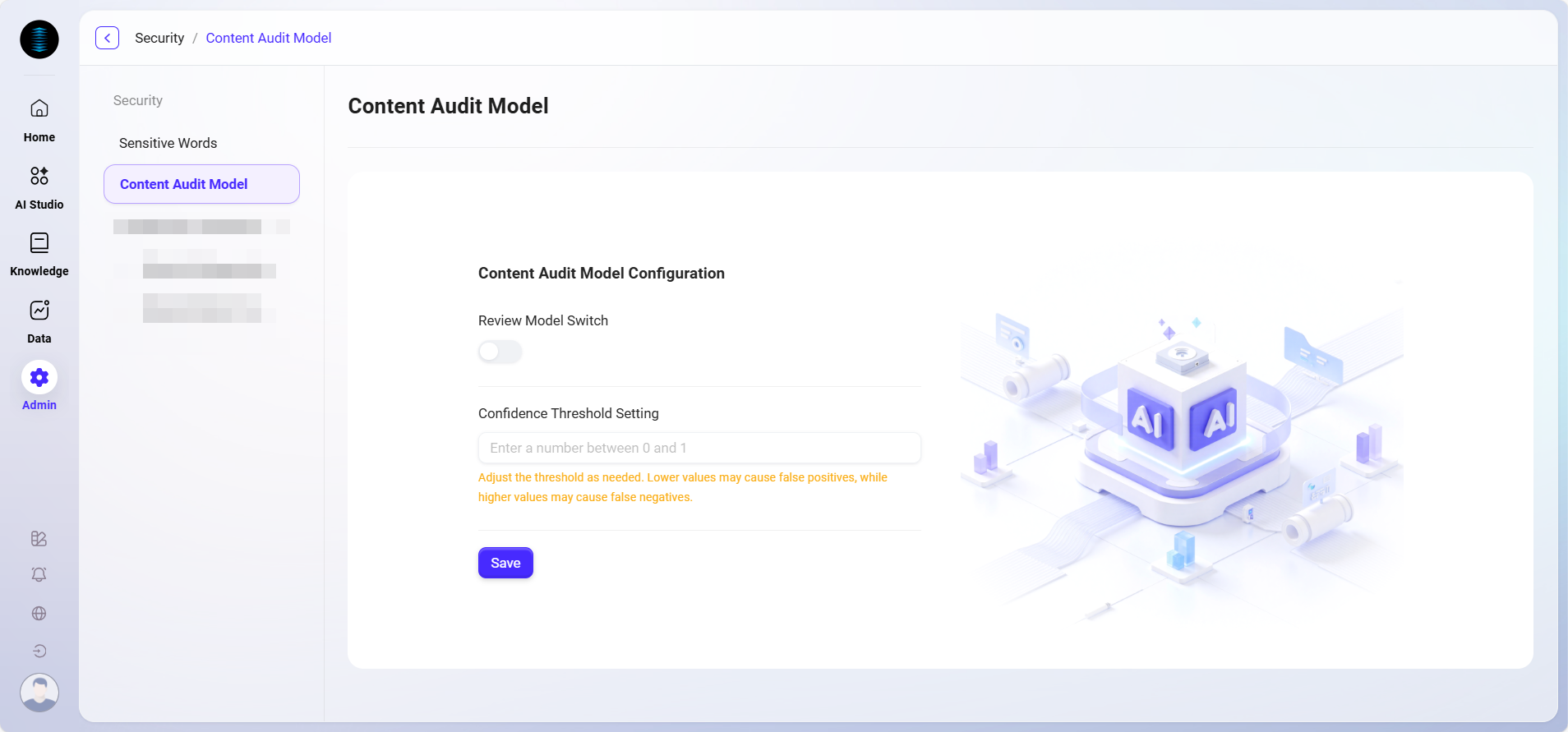
Confidence usually refers to the degree of certainty a model or system has in its prediction results.
In the context of a content moderation model, confidence threshold setting is an important feature that allows users to define the minimum confidence level the model must reach before labeling content as a specific category (such as spam, inappropriate content, etc.). This can reduce the number of false positives or false negatives, depending on how the threshold is set.
For example, if the confidence threshold is set to 0.8, then the model will label content as inappropriate only when its confidence in the prediction result is at least 80%. This helps ensure that action is taken only in cases where the model is highly confident.
⚠️ This feature currently requires personalized deployment configuration. Please contact the administrator to configure the service for you.
PII Detection and Masking
PII (Personally Identifiable Information) detection and masking is used to identify and protect data that may expose personal privacy. The system supports identifying various types of data that can identify a specific individual either independently or in combination with other information. Its core purpose is to ensure data security and privacy compliance.
Global Configuration
Interface Description
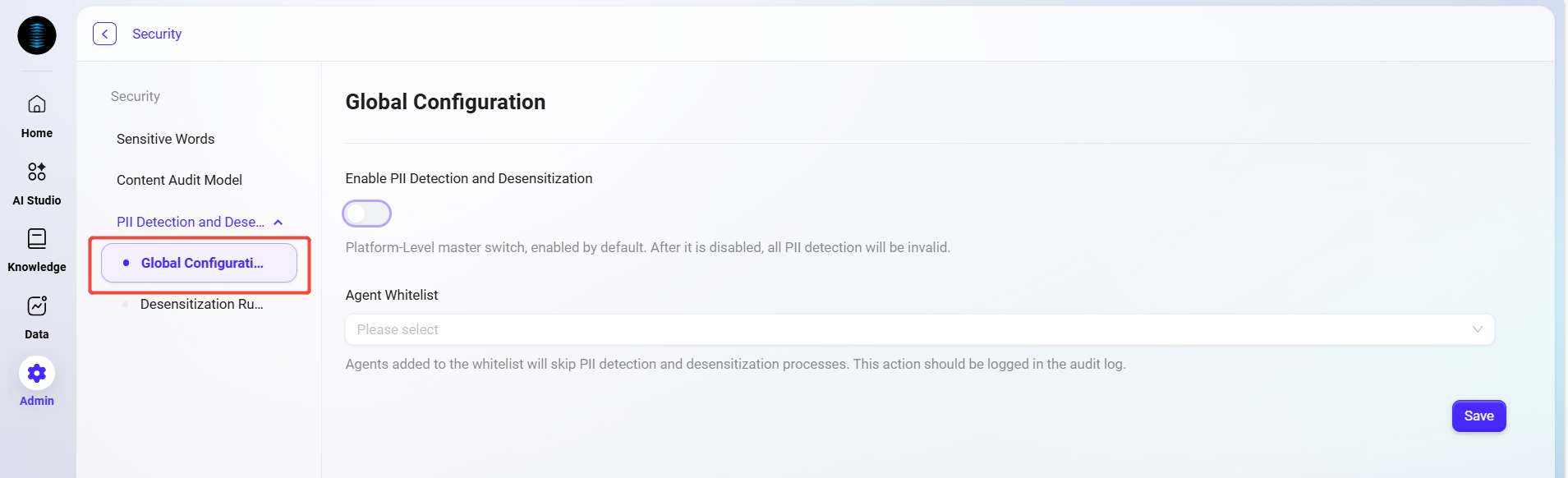
In the “Admin Console”, go to 【Content Security Management > PII Detection and Masking > Global Configuration】 to centrally configure platform-wide PII detection policies.
Configuration Items
-
Automatic PII Detection and Masking:
-
A platform-level switch, enabled by default.
-
When enabled, the system will automatically identify personal privacy information (such as names, phone numbers, email addresses, ID numbers, etc.) during Agent interactions and data processing, and perform masking.
-
If this feature is disabled, all PII detection will become ineffective.
-
-
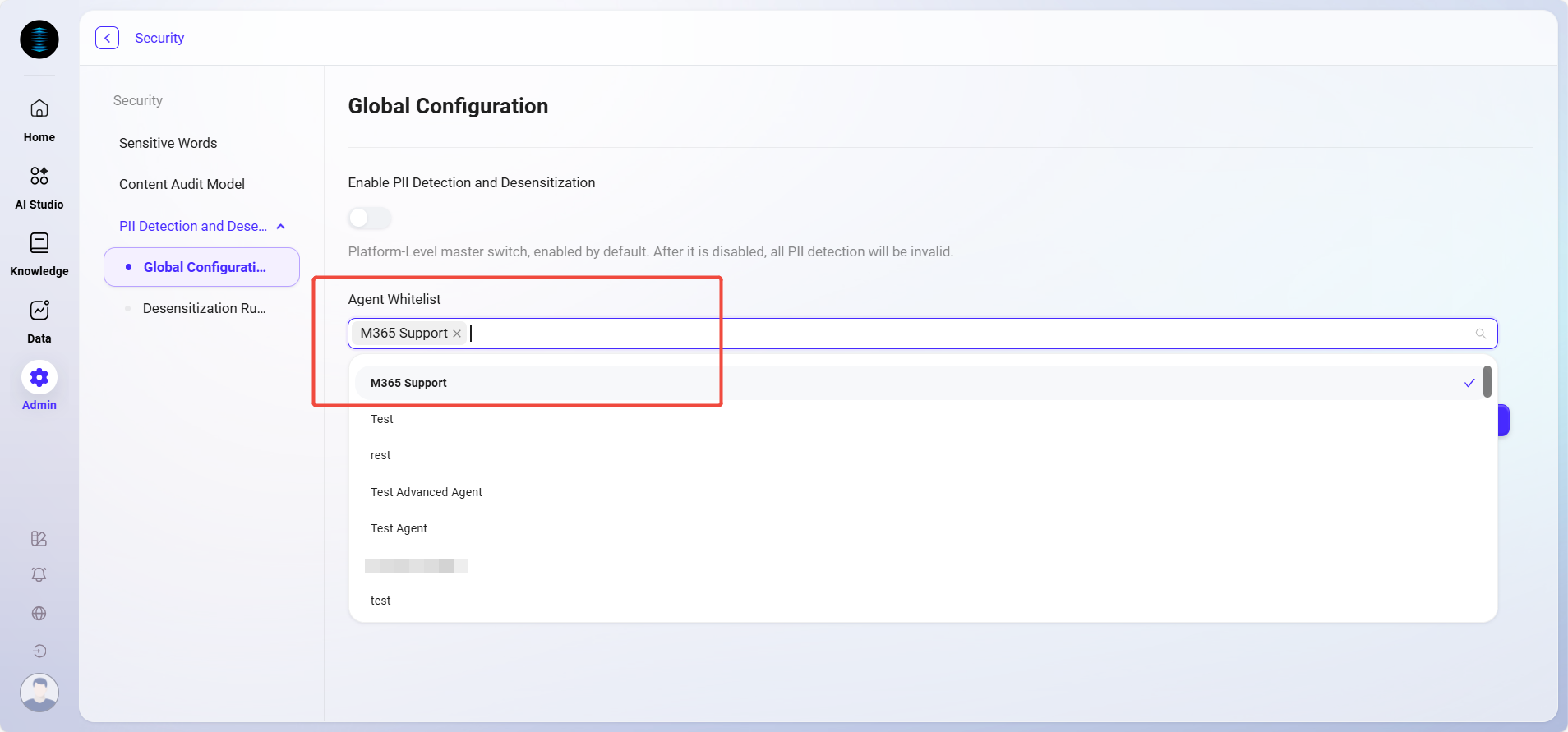
Agent Whitelist:
-
Specific Agents can be added to the whitelist.
-
Agents in the whitelist will skip the PII detection and masking process, but all operations will be recorded in the audit log to ensure security traceability.
-
Operation Instructions
-
Select the Agents to exclude from detection in the “Agent Whitelist” dropdown;
-
Toggle the “Automatic PII Detection and Masking” switch to enable or disable global detection;
-
Click 【Save】 to make the configuration take effect immediately.
Functionality
-
Automatically identifies and masks sensitive personal information to prevent privacy leakage;
-
Supports flexible configuration to meet privacy policy requirements in different business scenarios;
-
Audit logs can trace all configuration changes, ensuring security, compliance, and controllability.
Masking Rule Configuration
Feature Description
“Masking Rule Configuration” is used to define how the system handles personally sensitive information (PII) when detected. By setting different rules and strategies, administrators can flexibly control how the system identifies, prompts for, and masks sensitive data, ensuring data compliance and privacy security.
Page Description
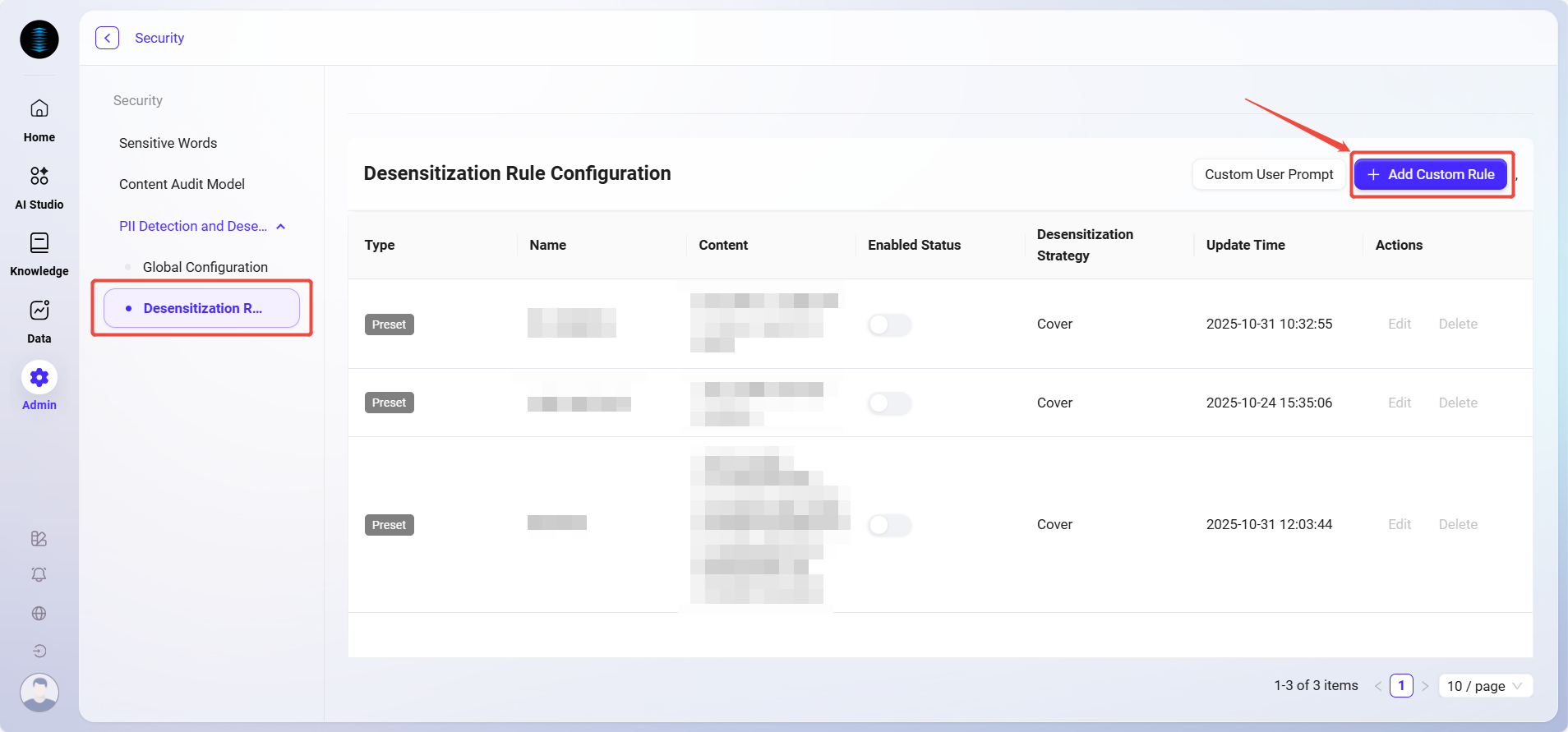
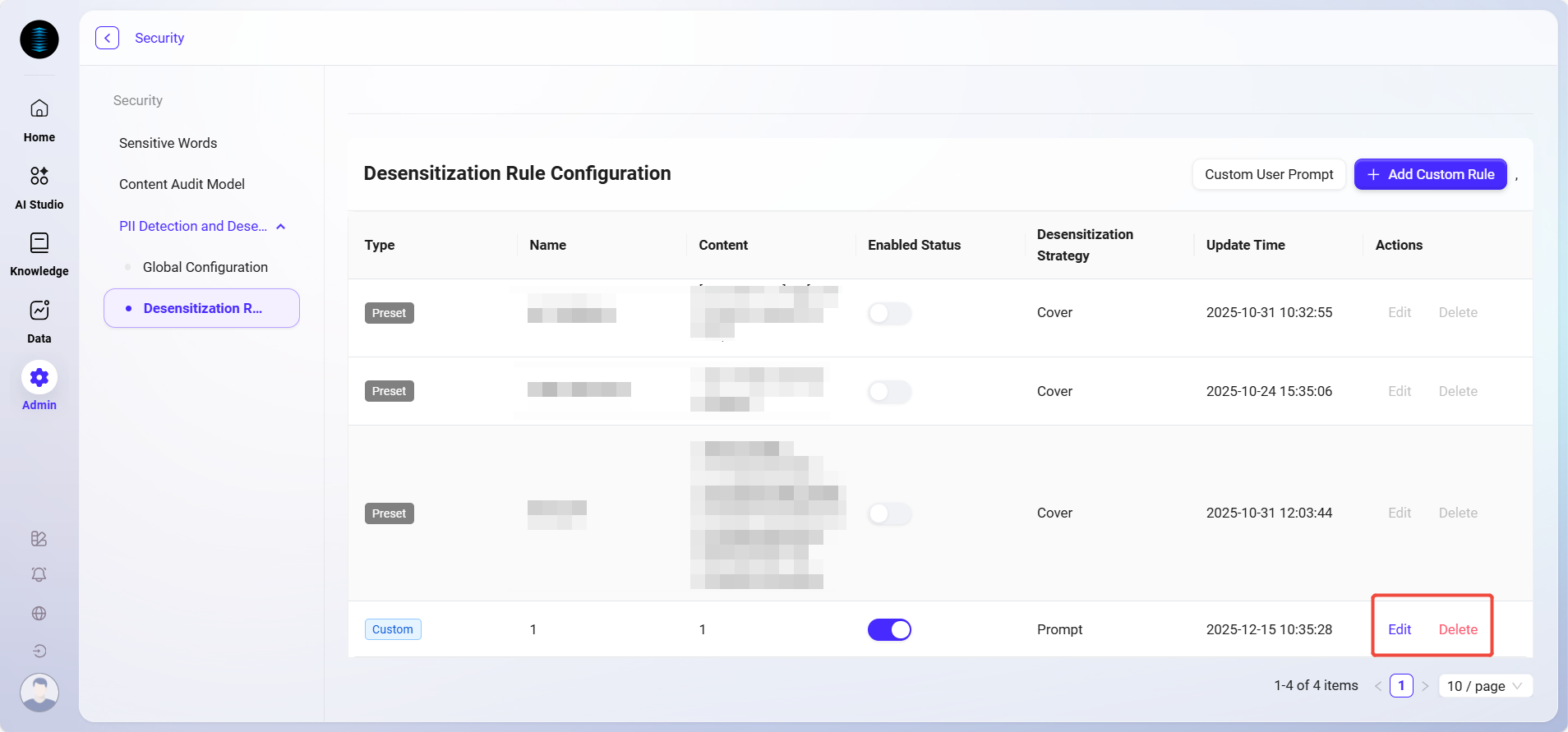
The page displays all masking rules configured in the system, including the following information:
-
Rule Type: distinguishes between system built-in (preset) rules and user-defined rules.
-
Rule Name: the type of sensitive information detected by the rule, such as ID number, mobile phone number, email, etc.
-
Rule Content: the regular expression or detection logic used to match sensitive information.
-
Enable Status: controls whether the rule takes effect.
-
Masking Strategy: the action performed by the system when sensitive information is matched. Options include “Mask”, “Prompt”, “Terminate”, and “Delete”.
-
Update Time: the most recent update time of the rule.
-
Actions: supports editing or deleting rules.
Configuration Steps
-
Add a Custom Rule
-
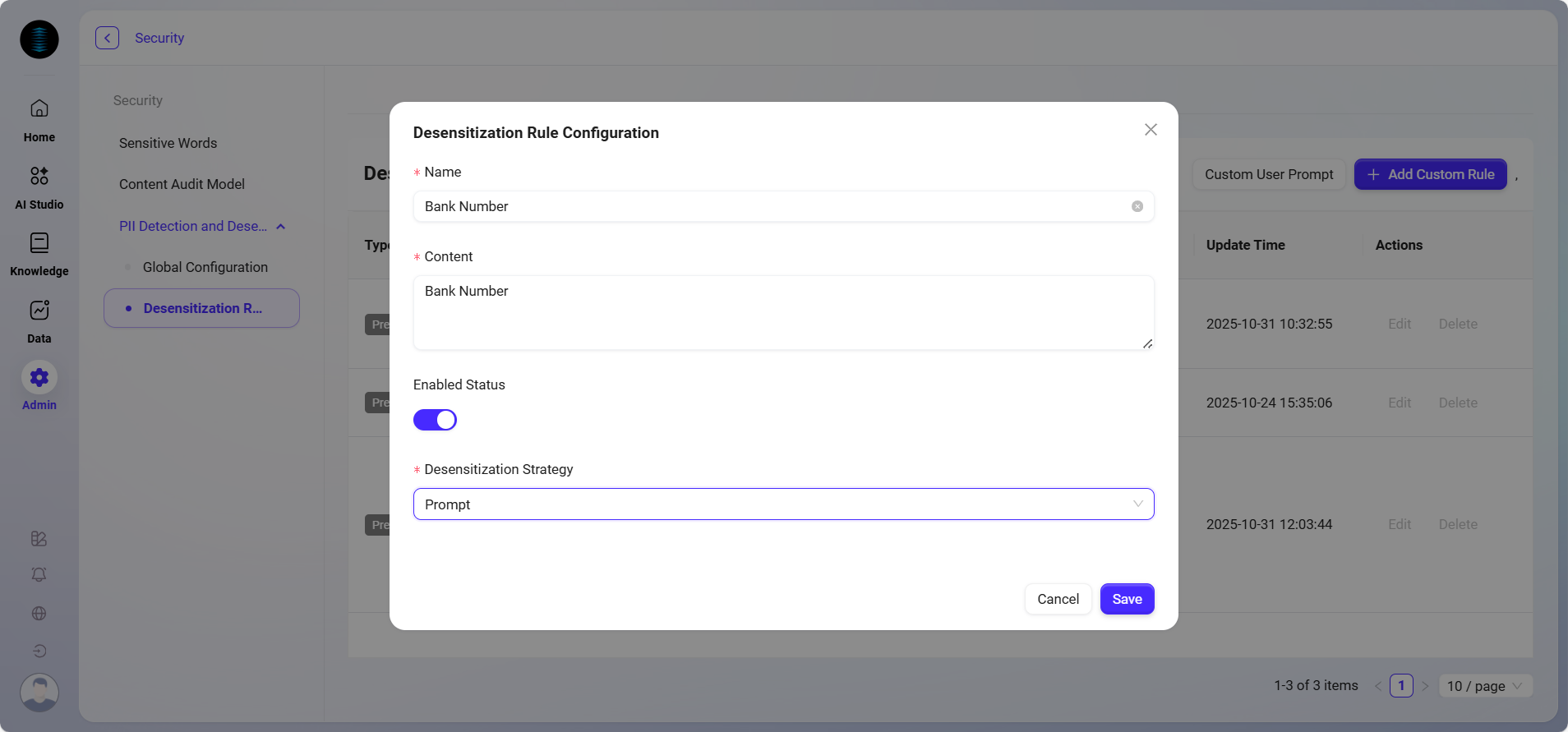
Click the “Add Custom Rule” button in the upper-right corner of the page;
-
In the pop-up window, fill in the following:
-
Rule Name: name the rule, such as
Bank Card Number Detection; -
Rule Content: enter the regular expression used to identify this type of information;
-
Enable Status: enable it immediately or leave it disabled as needed;
-
Masking Strategy: select a masking method from the dropdown (such as “
Mask”, “Prompt”, “Terminate”, “Delete”);
-
-
After completing the form, click “Save” and the rule will take effect.
-
Customize User Prompt
-
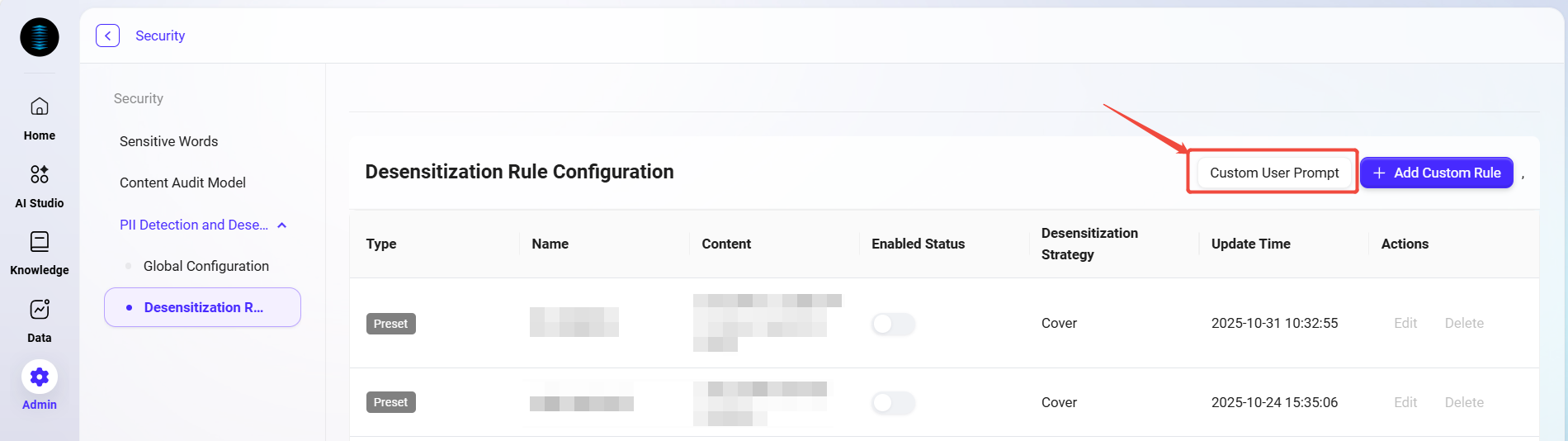
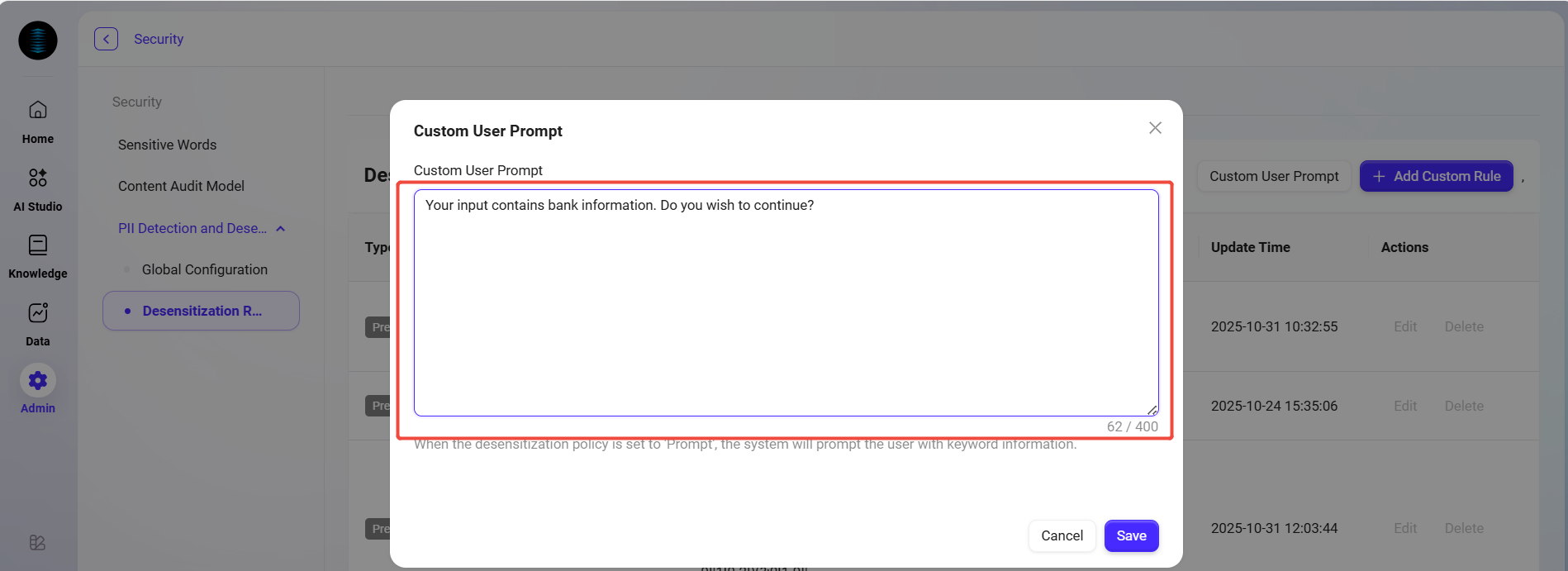
When the masking strategy is set to “Prompt”, you can click “Customize User Prompt” in the upper-right corner to configure the prompt message;
-
Example: “
Your input contains ID card information. Do you want to continue?”; -
After saving, when a user triggers this rule, the system will display a confirmation prompt.
-
Rule Management
-
You can modify rule content or strategy at any time through “Edit”;
-
Rules that are no longer needed can be removed by clicking “Delete”.
Usage Example
The system provides preset rules for common sensitive information (such as ID numbers and Mainland China mobile phone numbers), which administrators can enable directly. Rules can also be customized and added based on business scenarios, such as detecting email addresses, bank card numbers, or other data in specific formats.