
This section demonstrates, through a concrete example, how to quickly reuse existing workflow Agents using configuration codes to achieve rapid deployment of complex business processes.
Previously, we created a "Microsoft Ocean-going Cruiser" Agent via workflow. This Assistant is specifically designed to automatically identify and extract sensitive vocabulary from text content, equipped with advanced content analysis capabilities. Now, we will use this example to demonstrate how to quickly reuse existing workflow Agents using configuration codes for efficient deployment of complex business processes.
Core Advantages of Configuration Code Reuse
-
Efficient Deployment: No need to configure from scratch; copy complex workflow logic and skill combinations with one click.
-
Standardization & Best Practices: Quickly apply validated, efficient Agent templates to ensure the quality and consistency of business processes.
-
Team Collaboration: Easily share and unify intelligent Assistant capabilities among team members or across different projects.
💡 Tip: Only Agents published to the organization support the sharing feature. Agents created by individuals or classified as Agent applications cannot be shared.
Quickly Create a "Microsoft Ocean-going Cruiser" Agent Using a Configuration Code
Publish the Agent to the Organization
Before sharing the configuration code, the target Agent must first be published to the organization.
-
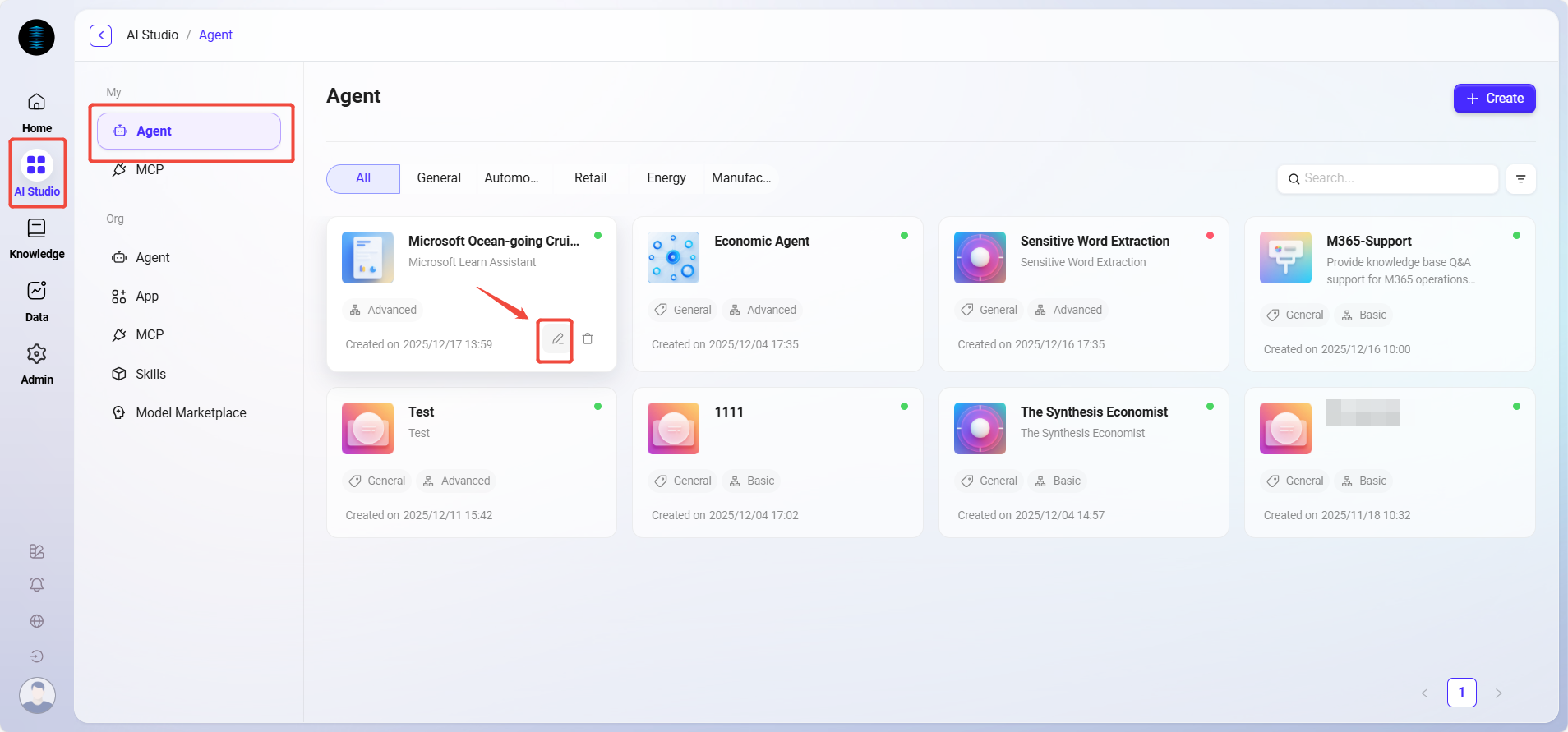
Navigate to "AI Studio -> My -> Agent".
-
In the Agent list, locate the target Agent "Microsoft Ocean-going Cruiser" and click the "✏" icon to enter its configuration details page.
-
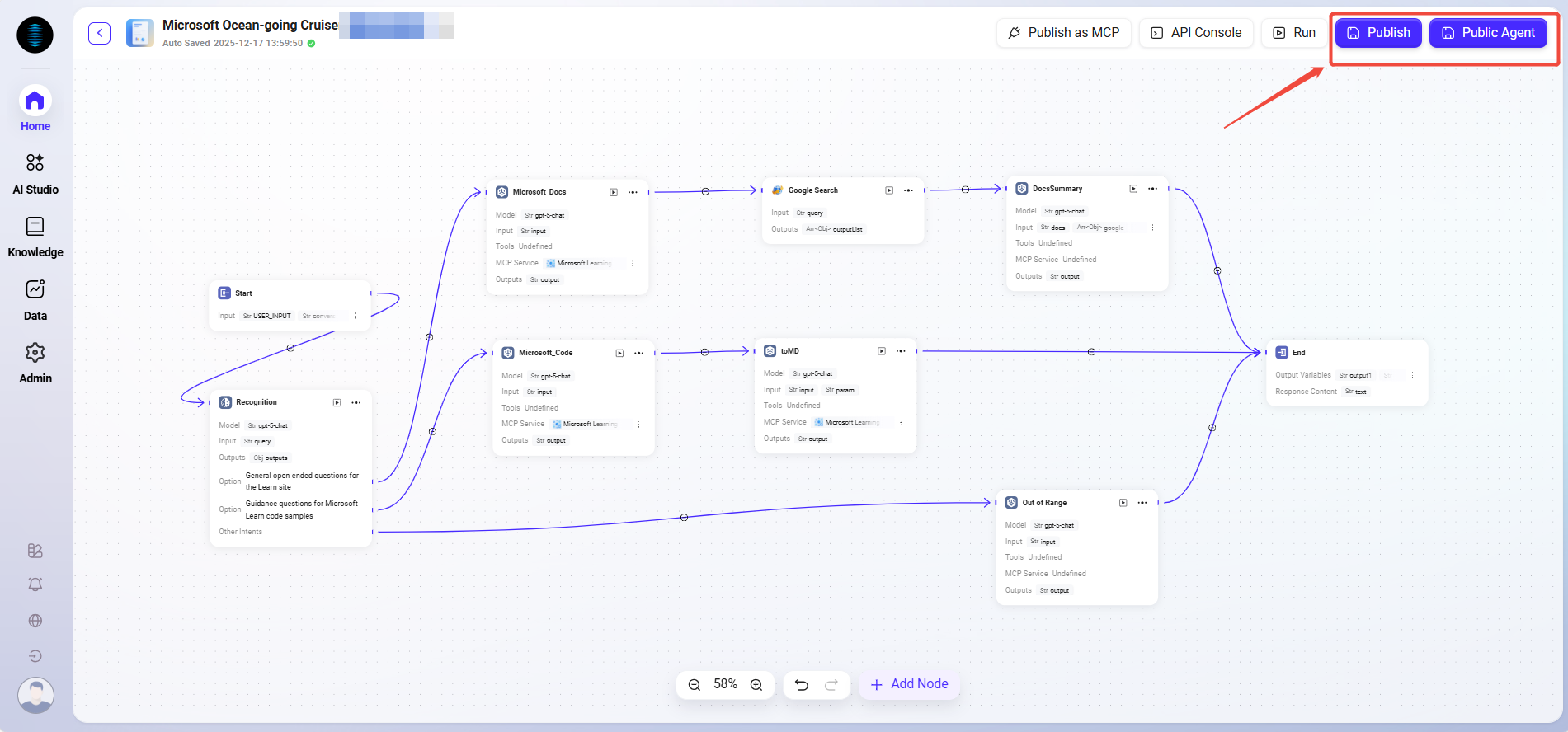
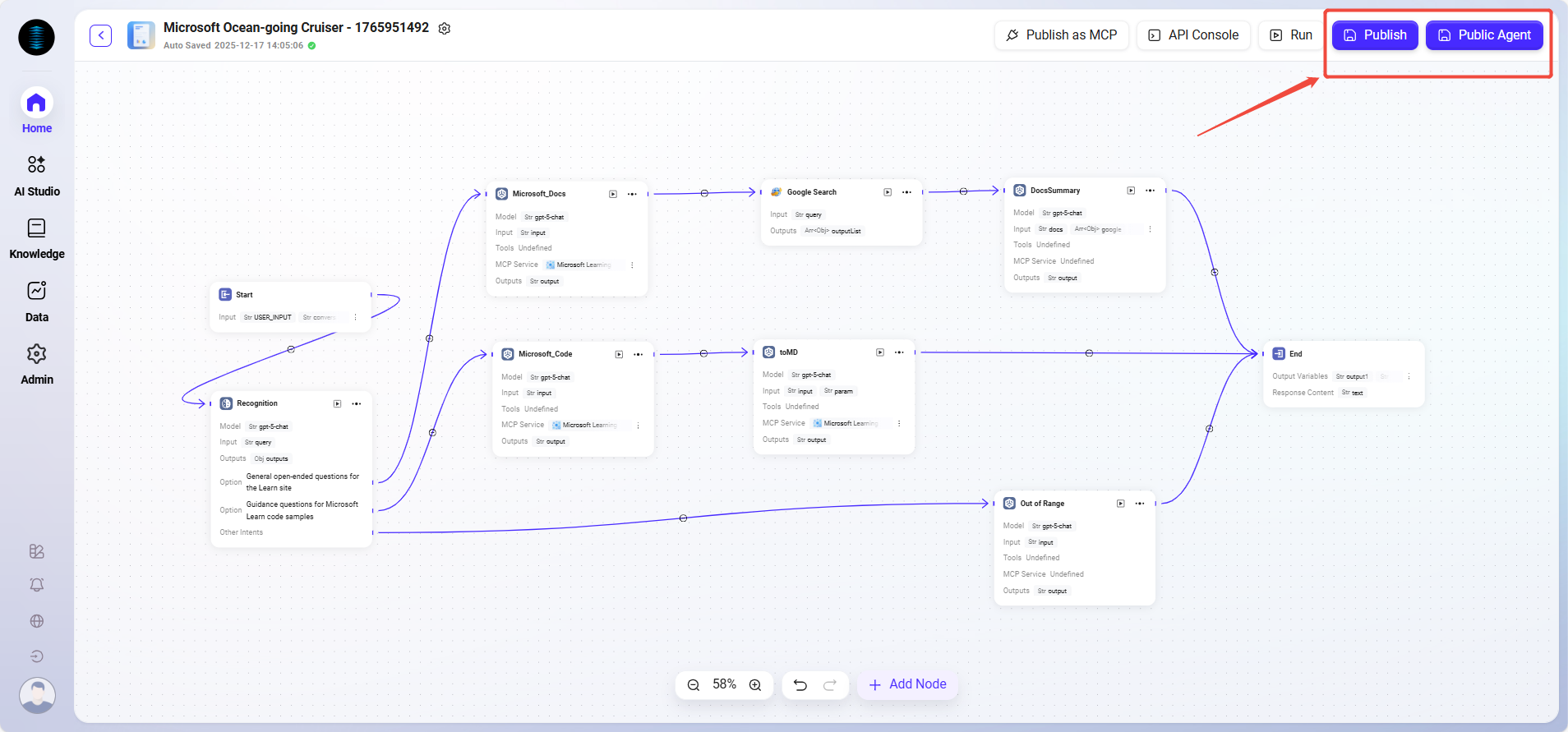
Click the "Publish->Publish Agent" button in the top-right corner.
-
Once the operation is successful, the Agent will be visible to all members of the organization, and a configuration code can be generated.
Obtain the Configuration Code
-
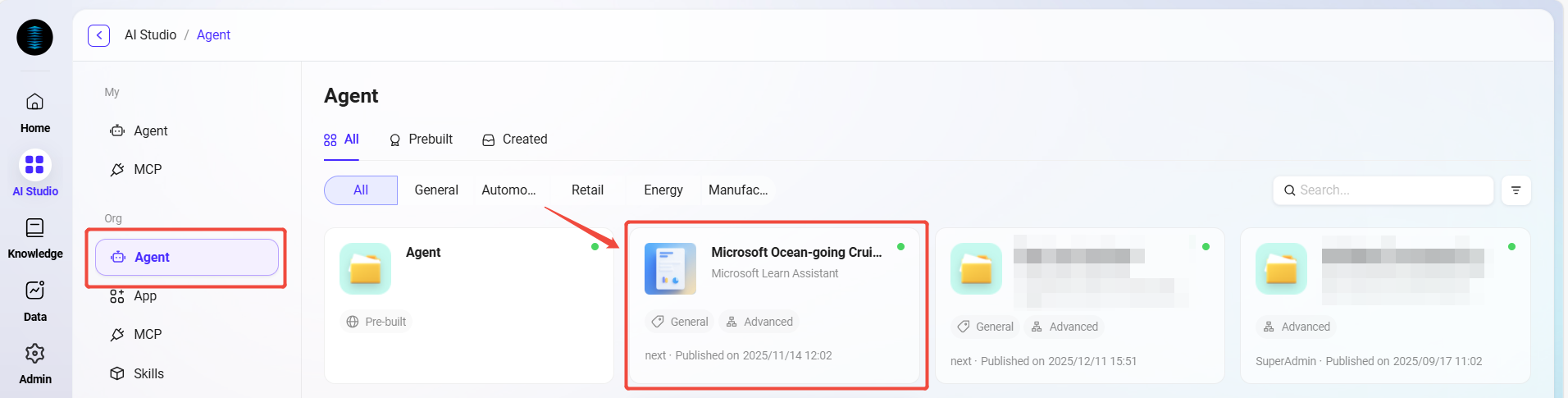
Go to Management -> Agent Management -> Organization -> Agents.
-
Find the "Microsoft Ocean-going Cruiser" Assistant.
-
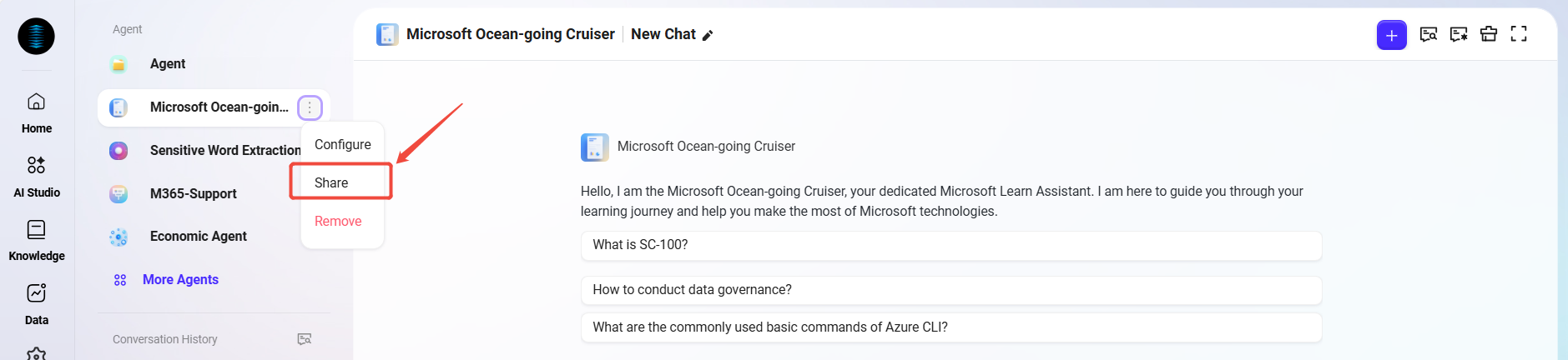
Click the "Share" button on the right side.
-
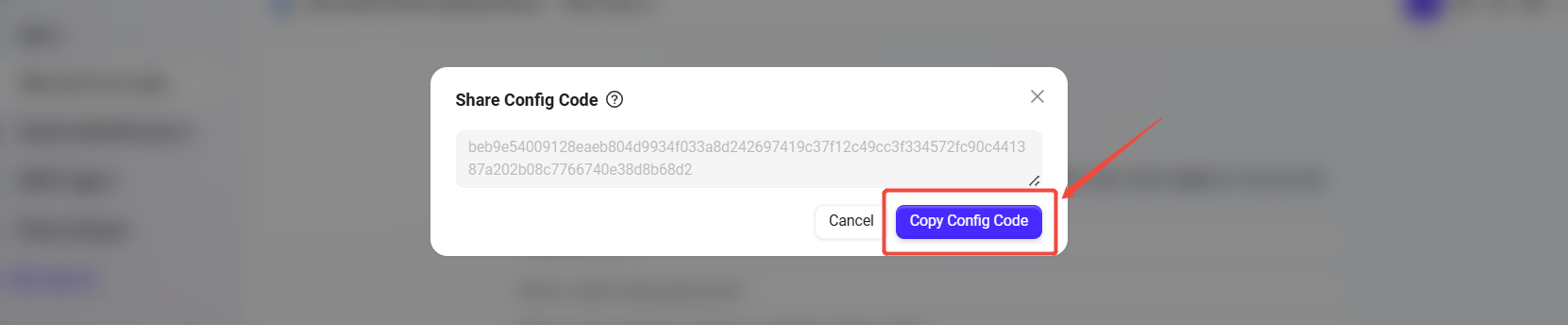
The system will generate a unique Share Configuration Code.
-
Click "Copy Configuration Code" and save it for later use.
Create the "Microsoft Ocean-going Cruiser" Assistant Using the Configuration Code
-
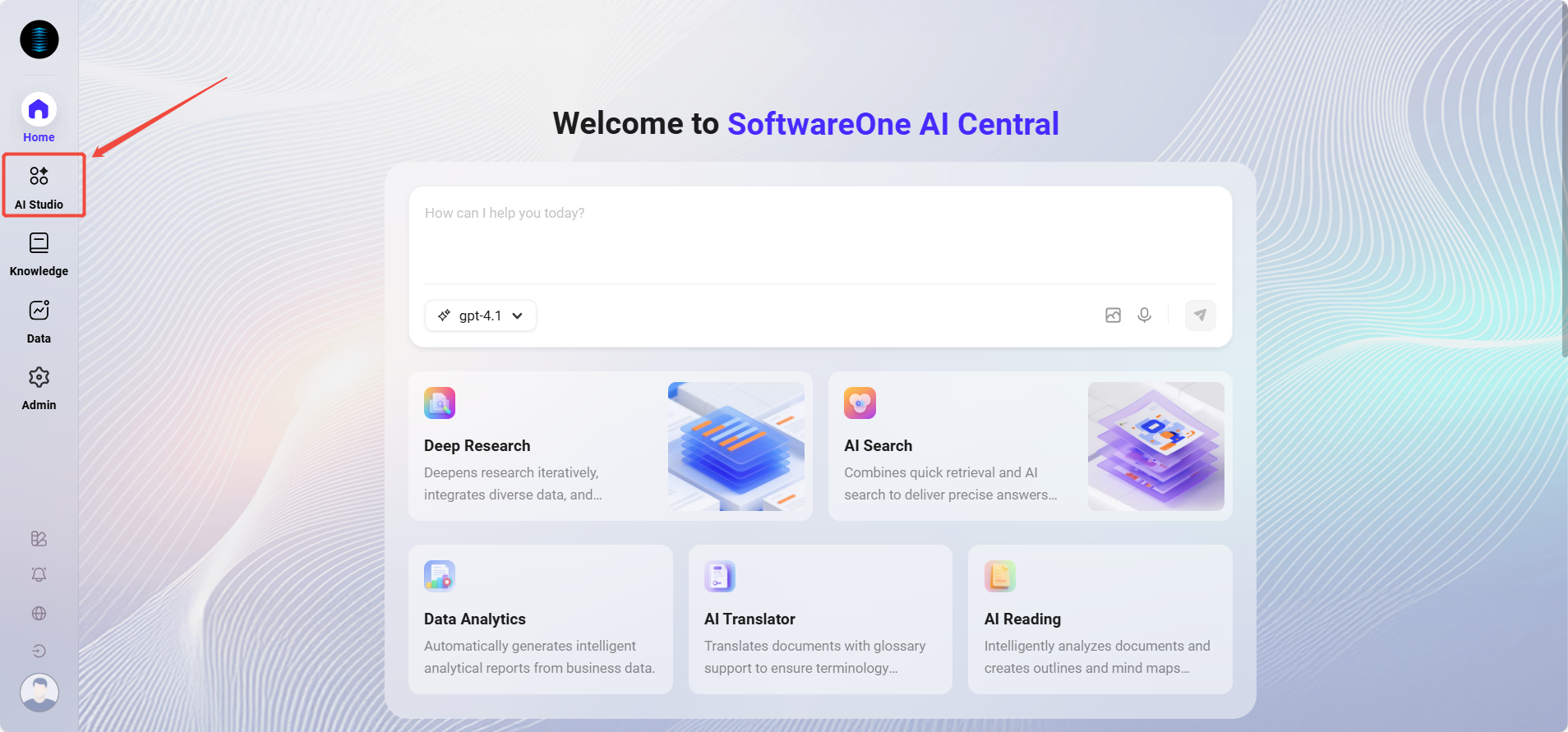
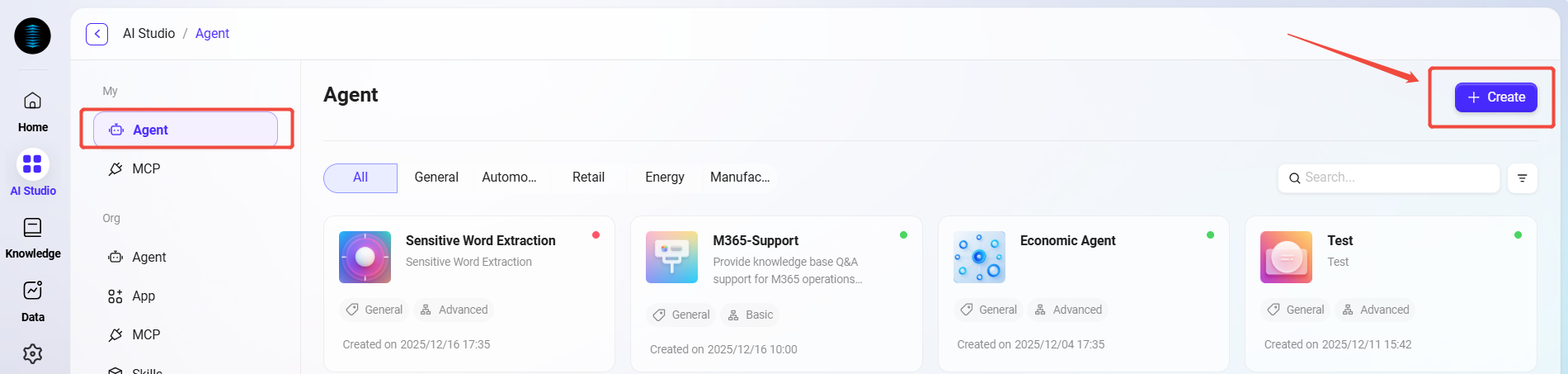
Return to the AI Studio page and click "+ Create" in the top-right corner.
-
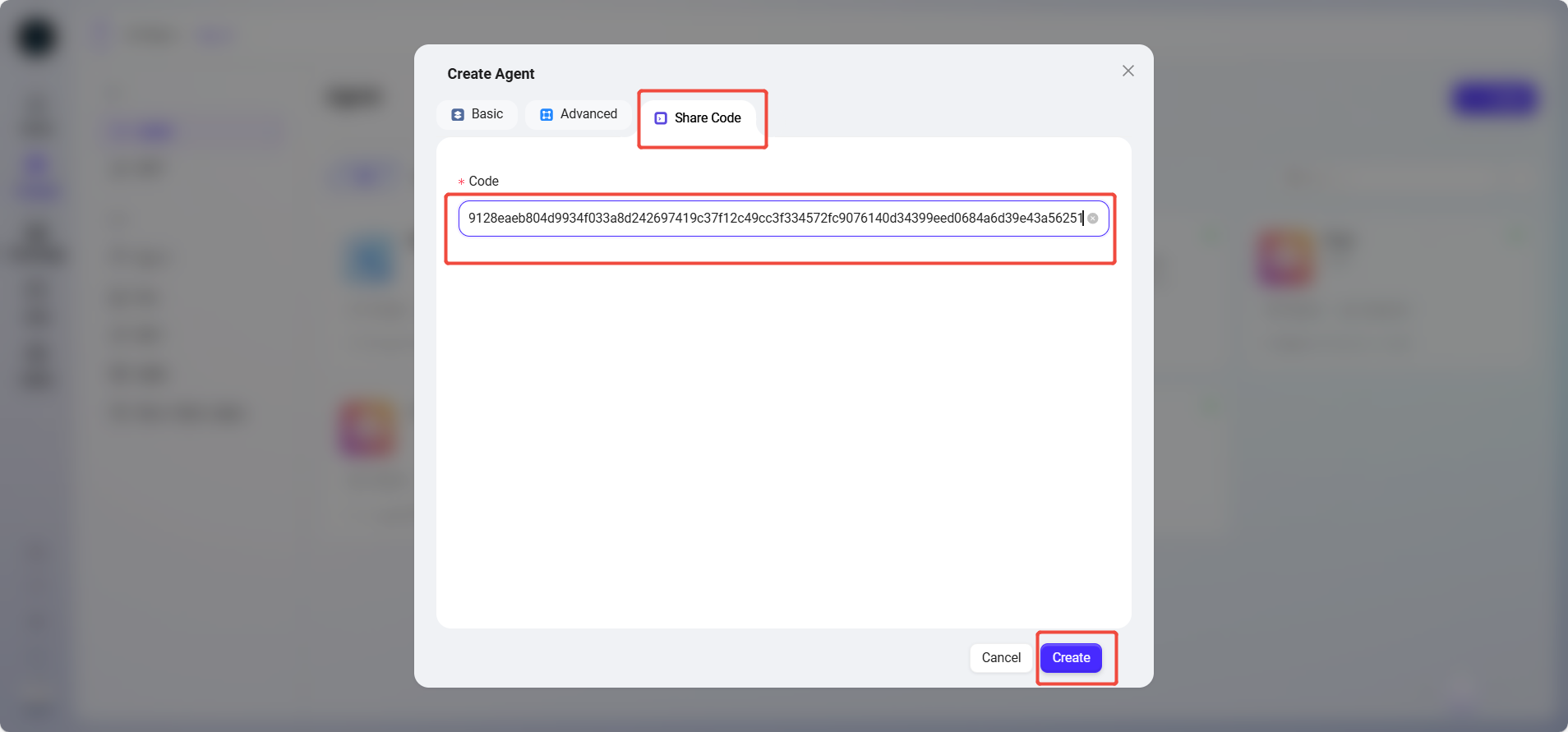
In the creation method, select "Share Code".
-
In the pop-up input box, paste the previously copied configuration code and click "Create".
-
The system will automatically navigate to the corresponding configuration page. Users can personalize and modify the original configuration provided by the system according to their specific needs. For this case, no additional modifications are made.
-
If "Publish" is selected, a personal Agent is successfully created. If "Publish Agent" is selected, an organization-level Agent is created.
⚠️ Notes
Configuration Code Validity: Configuration codes may become invalid due to updates to the source Agent. If creation fails, contact the sharer for the latest configuration code.
Permissions & Dependencies: Agents created via configuration codes do not automatically inherit all permissions of the source Agent (such as certain API keys). After creation, you may need to reconfigure relevant keys or permissions according to the new environment.
Content Review: When reusing configuration codes shared by others, be sure to thoroughly review their workflows, prompts, and skills before publishing to ensure they meet your security and compliance requirements.
By following these steps, you can easily reuse and deploy a fully functional "Microsoft Ocean-going Cruiser" Assistant, significantly improving work efficiency.