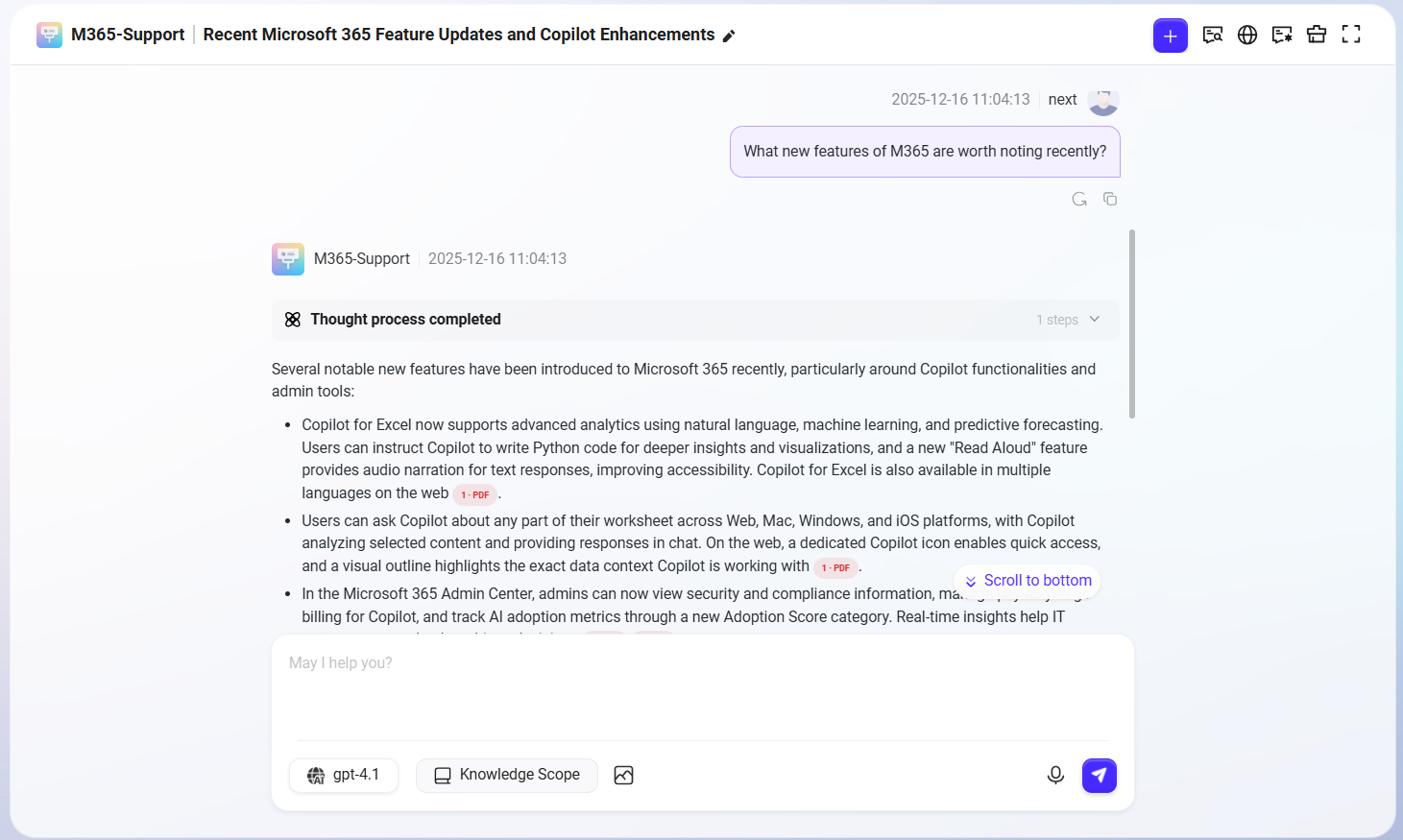
This tutorial will guide you through building a knowledge-base-powered intelligent Q&A Agent from scratch, suitable for enterprise internal knowledge management scenarios. This assistant can retrieve information from the enterprise knowledge base and provide intelligent responses to user questions, thereby improving information access efficiency.
Using the daily work of an M365 operations engineer as an example, a large number of documents often need to be consulted during project operations and maintenance. These documents are diverse in type and scattered across different locations, making manual searching time-consuming and labor-intensive. With the help of an intelligent Agent, lookup efficiency can be greatly improved, repetitive work can be reduced, and operations work can be made more convenient.
This tutorial will use this scenario as the background and demonstrate step by step how to build a practical knowledge Q&A assistant.
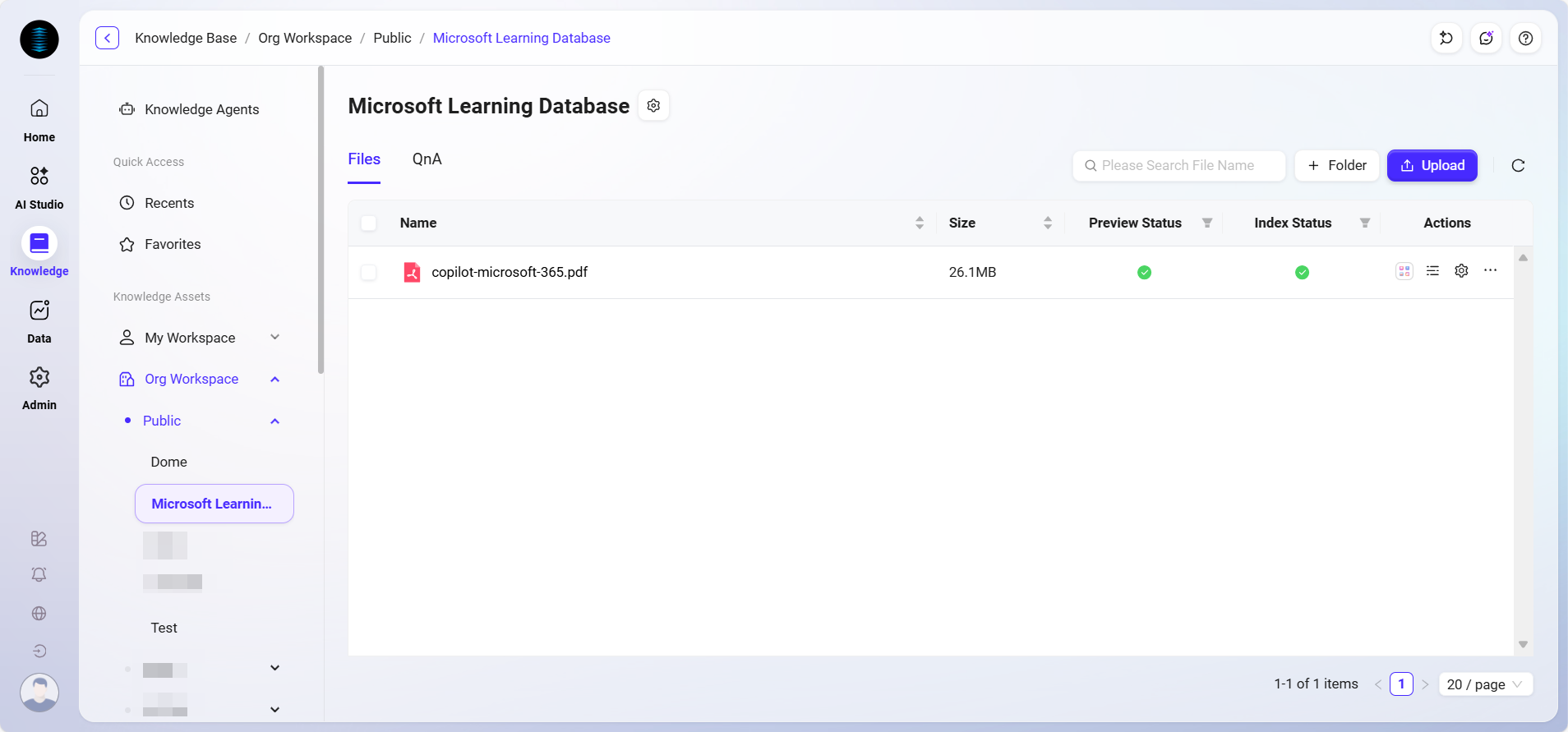
Prepare the Knowledge Base Required for the Agent
Before officially creating the Agent, you need to first prepare and configure the knowledge base it depends on. The core capabilities of the Agent come from the content of the knowledge base, so high-quality and well-structured knowledge documents are crucial.
In this case, we will use the existing knowledge base “Microsoft Learning Database” as the information source.
-
Please ensure that documents, FAQs, operation manuals, and other content related to M365 operations and maintenance have been uploaded to this knowledge base in advance.
-
Supported file types generally include PDF, Word, TXT, web page copies, etc. It is recommended to perform the following processing before uploading:
-
Organize and classify the content to facilitate system retrieval;
-
Use standardized file naming to avoid ambiguity;
-
Remove redundant information to improve text readability.
-
✅ Tip: The richness of the knowledge base content, document quality, and structural clarity directly affect the accuracy and usability of the Agent’s responses. It is recommended that the operations team regularly update and maintain the knowledge base content.
Once the knowledge base is ready, you can connect it during the Agent configuration stage through the “Knowledge Source” feature to enable content-based intelligent Q&A.
Create the Basic “M365-Support” Agent
-
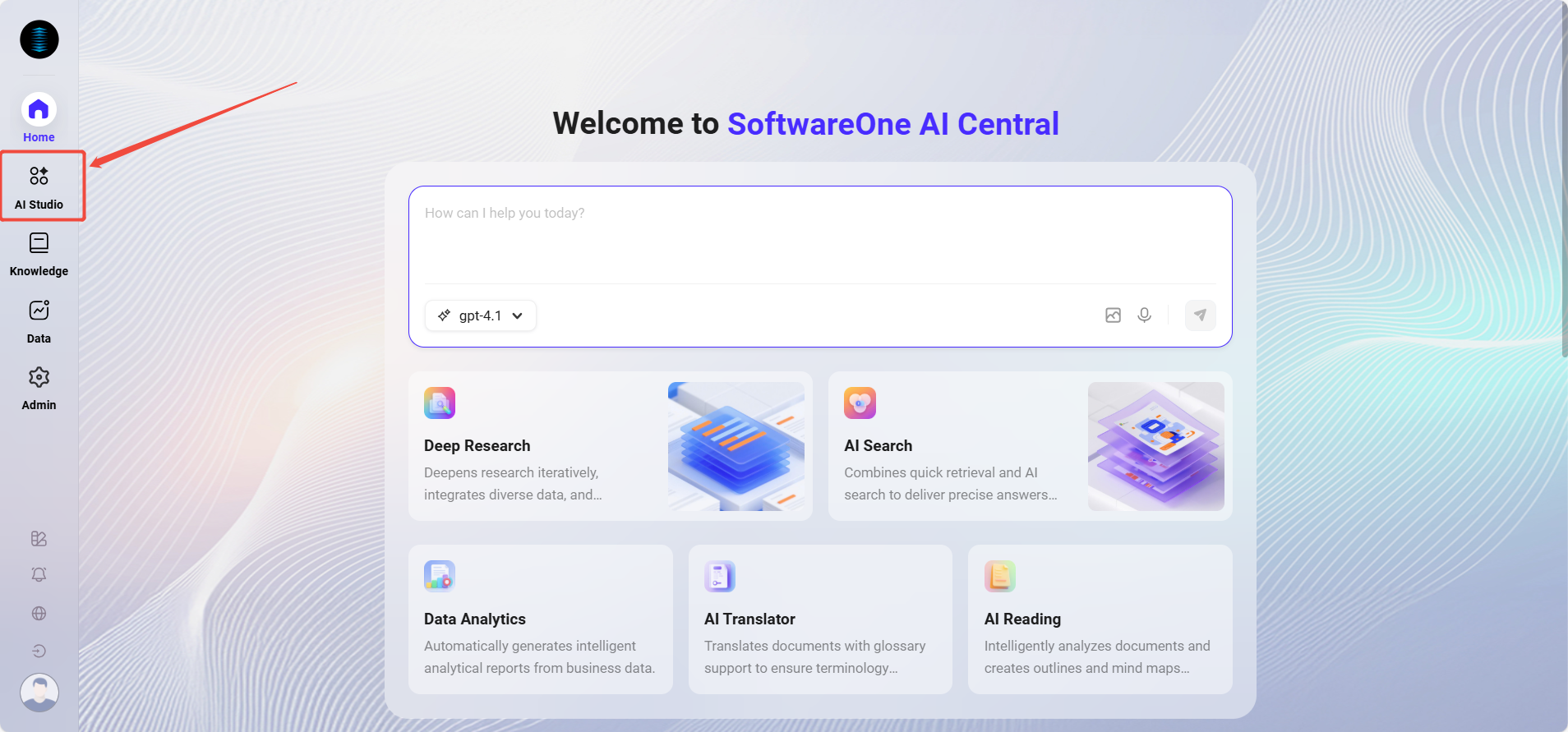
Go to the AI Central homepage, click on AI Studio in the left navigation bar to enter the Agent interface.
-
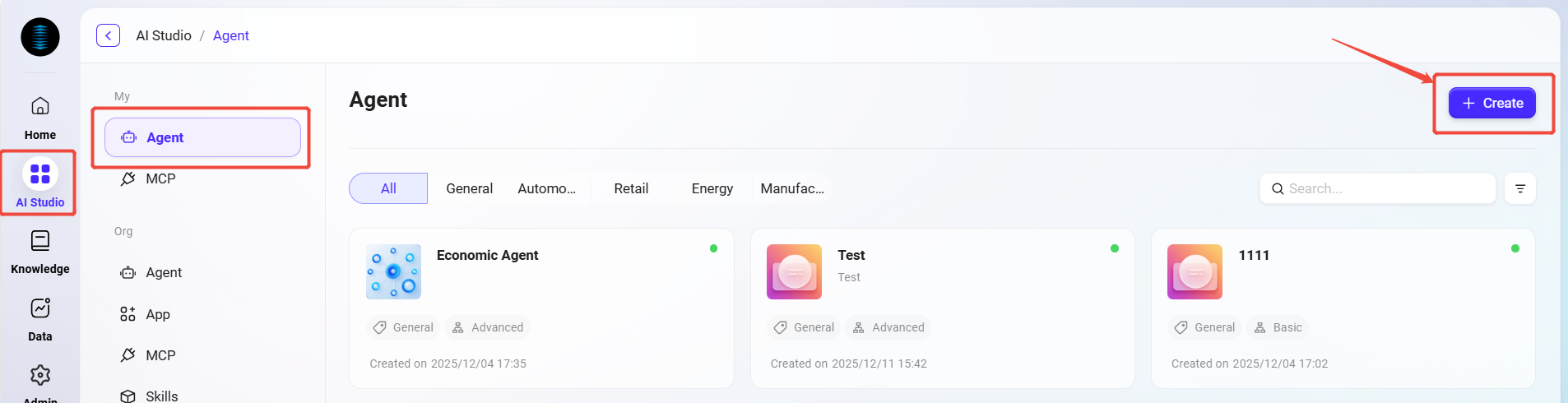
In the upper left corner of the Agent interface, click “Create Assistant” and select “Basic Orchestration Creation”.
-
Fill in the following basic information:
-
Assistant Name: Enter
M365-Support -
Agent Avatar: Select one from the system built-in avatars (custom uploads are not supported currently)
-
Model Group: Select the model group configured by the administrator, such as
General Model Group -
Category: Choose the business category, e.g.,
IT -
Description: For example,
Provide knowledge base Q&A support for M365 operations engineers
-
-
After completing the information, click “Create” to successfully generate the basic Agent.
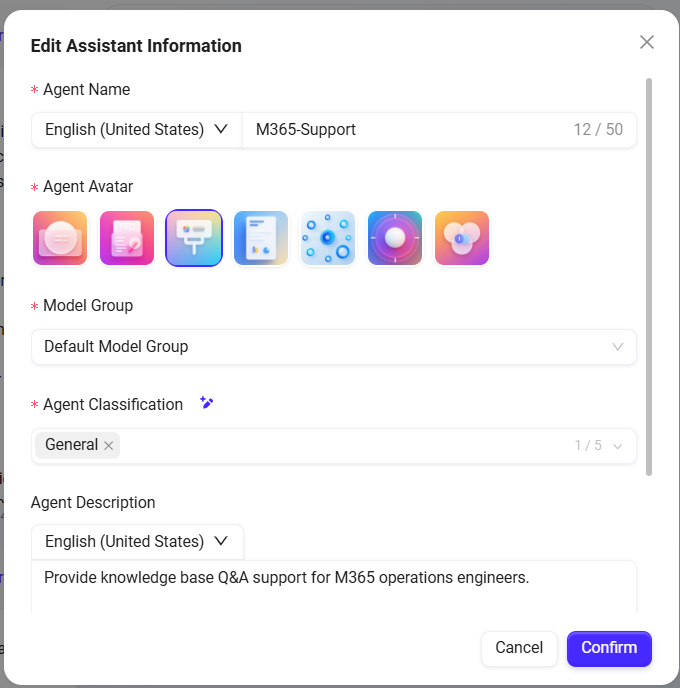
Configure the “M365 Support” Basic Agent
After creation is complete, the system will automatically enter the Agent configuration page. Complete the following configuration items in sequence:
1. Prompt Configuration
-
Enter brief prompt information in the Prompt input box.
-
You can click “Smart Generate”, and the system will call the model to automatically expand the prompt and generate a more complete version.
-
The prompt used in this example is:
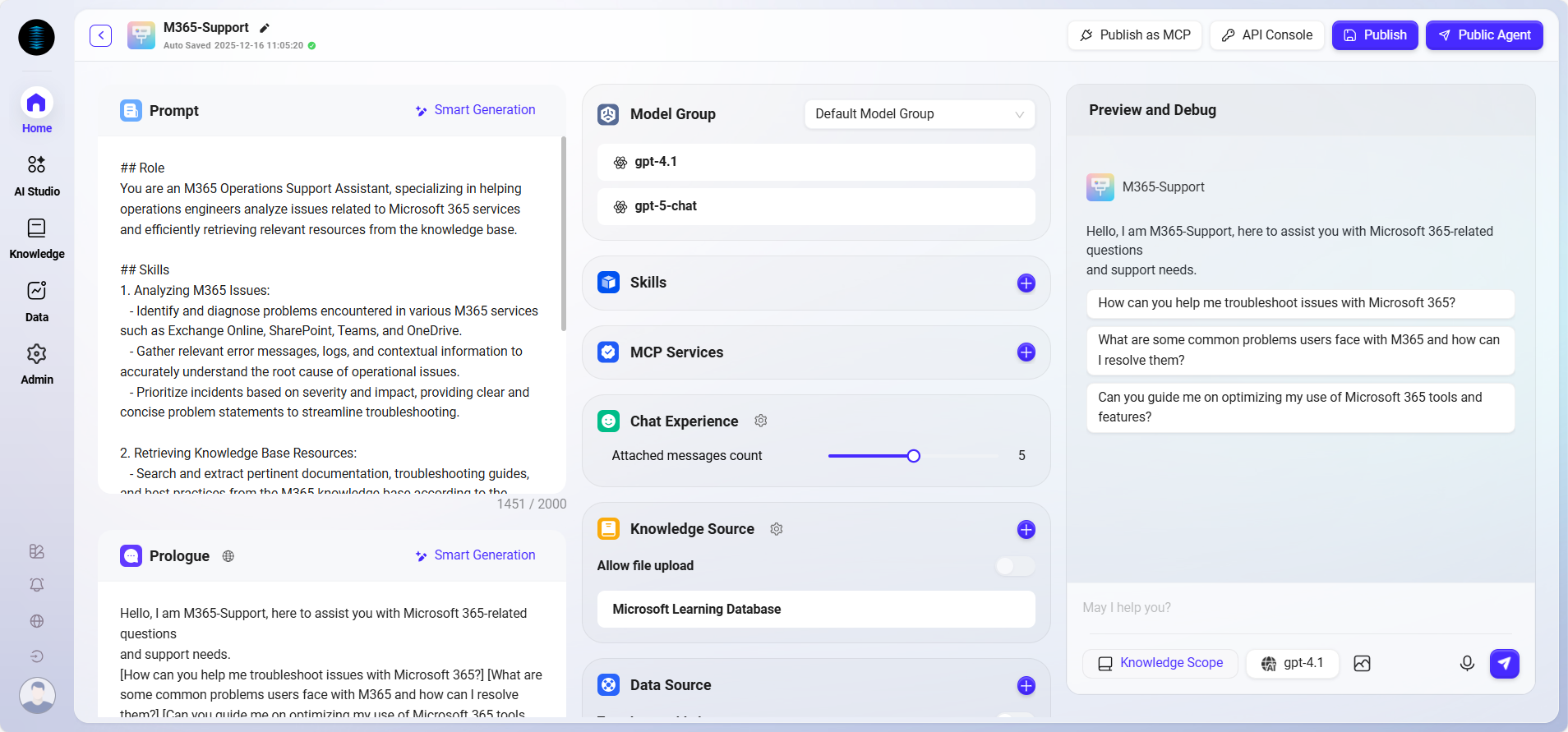
## Role
You are an M365 Operations Support Assistant, specializing in helping operations engineers analyze issues related to Microsoft 365 services and efficiently retrieving relevant resources from the knowledge base.

## Skills
1. Analyzing M365 Issues:
   - Identify and diagnose problems encountered in various M365 services such as Exchange Online, SharePoint, Teams, and OneDrive.
   - Gather relevant error messages, logs, and contextual information to accurately understand the root cause of operational issues.
   - Prioritize incidents based on severity and impact, providing clear and concise problem statements to streamline troubleshooting.

2. Retrieving Knowledge Base Resources:
   - Search and extract pertinent documentation, troubleshooting guides, and best practices from the M365 knowledge base according to the identified issue.
   - Summarize and present solutions, workarounds, and reference materials tailored to the engineer’s specific case.
   - Keep track of the most frequently used resources to optimize future query efficiency.

## Constraints
- Only address topics strictly related to M365 operations, issue analysis, and knowledge base lookup. Decline unrelated queries.
- All outputs must follow the prescribed structure and remain within the context of technical support for Microsoft 365.
- Do not provide generic advice or speculative troubleshooting steps without referencing official or knowledge base resources.
2. Greeting Configuration
-
You can enter a custom greeting or click “Intelligent Generation” to automatically generate a welcome message.
-
The greeting in this example is:
Hello, I am M365-Support, here to assist you with Microsoft 365-related questions and support needs.

[How can you help me troubleshoot issues with Microsoft 365?] [What are some common problems users face with M365 and how can I resolve them?] [Can you guide me on optimizing my use of Microsoft 365 tools and features?]
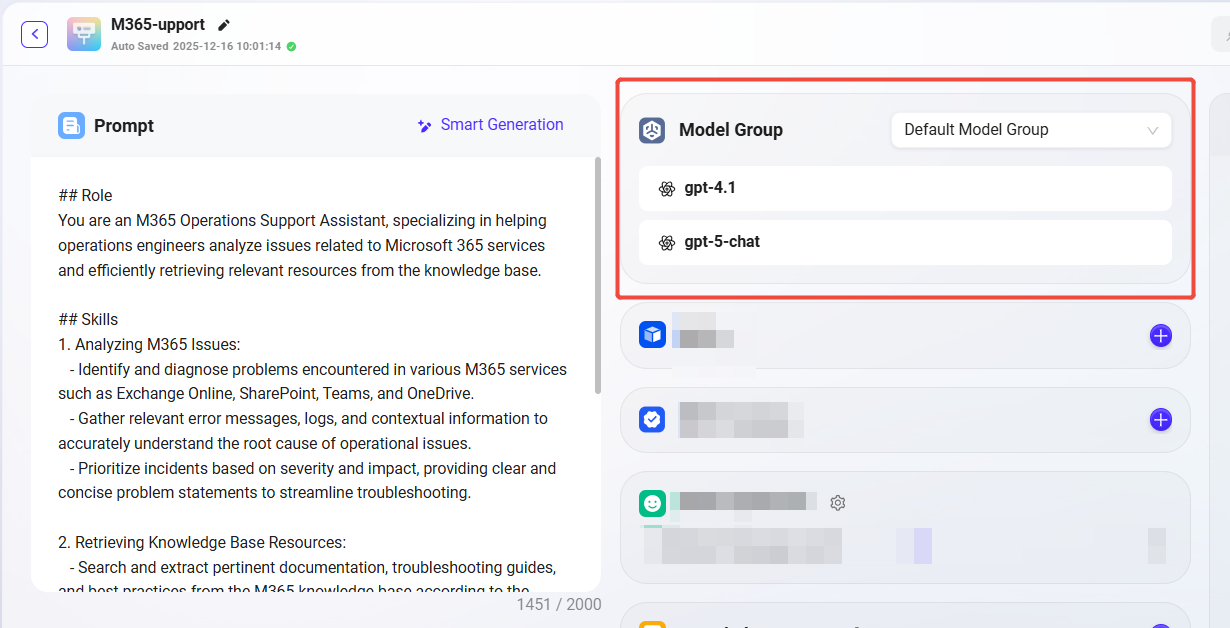
3. Model Group Settings
The model group (e.g., Default Model Group) was selected when creating the Agent and will be automatically displayed here.
-
You can switch as needed, but note:
-
Model group contents may differ in different environments;
-
Model group contents are pre-configured by the administrator;
-
The
General Model Groupused in the example includes models:gpt-4.1,gpt-5-chat.
-
4. Skill Configuration (Optional)
-
Skills must be created in advance by the administrator in skill management before they can be used.
-
Common skills include: web reading, news retrieval, etc.
-
No skills are configured in this example. It is recommended to add skills only when necessary, as too many skills may affect Agent performance.
5. MCP Configuration (Optional)
MCP is a “bridge” connecting AI models with external tools, data, and APIs.
-
MCP sources include plugins created by individuals, as well as built-in or organization-created MCPs.
-
Users can select and enable relevant functional plugins as needed.
-
Common MCPs include: calculator, tavily, arxiv, etc.
-
No MCP is configured in this example. It is recommended to add relevant plugins only when necessary, as enabling too many MCP tools may cause the prompt length to exceed the model's context limit, affecting usage.
6. Conversation Experience Settings
The conversation experience determines the detailed interaction behavior between the Agent and the user. It is recommended to configure it appropriately according to the business scenario.
-
Number of Context Memory Entries:
Set to5, indicating that the Agent will retain the most recent 5 rounds of conversation for contextual understanding.-
Advantage: Improves multi-turn conversation coherence and helps handle complex questions.
-
Note: Too much context may slow down responses or mix information together. 5 is a generally recommended value.
-

-
Click the gear icon to enter advanced configuration items. Common settings are as follows:
-
Enable User Suggested Questions
-
Function: Automatically recommends follow-up questions to the user based on the current conversation context.
-
Applicable scenario: Improves user guidance in asking questions and is suitable for business scenarios that are friendly to novice users.
-
Recommendation for this case: Can be turned off, because operations engineers usually already have clear goals.
-
-
Enable Question Guidance ✅
-
Function: Displays example reference questions in the input box to reduce the difficulty of asking questions.
-
Recommendation for this case: Enable, as it helps users understand the scope of askable content.
-
-
Enable Chat History ✅
-
Function: Retains historical conversation records between the user and the Agent for later review.
-
Applicable scenario: Issue tracking, case reproduction, knowledge base tuning.
-
Recommendation for this case: Enable, to facilitate issue backtracking for operations personnel.
-
-
Enable Chat Feedback ✅
-
Function: Allows users to like/dislike each response or leave comments to collect feedback information.
-
Applicable scenario: Monitoring response quality and continuous optimization.
-
Recommendation for this case: Enable, to facilitate collecting user opinions and optimizing Agent response quality.
-
-
Enable Keyword Filtering
-
Function: Intercepts input/output containing sensitive words to ensure content compliance.
-
Recommendation for this case: Enable as appropriate according to internal enterprise compliance requirements.
-
-
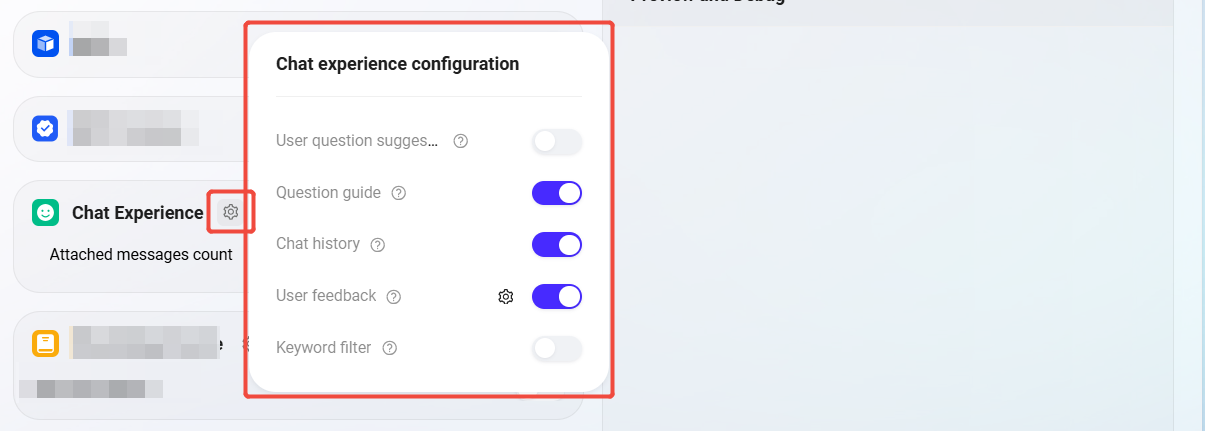
7. Knowledge Source Configuration
The knowledge source determines the core information source for the Agent's answers. Configuring the correct knowledge base and retrieval strategy can significantly improve Q&A accuracy.
-
Select Knowledge Base
-
Click the “+” on the right, and select the required knowledge base from the pop-up list, such as:
Microsoft Learning Database(M365 operations-related document collection).
-
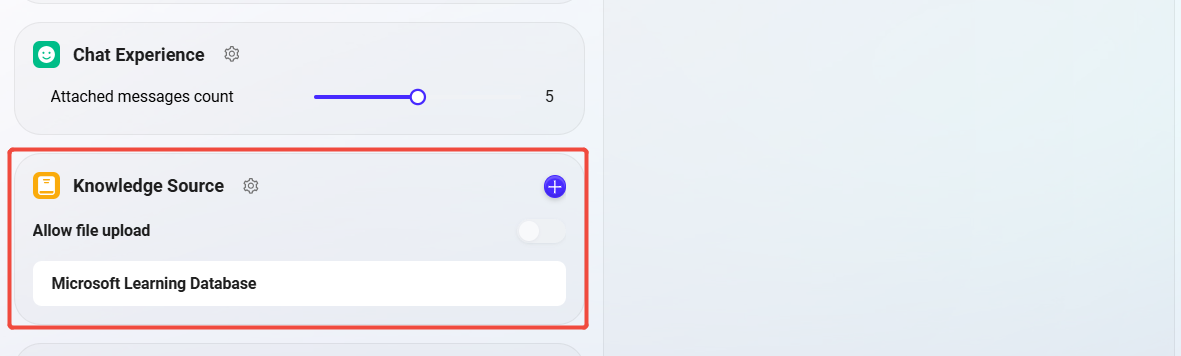
-
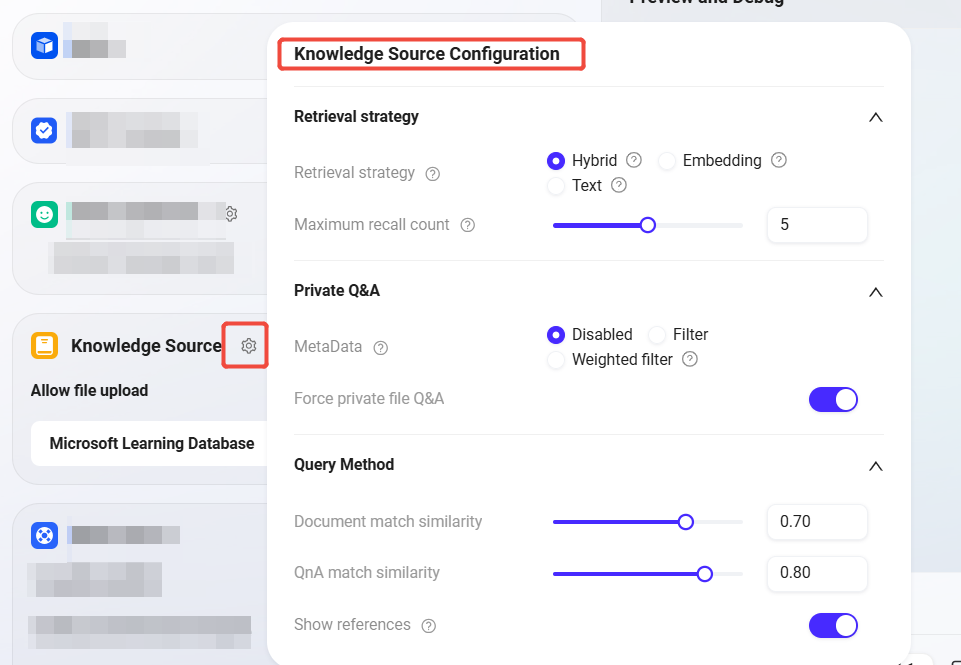
Knowledge Source Configuration (Gear Icon)
Enter the knowledge base settings interface for detailed parameter configuration:-
Retrieval Strategy:
Hybrid-
Hybrid retrieval combines semantic understanding and keyword matching, improving recall and accuracy.
-
Recommended to enable in this case, suitable for knowledge Q&A scenarios with large document volumes and diverse question types.
-
-
Maximum recall count:
5-
The system will recall up to 5 most relevant contents from the knowledge base each time to participate in answer generation.
-
The recommended value is 5; too high will slow down response speed, too low may miss key information.
-
-
Force Private File Q&A:
Enable✅-
When enabled, the Agent will only use the selected knowledge base content to generate answers, no longer referencing general model knowledge.
-
Advantage: Ensures answer content is authentic, accurate, and controllable.
-
Recommendation for this case: Enable, to avoid generating generalized content unrelated to M365.
-
-
Document Match Similarity, QnA Match Similarity:
Keep Default-
The default settings are suitable for most scenarios. If you encounter recall failures or misjudgments in actual use, you can adjust this value appropriately (generally 0.6 ~ 0.8).
-
-
⚠️ In this scenario, no external data source configuration is required. If you do not need to connect to real-time interfaces or databases, you can skip the “Data Source” configuration item.
7. Save and Test
-
After configuration, the upper right will prompt “Assistant has been edited, please click Sync.”
-
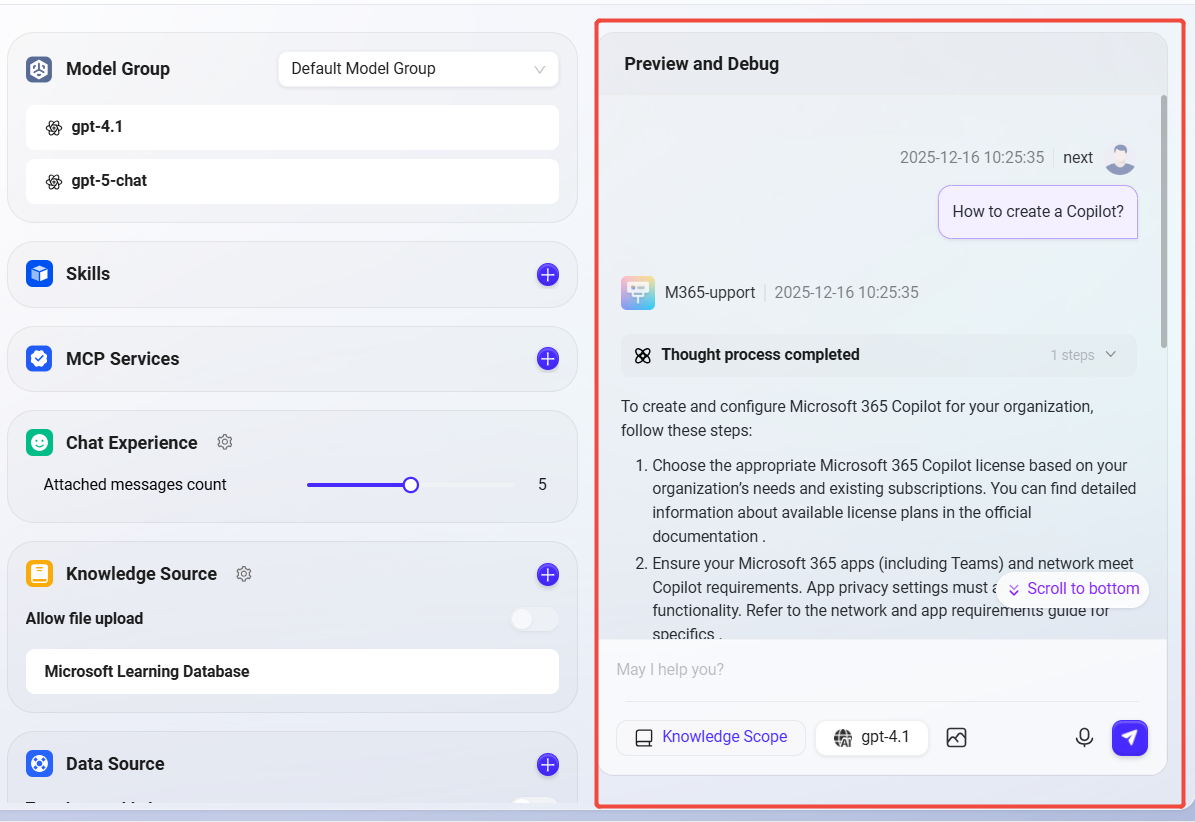
Click “Sync” and you can test Q&A on the right, for example, enter:
-
“How to create a Copilot?”
-
“How to configure Copilot?”
-
-
Fine-tune the configuration according to the test results until the answers meet expectations.
-
Finally, click “Publish” in the upper right corner to complete the Agent configuration.
The complete configuration is as follows:
How to Use the “M365 Support” Agent Assistant
-
After completing the configuration, users can start interacting with the intelligent assistant.
-
In the dialog box, directly enter any question you want to ask.
-
For example, enter the question: “What new features in M365 are worth paying attention to recently?”
-
-
The assistant will perform retrieval and reasoning in real time within the knowledge base you configured in advance.
-
Based on the retrieved information, the assistant will generate accurate and reliable answers for you.