
In AI Central, Agents created using the basic method are more suitable for simple Q&A scenarios and have relatively limited functionality. To handle more complex business logic or implement multi-step operations, you can build advanced Agents through Workflow, meeting richer business requirements.
This section will demonstrate, through a concrete example, how to use Workflow to build a complex process.
Scenario Example: Sensitive Word Extraction from Contract Content
In real business scenarios, contract texts are usually lengthy and complex. Manually comparing and identifying whether they contain sensitive words is not only time-consuming and labor-intensive but also prone to omissions, especially when the number of sensitive words is large, making accuracy even harder to guarantee.
With Workflow capabilities, you can build an intelligent Agent that supports file upload, content parsing, sensitive word recognition, and annotation.
Through this process, users can quickly understand the sensitive information in contracts without manual review, greatly improving review efficiency and accuracy.
✅ Tip: This type of Agent is especially suitable for legal review, content audit, compliance management, and similar scenarios.
Preparing the Sensitive Word Data Source
Before building the workflow, you need to prepare the sensitive word data. In this case, sensitive words are stored in a database, so you need to add the database as a data source through the Data module and complete data synchronization.
Prerequisites for Data Preparation
-
Sensitive word data has been written into the database (table name:
SensitiveWords). -
The database type is
SQLServerand is accessible via the network.
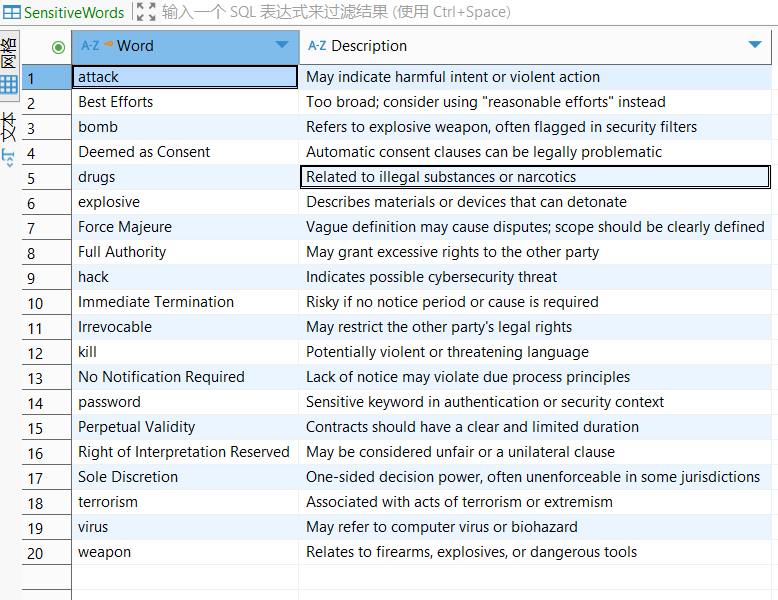
Steps to Add Data Source
-
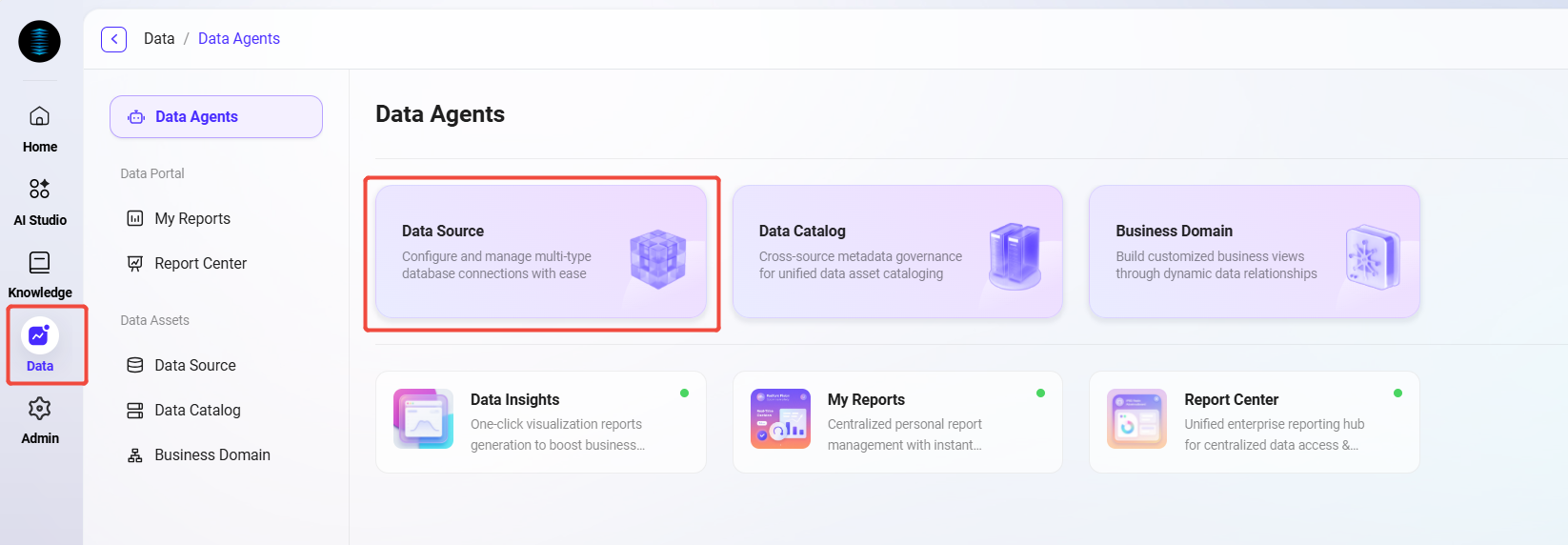
Enter the Data Module
-
Open the AI Central platform and click “Data” in the left navigation bar.
-
Select “Data Sources” to enter the data source management page.
-
-
Add Data Source
-
Click the “Add Data Source” button in the upper right corner.
-
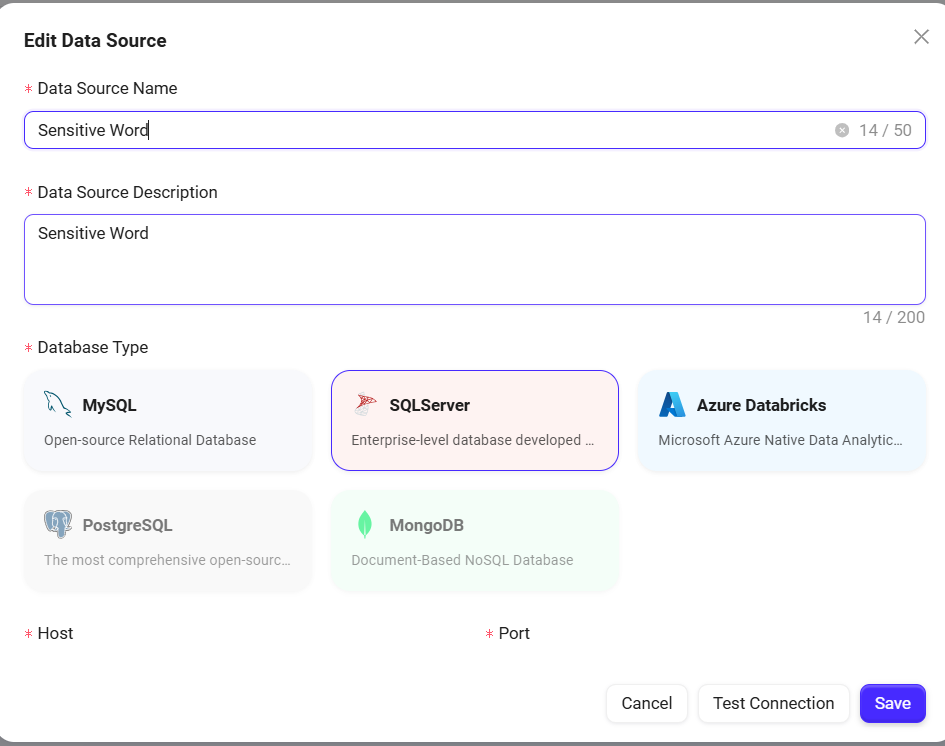
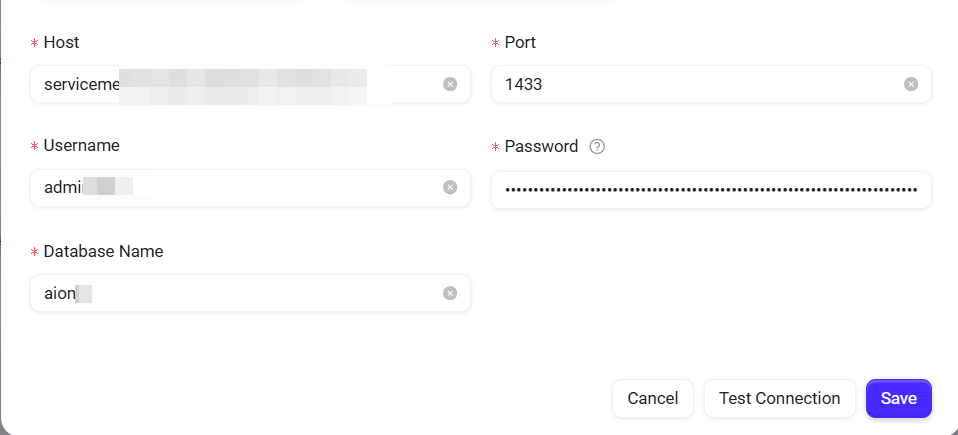
In the pop-up configuration window, fill in the following information:
-
Data Source Name: e.g.,
Sensitive Word -
Database Type: Select
SQLServer -
Connection Info: Includes
host,port,username,password,database name
-
-
Click “Test Connection”. After confirming the connection is successful, click “Sava” to complete the addition.
-
-
Select Data Table
-
Return to the data source list and click the newly created data source item.
-
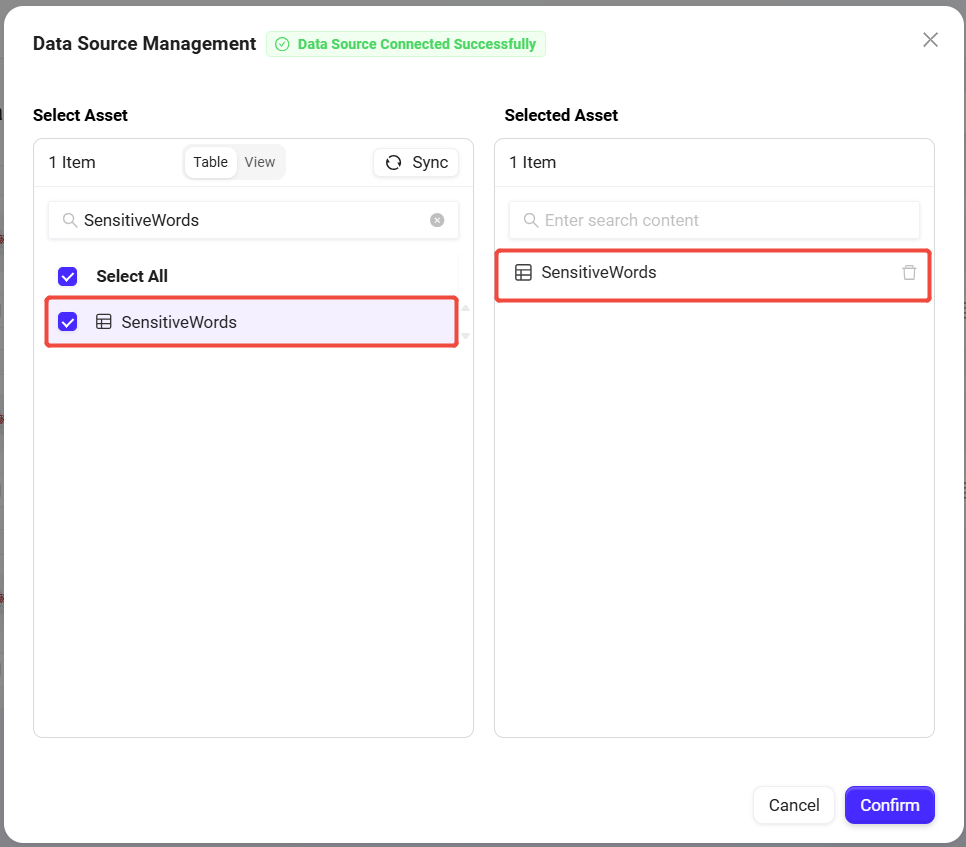
The system will display available data tables in the database. Check the table containing sensitive words (e.g.,
SensitiveWords) and click “Confirm” to add.
-
-
Data Catalog Synchronization
-
In the left menu, select “Data Catalog”, find and click the
Sensitive Worddata source. -
Execute the “Sync” operation to ensure the platform obtains the latest data.
-
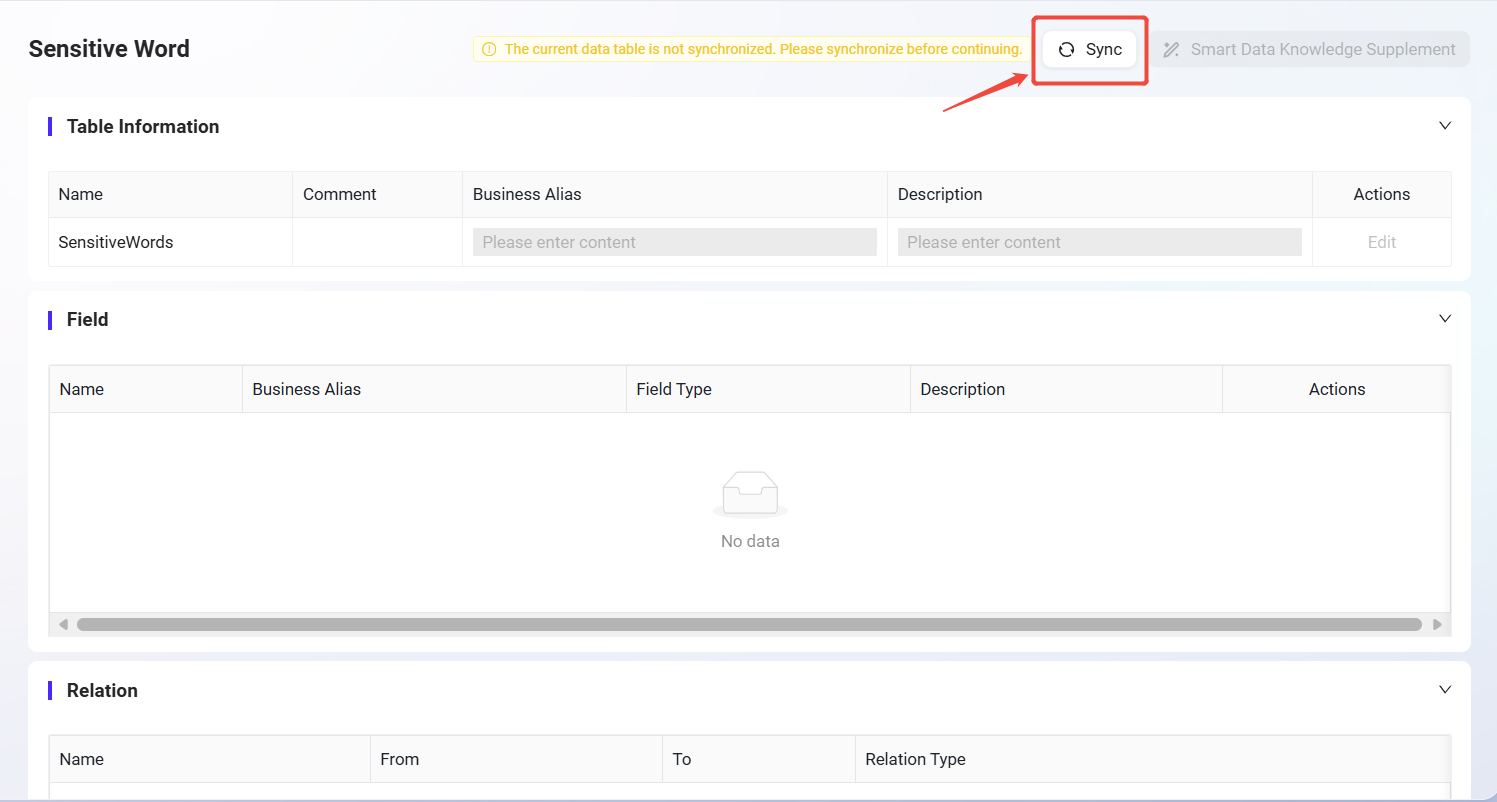
After completing the above steps, the sensitive word data source is configured. In the following workflow, you can access this data table via nodes to extract and compare sensitive words from contract content.
Creating the “Sensitive Word Extraction” Agent via Workflow
-
Go to the AI Central homepage, click AI Studio in the left navigation bar to enter the Agent interface.
-
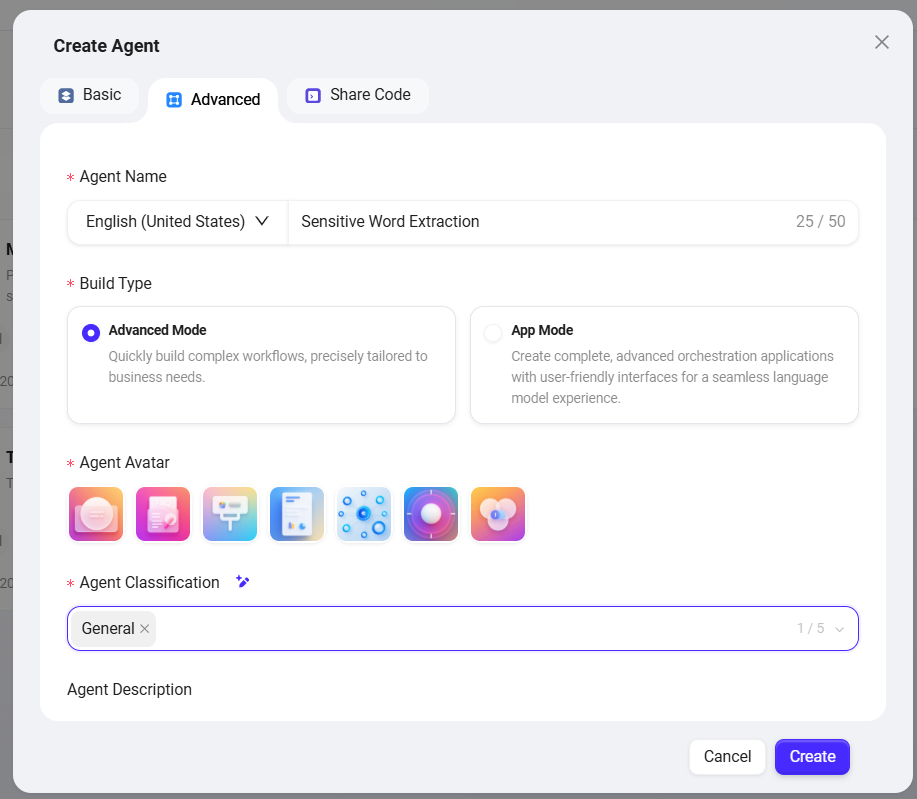
Click the “Create Assistant” button in the upper right corner and select “Advanced Orchestration Creation”.
-
Fill in the following basic information:
-
Assistant Name: Enter
Sensitive Word Extraction -
Agent Avatar: Choose one from the built-in avatars (custom upload is not supported currently)
-
Category: Select the business category, e.g.,
General -
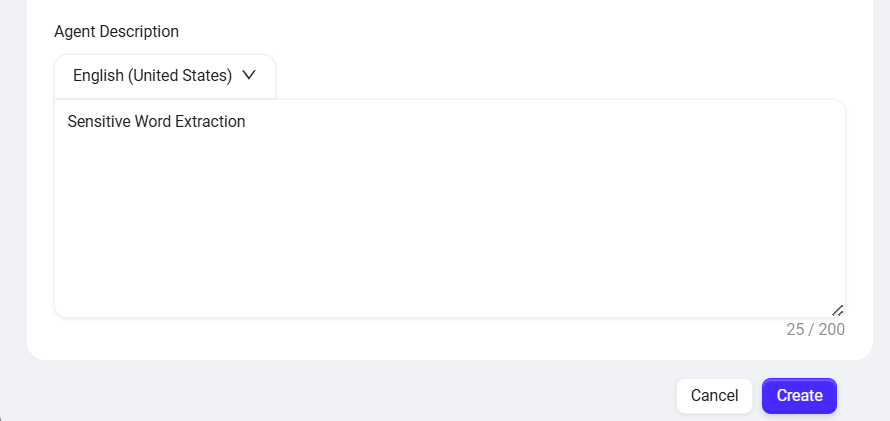
Description: For example,
Sensitive Word Extraction
-
-
After completing the information, click “Create” to successfully generate the workflow Agent.
Configuring the “Sensitive Word Extraction” Agent
📌 Workflow Planning
The core goal of this workflow is to enable the Agent to automatically identify sensitive words present in contract files uploaded by users. To achieve this, we need to guide users to upload contract files and parse their content into processable text; at the same time, load sensitive word data from the configured database, and use the model to intelligently compare contract content with sensitive words, identifying matches and their positions. Finally, the model outputs the recognition results and returns them to the user. The entire process covers key steps such as file processing, data source invocation, model recognition, and result output, suitable for automated text review business scenarios.
📌 Node Configuration and Connection Instructions
In this Workflow example, the input and output of each node are configured by referencing the results of the previous node. To achieve sensitive word extraction, the process mainly involves the following nodes: Start Node, File Processing Node, Data Source Node, Model Node, and End Node. The configuration and connection methods for each node are explained below.
Configuration Process
-
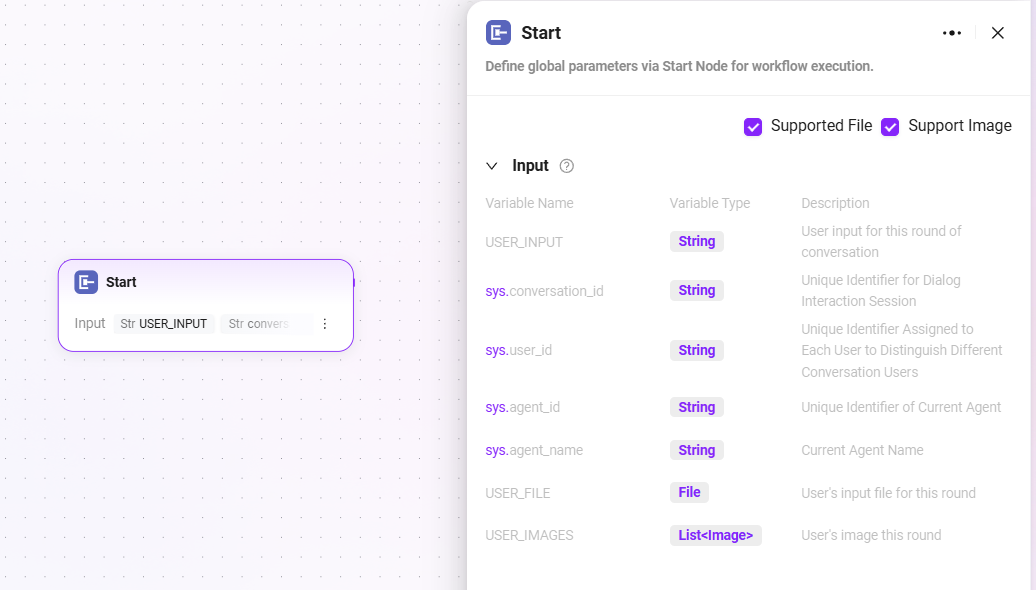
Start Node Input Instructions
The start node can select two inputs:
-
USER_FILE: The file uploaded by the user in this round. -
USER_IMAGES: The images uploaded by the user in this round.
These inputs will serve as references for subsequent nodes, used for file processing and model recognition.
-
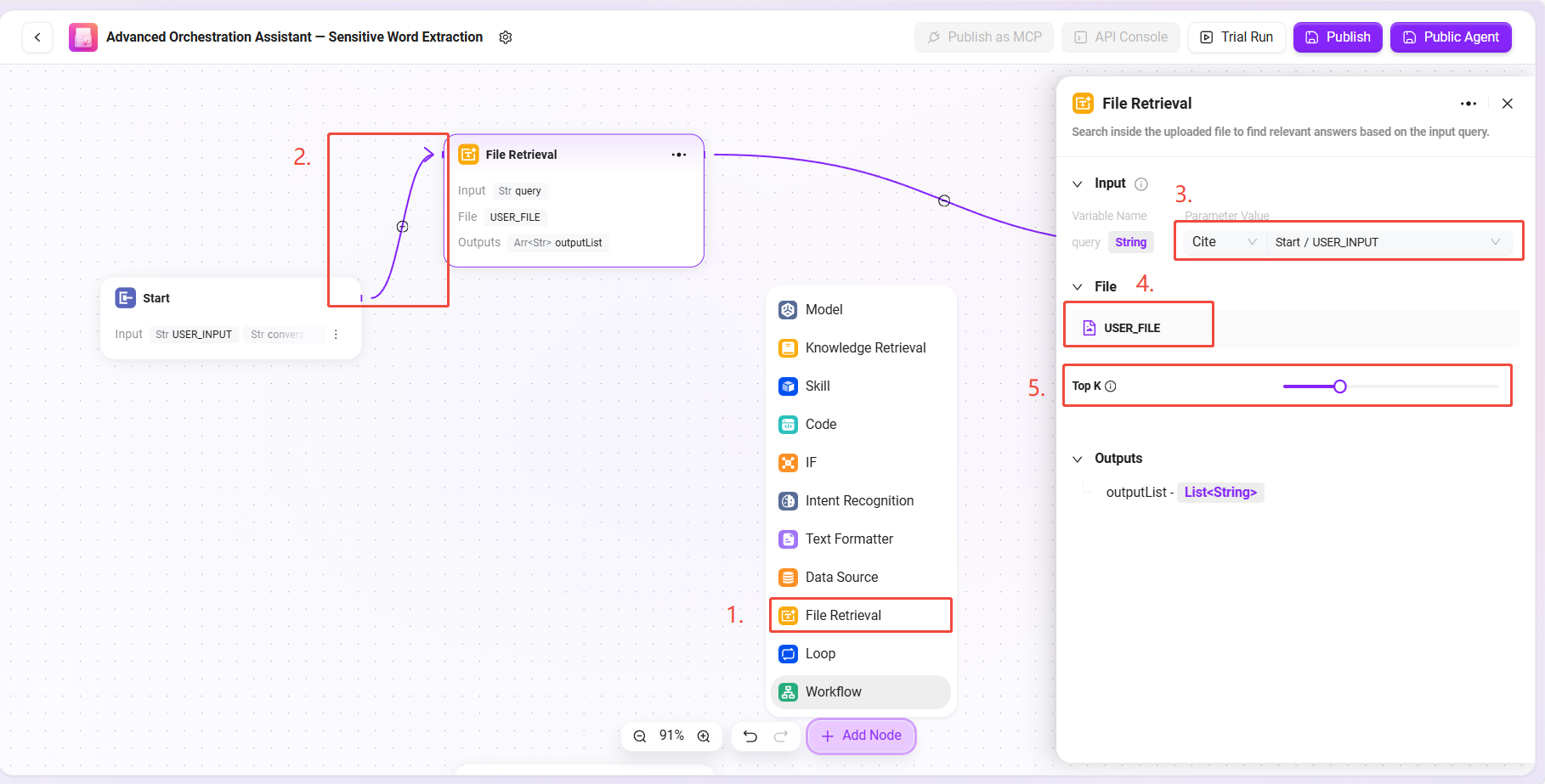
File processing node configuration
This node is responsible for processing the contract file uploaded by the user, including text extraction, chunking, and vectorization.
The configuration steps are as follows:
-
Add a File Processing node to the canvas.
-
Use a connection line to connect the Start node and the File Processing node.
-
Click the file processing node to enter the configuration interface and set the following:
-
Input Reference: set
USER_INPUTas a reference in the following format:
Start/USER_INPUT -
File Reference: click “Add File” and select
USER_FILE(that is, the contract file uploaded by the user) -
TopK Setting: choose an appropriate TopK (such as 3~5).
-
TopK indicates the maximum number of text segments returned by the model during text vector matching.
-
Recommendation: if TopK is too low, key content may be missed; if it is too high, it may affect the model’s ability to focus.
-
-
-
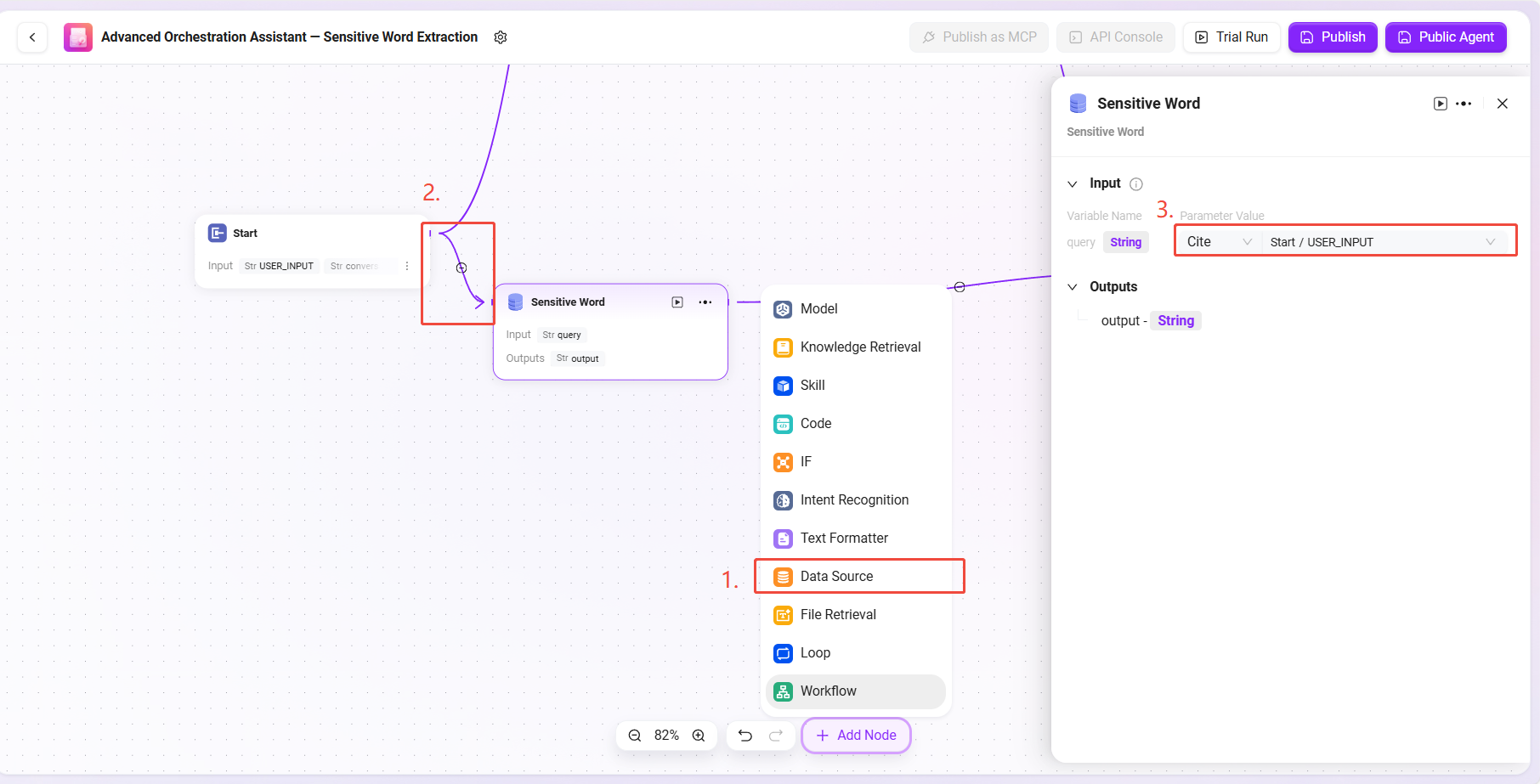
Data Source Node Configuration
This node is used to introduce the previously created sensitive word data table for subsequent comparison.
Configuration steps:
-
Add a Data Source Node to the canvas and connect it to the Start Node.
-
Click the node and configure the data source information:
-
Select data source:
Sensitive Word -
Input reference configuration:
Start/USER_INPUT(user's input instruction)
-
The output of this node is the sensitive word list needed by the model.
-
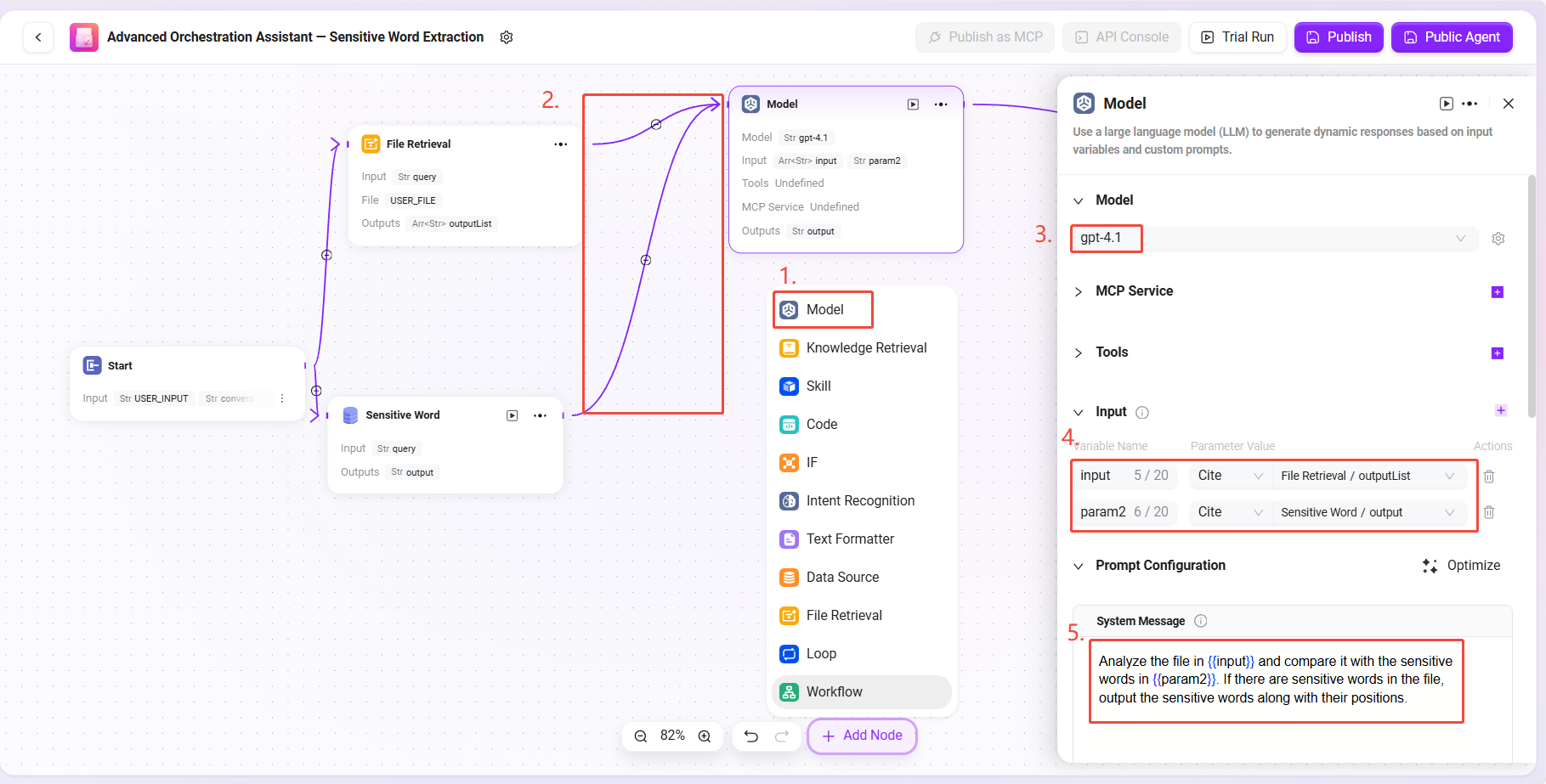
Model Node Configuration
This node is the core processing module of this workflow, responsible for intelligently comparing contract text with sensitive words and returning the results.
Configuration steps:
-
Add a Model Node and connect it to both the file processing node and the data source node.
-
Model selection:
gpt-4.1 -
Tool selection: No external tools are needed in this scenario, can be skipped.
-
Add MCP: No MCP is needed in this scenario, can be skipped.
-
Input references:
-
input: Reference the output of the file processing node, format:
FileHandler/output -
param2: Reference the output of the data source node, format:
DataSource/output
-
-
Prompt configuration:
-
System Prompt:
Analyze the file in {{input}} and compare it with the sensitive words in {{param2}}. If there are sensitive words in the file, output the sensitive words along with their positions. -
User Prompt:
Analyze the file in {{input}} and compare it with the sensitive words in {{param2}}. If there are sensitive words in the file, output the sensitive words along with their positions.
-
✅ Tip: The system prompt provides behavioral instructions to the model, while the user prompt simulates actual user input. Here, both are the same for more stable results.
-
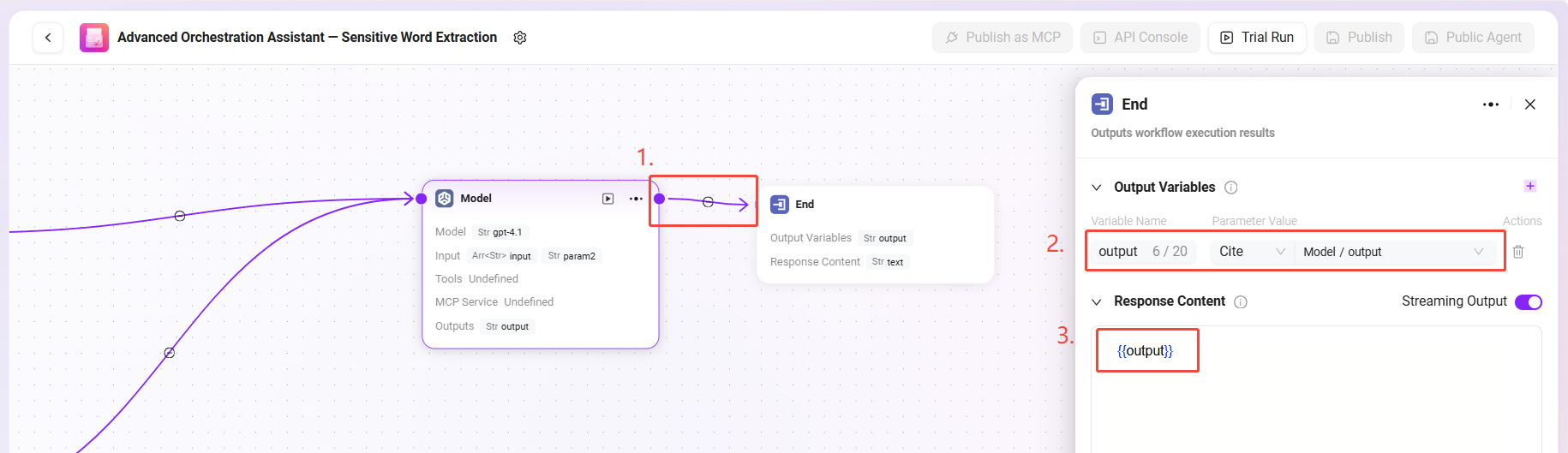
Output Node Configuration
This node is used to return the model's processing results to the end user.
Configuration steps:
-
Connect the Model Node to the End Node.
-
Click the end node and set the input reference:
-
Input content: Reference the model node output, format:
Model/output
-
-
In the output content configuration, enter:
{{output}}
✅ Tip: Only entering
{{output}}as the output at the end can better preserve the model's output. If needed, you can also specify the output of specific content.
The complete configuration is as follows:
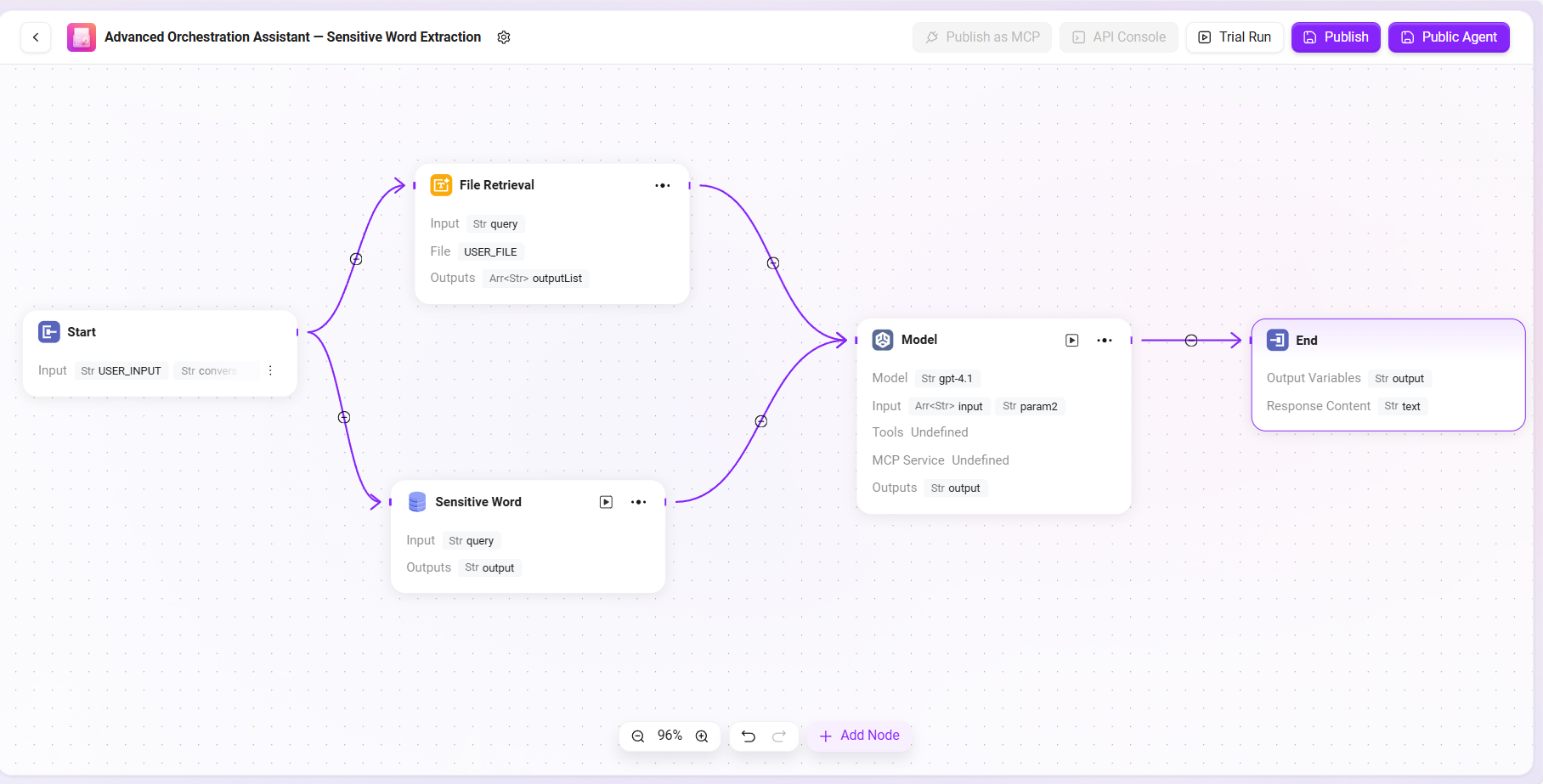
How to Use the “Sensitive Word Extraction” Agent Assistant
-
The user uploads the contract file in the chat interface.
-
The Agent automatically parses the text and accurately detects sensitive words within it.
-
The system returns the sensitive words and their positions.
-
Through this process, users can quickly understand the sensitive information in the contract without manual review, greatly improving review efficiency and accuracy.