
Data sources are the entry point and foundation of AI Data, used to connect external enterprise databases or data platforms with the AI Central platform to enable unified data management and analysis.
By configuring data sources, the platform can identify external table structures, field types, and metadata information, providing support for subsequent data catalog management and business domain modeling.
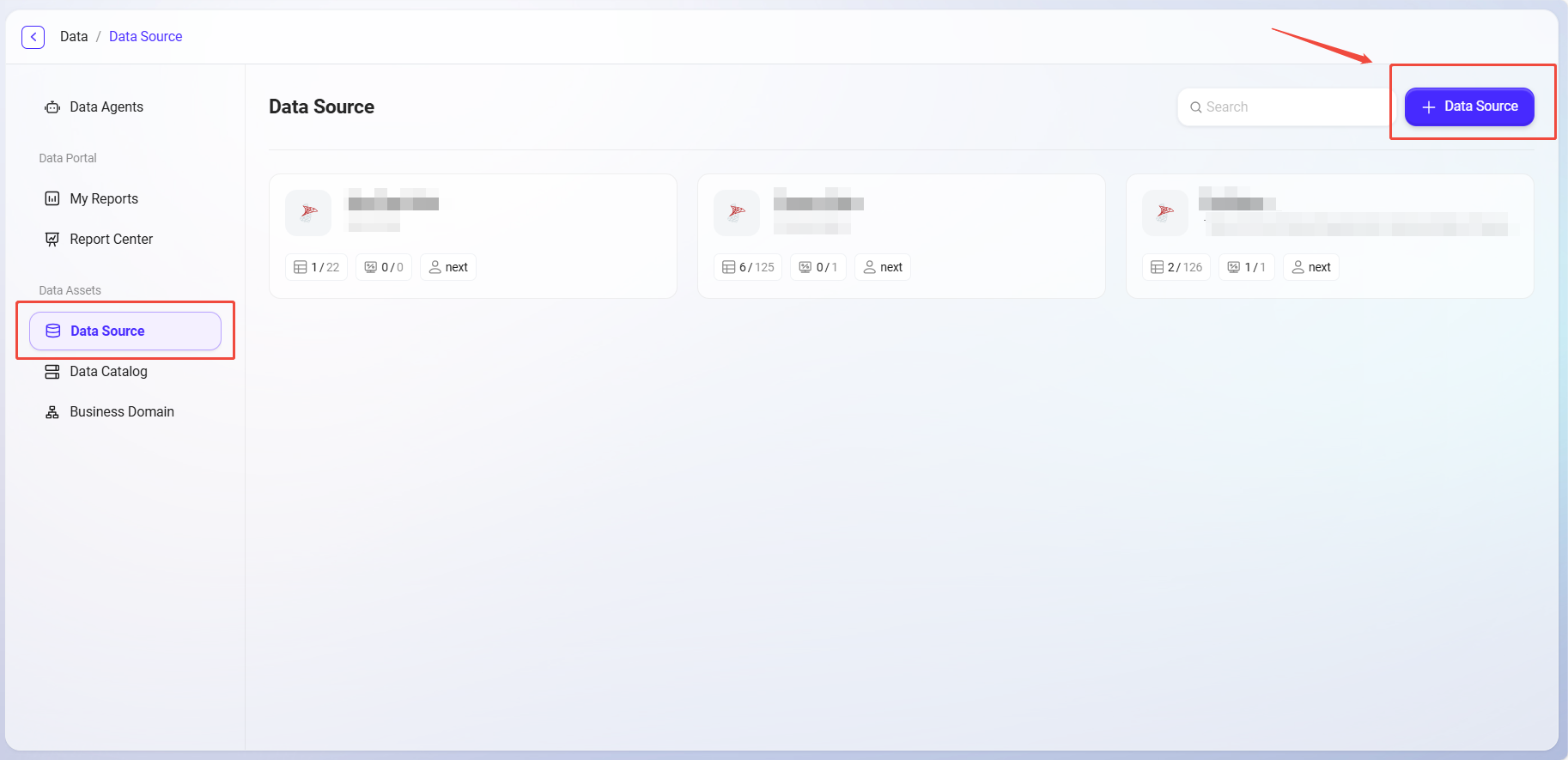
Connect Data Sources
The first step of AI Data is to connect data sources, providing foundational data for subsequent analysis.
-
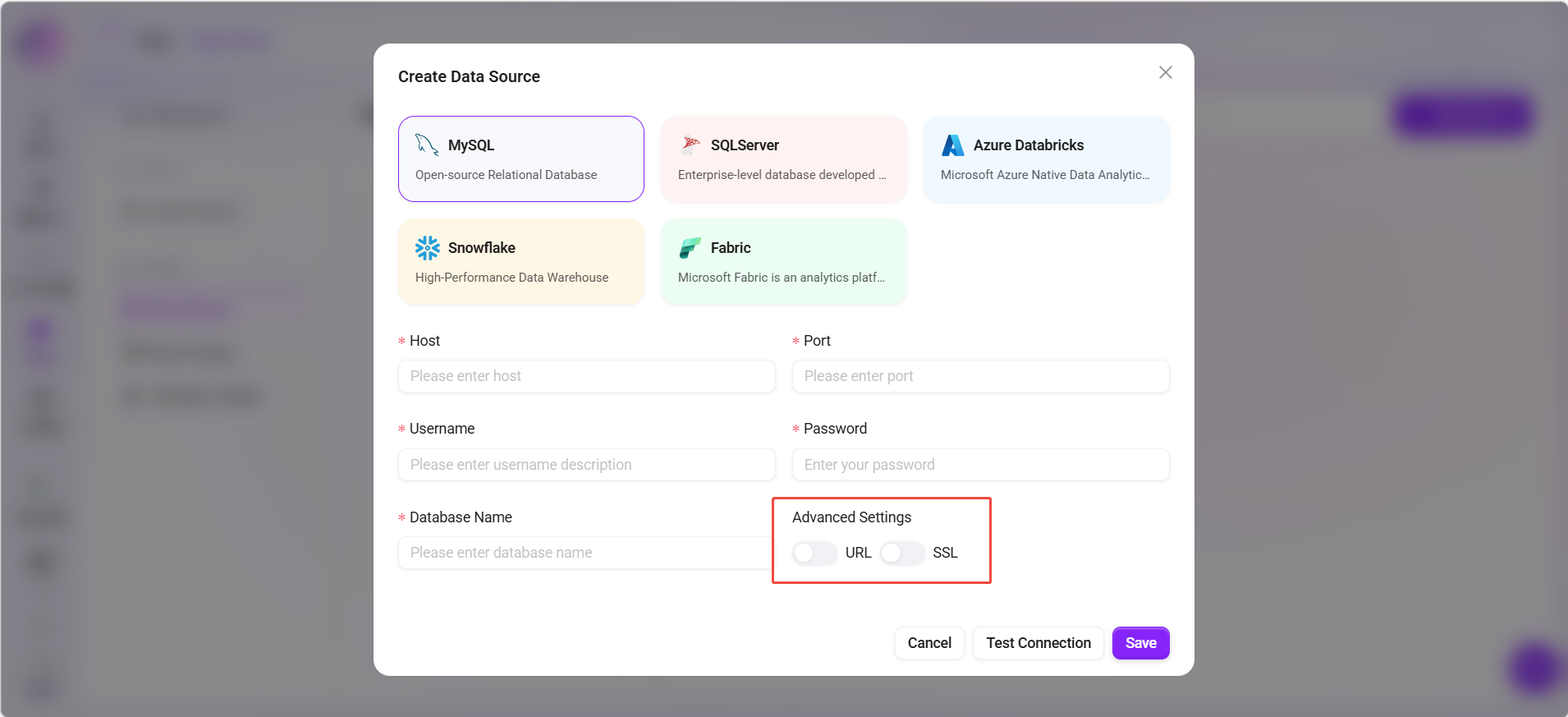
Supports connecting to various mainstream data platforms, including MySQL, SQL Server, Azure Databricks, etc.;
-
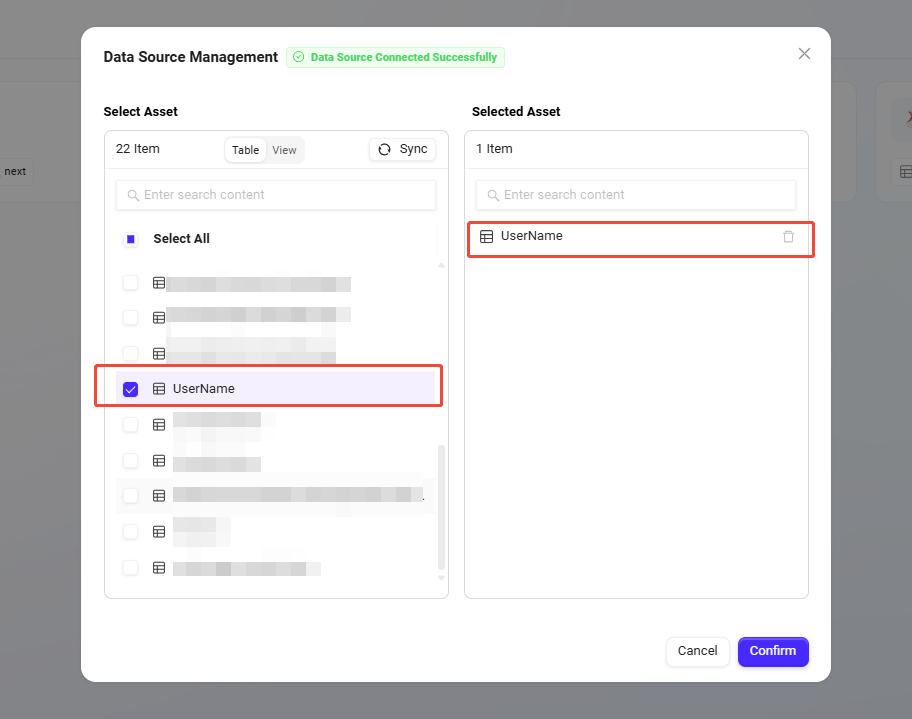
After adding a data source, you can view all tables in that data source, and users can selectively check the tables they need to use;
-
By default, the system only synchronizes metadata (such as table structures and field information) and does not synchronize actual data records, ensuring data security;
-
Provides a "Test Connection" feature to ensure the data source connectivity is correct;
Description of Data Source Configuration Items
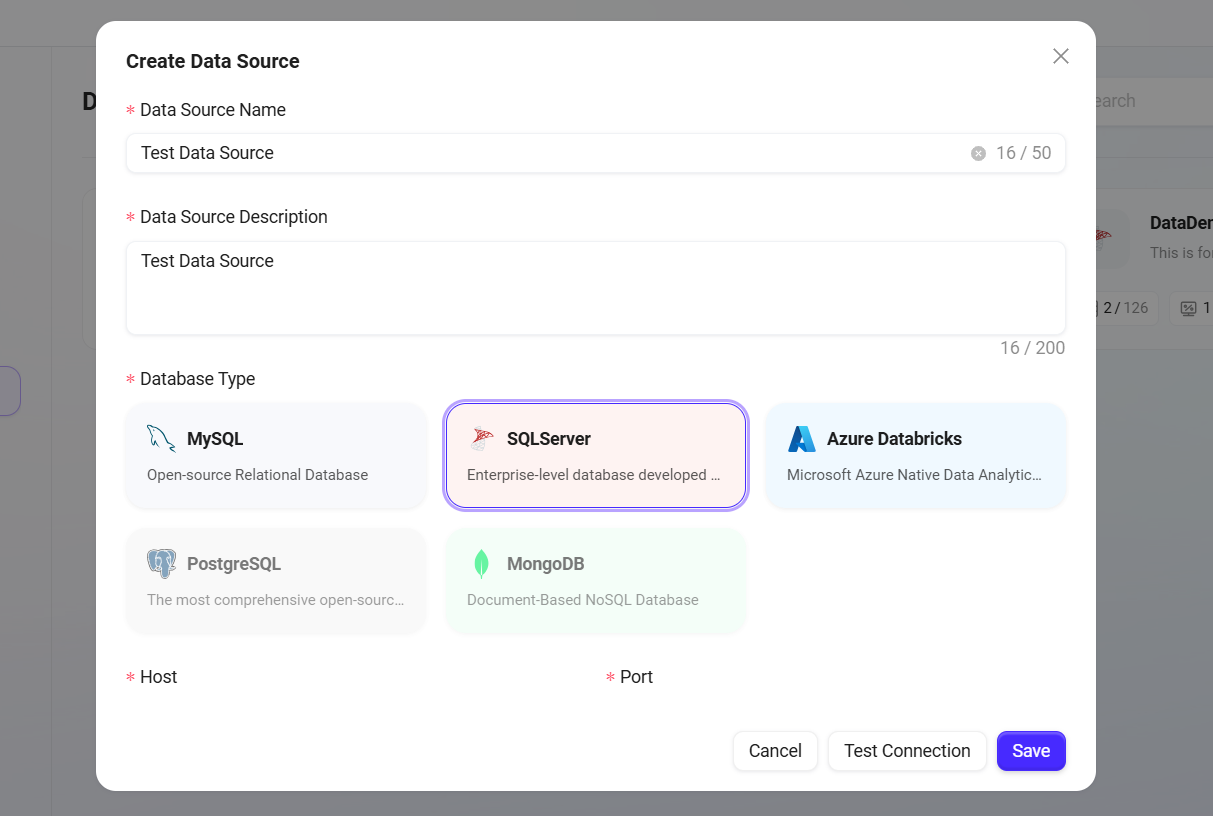
When adding a data source, the following key information must be filled in:
-
Data Source Type: Select the database type (such as MySQL, SQL Server, etc.);
-
Connection Address: The connection string or IP of the database server;
-
Database Name: The name of the target database (within 50 characters);
-
Username and Password: Account information used for database authentication;
-
Port Number: The port monitored by the database service;
The system supports connecting to databases through the SSL protocol and can perform corresponding adaptation settings according to different database types.
After completing the data source connection, you can add data tables.
TIP
-
After adding a data source, in addition to selecting data tables, selecting views is also supported.
-
Views can integrate data from multiple tables into a virtual table through query logic, making them suitable for displaying aggregated, filtered, or calculated results and facilitating the construction of more flexible data models.
-
Database types: MySQL, SQLServer, Azure Databricks, Fabric, Snowflake.
Common Causes of Data Source Connection Failure and Troubleshooting Methods
When connecting to an external database, if the test connection fails, you can troubleshoot from the following aspects:
-
Incorrect Connection Information
-
Check whether the hostname, port, database name, username, and password are correct.
-
Confirm that the database instance allows remote access and that the firewall is not blocking the corresponding port (for example, MySQL defaults to 3306, and SQL Server defaults to 1433).
-
-
Special Characters Not Properly Escaped
-
If the database password contains special characters (such as
@,#,%,&, etc.), note that these characters may be parsed as special symbols in the connection string, causing the connection to fail. -
It is recommended to URL-encode the password when entering it, or use quotation marks around the password field in the configuration to avoid escaping issues.
-
-
Network Connectivity Issues
-
Confirm that the service environment where AI Data is located can access the network where the database is located.
-
If the database is in a private network or virtual private network (VNet), the correct access policies or whitelist must be configured.
-
-
Insufficient Database Permissions
-
Confirm that the connection account has read permissions for the target database and data tables.
-
For cloud databases (such as Azure SQL), also check whether the account's Token or access key is valid.
-
💡 Recommendation:
If the connection still cannot be established after multiple tests, you can check the detailed error logs and provide the error information to the system administrator or database administrator for further troubleshooting.