
This document describes how to escalate an issue when you’re not happy with the quality of service you’re getting from SoftwareOne’s support teams.
You can raise a Service Quality issue on the Services Portal.
-
For more information about accessing the portal, click here.
-
For more information on the Escalation process in SoftwareOne , click here
Service Quality issues are raised against existing tickets.
The following steps show
Procedure
|
Step |
Key Action |
Detail |
|
1 |
Login to the Services Portal |
Go to https://portal.softwareone.cloud and login
|
|
2 |
Open the Ticket or Case you want to raise the issue against |
Go to Tickets > Open the Ticket or Case in question |
|
3 |
Open a Service Quality issue against the ticket |
Scroll down the Left hand side of the Ticket page to find the “Raise Service Quality issue” section: 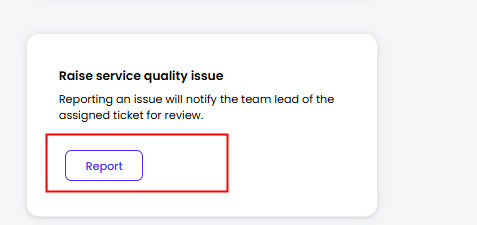
Provide details on why you’re escalating the ticket and hit Submit. 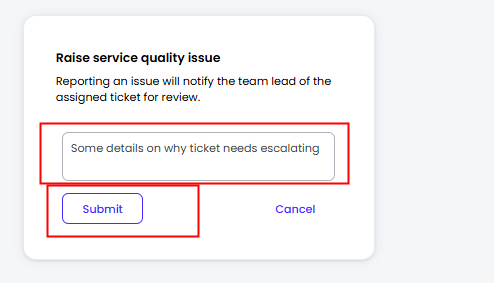
When you hit Submit a comment will be inserted into your ticket and a new, ‘Service Quality’ ticket will be raise and the number shown in the modal: 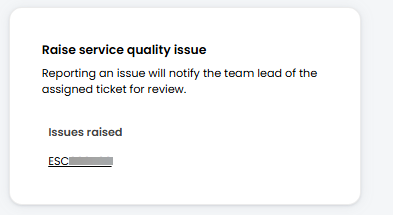
A Service Quality issue in the Case table: 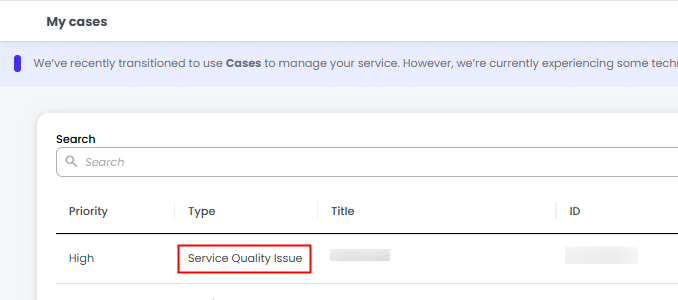
|
|
4 |
You can check the status of your escalation by opening the Ticket or Case and managing it as you would any other Ticket or Case.
|
NOte that the Related Ticket information is displayed down the left hand side. 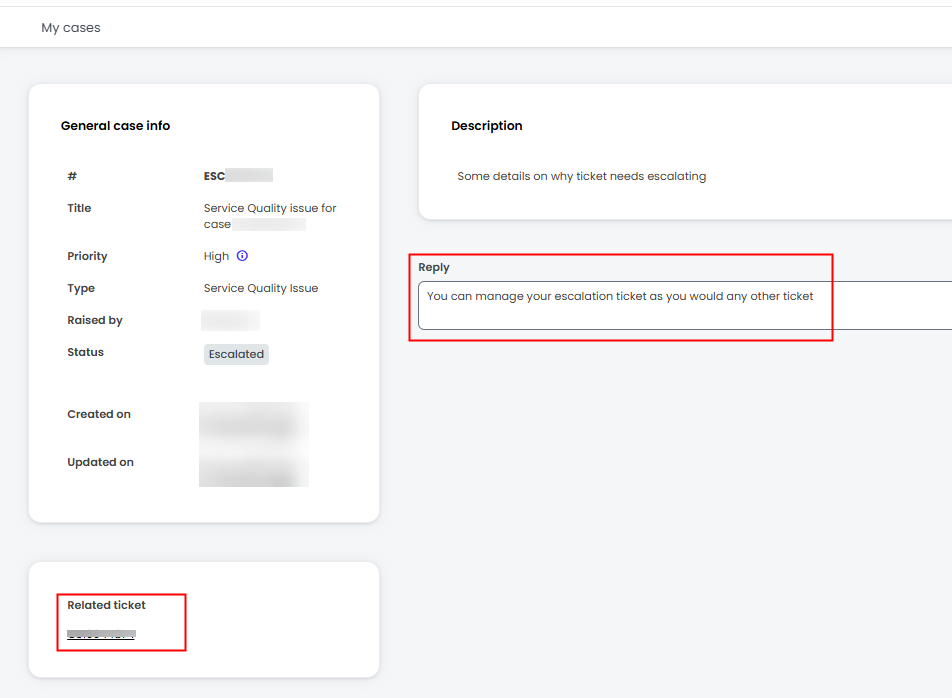
|
|
Your Service Quality ticket will now be taken through the SoftwareOne escalation process as defined here Your original ticket will remain open and continue to be worked upon |
||