
Overview
If you get a blank page at login, or after logging in to the Services Portal, it may be a conflict with your browser extensions.
We have seen issues with the following extensions, but there may be others.
-
Ublock Origin
-
Gostery
-
Privacy Badger
We recommend trying to disable the extensions entirely to start, just to check which extension is causing the issue.
Then, configure that extension to allow the following sites:
How to turn off each extension in turn to find which extension is causing the issue:
Chrome > Top RHS click the Jigsaw icon > Manage Extensions > slide off each extension
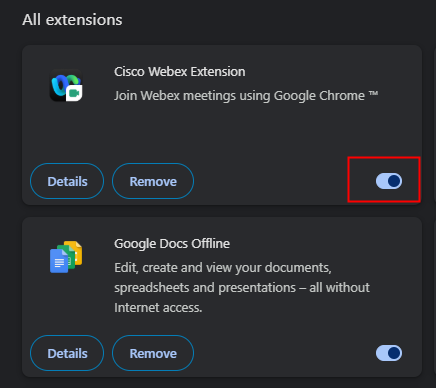
Microsoft Edge > Top RHS click the Jigsaw icon > Manage Extensions > slide off each extension
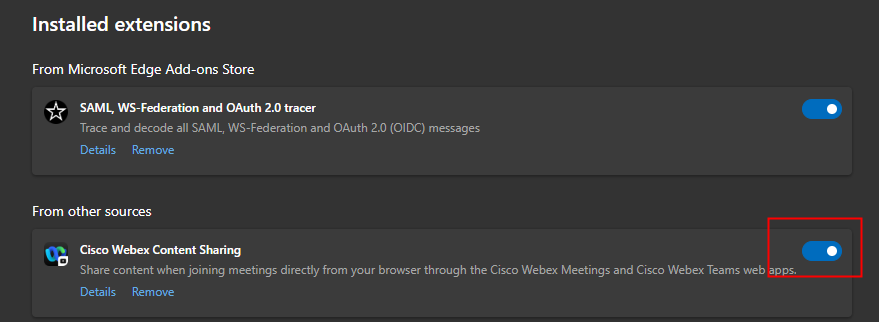
How to exclude Services Portal sites from extension checks:
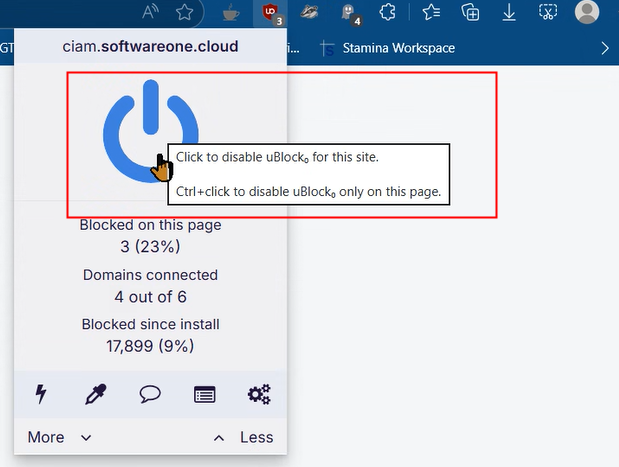
For UBlock Origin
Turn off for each of the following URLs:
To do that, go the the URL and ref screenshot below:
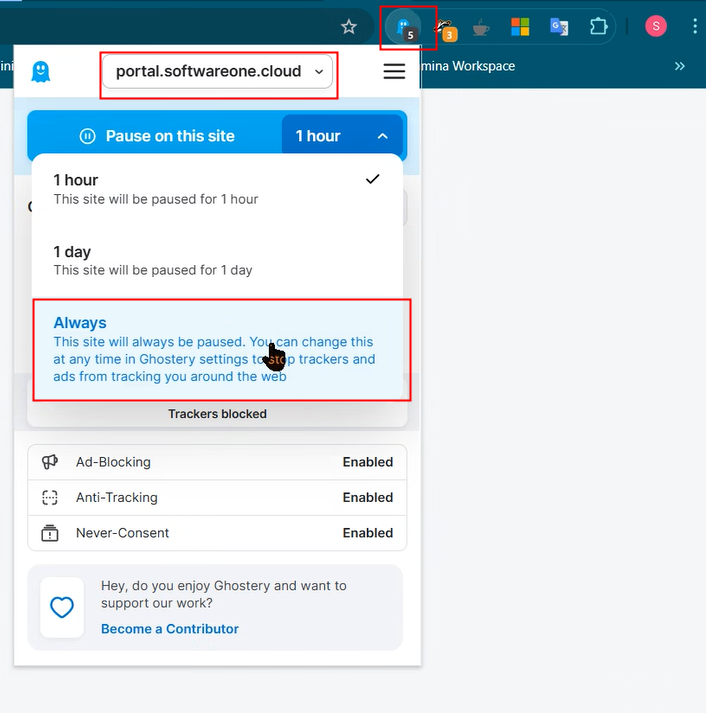
For Ghostery;
Configure “Pause for this site” as “Always” for both the following URLs:
To do that, go the the URL and ref screenshot below:
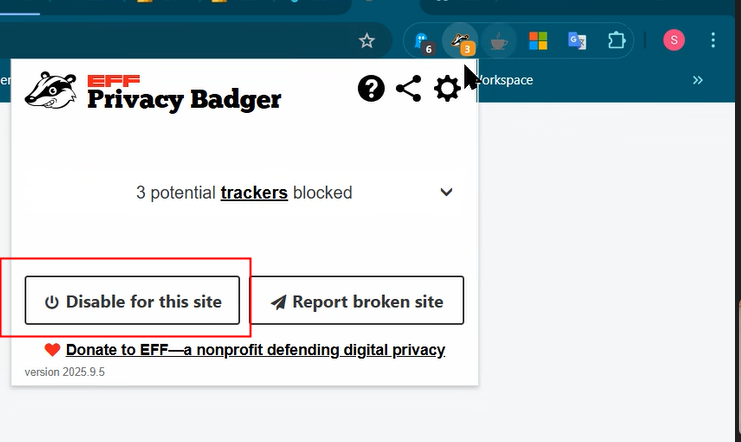
For Privacy Badger:
Set ‘Disable for this site’ for the following URLs:
To do that, go to each URL an follow screenshot below
If you continue to have problems please don’t hesitate to contact us.