
This document describes how to send the Services Portal team comprehensive troubleshooting information so we can resolve your issues as soon as possible.
We will start your Browsers network logging and ask that you send those logs to SWO support for analysis.
Note that this log will only include data from your browser going to our services portal and does not include any sensitive information.
Pre-Requisites
-
Zipping / Compression software
Procedure
Here we will ask you to open the Developer tools of your browser, recreate the issue and then share your Console Logs and Network HAR file.
We will also ask you to share your external IP.
|
Step |
Key Action |
Detail |
|---|---|---|
|
1 |
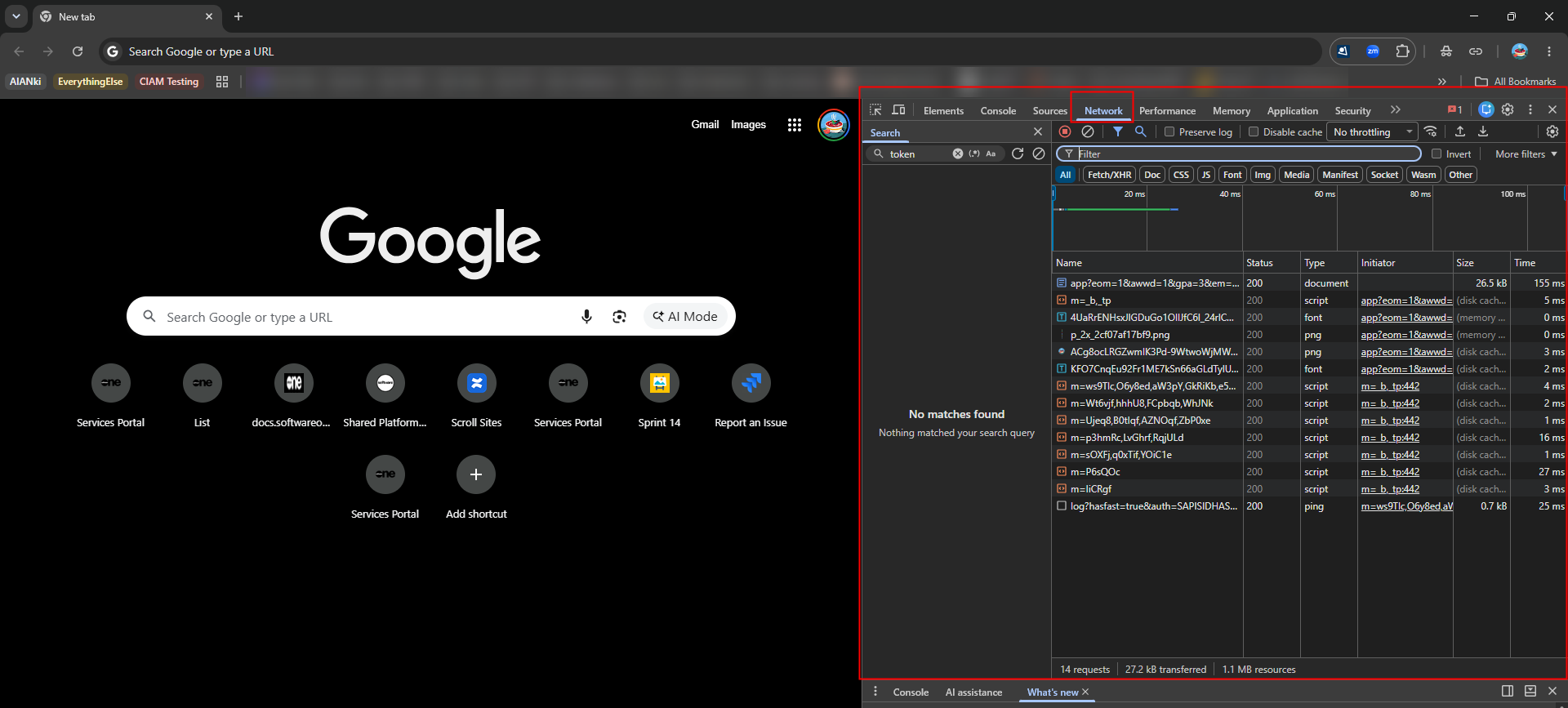
Open your browser’s Developer Tools -> Network tab. |
Chrome, Firefox, Edge:
|
|
2 |
Login to the Services Portal |
Go to https://services.softwareone.com Login as the user having the issue.. |
|
3 |
Recreate the issue |
Recreate the issue on the Services Portal. When the issues shows move to the next step.. |
|
4 |
Collect the Network activity log |
On the Network tab, Click the download button In Chrome, the download button is at the top RHS 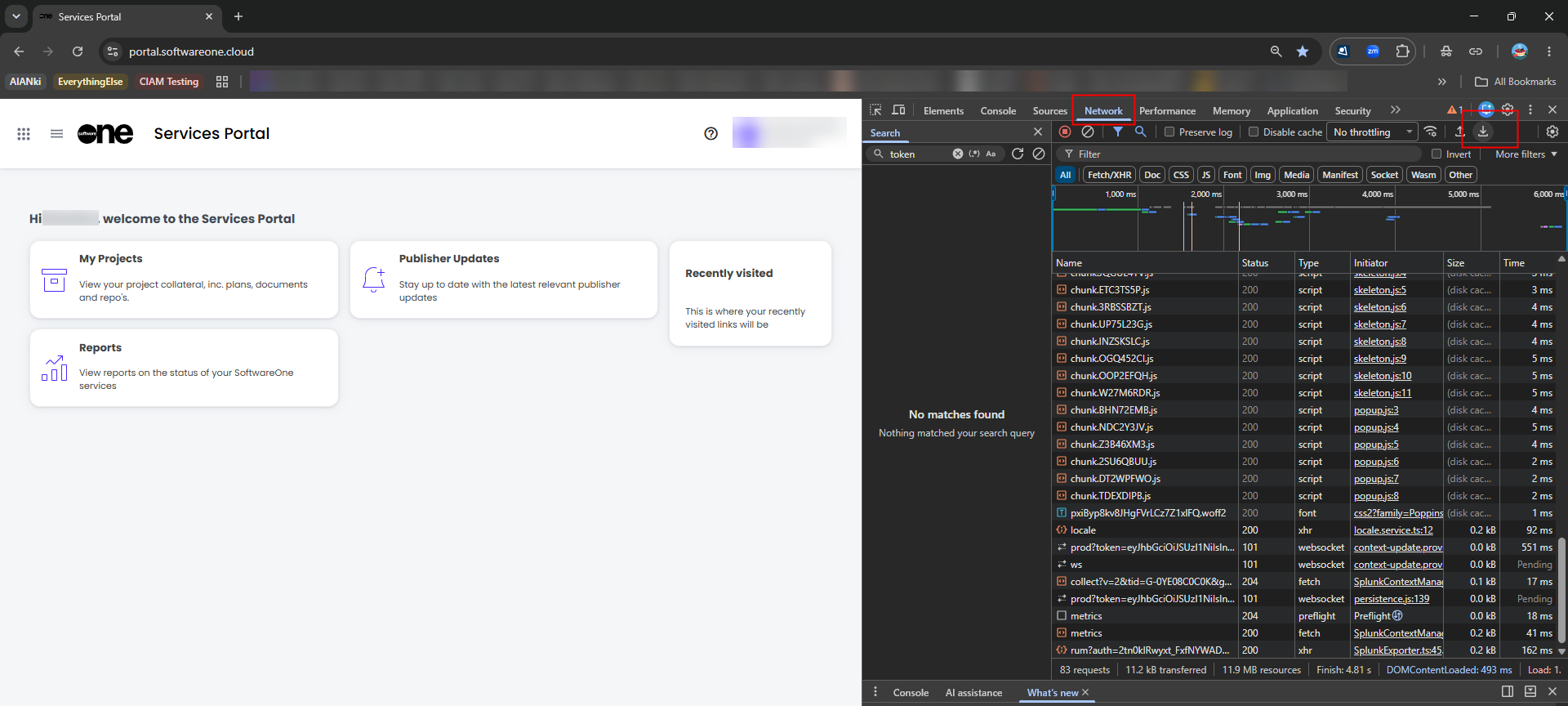
In Edge, it’s near the Network tab: 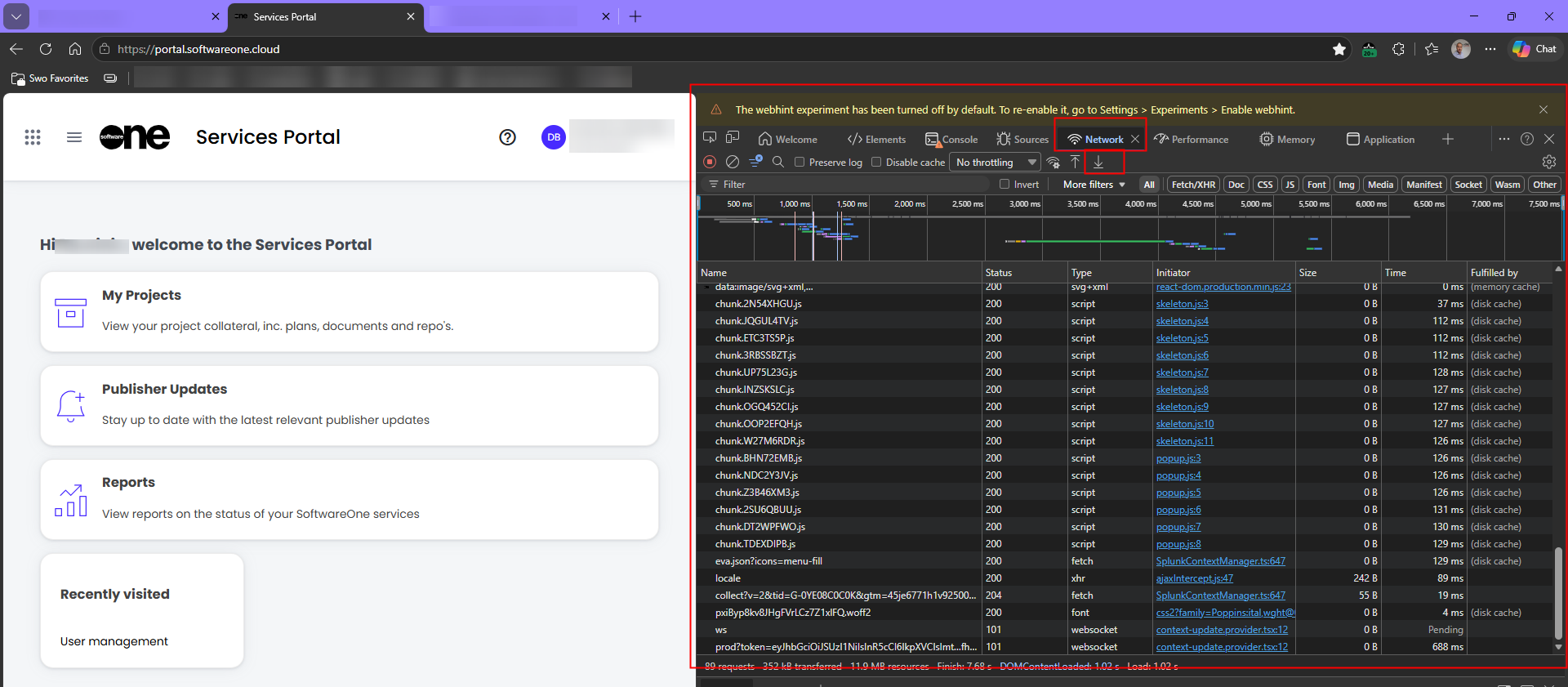
|
|
5 |
Collect the Console Log |
Go to the Console Tab, right click anywhere in the lower portion and choose Save As… 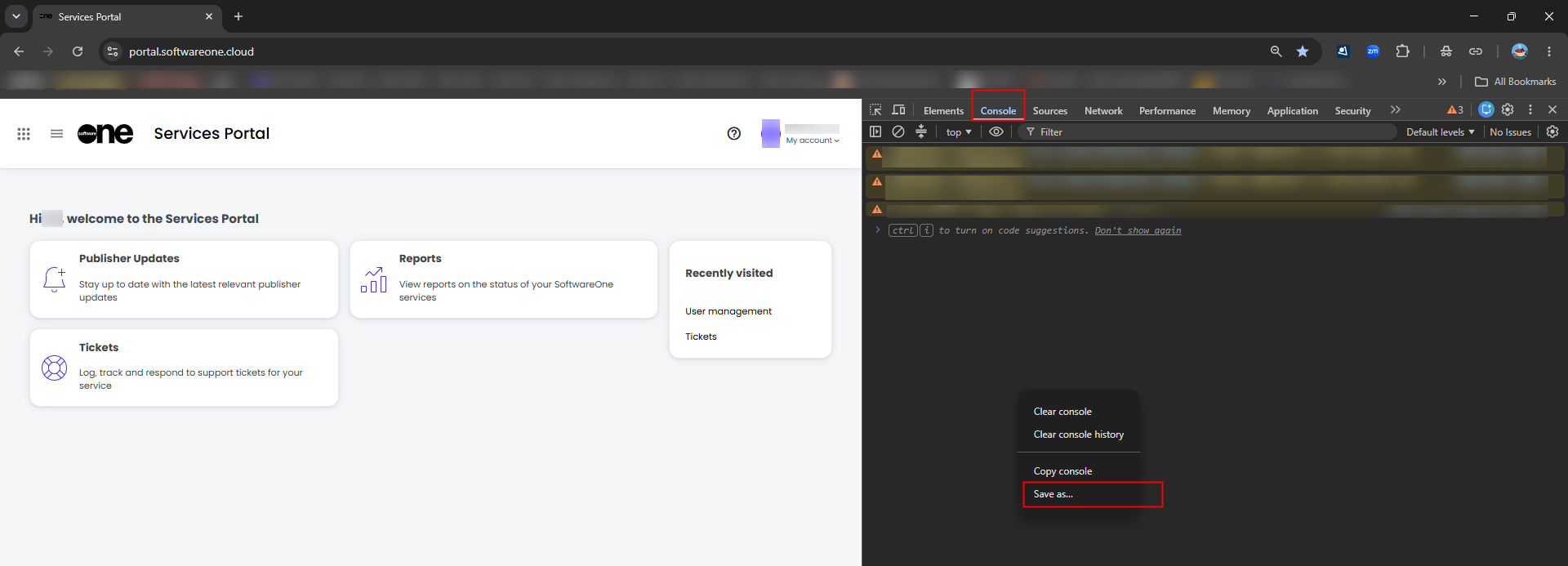
Save the log to your downloads folder. |
|
|
Collect your external IP |
Go to https://www.whatismyip.com/ and collect your IP address: 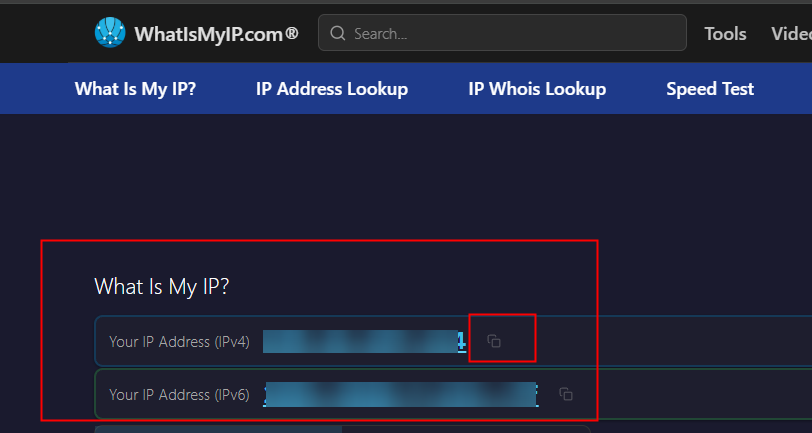
Click on the Copy icon to take the IP v4 address into your clipboard.
|
|
6 |
Send both log files to SWO Support and mention your IP address in the ticket body |
Use your favourite zip / compression software to zip the HAR file and the Console Log and then send the files to as an email attachment to support@softwareone.com Please do also include a brief description of the problem, include any screenshots of the errors if you have them. Please also paste in your IP v4 address. |
|
7 |
Close the Developer Tools, or the Browser |
You can hit F12 to close the Dev Tools, or hit the X button at the top right hand side of the tools to close them You can also just close that browser tab. 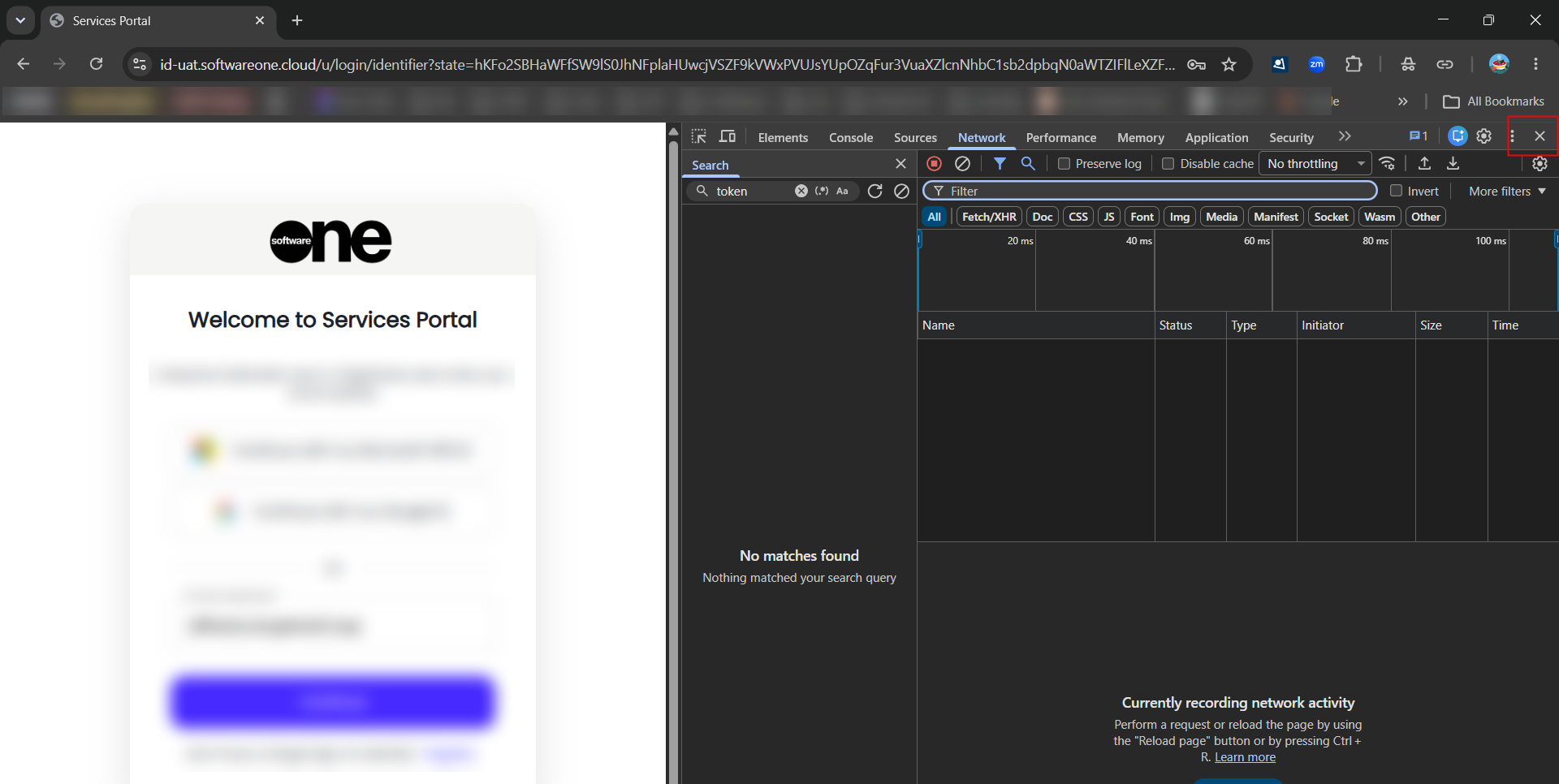
|
|
If you have any issues our ServiceDesk will be happy to help you do the above steps over a call, do just let support@softwareone.com know |
||