
If you’re using Single Sign On to access the SoftwareOne Services Portal then we do not manage your password - you must change your password using your workplace’s preferred method.
If you have Registered a username and password with the Services Portal, then here’s how to change your password:
|
Step |
Key Action |
Detail |
|
1 |
|
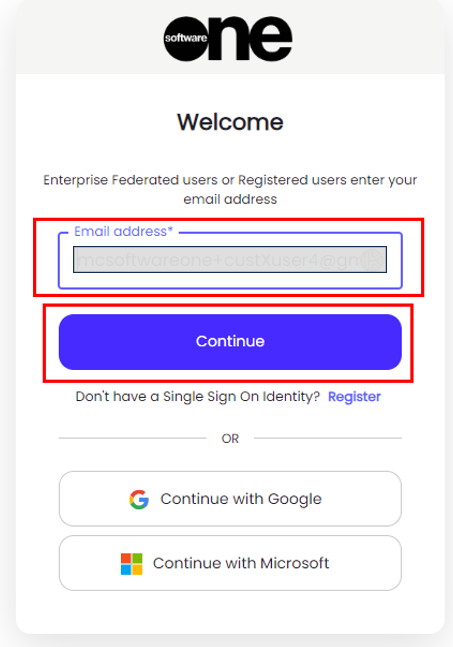
|
|
2 |
Hit “Forgot Password” |
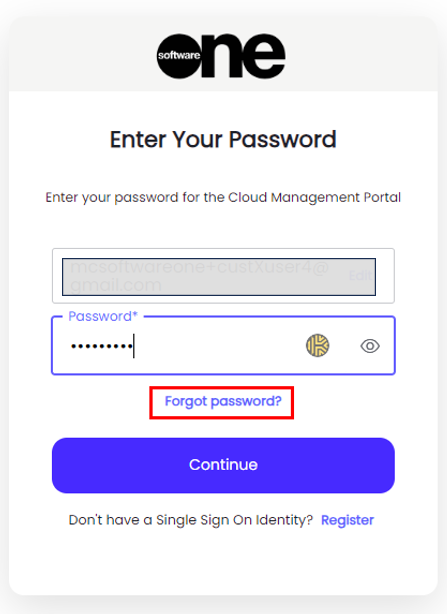
|
|
3 |
You will be prompted to check your email |
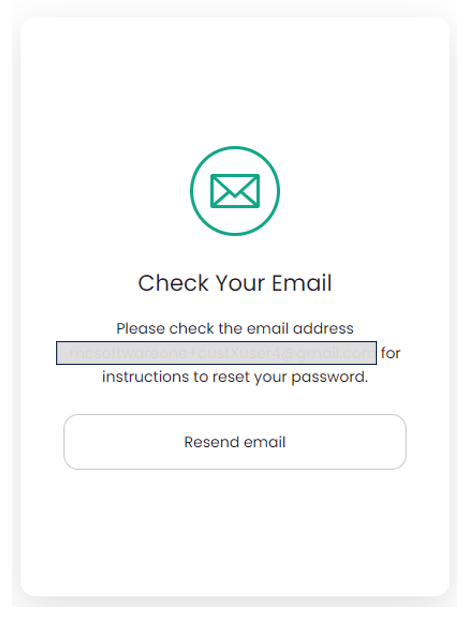
|
|
4 |
You’ll receive an email |
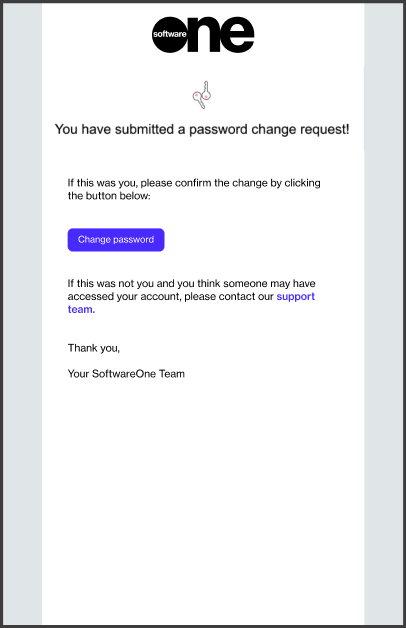
Follow the Change Password link |
|
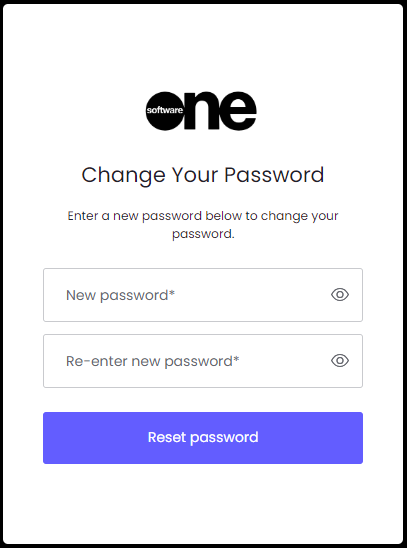
5 |
Change your password |
|
|
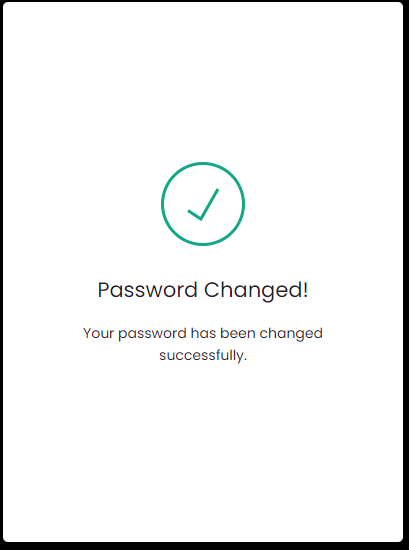
6 |
The change will be confirmed |
|
|
End |
Go back to https://portal.softwareone.cloud to login using your new credentials |
|