
Intended audience: Customer DBAs/cloud administrators, platform administrators, implementation consultants Scope: Integration logic and configuration essentials for Snowflake as an Analytics data source Positioning: This document only covers the "data source integration" scenario and does not involve Knowledge vector storage connections
Scope and Version Boundaries
What is supported:
-
The platform connects to Snowflake to browse/sync table structures, preview data, and support analytical reporting.
-
Supports both password authentication and RSA key-pair authentication.
-
Supports specifying key connection parameters such as Warehouse, Role, and Schema in the data source configuration.
What is not supported:
-
This document does not cover the configuration and operations of Snowflake as a Knowledge vector store.
-
This document does not include advanced integration instructions for Snowflake external OAuth/SSO.
-
The platform is not responsible for Snowflake account provisioning, or the creation and authorization of Warehouse/Role; these must be completed by the Snowflake administrator.
Roles and Responsibilities
|
Role |
Responsibilities |
|---|---|
|
** Snowflake account administrator/DBA** |
Create/specify Warehouse, Database, and Schema; create integration users and roles and grant permissions (USAGE/SELECT, etc.); if using key-pair authentication, generate an RSA key pair and bind the public key to the Snowflake user. |
|
Platform administrator |
Create the Snowflake data source on the platform side, enter connection information, test the connection, and sync metadata. |
|
Implementation consultant |
Prepare connection information and keys, verify test connection, object discovery, and data preview results, and complete acceptance. |
Prerequisites Checklist
|
Category |
Prerequisites |
|---|---|
|
Permissions |
The user must have USAGE on the target Warehouse; USAGE on the target Database/Schema; and SELECT on the tables/views to be synced |
|
Account |
Snowflake username + password, or Snowflake username + RSA key-pair |
|
Network |
The platform can access the regional endpoint corresponding to the Snowflake Account (note the difference between |
|
Resource preparation |
Account identifier, Database, Warehouse, Role, Schema (default is |
|
⚠️ Must confirm with DBA |
Role permission granularity (whether to use ACCOUNTADMIN or a custom Role), Network Policy/IP allowlist, key rotation policy |
Key Points for Platform-Side Entry
Snowflake Analytics Data Source
|
Field Name |
Required |
Description |
|---|---|---|
|
Host |
✅ |
Snowflake Account identifier, for example |
|
Database |
✅ |
Database name (case-sensitive) |
|
Username |
✅ |
Snowflake username |
|
Warehouse |
✅ |
Warehouse name |
|
Role |
✅ |
Role name, which determines the accessible data scope |
|
Schema |
Optional |
Specify the Schema to access; if left blank, the default permission scope is used |
|
Authentication Method |
Optional |
|
|
Password |
Required for password authentication |
Snowflake user password, stored with platform-side RSA encryption |
|
Private Key Data |
Required for key-pair authentication |
RSA private key (PEM format), Base64-encoded and stored encrypted |
|
Private Key Password |
Optional |
Required if the private key is protected with a passphrase |
Entry and authorization process:
-
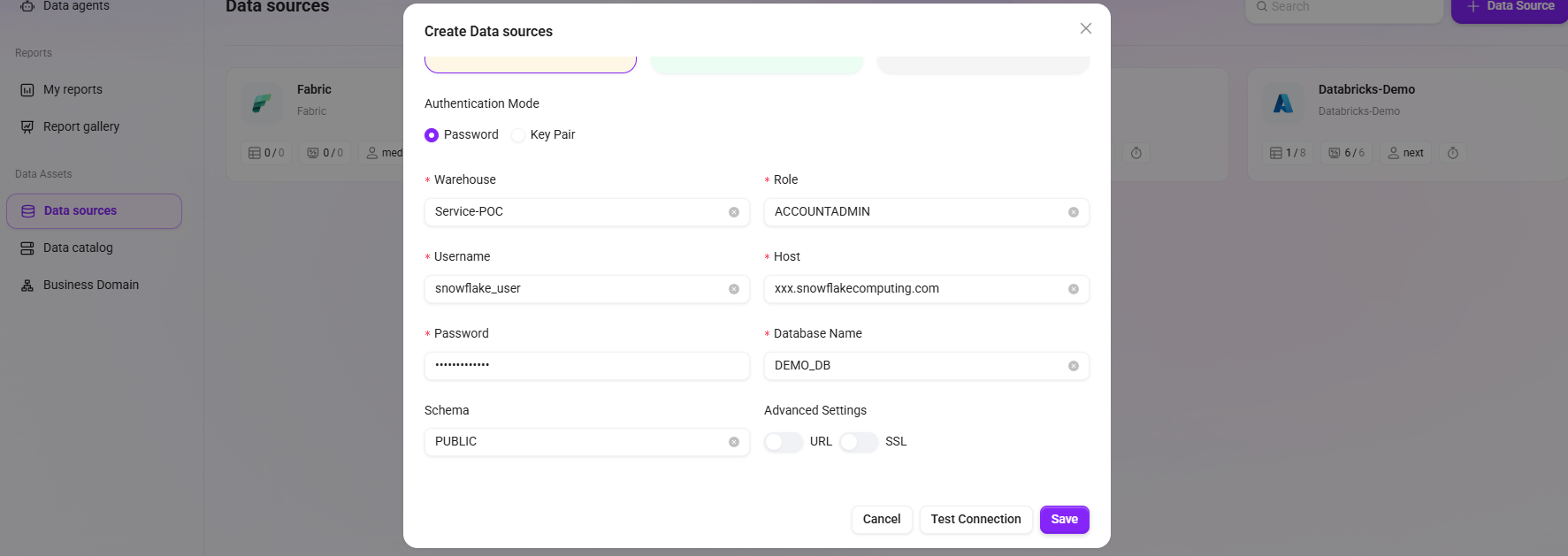
Enter connection information on the data source configuration page (Host, Database, Warehouse, Role, User, Schema).
-
Fill in the password or private key related fields according to the authentication method.
-
Click "Test Connection" to verify availability.
-
After the test passes, click "Save" to complete data source creation.
Detailed Operation Guide
Go to the data source creation page
-
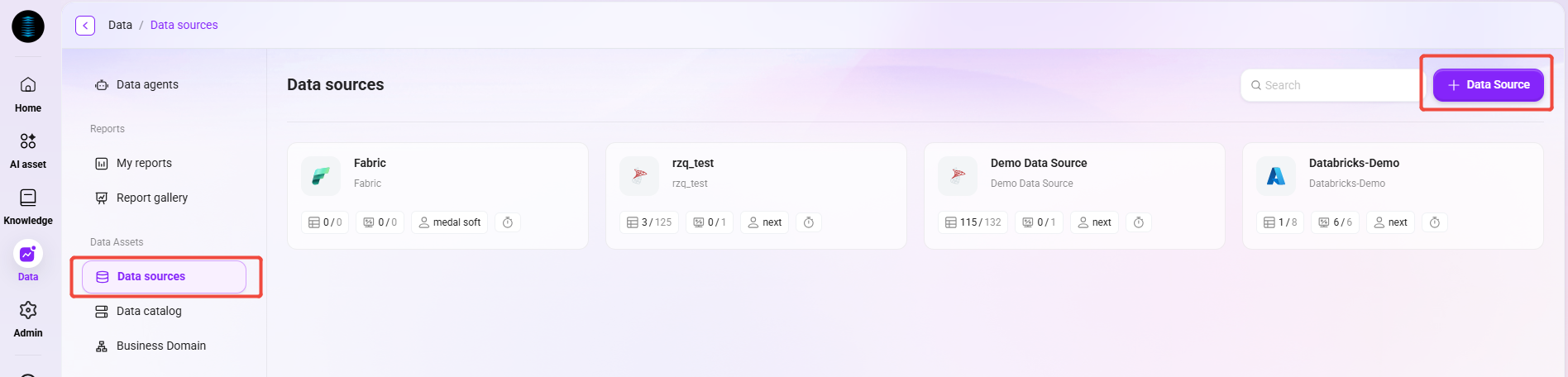
Go to the Data > Data Sources page.
-
Click New Data Source.
-
Select Snowflake as the data source type.
Fill in the basic connection information
Fill in the following information in the form:
-
Host: Snowflake Account identifier (for example
xxx.snowflakecomputing.com) -
Database: Target database name (case-sensitive)
-
Warehouse: Name of the warehouse used to execute queries
-
Role: Role that determines the accessible object scope
-
User: Snowflake username
-
Schema: Optional; if left blank, the default permission scope applies
Fill in authentication information
Fill in according to the selected authentication method:
-
Password Authentication: Enter the user password
-
Key-Pair Authentication: Enter
Private Key Data(PEM, Base64) and the optionalPrivate Key Password
Verify the connection
-
Confirm that all required fields have been filled in.
-
Click Test Connection.
-
If the test passes, click Save to complete data source creation.
Common Issues and Troubleshooting Paths
|
Issue Category |
Symptom |
Possible Cause |
Troubleshooting Suggestion |
|---|---|---|---|
|
Authentication failure |
Authentication failure is reported during test connection |
Incorrect password; for key-pair authentication, the public key is not correctly bound to the user, or the private key format is incorrect (PEM required, convert to PKCS8 if necessary) |
Verify username/password; confirm that |
|
Host not found |
Reports Host not found |
Incorrect Account identifier, or regional suffix mismatch ( |
Verify the full Account identifier of the Snowflake account |
|
Connection timeout |
Test connection times out after a long period of no response |
Network policy restrictions, or the Warehouse is suspended and starts slowly |
Check the Network Policy/IP allowlist; confirm that the Warehouse can auto-resume normally |
|
SSL error |
Reports SSL/TLS-related exceptions |
Network proxy/certificate interception causes handshake failure |
Check whether there is any TLS interception device on the network egress |
|
Insufficient permissions |
Test connection succeeds but syncing table structures/data preview fails |
The user lacks SELECT permission on the target Schema/table |
Ask the DBA to grant SELECT on the corresponding tables/views |