
Intended audience: Customer Azure administrators, platform administrators, implementation consultants Scope: Integration logic and configuration essentials for Microsoft Fabric as an Analytics data source Positioning: This document only covers the "data source integration" scenario, and does not involve vector database solutions, nor does it expand on MCP preconfiguration capabilities
Applicable Scope and Version Boundaries
What is supported:
-
The platform connects to the customer's Microsoft Fabric SQL Endpoint / Warehouse as an Analytics data source: browse tables/views, sync metadata, preview data, and support analytical reporting.
-
The default and recommended authentication method is SSO (Entra ID OAuth, based on Service Principal); traditional username/password authentication is also retained as a compatibility option.
-
SSO supports two token management modes:
-
Zero-Trust (default): Only short-lived access tokens are stored; refresh tokens are not persisted. Once the token expires, authorization must be completed again.
-
Token-Refresh: The complete MSAL token cache (including refresh tokens) is persisted, supporting silent refresh and reducing the frequency of manual reauthorization.
-
What is not supported:
-
This document does not cover Fabric as a vector storage solution for knowledge bases (if such requirements exist, refer to separate vector database documentation).
-
It does not expand on Fabric-related MCP (Model Context Protocol) preconfiguration capabilities, which belong to another independent capability domain.
-
Fabric data sources do not use port configuration (Fabric SQL Endpoint uses the HTTPS protocol layer and does not require an additional port).
-
The platform is not responsible for creating Fabric workspaces (Workspace), Warehouse/Lakehouse resources, or assigning permissions; these must be completed by administrators.
Prerequisites Checklist
|
Category |
Prerequisites |
|---|---|
|
Permissions |
Entra ID must have permission to register applications (service principals); the service principal must be granted access to the target Workspace/Warehouse in the Fabric admin center (such as Viewer/Contributor, depending on the Fabric permission model, configured by the Fabric administrator). |
|
Account |
Client ID / Client Secret / Tenant ID (the three key elements of a service principal); no additional username/password is required in SSO mode. |
|
Network |
The platform server must be able to access the Fabric SQL Endpoint (such as |
|
Resource Preparation |
The target Warehouse/Lakehouse name (corresponding to the |
|
⚠️ To Confirm |
The exact permission scope of the service principal on the Fabric side (whether it covers read access to the target Warehouse); whether Token-Refresh mode is needed to reduce repeated authorization. |
Key Azure-Side Configuration Points
-
Register the service principal: In Azure Portal → Entra ID → App registrations, create an application and record the Client ID and Tenant ID.
-
Create a Client Secret: In the application's "Certificates & secrets", create a secret and securely save the secret value.
-
Authorize on the Fabric side: In the Fabric admin center (or the access settings of the target Workspace), add the service principal as a Workspace member and grant the permissions required to access the target Warehouse/Lakehouse.
-
Confirm the SQL Endpoint address: In the Fabric Workspace, view the SQL Endpoint connection string of the Warehouse/Lakehouse, in the form of
<workspace>.fabric.microsoft.comor<warehouse>-<id>.datawarehouse.fabric.microsoft.com. -
Confirm whether the tenant allows service principals to access Fabric: In some tenants, service principal access to the Fabric API may be disabled by default. Administrators need to enable the relevant option such as "Service principals can use Fabric APIs" in Fabric tenant settings.
Key Platform-Side Entry Points
|
Field Name |
Required |
Description |
|---|---|---|
|
Host |
✅ |
Fabric SQL Endpoint / Warehouse server address, for example |
|
Database Name |
✅ |
The name of the target Warehouse or Lakehouse |
|
Auth Type |
✅ |
Select |
|
Client ID |
Required under SSO |
The Client ID (Application ID) of the Entra service principal |
|
Tenant ID |
Required under SSO |
Azure AD tenant ID (Directory ID) |
|
Client Secret / Password |
✅ |
In SSO mode, enter the Client Secret; in password mode, enter the user password. The platform stores both with RSA encryption |
|
Mode |
Optional |
|
|
Username |
Required in password mode |
Not required in SSO mode |
|
Schema |
Optional |
Database schema name; if left blank, the default schema is used |
|
Port |
Not used |
Fabric does not require port configuration |
Entry and authorization process:
-
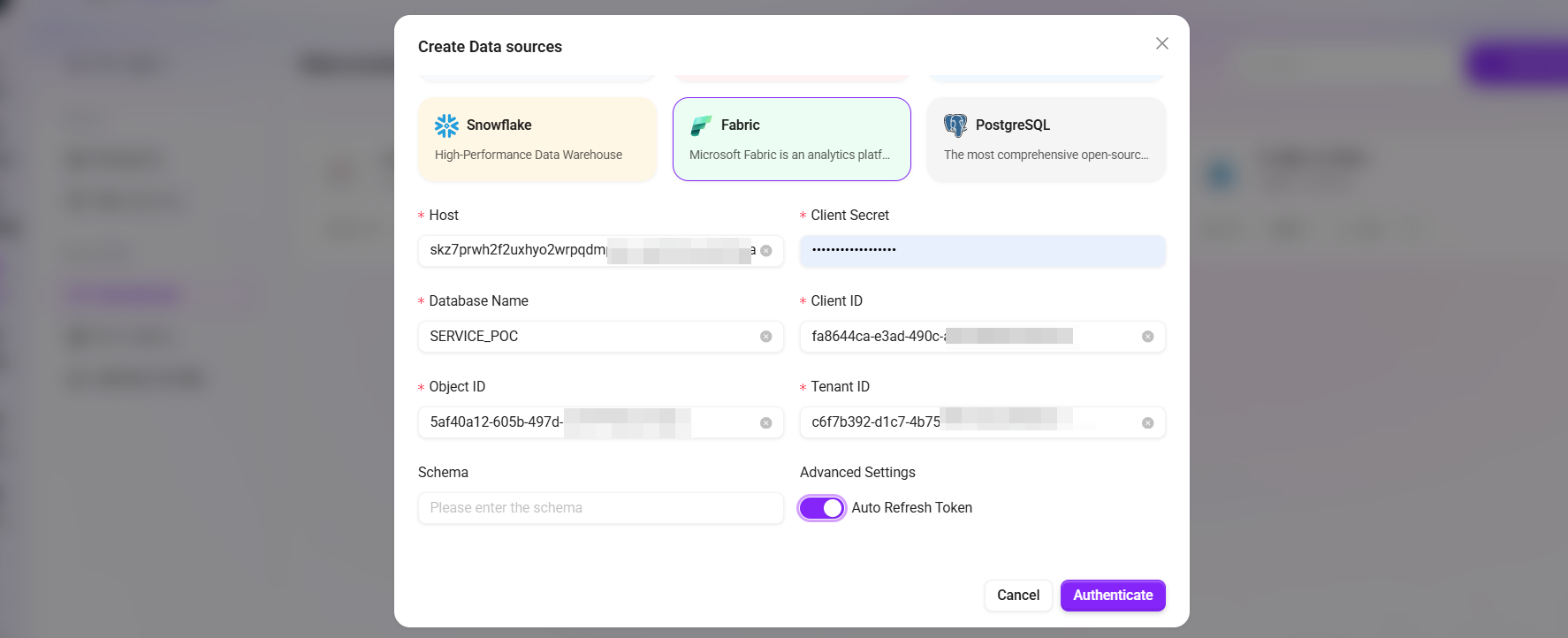
Fill in the connection information on the left side (Host, Database Name, Client ID, Tenant ID).
-
Fill in the authentication information on the right side (Client Secret, Auth Type, Mode).
-
Click "Authenticate" (the Authenticate button), and the system redirects to the Microsoft login page.
-
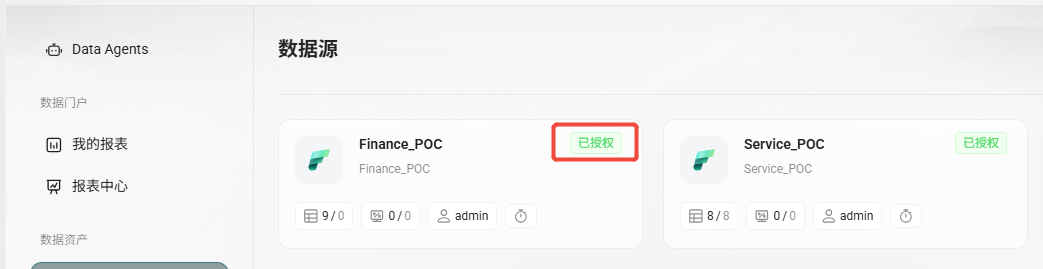
The customer's Azure administrator completes login and consent authorization, Microsoft completes the callback token exchange, and the data source status is updated to "Authorized".
-
After successful authorization, click "Test Connection" to verify availability.
Detailed Operation Guide
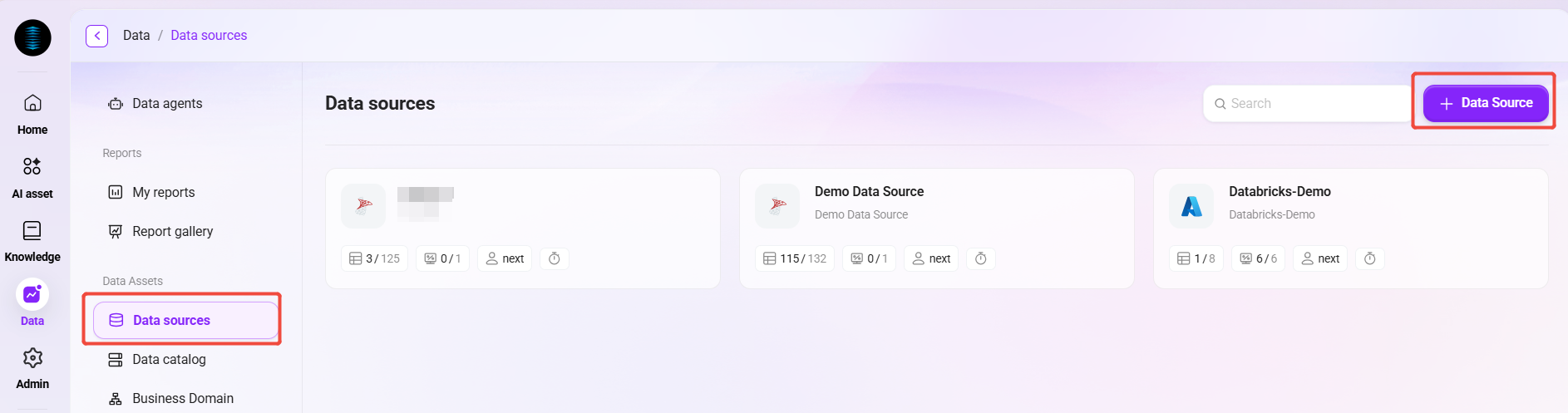
Go to the data source creation page
-
In the Data interface, find the data source entry
-
Click the "Create Data Source" or "New Data Source" button
-
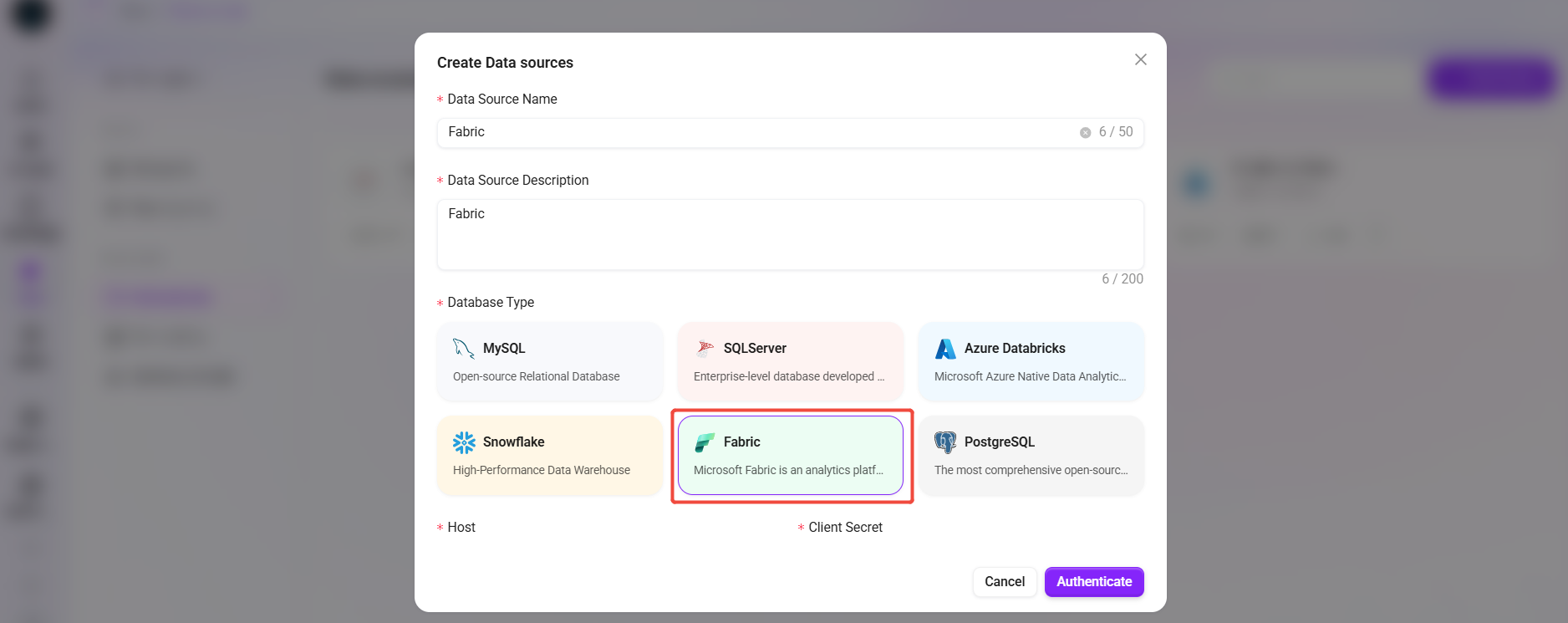
In the pop-up dialog for selecting the data source type, choose Fabric
Fill in the basic connection information
Fill in the following required fields in the left-side form:
Host*
-
Enter the SQL Endpoint address of the Fabric service
-
Example:
<workspace>.fabric.microsoft.comor<warehouse>-<id>.datawarehouse.fabric.microsoft.com
Database Name*
-
Enter the Warehouse name
-
Ensure that the Warehouse already exists in the Fabric instance
Client ID*
-
Enter the Client ID of the Azure AD application (service principal)
-
This information can be found in App registrations in Azure Portal
Schema
-
(Optional) Enter the database schema name
-
If not specified, the default schema will be used
Fill in the authentication information
Fill in the following required fields in the right-side form:
Client Secret*
-
Enter the client secret of the Azure AD application
-
Note: This secret is time-limited, so make sure it has not expired
-
Important: Keep this secret secure and do not disclose it
Tenant ID*
-
Enter the Azure AD tenant ID (Directory ID)
-
This can be found in the Azure Active Directory overview in Azure Portal
Auth Type*
-
Select
sso(recommended) for OAuth authentication based on a service principal -
Optionally select
passwordas a legacy compatibility mode (not recommended)
Mode
-
zero_trust(default): Does not persist refresh tokens; reauthorization is required after the access token expires -
token_refresh: Persists the complete MSAL cache, supports silent refresh, and reduces the frequency of reauthorization
Auto Refresh Token
-
Enabling this option allows automatic refresh of access tokens
-
Recommended to enable, to ensure that long-running queries do not fail due to token expiration
Verify the connection
-
Confirm that all required fields (marked with *) have been filled in correctly
-
Click the "Authenticate" button at the bottom of the page
-
The system will automatically redirect to the Microsoft account login page
-
Use an account with Fabric permissions to complete login and authorization
-
After successful login, the data source status is updated to "Authorized", and the Fabric data source is successfully connected
Testing and validation
After authorization is completed, verify connection availability by following these steps:
-
Click "Test Connection"; the system will discover and list visible tables and views
-
Perform "Sync Table Schema" on at least one key table to verify field information
-
Perform "Data Preview" on that table to confirm that data can be retrieved normally
-
If using Token-Refresh mode, it is recommended to initiate another query after some time to verify whether silent refresh is working
Common Issues and Troubleshooting Paths
|
Issue Category |
Symptom |
Possible Cause |
Troubleshooting Suggestion |
|---|---|---|---|
|
Authentication failure / token expired |
Prompt says "Unable to obtain Fabric access token, please reauthorize the data source through OAuth" |
In Zero-Trust mode, the access token has expired; in Token-Refresh mode, the refresh token is invalid or silent refresh failed |
Re-execute the OAuth authorization process; if this occurs frequently, consider switching to Token-Refresh mode |
|
Authentication not completed |
Prompt says "The data source has not yet been successfully authenticated, please complete the authentication process first" |
OAuth authorization has not been completed, or the authorization status was reset |
The administrator should complete one authorization login |
|
Missing SSO parameters |
An error related to "SSO authentication not configured" appears when initiating authorization |
|
Check and complete |
|
Endpoint / connection timeout |
Test connection has no response for a long time or times out |
Incorrect SQL Endpoint address; network policy restrictions; Fabric Workspace/Warehouse is not in an available state |
Verify the SQL Endpoint address; check outbound network policies; confirm that the Warehouse/Lakehouse status is normal |
|
Insufficient permissions |
Test connection succeeds but the table/view list is empty, or queries return permission errors |
The service principal has not been granted access to the Workspace/Warehouse |
Ask the Fabric administrator to add the service principal in Workspace permission settings and grant the appropriate role |
|
Microsoft-side authentication error (AADSTS series) |
Authorization callback returns |
Incorrect Client ID/Secret, tenant policy restrictions, service principal disabled, etc. |
Based on the specific AADSTS error code, verify the application status and tenant policies in Azure Portal (for example, whether Conditional Access policies are blocking service principal login) |
|
General connection failure |
Reports "Data source connection failed" |
Network timeout, temporary Fabric service unavailability, driver exception |
Retry later; check the Fabric service status page; if necessary, contact the network/security team for troubleshooting |