
End of life Exchange Web Services (EWS) for Exchange Online
Microsoft has announced the gradual deprecation of Exchange Web Services (EWS) for Exchange Online, beginning:
-
October 1, 2026 – Microsoft begins an EWS disablement rollout (tenant-controlled)
-
April 1, 2027 – EWS permanently disabled in Exchange Online
Microsoft Graph is now available for Exchange Online mailbox protection. Once enabled, Commvault will then use Microsoft Graph as the primary transport method for all currently supported mailbox objects.
Because Microsoft Graph does not yet support all Exchange Online object types, Commvault will continue using EWS for unsupported workloads, including:
-
Public folders (Likely EOL with EWS, discontinuation of CRUD API)
-
Microsoft 365 group mailboxes (Ongoing development)
Note: Any unsupported objects against the Graph API when EWS is fully deprecated, will then be considered end of life in Commvault.
Important: Do not disable EWS at the Microsoft Entra ID (Azure) tenant level. Commvault will continue using EWS for unsupported Exchange Online objects until Microsoft provides Microsoft Graph support or an alternative API.
To enable Graph API backups, please follow the steps provided below
Instruction
Before you begin:
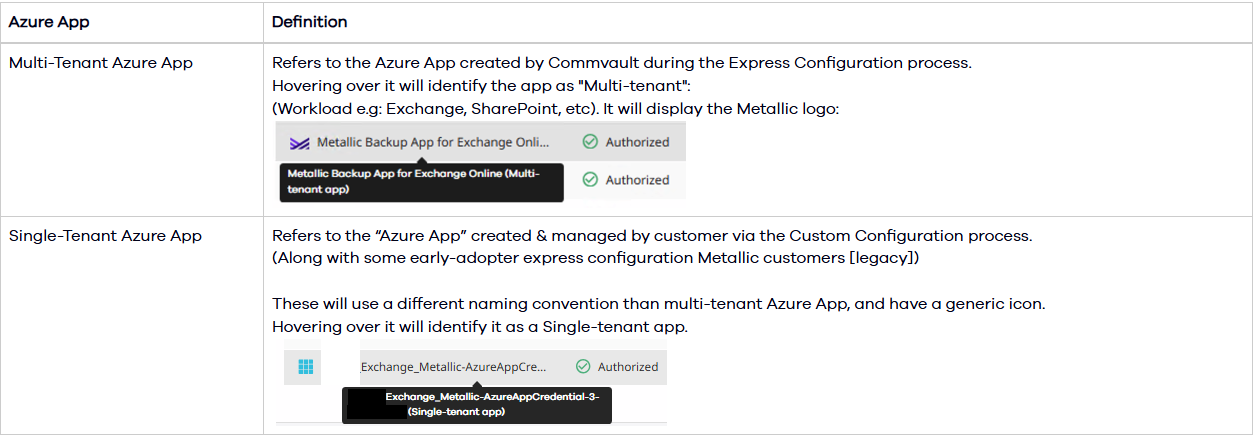
Determine Your Azure Application Type Before enabling Microsoft Graph, determine which Azure application your Exchange mailbox app is using.
• In Command Center, go to Protect -> Office 365 -> open the Exchange Mailbox app.
• Go to the Configuration tab.
• Hover over the Azure Applications field to view the application type. A popup dialogue will identify the app as either a “single tenant” or “multi tenant” app.
The recommended configuration is the multi-tenant Azure application. If your environment uses the legacy single-tenant Azure application, additional configuration is required.
Verifying compliance:
Customers using single-tenant (custom) Azure applications:
• Take note of each of the Azure applications present by name.
• You will then be prompted to verify permissions have been set against the Azure applications. Proceed to complete the configuration.
• Your Microsoft Entra ID (Azure) administrator must manually grant the following Microsoft Graph application permissions to each respective single tenant application:
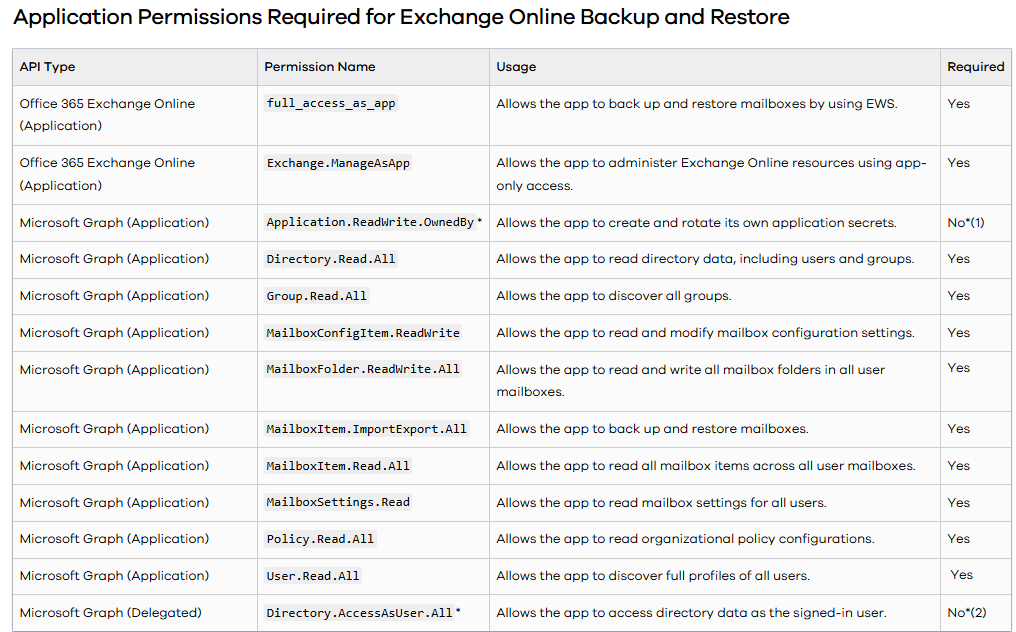
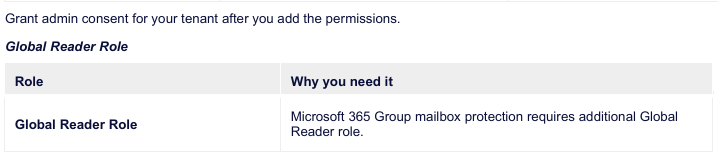
Note: The "Global Reader role" is what's to be used for Early Access Group mailbox support on
Graph and is still in development. If you do not protect Group mailboxes, this can be omitted.
Steps to assign this specific permission are:
-
Navigate to Entra ID in the Azure portal
-
Expand Manage and select "Roles and Administrators" on the left hand side
-
Search for the "Global Reader" role and click on it
-
On the next screen, select Add Assignment
-
In the "Search" field, enter the Azure App ID (it may not match partial App IDs, only Partial
names/groups) and assign it to the Security Reader role:
Commvault Cloud customers using current (FIC) multi-tenant Azure applications:
• No additional action is required. The necessary Microsoft Graph permissions are granted
automatically during Express Configuration when a multi-tenant application is created.
• You will need to re-verify the required permissions using below process:
a) From the client configuration page check the use Graph option is available. Do not enable
it yet.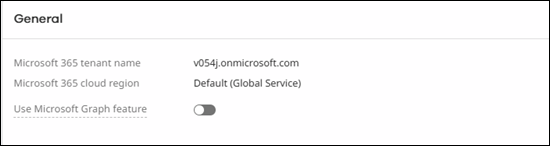
b) From the connection settings select “verify connection”.
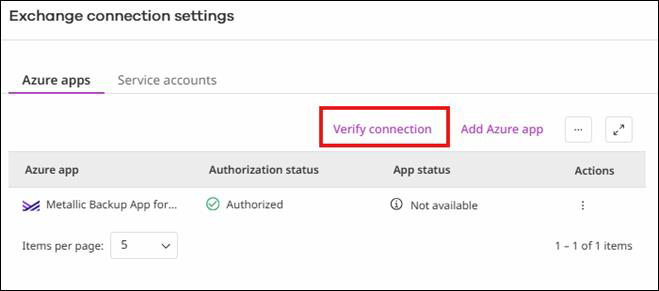
c) You should see the verification fails and lists the required permissions.
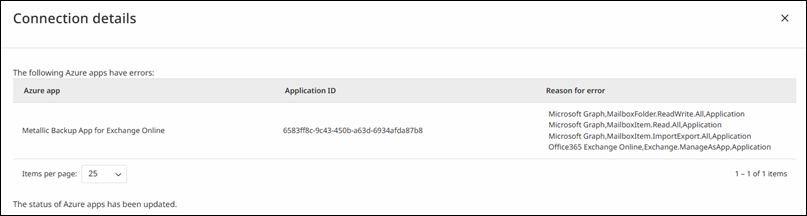
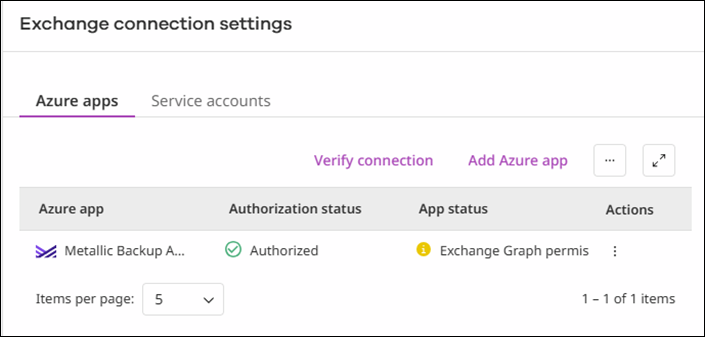
d) From the connection settings select the actions from the Configure App (should now show
the permissions error) and select authorize app.
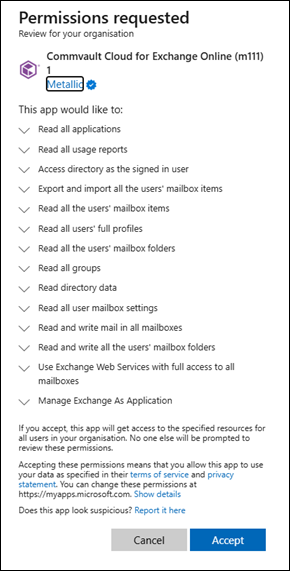
e) Enter the Global admin username and password and accept the permission request.
f) You should see confirmation the app is authorized.
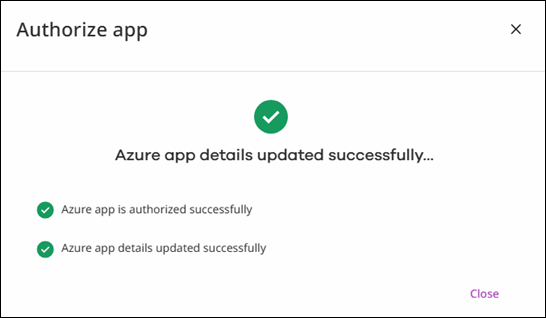
g) Run the verification again to refresh the Azure App.
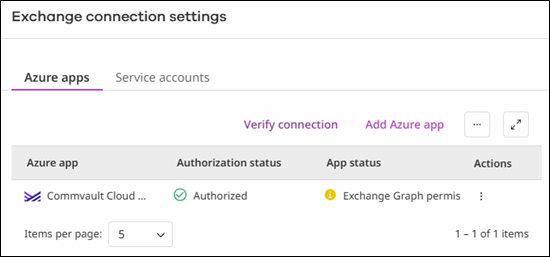
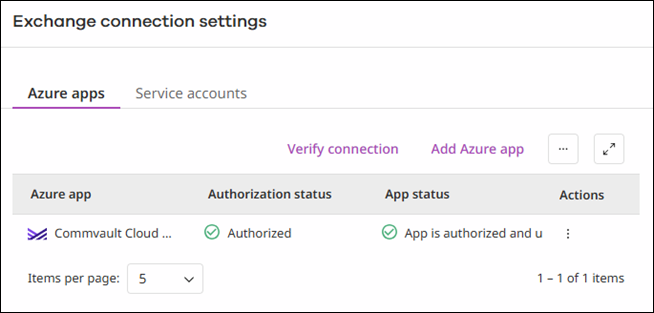
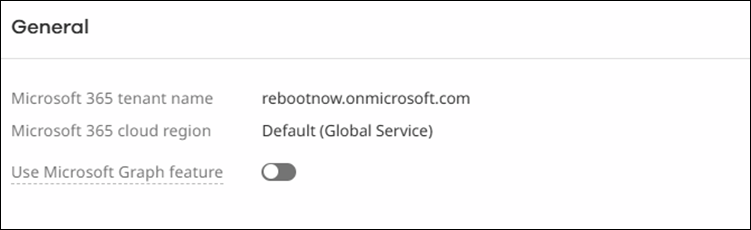
h) Once the permissions Azure app is authorized enable the “Use Microsoft Graph feature”
tab.
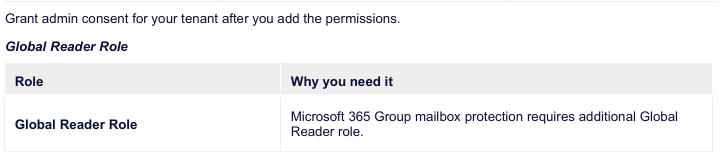
Note: The "Global Reader role" is what's to be used for Early Access Group mailbox support on
Graph and is still in development. If you do not protect Group mailboxes, this can be omitted.
Steps to assign this specific permission are: -
Navigate to Entra ID in the Azure portal
-
Expand Manage and select "Roles and Administrators" on the left hand side
-
Search for the "Global Reader" role and click on it
-
On the next screen, select Add Assignment
-
In the "Search" field, enter the Azure App ID (it may not match partial App IDs, only Partial
names/groups) and assign it to the Security Reader role.