
1. Welcome information.
Thank you for signing up to Microsoft 365 data protection. We are pleased to start the process for getting you onboarded to the service. To make sure we get the backups running as quickly as possible, we would ask that you complete the follow task so that the onboarding team can complete the configuration on a call.
2. Procedure
You should have received an email that provides you a link to your new Backup and Data Recovery Services tenant, will look like this:
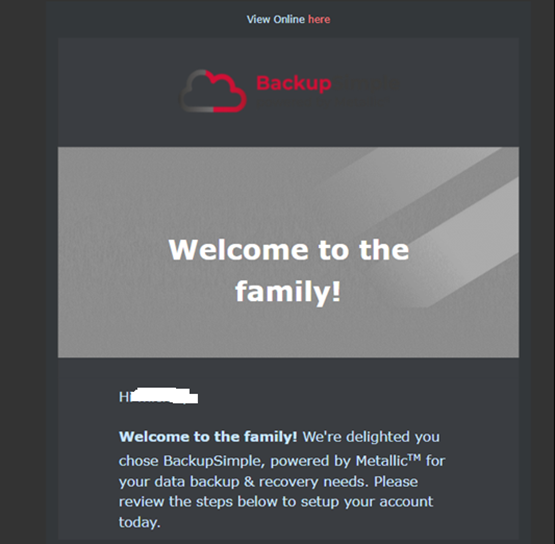
The email will have a link that allows you to reset your password:

Please follow this link and you will be presented with the following page in your internet browser:
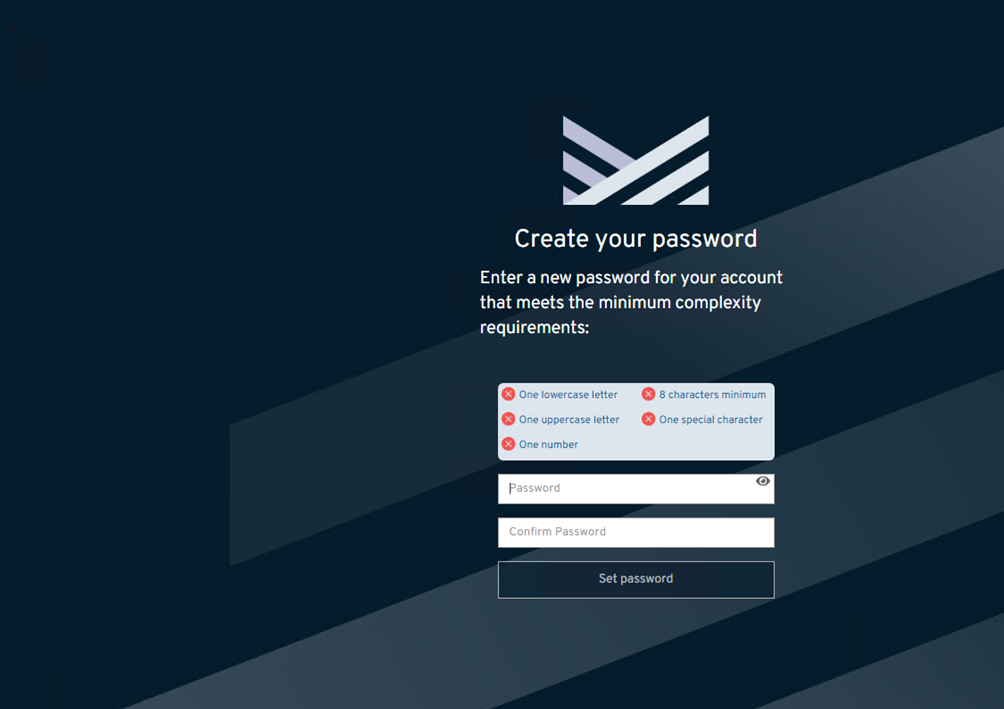
Please select a password that meets the minimum criteria and that you can remember, as you will need to access the platform again using this password on the onboarding call. Once you have done this you will see the following message:
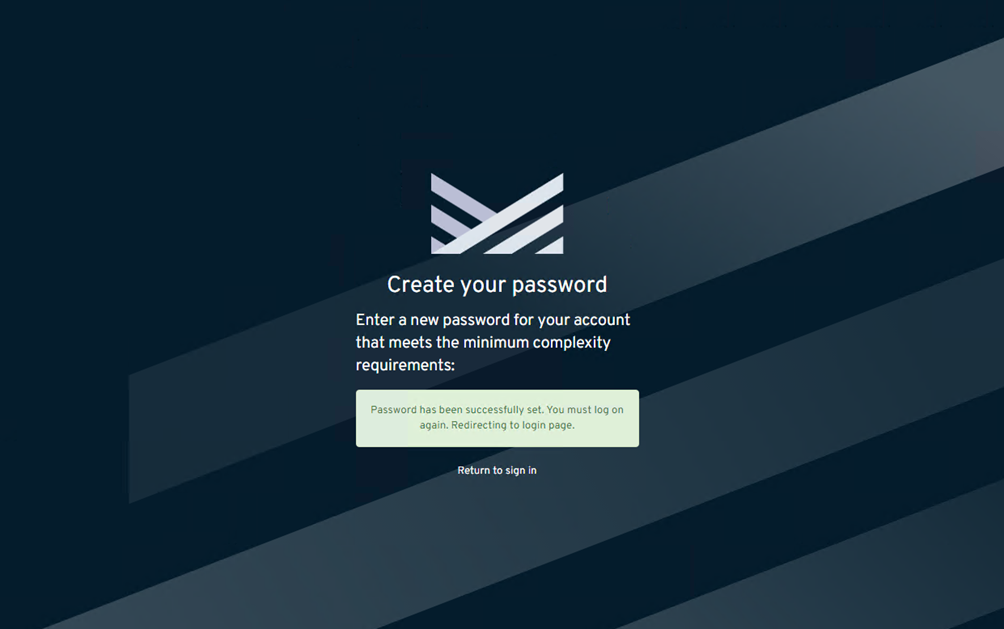
You will then be automatically redirected back to login.metallic.io, if not, please use the link provided here and you will be presented with the following screen:

Enter your email address and click continue:
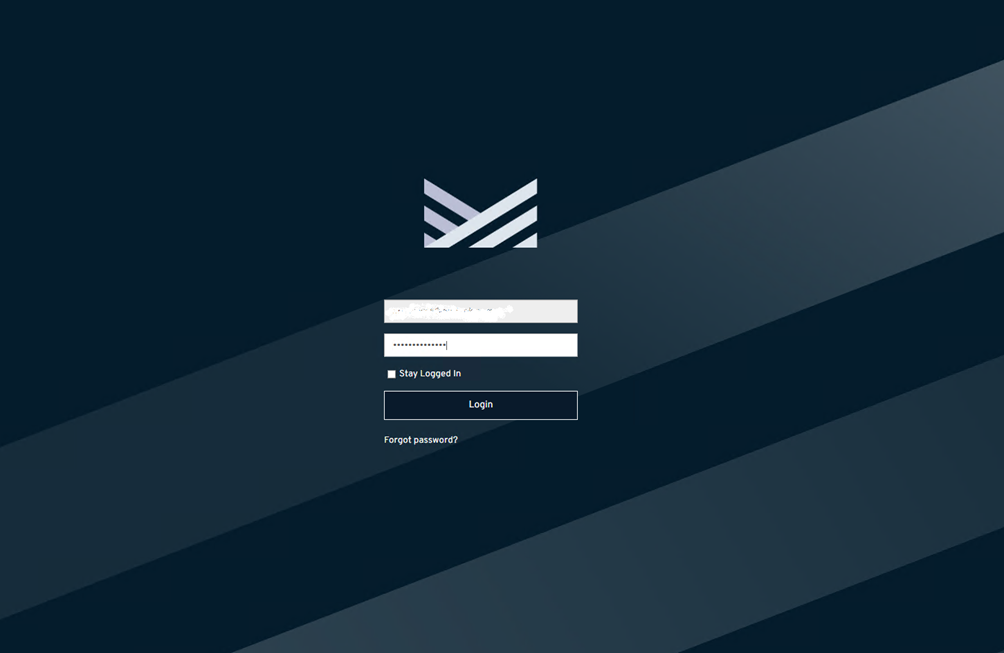
Enter the password you just created for the account and click login. You will then be presented with the following:
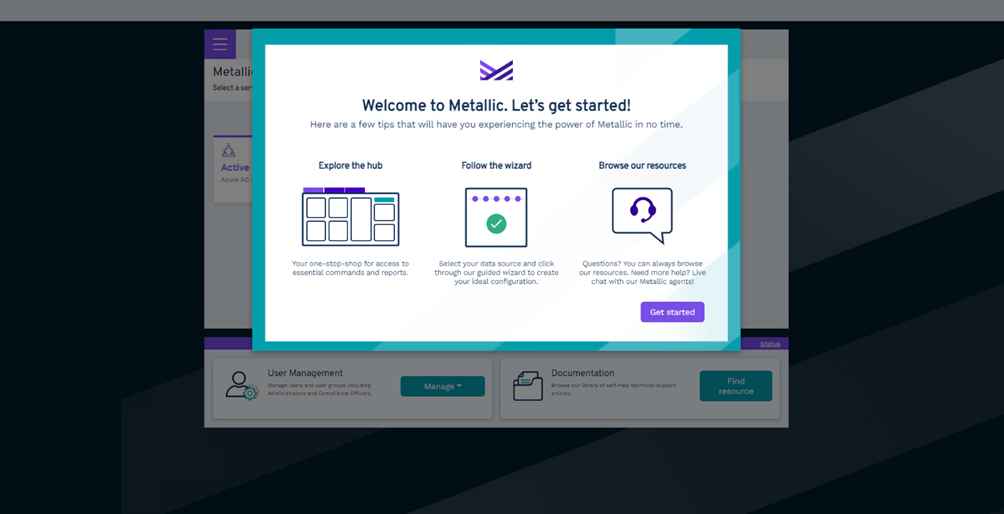
Please click on GET STARTED where you will be presented with the following options:
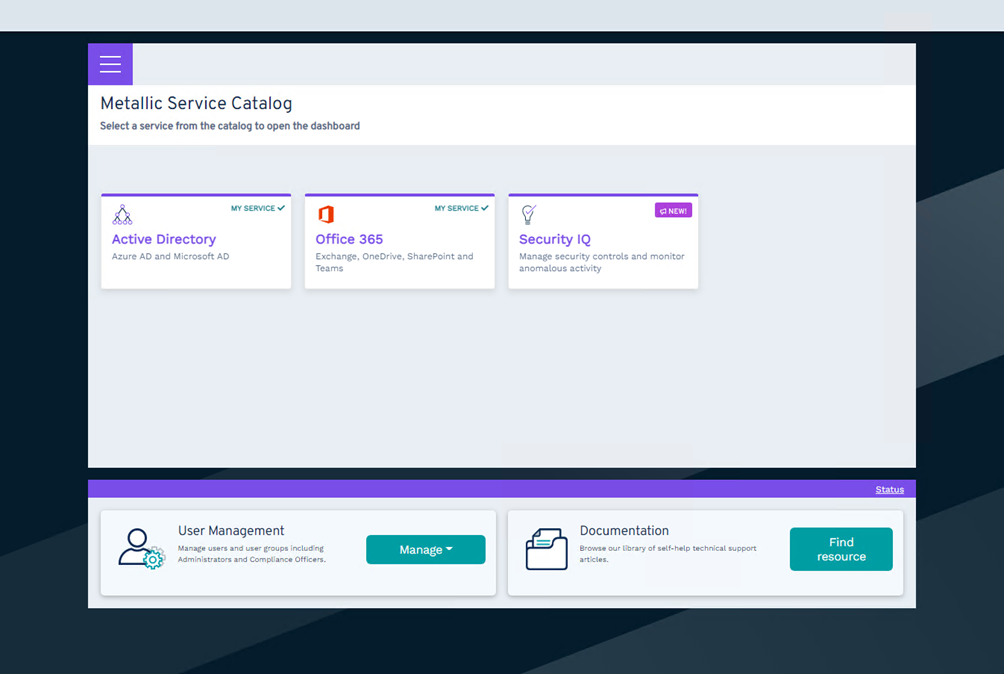
Click on Office 365 and you will see the following screen:
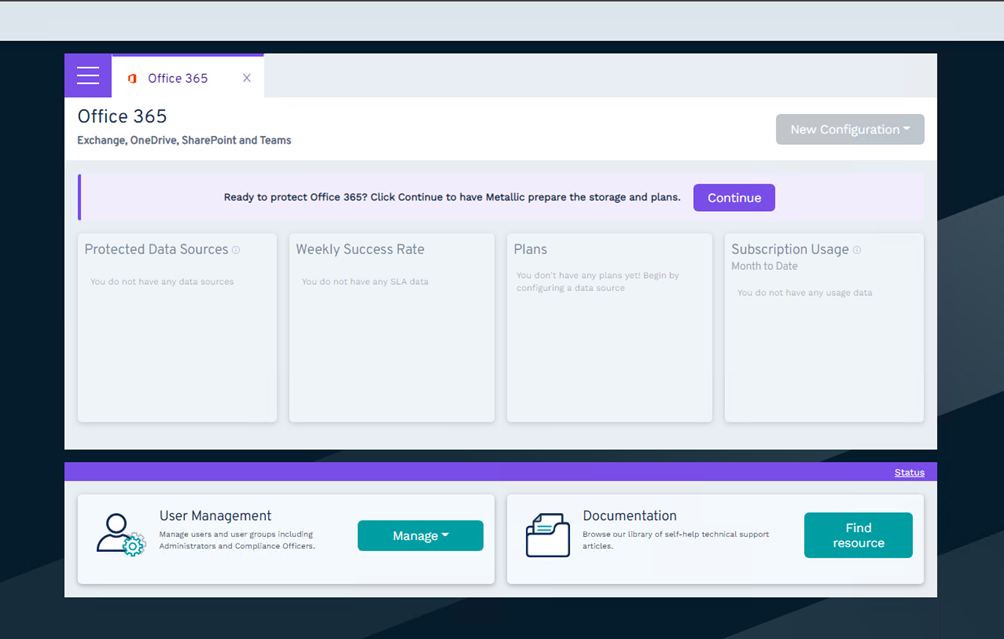
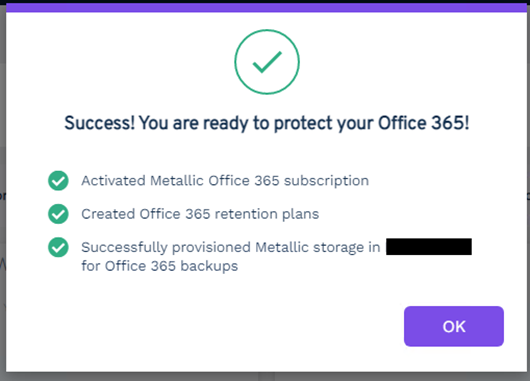
Click on CONTINUE , you will then get an informational message as the storage associated to your tenant is automatically created:
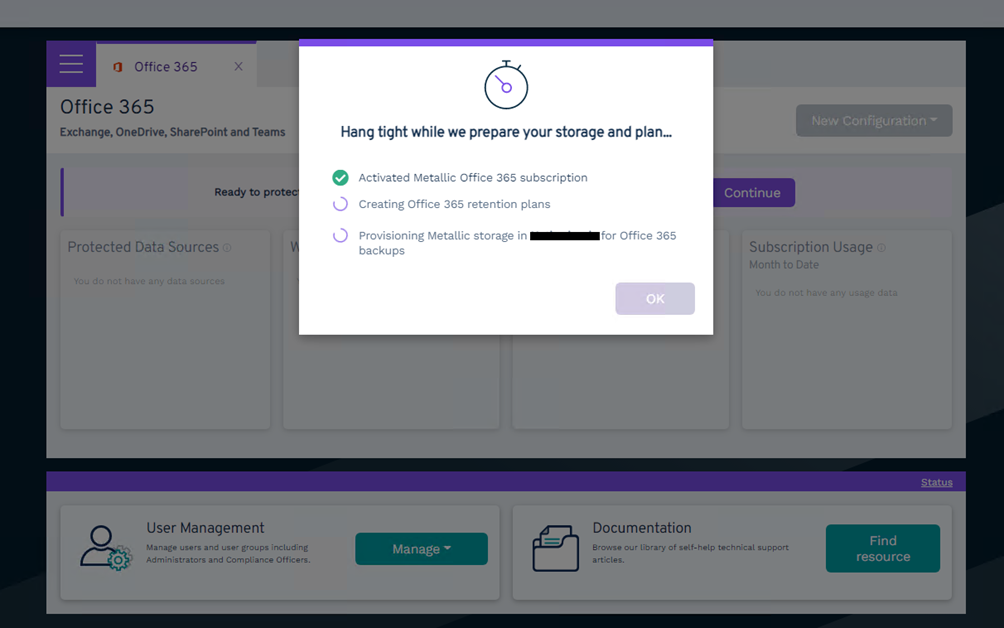
Once all stages show as SUCCESS , please click OK
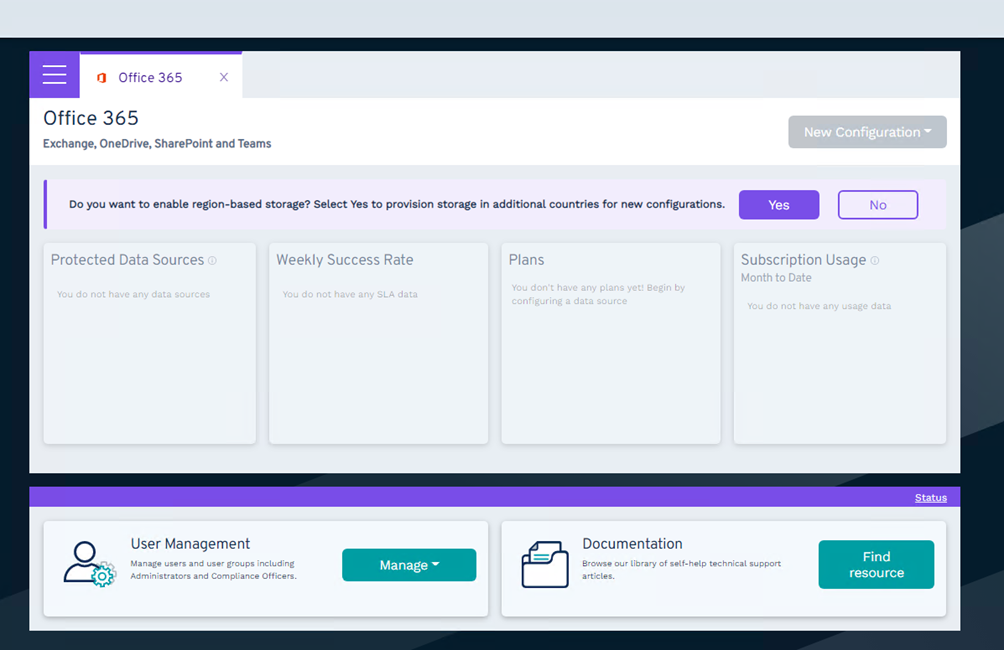
Now please select YES on the following screen:
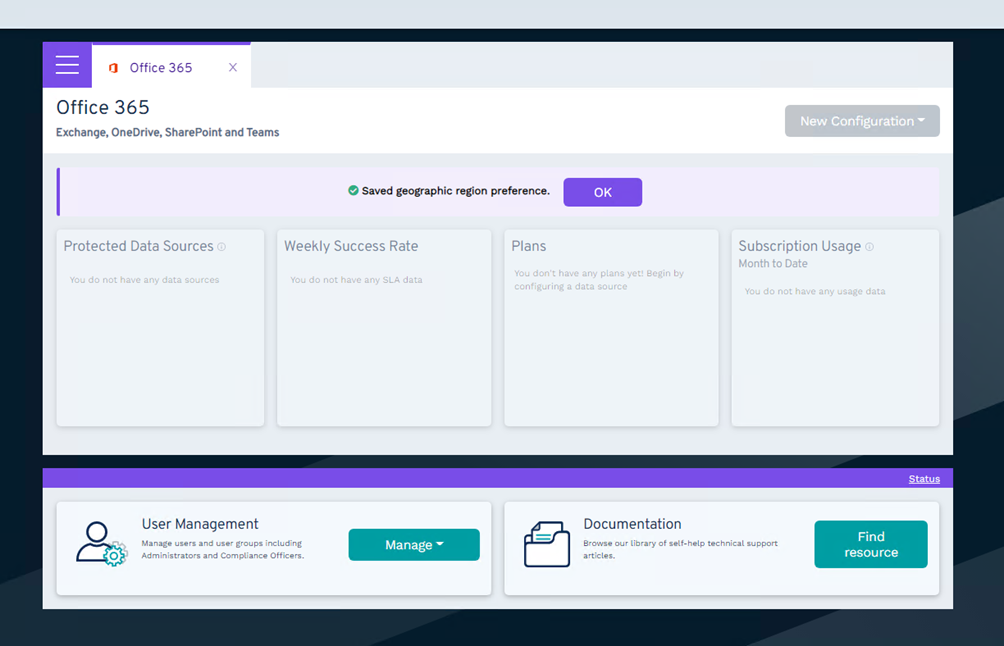
Please select OK
3. Exchange Web Services (EWS) throttling
To enhance the performance of the Exchange Online backups, disable the EWS throttling by following below steps:
-
Go to Microsoft 365 admin center.
-
From the navigation pane, go to Support > New service request.
-
In the search box, type "EWS throttling", and select Increase EWS Throttling Policy from the lists of query suggestions.
-
Click Run tests. The tests are run to confirm that throttling is not already disabled.
-
Once the diagnostics have run, in the Duration dropdown box, select 30, 60, or 90 days.(Preferred is 90 days)
-
Select the check box to acknowledge that you want to update the setting.
-
Click Update Settings. EWS throttling is removed for the specified duration.
4. Additional information
The storage is now configured, please reply the email to let us know these steps have been successfully completed and we will book the guided onboarding session for the rest of the configuration. If you have any issues with any of the steps above and the system cannot complete any of the steps as guided, please reply back to the email with a screen shot of the stage that failed and the onboarding team will be back in touch to fix the issue on your behalf.