
How to.. Fix a blank page in the Services Portal
Overview
If you get a blank page at login, or after logging in to the Services Portal, it may be a conflict with your browser extensions.
We have seen issues with the following extensions, but there may be others.
Ublock Origin
Gostery
Privacy Badger
We recommend trying to disable the extensions entirely to start, just to check which extension is causing the issue.
Then, configure that extension to allow the following sites:
How to turn off each extension in turn to find which extension is causing the issue:
Chrome > Top RHS click the Jigsaw icon > Manage Extensions > slide off each extension
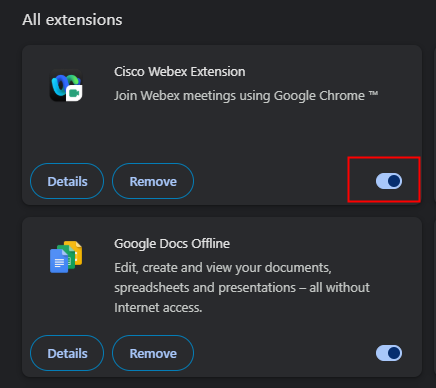
Microsoft Edge > Top RHS click the Jigsaw icon > Manage Extensions > slide off each extension
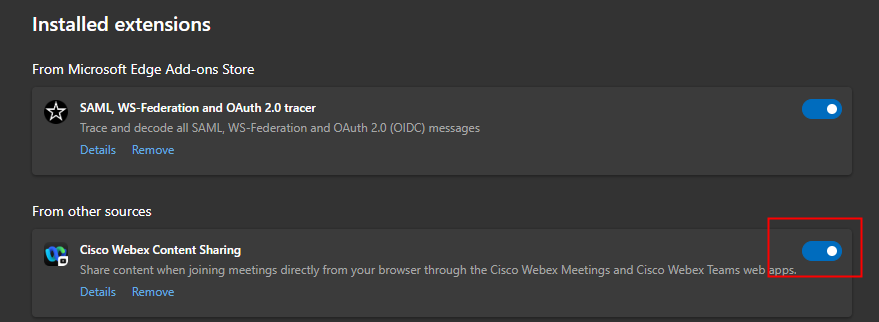
How to exclude Services Portal sites from extension checks:
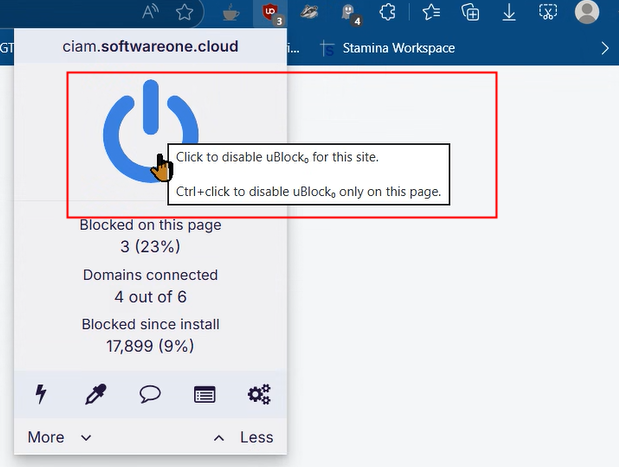
For UBlock Origin
Turn off for each of the following URLs:
To do that, go the the URL and ref screenshot below:
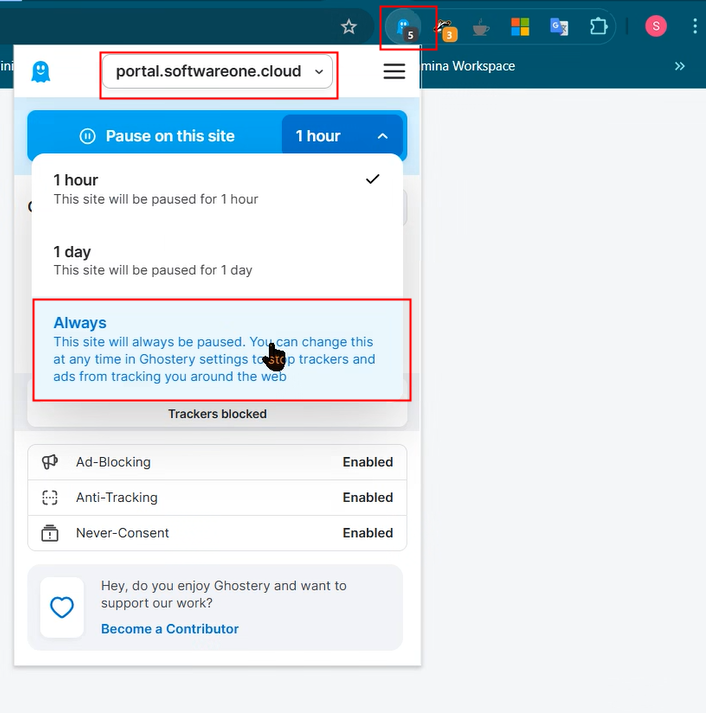
For Ghostery;
Configure “Pause for this site” as “Always” for both the following URLs:
To do that, go the the URL and ref screenshot below:
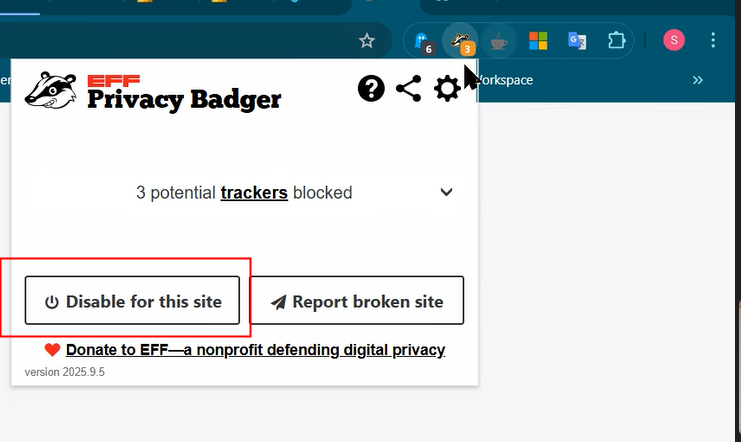
For Privacy Badger:
Set ‘Disable for this site’ for the following URLs:
To do that, go to each URL an follow screenshot below
If you continue to have problems please don’t hesitate to contact us.