
This Document describes the procedure to perform SharePoint Restore. Find below the detailed step by step process to execute the restore.
Step 1 – Log into the Commvault Cloud Portal at Commvault Cloud Portal
Step 2 – From the Console navigation pane expand Protect ->Applications -> Office365 . Select the Teams Online app.
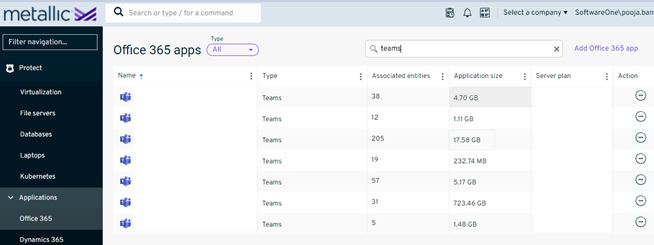
Step 3 – Below mentioned are available for Teams Restoration
• Restore an Item: Restore full site from available recovery points.
• Restore a Team: Restore the individual file/folders to Original Location (In Place) or to Another SharePoint site.
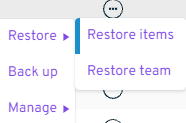
Step 4 - Below mentioned are type of the restoration options available.
-
Restore from the latest backup:
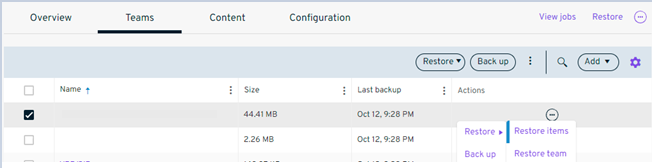
a) On the page, select the Teams channel that is needed for restore/needed to restore an item from.
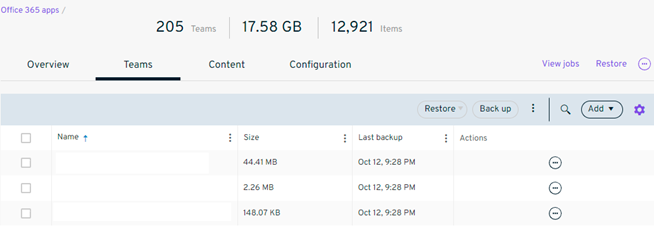
Click Restore, and then click Restore Items/Teams.
-
Restore from the older backup:
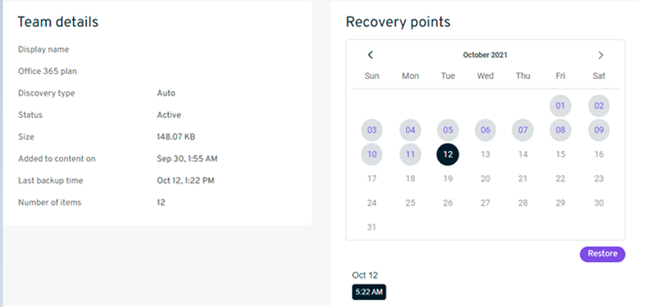
a) From the lists, click on the teams channel that is needed for restoration
b) Select the required recovery point and click on restore
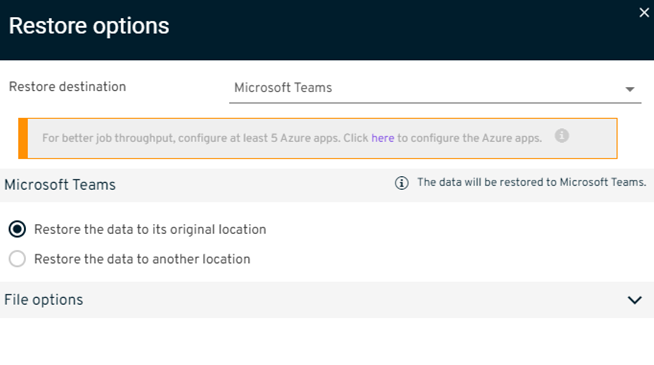
Step 5- The Restore options dialog box appears, with options for restoring to the original location (by default)
-
Restoring an Item to its Original Location ( In Place ):
- On the Teams tab, select the channel that contain the items to restore (Restore the data to its original location is selected by default)
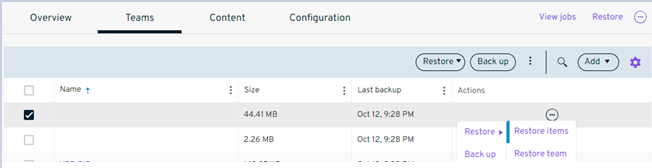
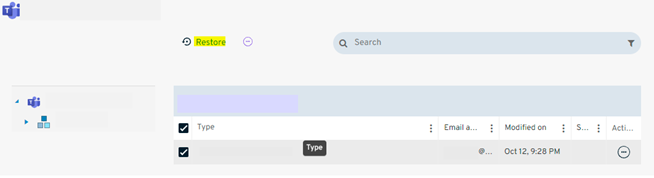
• Click Restore, and then click Restore Items.
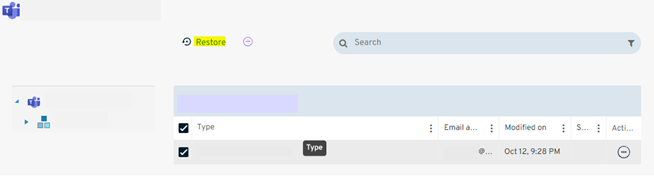
• Select the item needed to be restored and click on restore again
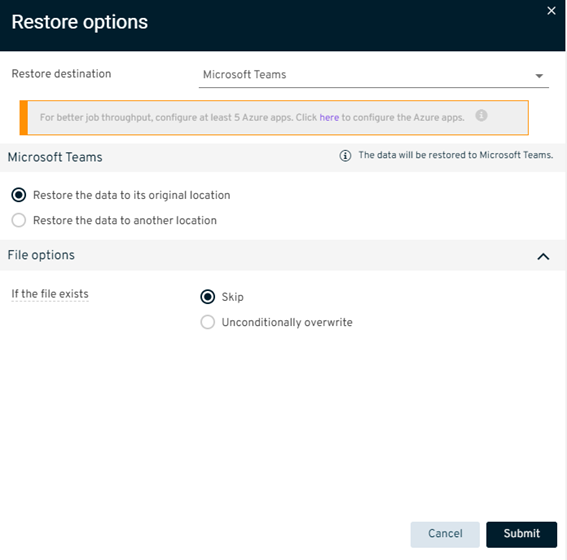
• Press the submit button
-
Restoring an Item to Another Teams Channel:
• From the List, select the Teams channel that contain the Item to restore -
• Select the item needed to be restored and click on restore again
• Specify the location to restore the Item in the Destination path box, click Browse, and then select a location. Click Restore.
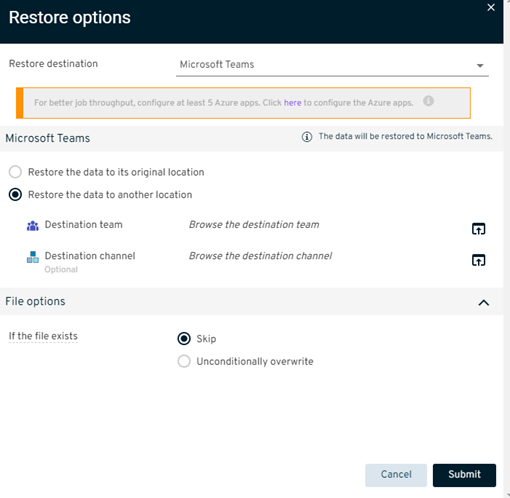
Step 6 - Under File options, for If the file exists, specify what to do with existing items:
-
To overwrite existing items, select Overwrite unconditionally.
-
To not overwrite existing items, select Skip.
By default, if the restored Item/team already exists on the destination, it will be skipped from the restore operation.
By default, if the restored Item/team already exists on the destination, it will be skipped from the restore operation.