One Drive Restore: This Document describes the procedure to perform One Drive Restore. Find below the detailed step by step process to execute the restore.
Step 1 – Log into the Commvault Cloud Portal at Commvault Cloud Portal
Step 2 – From the navigation pane, go to Protect > Applications > Office 365. The Office 365 apps page appears.
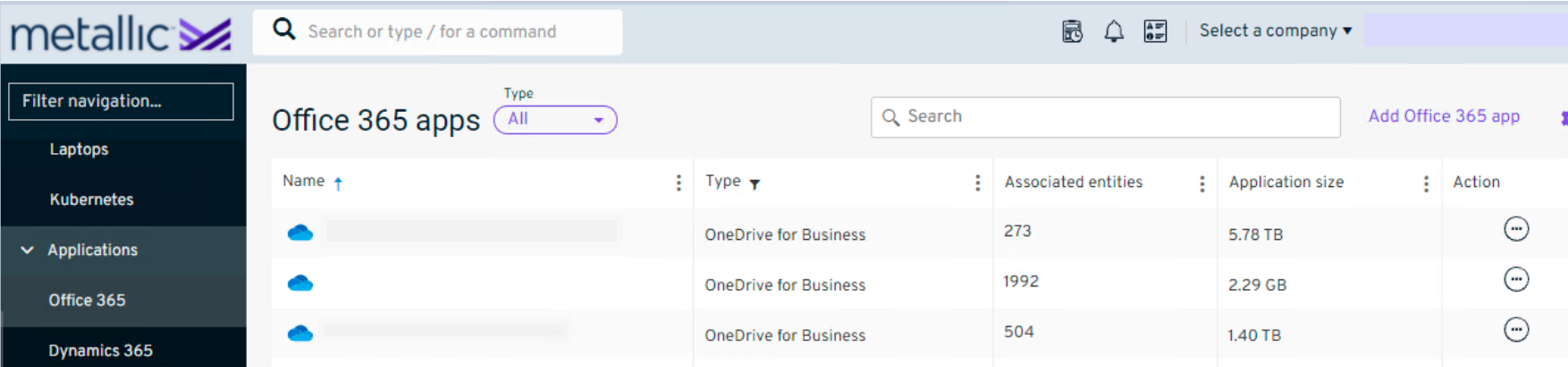
Step 3 – Click the app that contains the user. The app page appears. Below mentioned are type of the restoration options available.
• Restore from the latest backup
• Restore from older backup
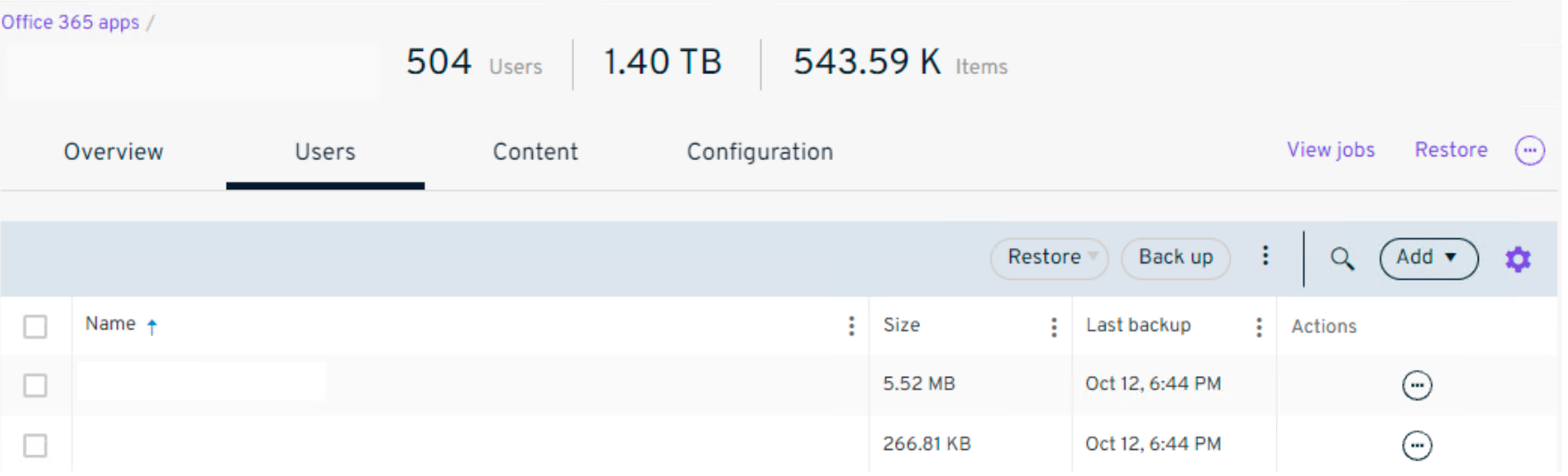
➢ Restore from the latest backup: a) On the Users tab, select the user that is needed for restore/needed to restore a file from.
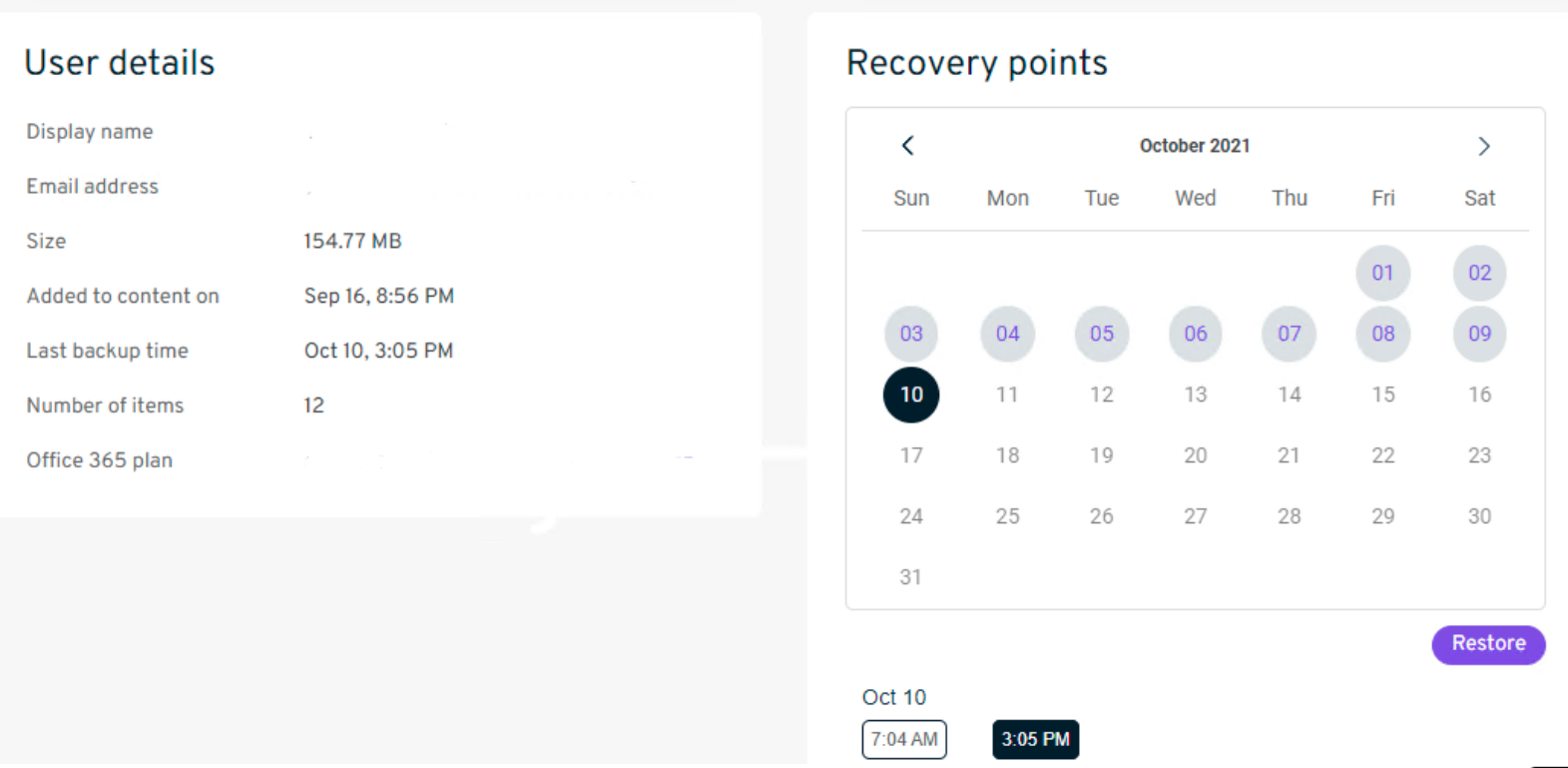
➢ Restore from the older backup:
a) On the Users tab, click on the user that is needed for restoration
b) Select the required recovery point and click on restore
Step 4 – Click Restore, and then click Restore files. Select the files to restore. You can also search for a file from the Search box.
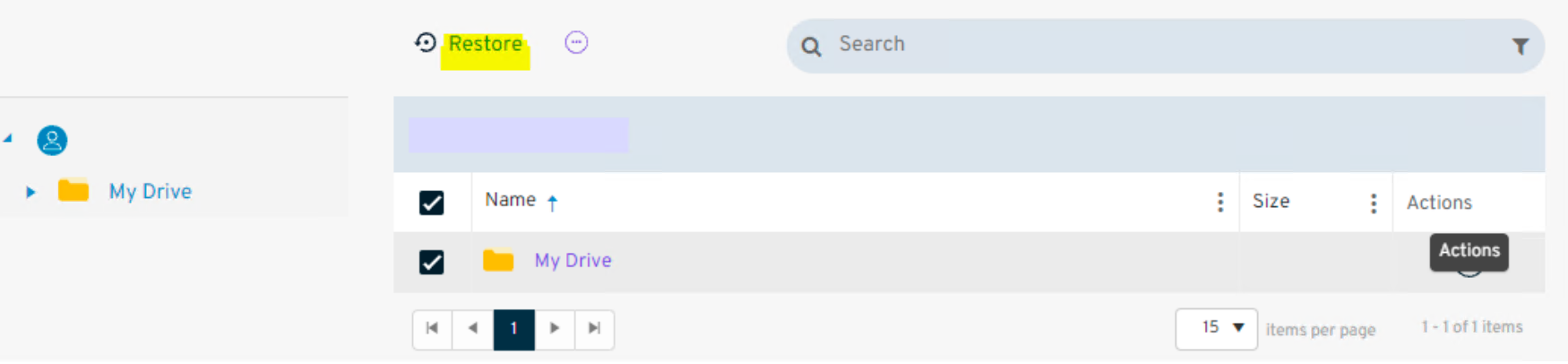
Step 5 – Clicking on Restore will prompt for the type of restore. When we say type of restore, we mean the restore can be performed by the following ways:
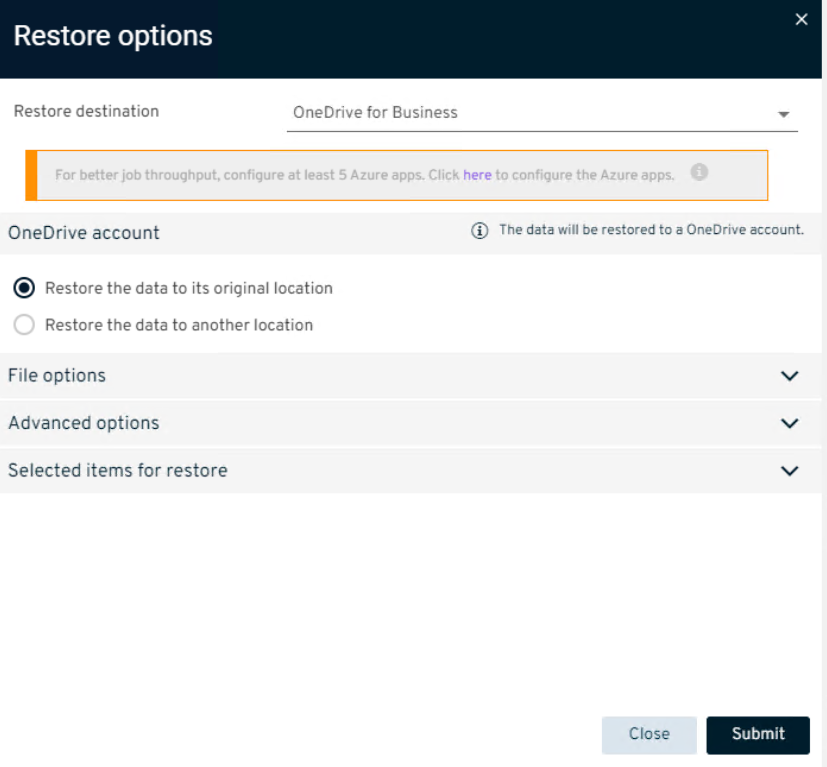
• One Drive For Business→ Select this option for In-place and Out of Place restores to One Drive.
Selecting Restore to OneDrive:
➢ Restore the data to its original location: Use this option to perform the In-place restoration of selected file/folders. The Restore options dialog box appears, with options for restoring to the original location already selected.
➢ Restore the data to another location: Use this option to perform the out of place restoration of selected file/folders. Select the User and Folder and click on Submit
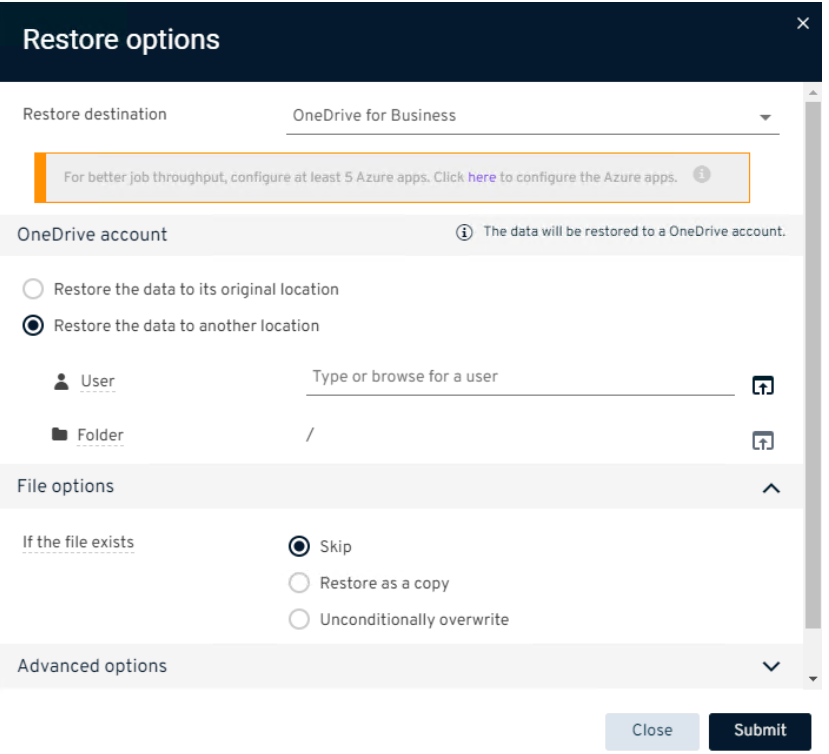
Under File options, specify what to do with existing items:
1. To not overwrite existing items, select Skip.
2. To keep as a copy of the existing item, select Restore as a copy.
3. To overwrite existing items, select Unconditionally overwrite.
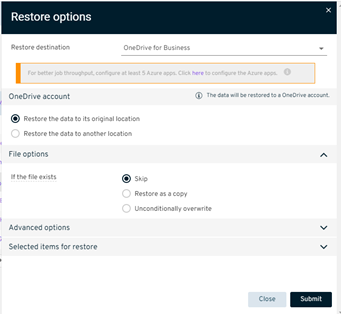
Note: By default, if the restored document already exists on the destination, it will be overwritten. If you don’t want to overwrite your file then select the Skip option.
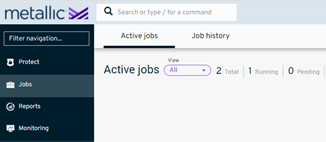
Step 6- The Status of the Restore Job can be monitored from the Jobs section under the Active Jobs Tab