
This tutorial is the first article in the "Enterprise Technical Documentation Intelligent Q&A System" series. It introduces how to use the preprocessing capabilities of the RAG Pipeline to deeply parse PDF technical documents, enhance them from multiple dimensions, and ingest them into a knowledge base.
Enterprise internal technical documents (such as product white papers, API documentation, architecture design documents, etc.) usually contain a large amount of text, tables, and flowcharts. This article will guide you through orchestrating a document preprocessing Pipeline and creating a knowledge base, laying the data foundation for subsequent retrieval and Q&A.
💡 Tip: This tutorial requires AI Central V4.2 or later, and the operating user must have administrator privileges.
Scenario Description
Business Background
A technology company has a set of technical documents for a core product (in PDF format, about 80 pages). The document content includes:
-
A large number of text paragraphs: feature descriptions, technical principles, configuration guides, etc.
-
Data tables: parameter comparison tables, compatibility matrices, performance indicators, etc.
-
Flowcharts and architecture diagrams: system architecture, data flow, deployment topology, etc.
The company wants to build an intelligent Q&A system so that engineers and product managers can quickly obtain information from the documents, while also ensuring:
-
Accurate recall of relevant paragraphs for pure text content
-
Understanding of table structures and provision of structured answers for table content
-
Semantic retrieval for images/flowcharts based on image descriptions
-
Support for both full-text retrieval and vector retrieval to improve recall rate
Solution Overview
The preprocessing Pipeline used in this case includes the following core stages:
|
Stage |
Node |
Description |
|---|---|---|
|
Text extraction |
PDF File Text |
Extract raw text and page structure from PDF |
|
Intelligent segmentation |
Page Segmentation |
Intelligently split content into semantic paragraphs by page |
|
Summary enhancement |
Segment Summary Generation |
LLM generates a summary for each paragraph to enhance retrieval semantics |
|
Image understanding |
Image Description Generation |
LLM generates textual descriptions for images in the document |
|
Table understanding |
Table Advanced Summary Gen. |
LLM generates structured summaries for tables |
|
Data aggregation |
Variable Aggregator |
Merge multi-dimensional enhanced data |
|
Document summary |
Document Summary Generation |
Generate a global summary of the entire document |
|
Tokenization and indexing |
Spacy Tokenizer |
Tokenize paragraphs to support full-text retrieval |
|
Persistent storage |
Multiple storage nodes |
Store raw text, paragraphs, enhanced data, tokens, and vectors separately |
Step 1: Configure the Preprocessing Pipeline
The preprocessing Pipeline determines how documents are parsed, understood, and stored, directly affecting subsequent retrieval quality. In this case, we will build a multi-branch parallel processing Pipeline to fully extract information from text, images, and tables in the document.
File Preparation Requirements
-
Technical document: PDF format, such as
Technical_Whitepaper_v2.1.pdf -
The document should contain title structure, tables, and images to fully leverage the capabilities of each Pipeline node
-
It is recommended that the file size not exceed 50MB and the page count not exceed 200 pages
Create a Preprocessing Pipeline
-
Go to the Knowledge module → click "RAG Pipeline" in the left menu bar.
-
Switch to the "Preprocessing Pipeline" tab.
-
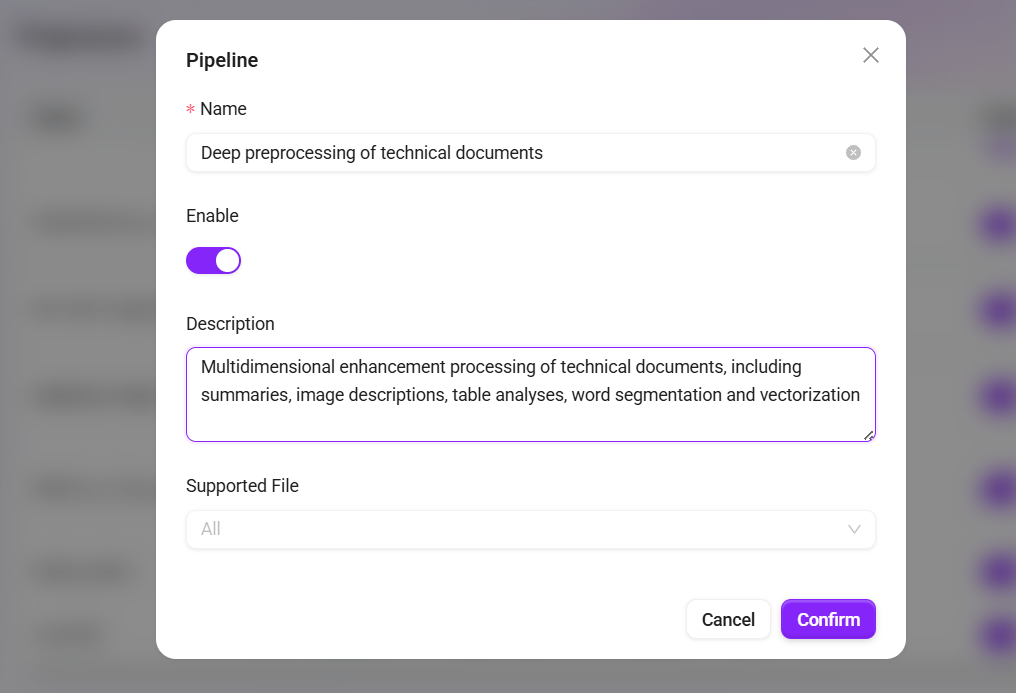
Click "+ Create Pipeline" and fill in:
-
Name:
Technical Document Deep Preprocessing -
Description:
Multi-dimensional enhancement processing for technical documents, including summaries, image descriptions, table parsing, tokenization, and vectorization
-
-
Click "Confirm" to enter the orchestration interface.
Orchestrate the Preprocessing Flow
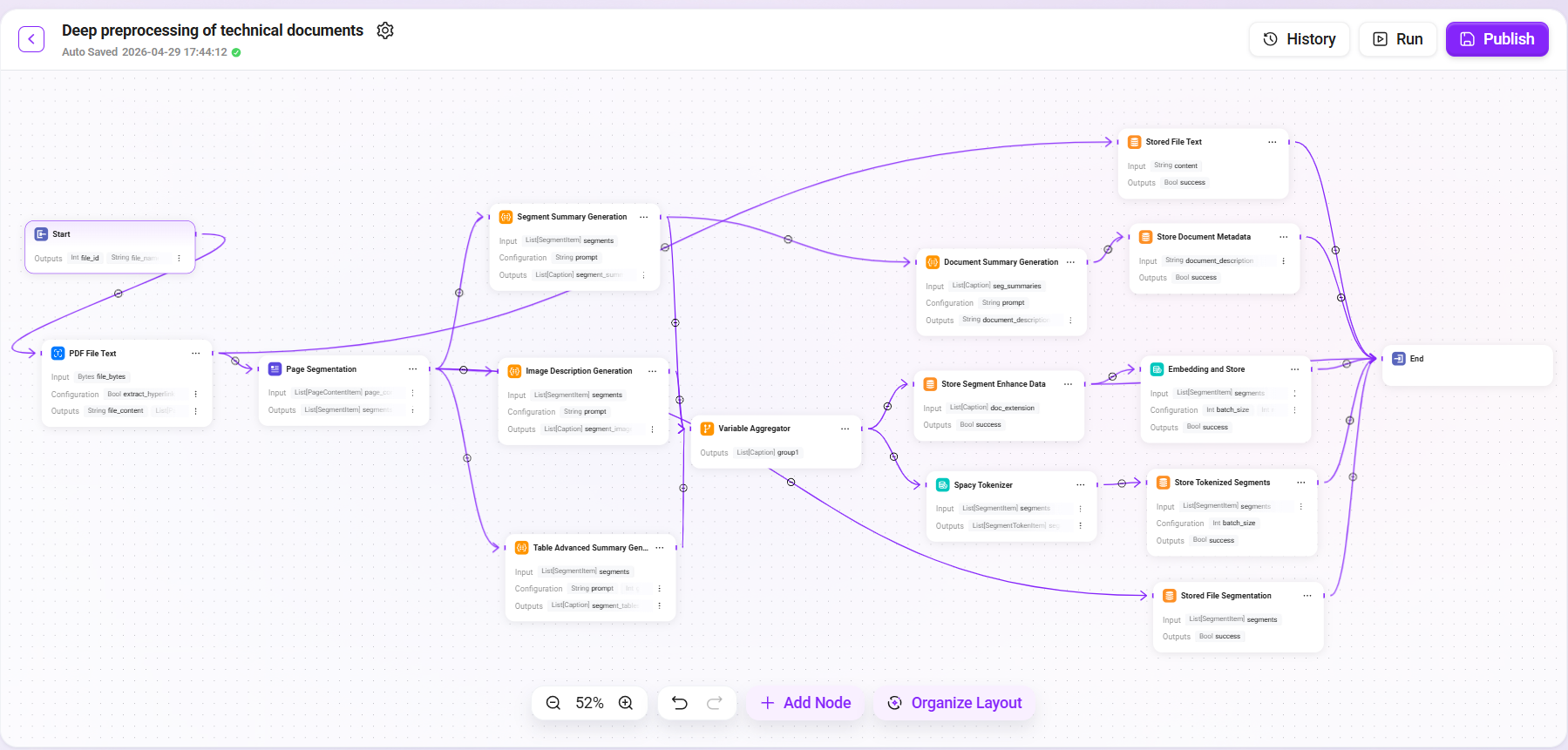
In the orchestration interface, add nodes and connect them according to the following architecture. This Pipeline adopts a extract first, then branch in parallel design pattern:
1. PDF File Text Extraction
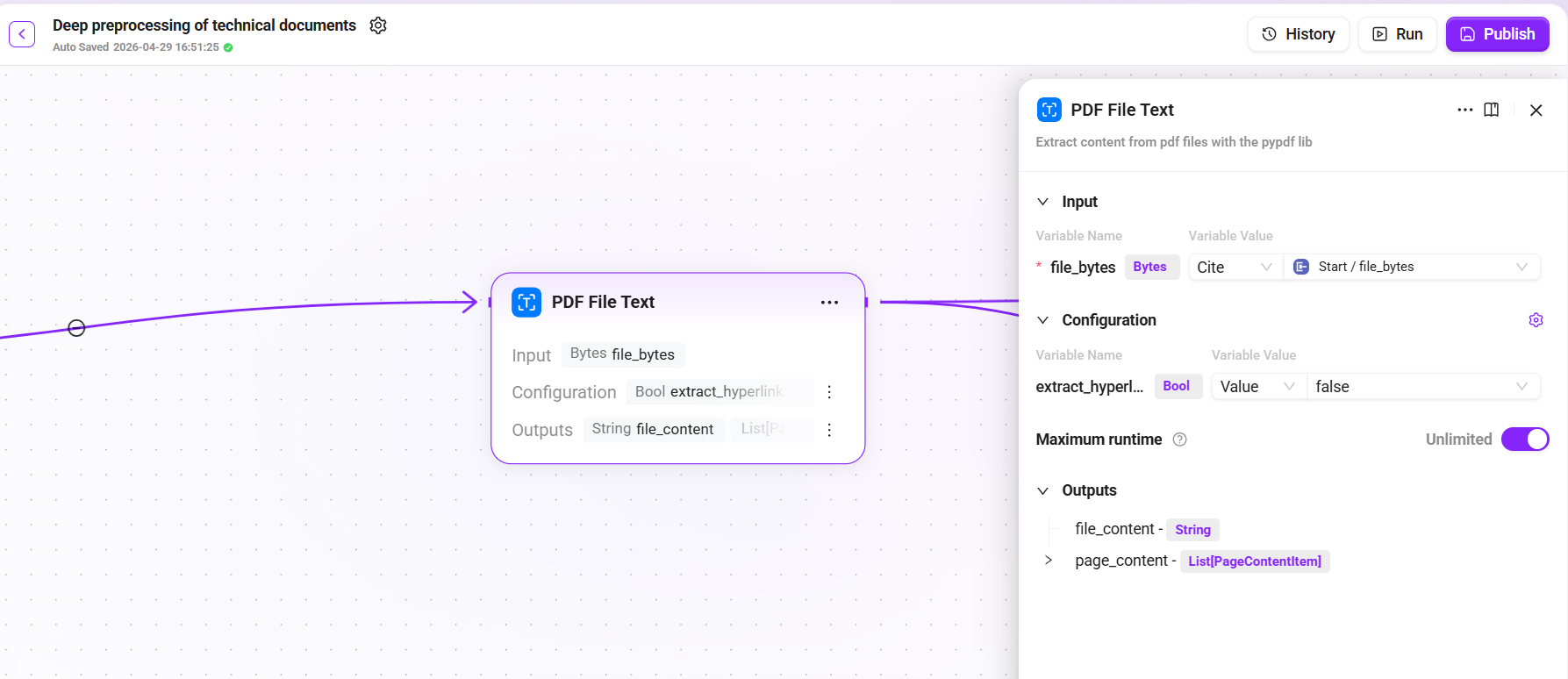
Add the "PDF File Text" node as the entry point of the flow:
-
Input:
file_bytes(uploaded PDF file byte stream) -
Configuration: set
extract_hyperlinkstotrue(extract hyperlink information) -
Output:
file_content(extracted text content) and page content list
This node extracts text, image placeholders, table structures, and other information from the PDF into processable structured data.
2. Page Segmentation
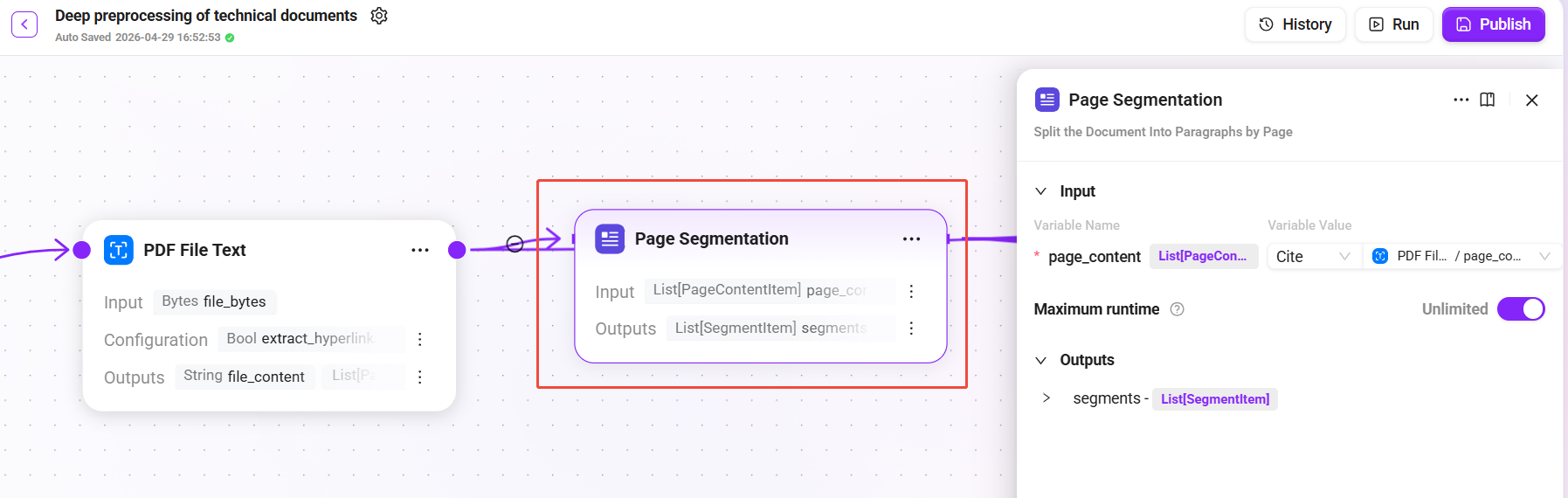
Add the "Page Segmentation" node:
-
Input: page content list
page_content_itemsoutput from the previous step -
Output:
segments(semantic paragraph list)
Based on page layout and content structure, the system intelligently splits the document into independent semantic paragraphs. Each paragraph preserves contextual integrity and avoids cross-topic splitting.
3. Multi-dimensional Summary Enhancement (Parallel Branches)
After page segmentation is completed, the Pipeline splits into three parallel branches to process different types of content:
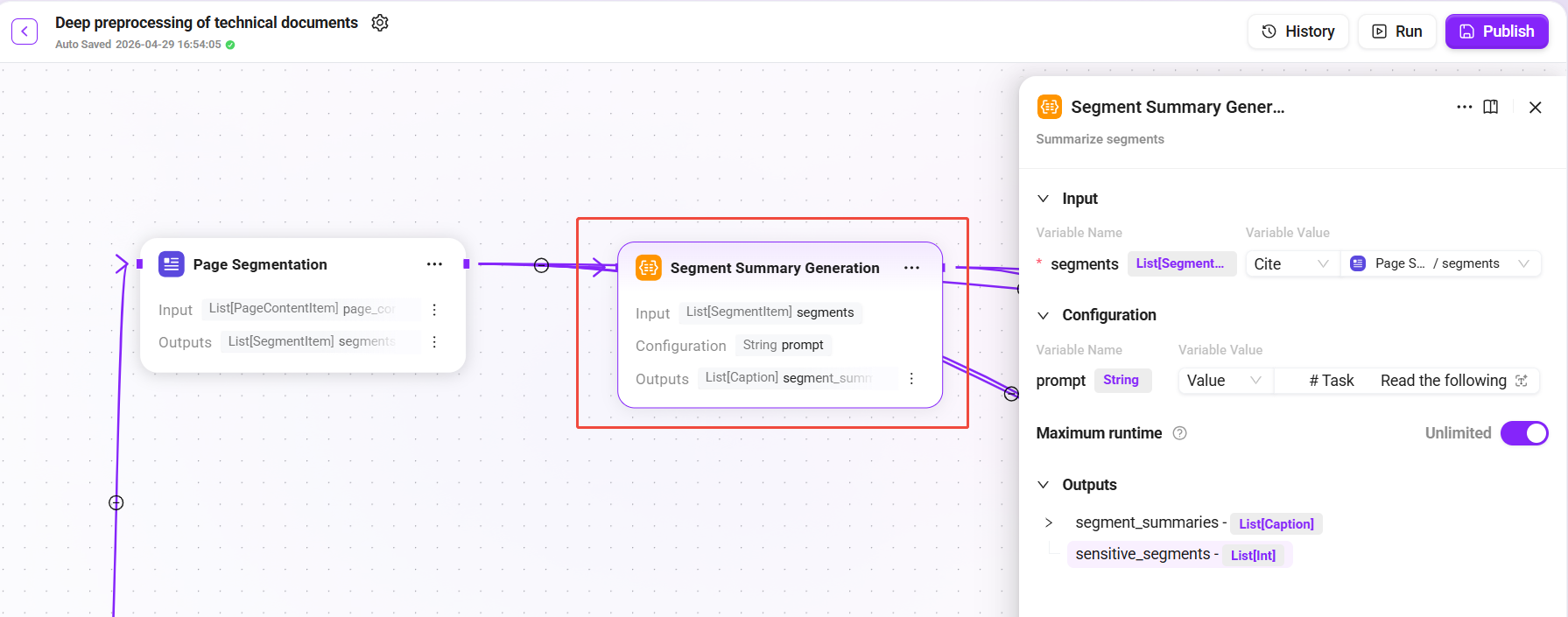
Branch A: Segment Summary Generation
-
Input:
segments -
Configuration:
prompt(summary prompt, customizable) -
Output:
segment_summaries(summary of each paragraph) andsensitive_segments(identified sensitive paragraph list, used for compliance review or filtering)
LLM generates concise summaries for each text paragraph to enhance semantic matching during retrieval. Even if the user's wording differs from the original text, the summaries can provide an additional semantic bridge.
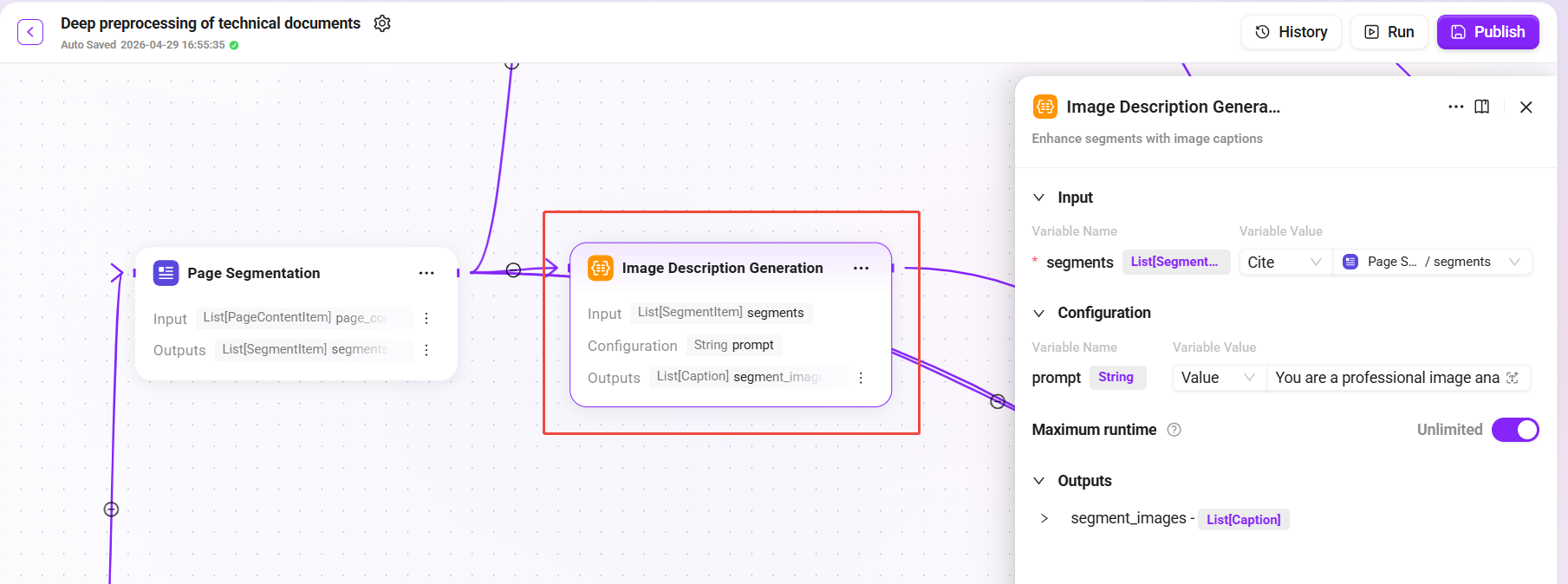
Branch B: Image Description Generation
-
Input:
segments(paragraphs containing image references) -
Configuration:
prompt(image description prompt) -
Output:
segment_images(textual descriptions of images)
Based on multimodal capabilities, the LLM analyzes images in the document (such as architecture diagrams, flowcharts, and screenshots) and generates structured textual descriptions. This enables image content to participate in semantic retrieval as well.
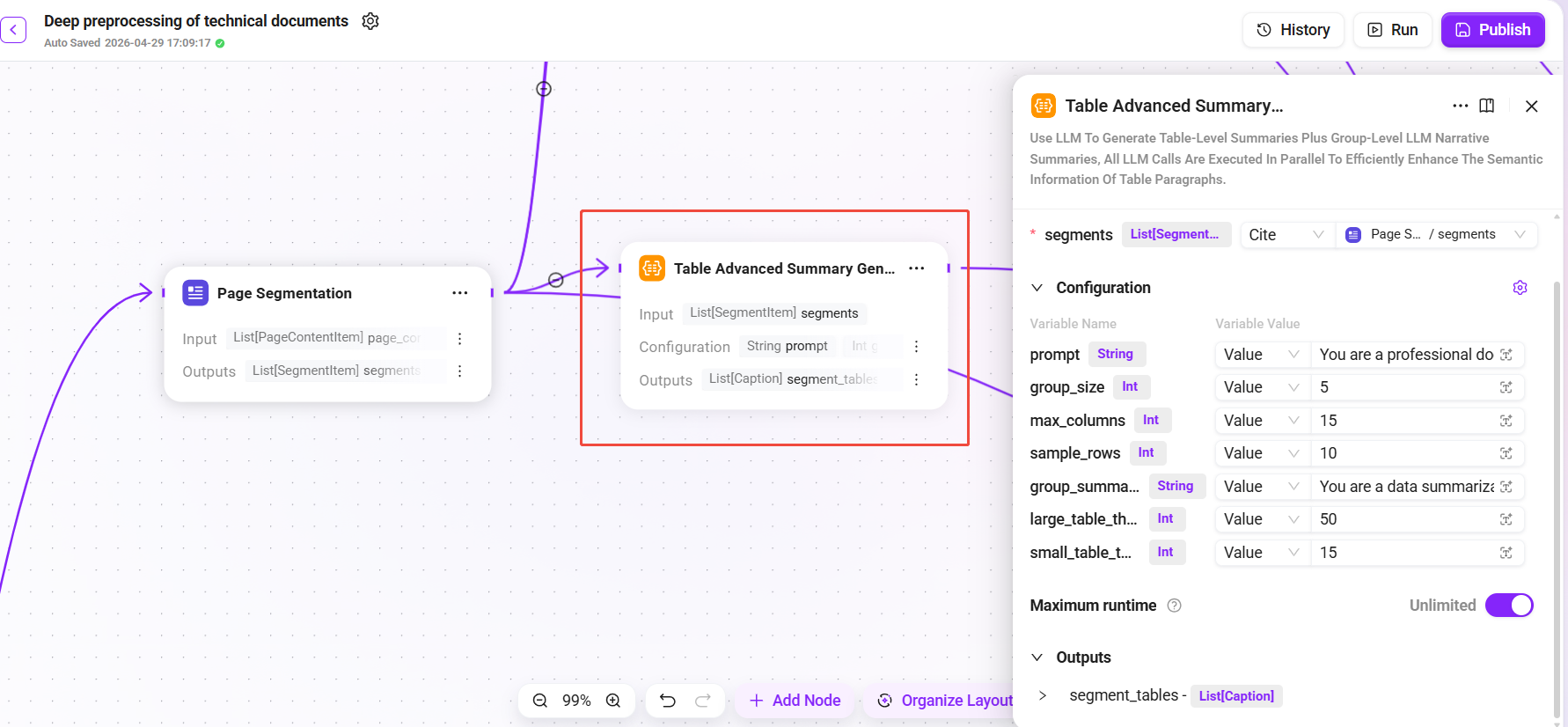
Branch C: Table Advanced Summary Generation
-
Input:
segments(paragraphs containing tables) -
Configuration:
-
prompt: table summary prompt -
group_size: group size -
max_columns: maximum number of columns -
sample_rows: number of sampled rows -
group_summary_prompt: prompt used when merging group summaries -
large_table_threshold: minimum row/column threshold for determining a large table -
small_table_threshold: maximum row/column threshold for determining a small table
-
-
Output:
segment_tables(structured summaries of tables)
Deeply parses table content in the document and generates textual summaries that are easy to understand and retrieve. For example, a parameter comparison table can be transformed into a description such as "This table lists Y parameters supported by feature X and their default values."
4. Data Aggregation (Variable Aggregator)
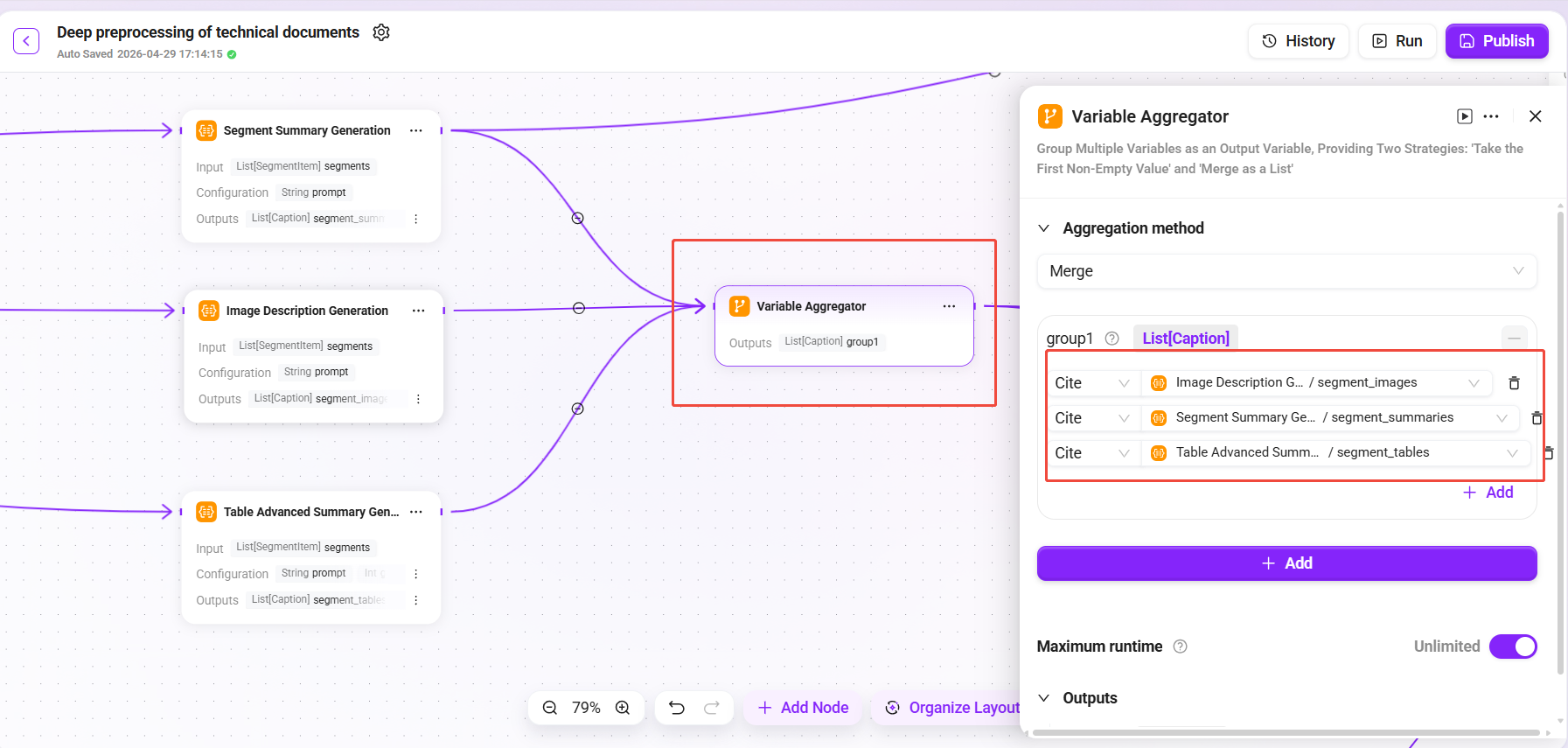
Add the "Variable Aggregator" node:
-
Input: outputs from the three branches:
segment_summaries(paragraph summaries),segment_images(image descriptions),segment_tables(table summaries) -
Output:
group1(aggregated enhanced data)
Merges paragraph summaries, image descriptions, and table summaries into a unified data structure for subsequent nodes.
5. Document-level Summary Generation
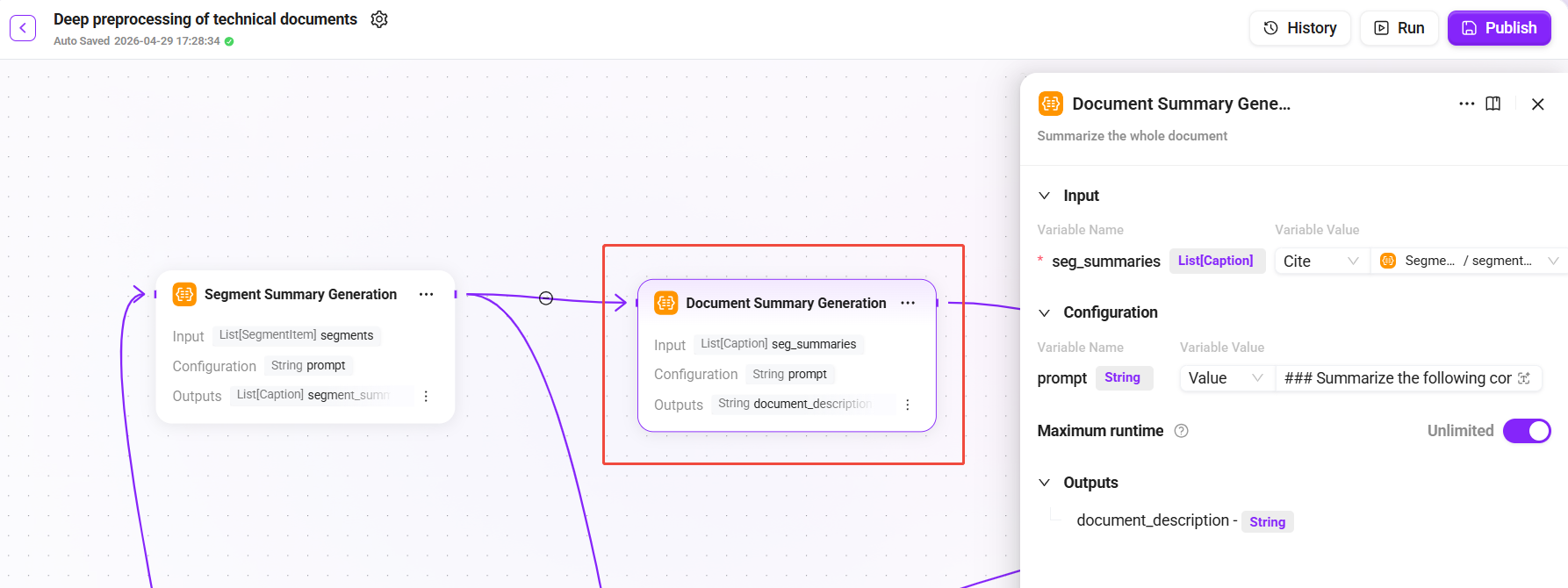
Add the "Document Summary Generation" node:
-
Input:
seg_summaries(the full list of paragraph summaries from the "Segment Summary Generation" node) -
Configuration:
prompt(document summary prompt) -
Output:
document_description(global summary of the entire document)
Generates a document-level summary description based on all paragraph summaries, used for document metadata storage and coarse-grained retrieval.
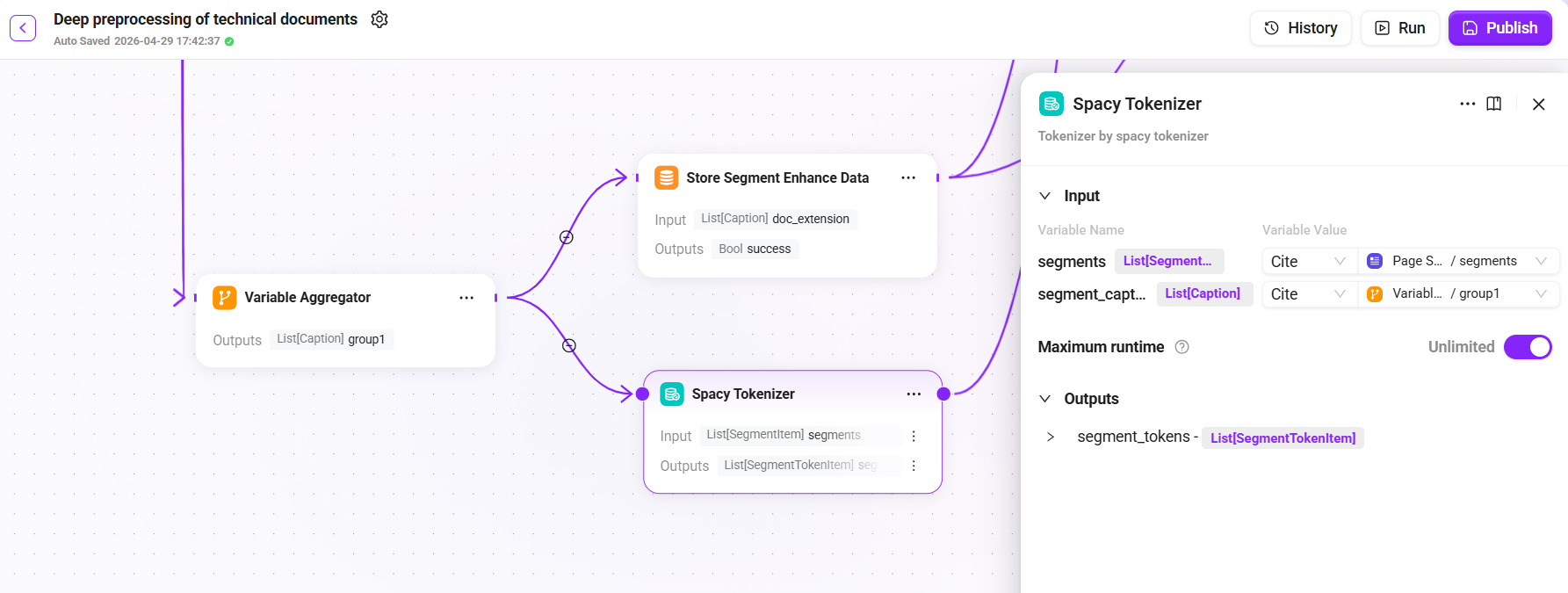
6. Tokenization Processing (Spacy Tokenizer)
Add the "Spacy Tokenizer" node (in parallel with storing paragraph enhanced data):
-
Input:
group1(aggregated paragraph data) and the original page-segmentedsegments(used to supplement original information) -
Output: tokenized
segments_tokenized
Uses Spacy to tokenize paragraphs and generate the Token sequence required for inverted indexing, supporting full-text retrieval capabilities.
7. Persistent Storage (Multiple Storage Nodes)
The end of the Pipeline includes the following storage nodes to persist various processing results:
|
Storage Node |
Input |
Description |
|---|---|---|
|
Stored File Text |
|
Store the complete raw text of the original document |
|
Store Document Metadata |
|
Store the document-level summary as metadata |
|
Store Segment Enhance Data |
|
Store paragraph enhanced data (summaries, image descriptions, table summaries) |
|
Embedding and Store |
|
Vectorize paragraphs (Embedding) and store them in the vector database |
|
Store Tokenized Segments |
|
Store tokenization results to support full-text retrieval |
|
Stored File Segmentation |
|
Store the original segmentation results |
After all storage nodes are completed, the flow converges to the End node, and the Pipeline execution ends.
Complete Flow Connection Diagram
Trial Run and Publish
-
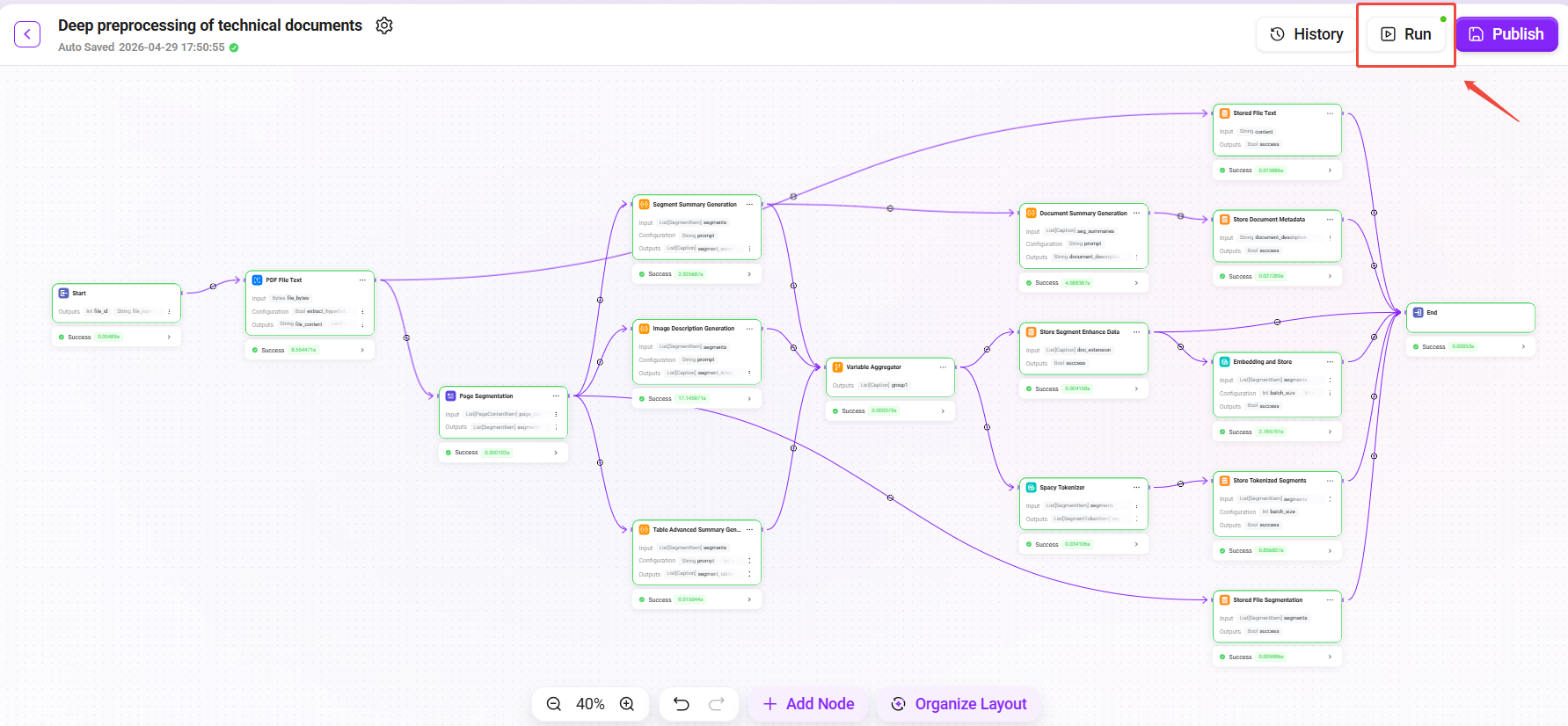
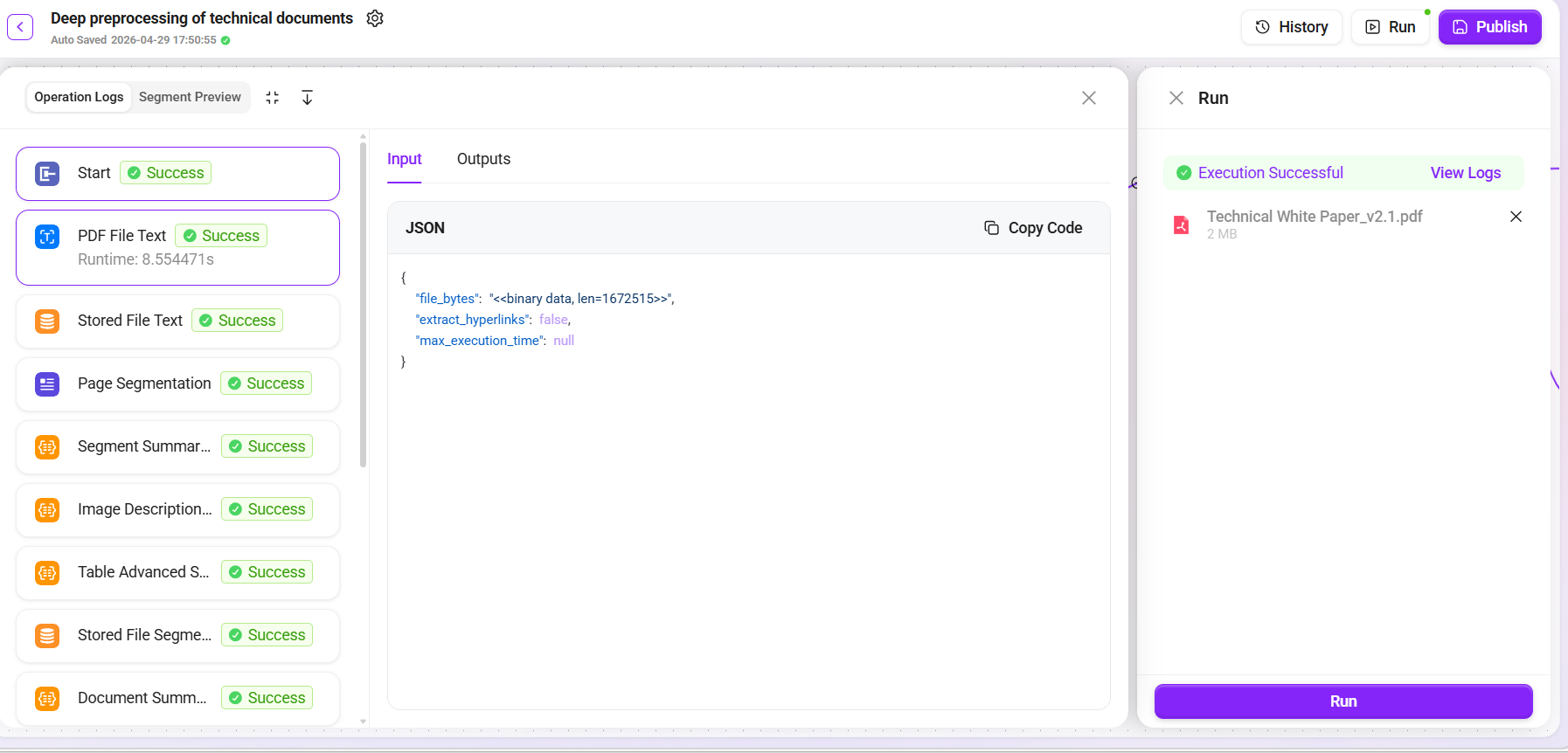
Click the "Trial Run" button in the upper-right corner.
-
Select the prepared
Technical_Whitepaper_v2.1.pdfas the test file. -
Check the run results and verify one by one:
-
✅ Text extraction: confirm that the PDF content is completely extracted without garbled text
-
✅ Page segmentation: confirm that paragraph splitting is reasonable without cross-topic mixing
-
✅ Paragraph summaries: confirm that the summaries accurately capture the core content of each paragraph
-
✅ Image descriptions: confirm that the image descriptions are consistent with the actual image content
-
✅ Table summaries: confirm that table data is correctly interpreted
-
✅ Vectorized storage: confirm that Embedding is successfully generated
-
-
After confirming that the trial run results are correct, click "Publish".
Note: To ensure testing efficiency, it is recommended to first use a small sample file no larger than 5MB and within 20 pages to test the run logic.
Step 2: Create a Knowledge Base and Upload Documents in RP Mode
After completing the preprocessing Pipeline configuration, the next step is to create a knowledge base and enable RP mode in the knowledge base, so that documents are automatically processed according to the published preprocessing Pipeline during ingestion.
Create a Knowledge Base and Bind the Preprocessing RP
-
Go to the system's Knowledge module.
-
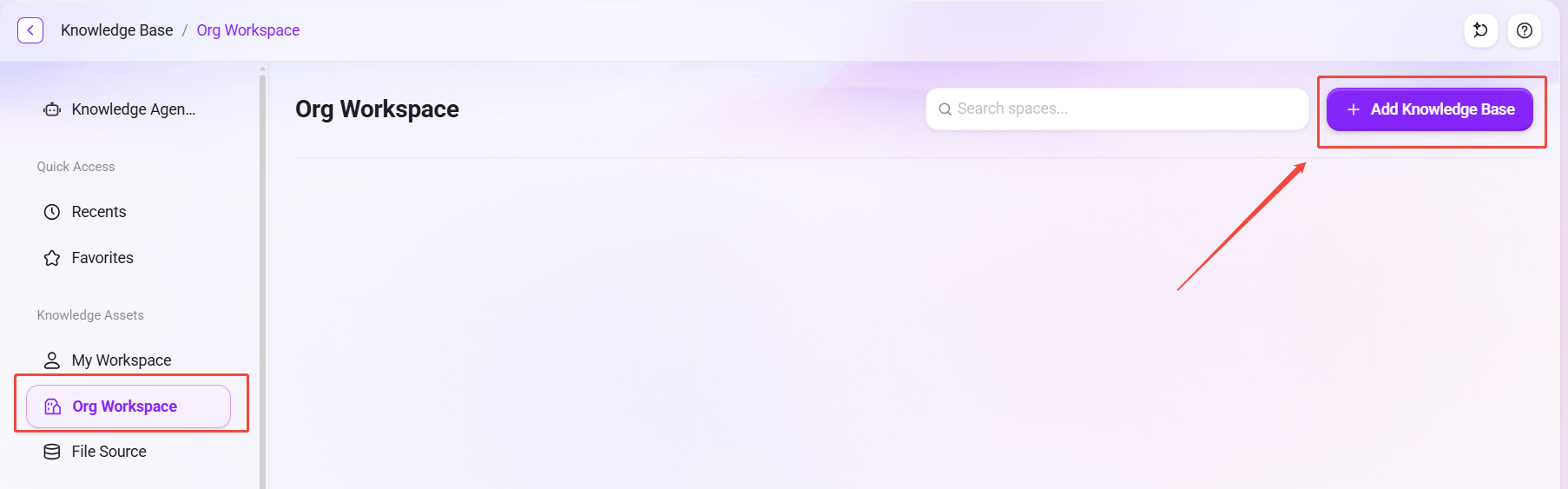
Click "Enterprise Space" in the left menu bar to enter the knowledge base management interface.
-
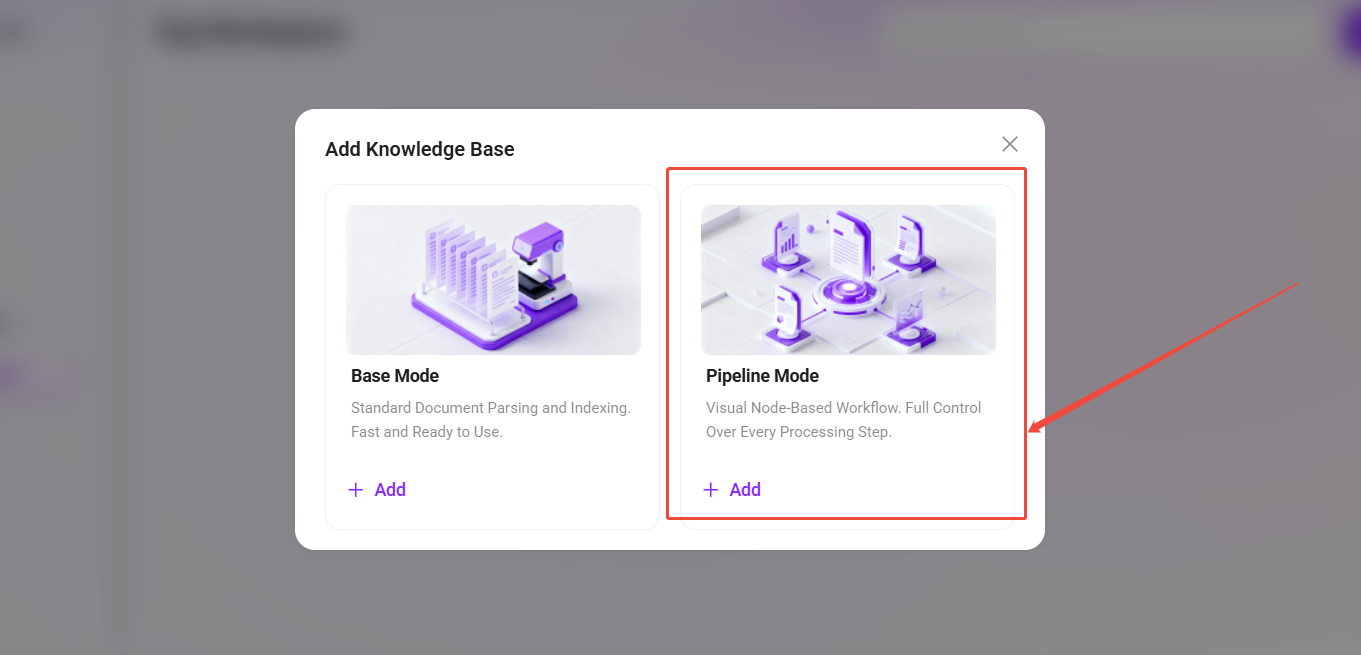
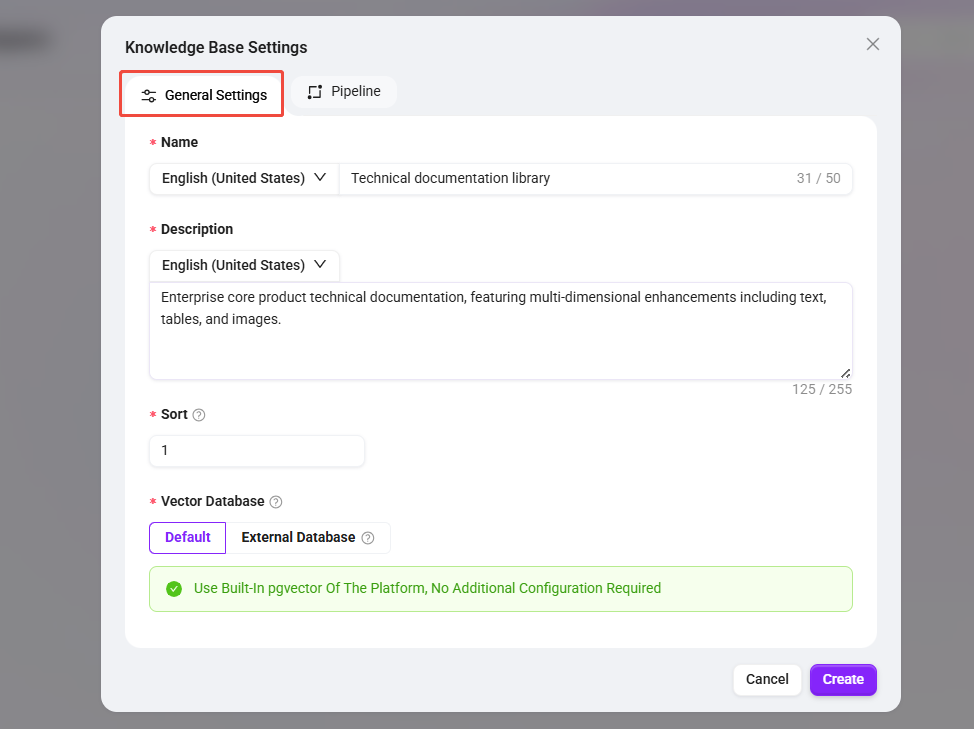
Click "+ Create Knowledge Base", select the "Pipeline Mode" mode, and fill in the following basic information:
-
Knowledge Base Name:
Technical Documentation Library -
Knowledge Base Description:
Technical documentation for the enterprise's core products, with multi-dimensional enhancement for text, tables, and images -
Sort Order:
1 -
Vector Database: keep the default and use the platform's built-in
pgvector -
Vector Model: select the platform's default
AzureEmbeddingmodel to generate vector representations for paragraphs and queries
-
-
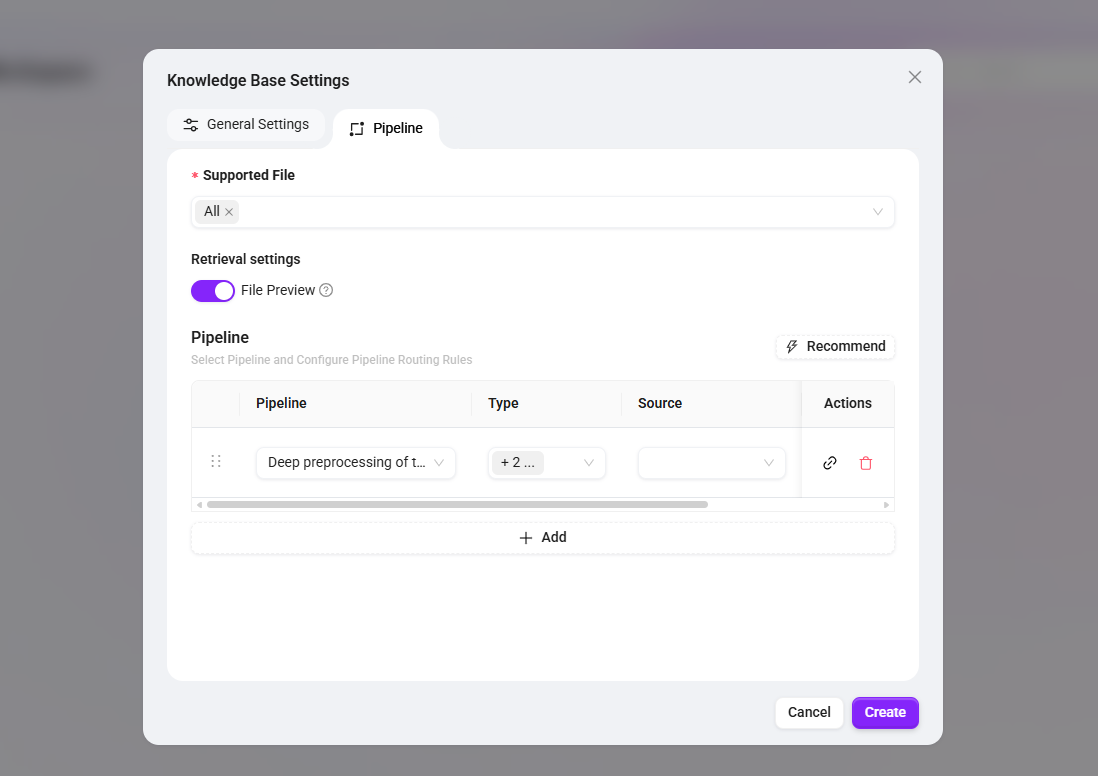
On the Pipeline configuration page, associate the published preprocessing Pipeline Mode:
-
Supported File Formats: check “All” so that multiple document formats can be processed later
-
Retrieval Settings: enable the “File Preview” feature to allow direct preview of original text snippets in retrieval results
-
Pipeline Selection: select the published
Technical Document Deep Preprocessing, and specify the file type asPDF(if support for other formats is needed, corresponding type Pipelines can be added)
-
-
After confirming the configuration is correct, click “Create” to complete the creation of the knowledge base and the binding of RP mode.
After creation is completed, when a user uploads a PDF file to this knowledge base, the system will automatically call “Technical Document Deep Preprocessing” to perform a series of processing steps on the PDF file, including text extraction, segmentation, multi-dimensional summary enhancement, tokenization, and vectorization.
Upload Technical Documents
-
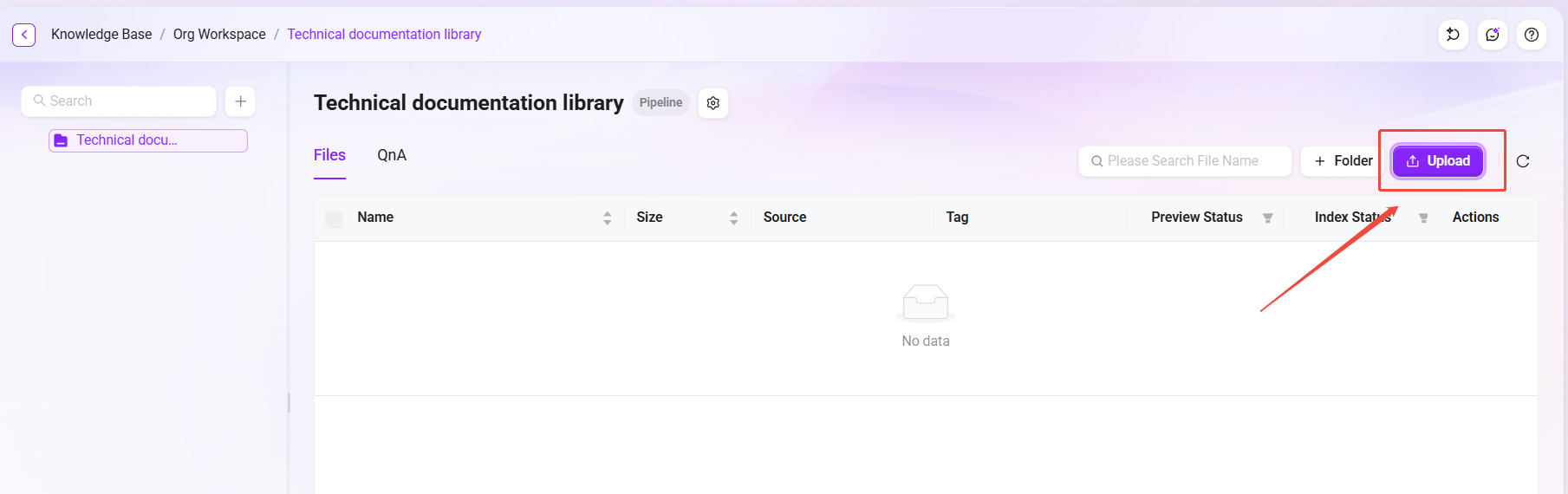
Enter the newly created knowledge base
Technical Documentation Library. -
Click "Upload File" and upload
Technical_Whitepaper_v2.1.pdf. -
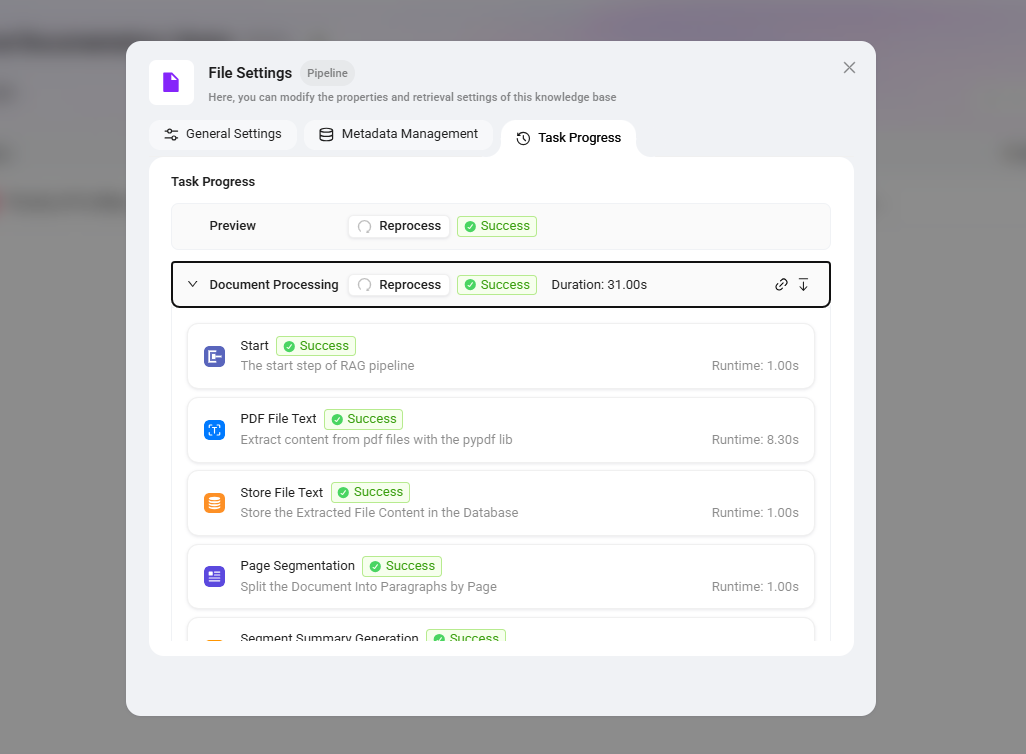
The system will automatically call the
Technical Document Deep PreprocessingPipeline in RP mode to perform full-chain processing on the document. -
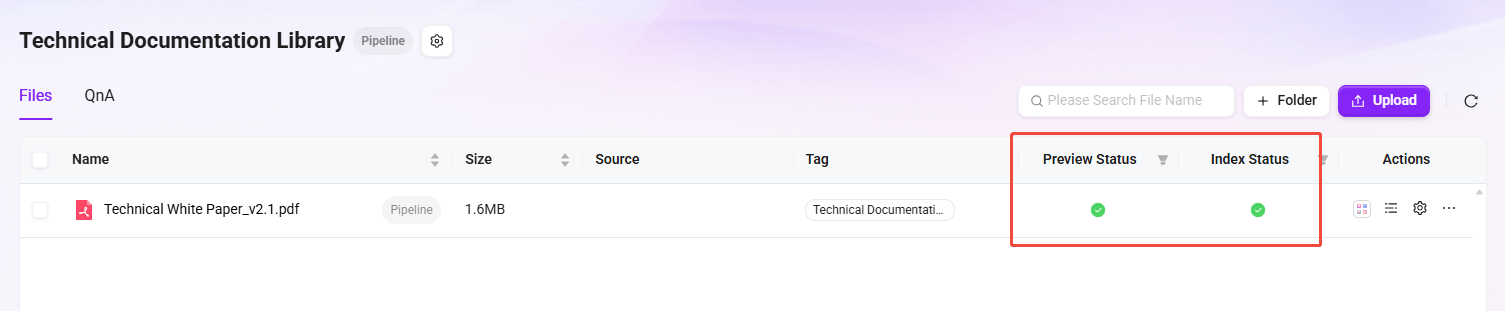
After the upload is completed, you can view the processing status and progress in the file list.
💡 Since this Pipeline contains multiple LLM invocation nodes (summary generation, image description, table parsing), processing time will be longer than that of a simple Pipeline. Please wait patiently.
Verify Knowledge Base Ingestion Results
-
Go to the document details page of the knowledge base.
-
Verify the following:
-
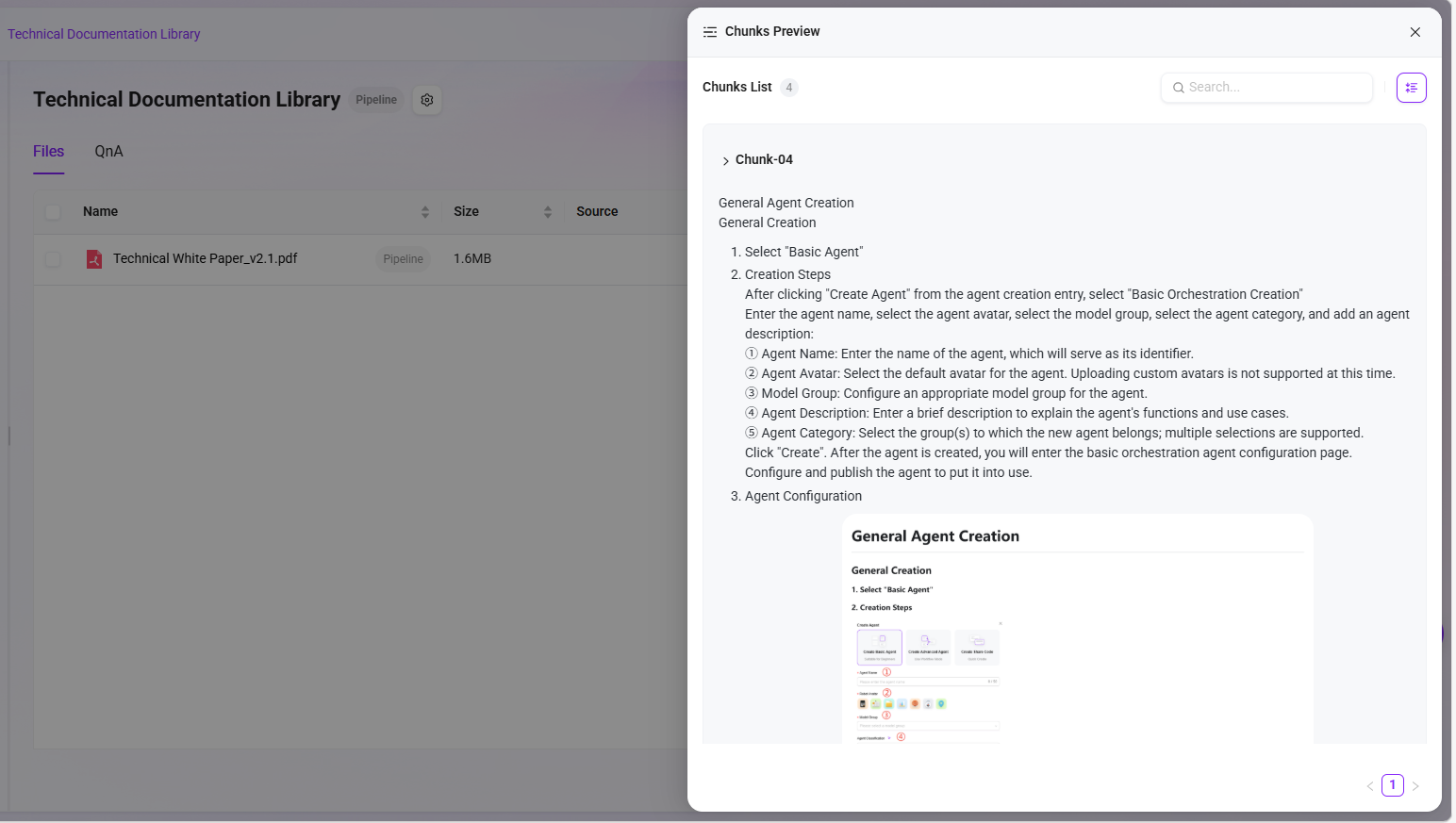
✅ The document fragment list is displayed correctly
-
✅ Each fragment contains enhanced data (summaries, image descriptions, etc.)
-
✅ The document metadata contains a global summary description
-
✅ Both vector data and tokenization indexes have been generated
-
Next Step
The preprocessing Pipeline and knowledge base are now ready. Next, please read Configure the Retrieval Pipeline and Agent Q&A to complete retrieval chain orchestration and end-to-end Q&A validation.
Related Documents