
M365 Cost Control
Status: GA | Audience: Customers & partners | Owner: SoftwareOne BI & Data Solutions
Microsoft 365 licensing optimization and governance — part of the Cloud Cost Control (CCC) platform from SoftwareOne (formerly Crayon). Plug-and-play deployment in hours, not weeks. Typical outcome: 15–30% cloud cost reduction within the first 90 days.
On this page
-
What is M365 Cost Control?
-
What you get
-
Customer Value
-
Supported license types
-
Getting Started with M365 Cost Control
-
What happens during onboarding
-
M365 CC Known Limitations
-
M365 CC: Frequently Asked Questions
-
Offboarding
-
Contact & support
What is M365 Cost Control?
M365 Cost Control is a module within the Cloud Cost Control (CCC) platform — a vendor-agnostic, multi-cloud FinOps platform covering Azure, AWS, Google Cloud, and Microsoft 365. The M365 module focuses specifically on identifying licensing waste, optimizing user assignments, and giving you transparent governance over your Microsoft 365 estate.
💡 Why it matters Most organizations overspend on M365 licensing by 15–25% — through unused licenses, oversized SKUs, and inactive users. M365 Cost Control surfaces exactly where, so you can act.
Key capabilities at a glance:
-
Plug-and-play deployment (hours, not weeks)
-
User right-sizing and license optimization
-
Unallocated license identification
-
User inactivity mapping
-
Copilot adoption and usage tracking
-
White-label available for partners
What you get
|
Feature |
What it does |
|---|---|
|
Cost Overview |
Month-over-month cost view, segmentable by tenant, product, company, department, or country — down to user level. |
|
License Overview |
Month-over-month assigned licenses, new account tracking, unit cost, assigned vs. available counts, and waste. |
|
Savings Potential |
Total potential savings broken down by Unallocated Licenses, Inactive Users, and User Right-Sizing, with a waterfall from current to potential monthly cost. |
|
User Right-Sizing |
Per-user license recommendations based on 90 days of actual usage across Exchange, OneDrive, and SharePoint, combined with activation platform and security features (Legal Hold, ATP). |
|
Inactive Users |
Identifies users with no activity in the last 90 days and the reclaimable license cost. |
|
Unallocated Licenses |
Highlights licenses being paid for but not assigned to any user. |
|
Copilot Licenses |
Adoption tracking by product, daily usage trends, and per-user recommendations to revoke or retain. |
|
Power BI Licenses |
Standalone and bundled (e.g., M365 E5) license tracking with usage-based savings actions. |
|
Project & Visio Licenses |
Premium license tracking with usage flags, desktop vs. web activation, and account-enabled status. |
|
Usage Details |
Full exportable dataset with historical snapshots so you can track how your estate changes over time. |
Supported license types
M365 CC covers the most common Microsoft 365 commercial SKUs, including:
-
M365 (Microsoft 365) and O365 (Office 365) E5, E3, E1, F3, F1
-
"No Teams" (NT) variants
-
"No Teams EEA" variants (European Economic Area)
-
Unattended Licenses (UL)
⚠️ Not currently in scope Educational licenses (A3/A5) and M365 Business SKUs (Basic, Standard, Premium) are not supported today. Contact us if you have a specific need.
Getting Started with M365 Cost Control
Data we need from you the Account Manager
To begin onboarding, provide the following to your SoftwareOne account team:
-
Customer Name
-
Customer Country
-
Customer Main Contact Name and Email, this person must have Global Admin rights in Microsoft 365
-
Microsoft Tenant Name (e.g., xxx.onmicrosoft.com), for multi-tenant customers, provide details for each tenant or indicate "Multi-Tenant Customer = Yes"
-
Customer Domain Name (must start with
@and end with a top-level domain, e.g.,@company.com). Need help finding it? See Microsoft's guide -
Country Code
-
List of usernames with email addresses that will need dashboard access (max 10 users)
-
Day of the month for data refresh
-
Preferred refresh frequency: Monthly (default), Quarterly, or Weekly
What happens during onboarding
Once you submit the required data, you will receive an email with a concise guide and a link. Three steps are required, both performed by the Global Admin:
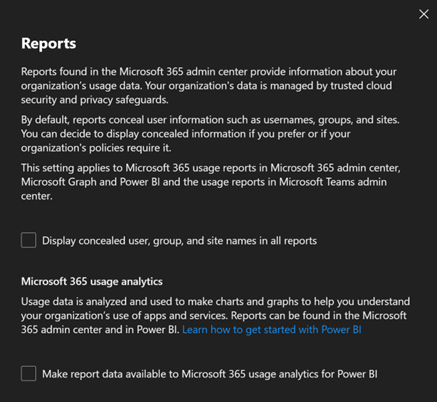
Step 1: Disable data anonymization
Navigate to the Microsoft 365 Admin portal and ensure the anonymization setting is unchecked (i.e., data is NOT anonymized). The onboarding email includes a direct link to this setting.
❗ Critical Without this step, M365 CC cannot produce meaningful user-level insights. A recent Microsoft change reversed the default please verify the setting is correctly configured.
Step 2: Authorize data access via Microsoft Graph API
The Global Admin authorizes data access via the Microsoft Graph API using the following read-only permissions:
|
Permission |
What it does |
|---|---|
|
|
Reads audit log data (e.g., Power BI sign-in logs) |
|
|
Accesses directory resources: users, groups, license subscriptions and assignments |
|
|
Reads service usage reports (e.g., SharePoint usage) |
|
|
Accesses full user profile details, reports, and manager hierarchy |
|
|
Verifies tenant details (e.g., tenant ID) before generating reports |
|
|
Reads call records to include PSTN data (no data is fetched if PSTN is not in use) |
🔒 All permissions are read-only. M365 Cost Control never modifies your tenant, licenses, or users.
Granting consent automatically provisions an Enterprise Application in your tenant. You can remove this application at any time.
For multi-tenant customers, repeat these steps for each tenant. The onboarding process continues only when all tenants have completed both steps.
If you need to access the consent app directly (e.g., for legacy setups meaning a customer was onboarded before 2025): https://onboarding.crayonfinops.com
Step 3: Accept the B2B invitation
Once the above is complete, data begins syncing automatically. You and the onboarding team will each receive an email containing:
-
A Microsoft Entra B2B invitation — you must accept this to gain access
-
A link to your M365 Cost Control dashboard
If MFA is not already enabled, it will be required as part of the tenant policy and set up during the B2B onboarding process. After completing B2B onboarding, you are automatically redirected to Cloud Cost Control.
M365 CC Known Limitations
Unverified application consent screen
The consent dialogue currently states the application is unverified because we do not yet have a Microsoft publisher verification badge. This is cosmetic and does not affect functionality — we are working on resolving it. After clicking Accept, you may be redirected to a second login form; please complete it to finish onboarding.
Anonymization setting
A recent Microsoft change reversed the default behavior. The anonymization option must now be unchecked to ensure data is NOT anonymized (previously it was the opposite). If User Principal Names in the "Inactive Users" report look different from those in other reports (e.g., "Project Planner & Visio"), anonymization is likely still enabled.
Unsupported SKUs
Educational licenses (A3/A5) and M365 Business licenses (Basic, Standard, Premium) are not currently supported.
M365 CC: Frequently Asked Questions
My customer was onboarded but their license portfolio shows many O365/EMS licenses instead of M365. What happened?
Microsoft historically sold these products standalone. Many tenants still reflect the original O365/EMS SKUs even though the customer is entitled to M365. Contact CloudCostControl@crayon.com to flag the customer as having a "Unified" contract, and the licenses will be converted and displayed correctly. In some cases, a customer may have a mixed profile (some unified, some original).
Can a savings recommendation lead to non-compliance?
In theory, yes, which is why M365 CC should always be paired with SAM/FinOps advisory services. All recommendations are grounded in analysis of user activity over a specific period but may not account for every business scenario. For example, a downgrade to F3 implies the user works on a shared device (≤10.9" screen) or exclusively on mobile. Each recommendation should be validated with the customer before execution.
How does the right-sizing algorithm work?
The algorithm evaluates each user across four dimensions:
-
Actual usage of Exchange, OneDrive, and SharePoint against defined thresholds
-
Activation platform (computer, shared computer, mobile-only, or none)
-
Security and compliance features (Legal Hold, ATP)
-
Current license assignment
Based on this analysis, it recommends the appropriate license tier (E5, E3, E1, F3, or F1), including "No Teams" and "EEA" variants where applicable.
Does CCC support the recent Microsoft change removing Teams from O365/M365 bundles?
Yes. CCC provides full support for "No Teams" and "No Teams EEA" licenses in right-sizing analysis, with clear dashboard labels: NT = No Teams, UL = Unattended License, EEA = European Economic Area.
Are Educational (A3/A5) or M365 Business (Basic/Standard/Premium) licenses supported?
Not currently. Educational licenses are typically free or low-cost and would not yield meaningful savings recommendations. M365 Business SKUs for SMBs are not yet within our target scope.
Offboarding
To offboard, contact your SoftwareOne account manager or email CloudCostControl@crayon.com with all relevant Tenant IDs. The Enterprise Application can also be removed by the customer directly from your Microsoft 365 admin portal at any time.
Contact & support
|
Need |
Contact |
|---|---|
|
Onboarding, offboarding, or support |
|
|
Request a demo |
Your SoftwareOne account team |
|
White-label inquiries |
SoftwareOne BI & Data Solutions team |
Sales Material
One-Pager
M365_Cost_Control_one-pager.pptx
This page is maintained by the SoftwareOne BI & Data Solutions team. For internal documentation, see the CCC team space.