
This article takes you through how to assign servers to applications.
Contents
Assign servers via the server upload CSV
Disassociating servers from applications
Assign servers manually
Within the platform you can assign servers manually to their associated applications, servers can be assigned to more than one application. This is done on the servers page:
Portfolio (Tab) - Servers (Drop Down) - Server Inventory (Sidebar)
On this page click on a server to bring up the dialog with the details of the server. To assign the server to an application, select 'Add application' this presents a list where you can select the application the server relates to. To associate the server with additional apps, click on 'Add application' again and choose another application.
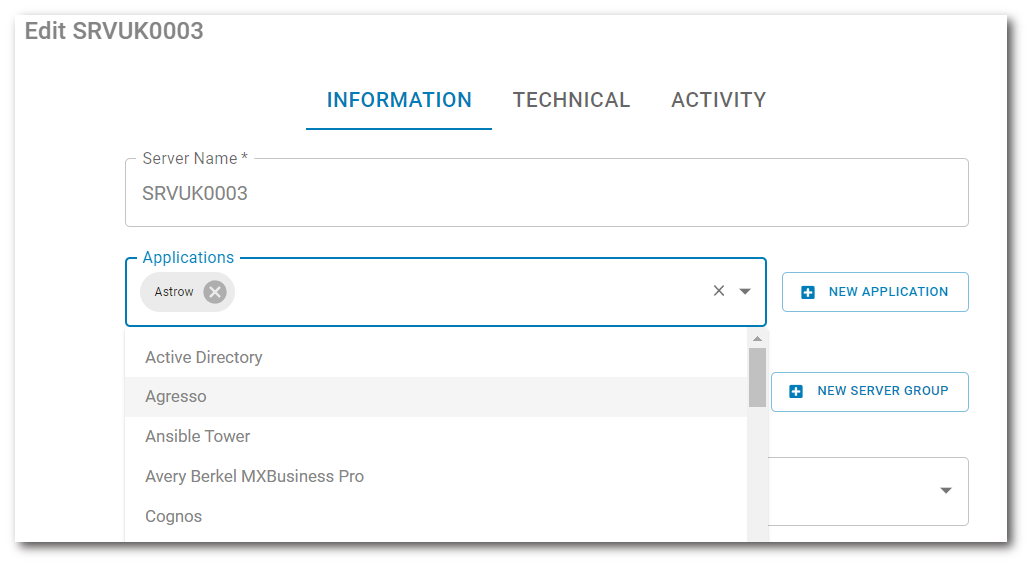
Once confirmed you can select 'Save' within the pop-up. The server is then associated with that application(s).
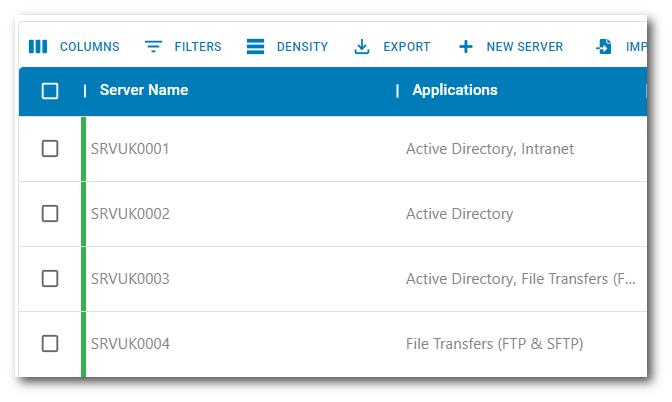
To assign multiple servers to applications, select the required servers from the list on the Servers screen and choose 'Bulk Edit' button. Then follow the same steps as above to add the applications.
Assign servers via the server upload CSV
Alternatively, whilst uploading or re-uploading server information you can include the application name in the 'applications' column in the import file. Please see our guide on importing server data.
Disassociating servers from applications
To remove the association between servers and applications, in the server detail dialogue use the 'Remove' button in the detail dialogue where you add the application. The bulk edit option cannot be used to remove associations.
To contact AppScore sales or support for any reason at all, simply email help@appscore.net and one of the team will get back to you. If your issue is urgent, please mark the email as URGENT in the subject line.